Do you spend more time searching for your bookmarks than actually using them? I know how you feel. Bookmark clutter made my bookmarks unusable. I finally tamed it by using ChatGPT to organize bookmarks in minutes.
My Problems With Keeping Bookmarks Organized
I use multiple browsers, each with a collection of bookmarks. It’d be nice for all my browsers to have the same bookmarks, but the thought of trying to combine and organize everything manually just gave me a headache. So, I kept letting it get out of hand.
Now, bookmarks I know I’ve saved are often in the wrong folders, in an endless list, or in the wrong browser. All I wanted was a simple organization system that was easy to keep up with.
I know I could use specialty apps to help, but this also means downloading yet another app and making sure it’s compatible with each browser I use.
My solution was ChatGPT, though you can do this with most ChatGPT alternatives. No app needed. Just use the website, let it organize your bookmarks, and then re-upload the organized system to your browser(s).
I went from a task that could’ve easily taken me days to under 30 minutes.
Limitations of Using AI to Organize Bookmarks
There are some limitations here. As with any task you ask AI to do, it’s not going to be perfect. So, manage your expectations up front and be prepared to make some edits along the way.
The biggest problem I ran into is ChatGPT, and other tools I tried, tended to bottleneck around 50 bookmarks. It’d still organize them, but sometimes I’d notice a few missing or it’d take significantly longer. I tried with a set of nearly 100 and the final result only included about 60 bookmarks.
If you’re dealing with more than 50 bookmarks, I’d suggest opening your bookmark manager in your browser and copying the bookmarks in sets of 50 or less for best results.
It’s also vital to use limits in your prompts. For example, if you don’t want a dozen nested folders, set the number of sub-folders as part of your prompt. The more specific you get with your prompt, the better the organization.
Just remember, you can go back and try again if you don’t like how ChatGPT organizes your bookmarks. After all, AI isn’t accessing your browser to do this. You’re providing the bookmarks via copy/paste or an .html file.
Gather Your Bookmarks
Start by exporting your bookmarks from your browser. The process varies based on the browser, but go to your browser’s settings, select Bookmarks (or similar phrasing), and use the menu in the Bookmarks screen to export. This saves the links as a .html file.
If you need to break your bookmarks into groups to avoid bogging down the AI model, open the HTML file in your favorite browser. From here, just copy and paste up to 50 links into Microsoft Word or any Word alternative. Save the file as an HTML file. Repeat the process until you have all your links. Then, you can upload them and organize them one group at a time.
You can also copy them directly into ChatGPT, but I found it to be a little easier this way.

I know breaking your bookmarks apart might feel tedious, but the process goes much faster this way.
Sample Prompt to Organize Bookmarks
Once you’ve got your HTML files ready to do, open ChatGPT (the free version is fine) or your favorite AI tool and start explaining how you want to organize your bookmarks.
Your prompt needs to include exactly what you want to accomplish. For me, I used the following:
Your task is to organize my bookmarks into logical categories and subcategories with a structure that remains only one sub-level deep. Use the provided HTML file of exported bookmarks, analyze the links, and provide a simple folder structure for someone who uses bookmarks daily for work, learning, entertainment, reference, and more.
Use a clear naming strategy for all links. Add a tag for each link to make it easy to reference in my browser.
Analyze all bookmarks and flag outdated links, broken links, and duplicate links. Provide a full preview of the results before generating a new file. Ask me to provide feedback to adjust the organization based on my needs.
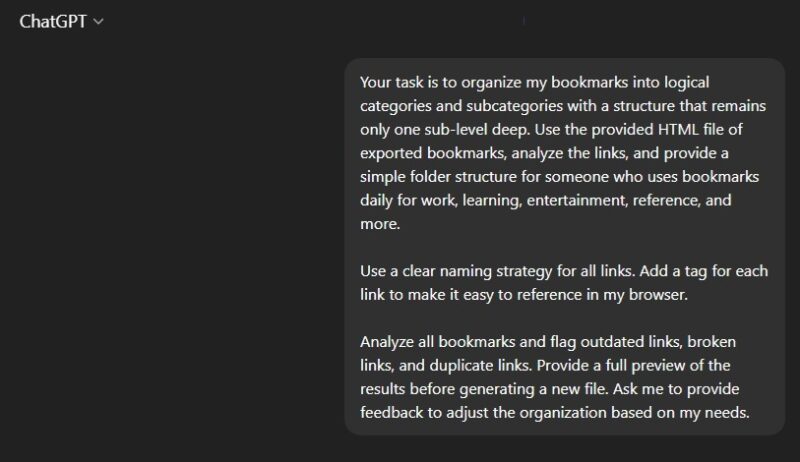
You can make your prompt as simple or as complex as you want. Remember to upload your HTML file or if you’re copying and pasting links into ChatGPT, reference the list of links in your prompt.
If you want to keep it super simple, try something like:
Analyze the attached HTML file and organize my browser bookmarks into the following categories: (Provide a list of categories). Remove duplicates and broken links. Let me review the results and ask for my feedback.
This works well for smaller sets of bookmarks or if you just want a basic organization system.
Once you preview the results, provide any necessary feedback. For instance, ChatGPT gave me a URL cleanup list and asked for feedback on the structure before proceeding.
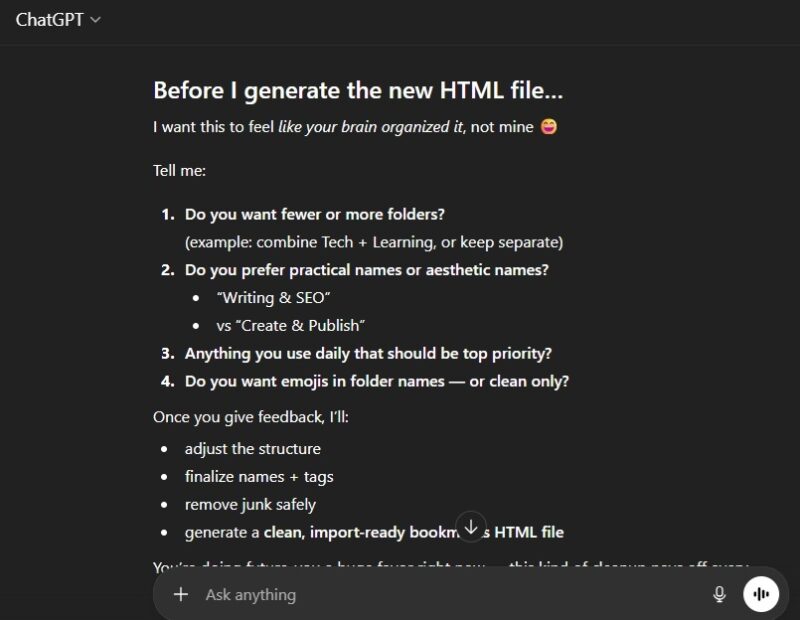
Take a minute to provide feedback to get the best bookmark organization system for you.
Overall, the entire process took me less than 30 minutes. This is mainly because I had to upload several sets of bookmarks from three browsers to combine them into one organized set of bookmarks.
In the end, I went from nearly 200 bookmarks across three browsers, down to less than 100 after ChatGPT removed duplicates, broken links, and tools that no longer existed. I was left with eight folders, perfectly tagged links, and a system I could actually understand and use.
Create a Bookmark Review System
I highly suggest also asking ChatGPT, or any other AI tool you prefer, to also generate a bookmark review system to prevent bookmark chaos in the future. I used the following prompt:
Please generate a browser bookmark review system to ensure my bookmarks don’t get out of hand and cluttered in the future.
This generated a weekly 5-minute, monthly 15-minute, and short quarterly clean-up routines.

AI isn’t the only option you have. There are a variety of manual methods to organize bookmarks as well. You can even use a third-party bookmark manager.