
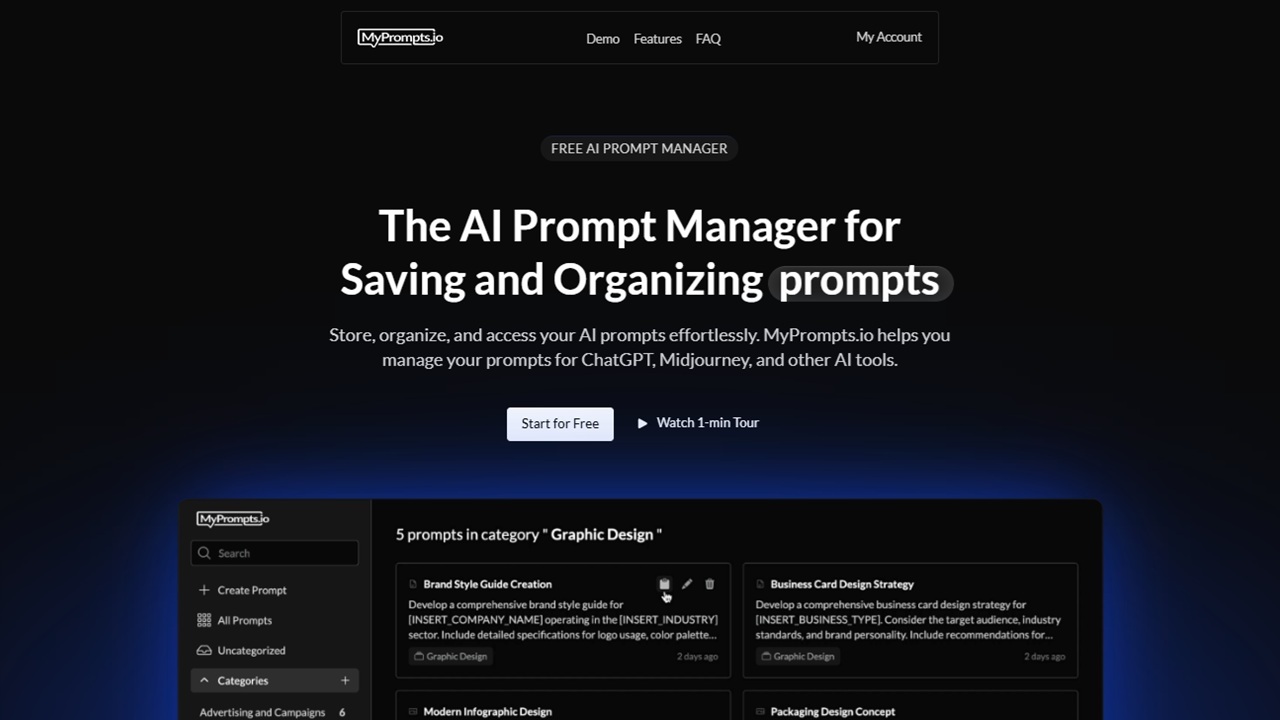

Crafting incredible AI prompts takes time, so you want to hold on to your favorite prompts to use again. If you’re like me, you use multiple AI chatbots, which scatters your prompts across platforms. I started using MyPrompts to easily organize and store AI prompts, no matter what chatbot I use.
Why I Stopped Using Other Options
I’ve tested storing AI prompts in Microsoft Word and Google Docs, spreadsheets, Notion, Evernote, the basic Notepad in Windows, and CherryTree. Nothing worked how I wanted without a lot of setup and maintenance. I like solutions that setup quickly and work right out of the box.
This finally led me to MyPrompts.io. It’s an AI prompt database. It’s not the only option available, but it’s one of the few options that’s completely free. The site’s FAQs do state a premium tier may be introduced later, but the core AI prompt storage functionality will always be free.
There are zero limits to how many prompts you can do. I currently have almost 100 prompts in my database, neatly organized into categories.
I had all my categories setup and was adding prompts in less than five minutes. That’s just one of the reasons I chose MyPrompts to store AI prompts.
Simple Database Structure
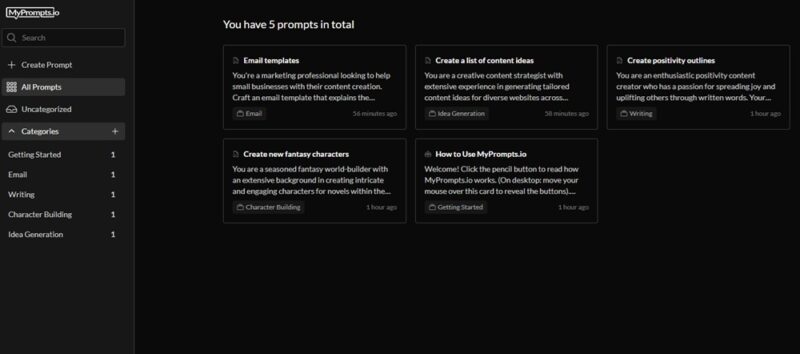
I didn’t have to download or set up a new page or template like I would have to on Notion or Evernote. Instead, MyPrompts uses a simple database structure of categories. Create as many categories as you want and add AI prompts to each.
Then, each prompt shows up as a card. It feels a bit like having digital index cards.
Like most databases, there’s a search feature. Enter any keyword to view relevant prompts.
For those looking for a complex nesting structure, tags, or color coding, you’ll be disappointed. It’s a very simple database with categories to store AI prompts. That’s it. That’s also what makes it so user-friendly and effective.
The Blazing Fast Setup
I set up a new account just to test how long everything takes. From signing up, adding four categories, and adding a prompt to each, it took around five minutes total. Of course, adding prompts went quickly since I was just copying and pasting them. If you’re typing them out from scratch, it’ll take a bit longer.
It’s three steps to go from creating an account to storing your first prompt.
- Sign up for an account. It’s free and just requires an email address, username, and password.
- Create your first category.
- Add your first prompt to your category.
From start to finish, this takes just a few minutes.
Organize AI Prompts in Categories
If you’re not using categories, you’re just asking for chaos. Click the + beside Categories and set up the categories you think you might need. You can always add, remove, or edit later. Just add a name, description, and slug, and that’s it.
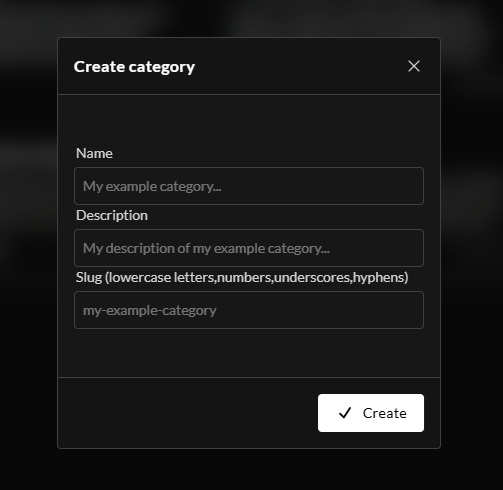
If you’re not sure where to store an AI prompt at any point, skip choosing a category and it lands in the Uncategorized section. I highly suggest cleaning this section up regularly so you don’t end up with a mass of prompts that you have no clue what they’re about.
Add AI Prompts to Categories
Click Create Prompt to create a new prompt. You can’t do this from within a category. It’d be a nice feature to have, but not necessary.
Once again, I love the simple process. Enter a title, select a prompt type (text, image, etc.), choose a category, and enter the prompt. That’s it.
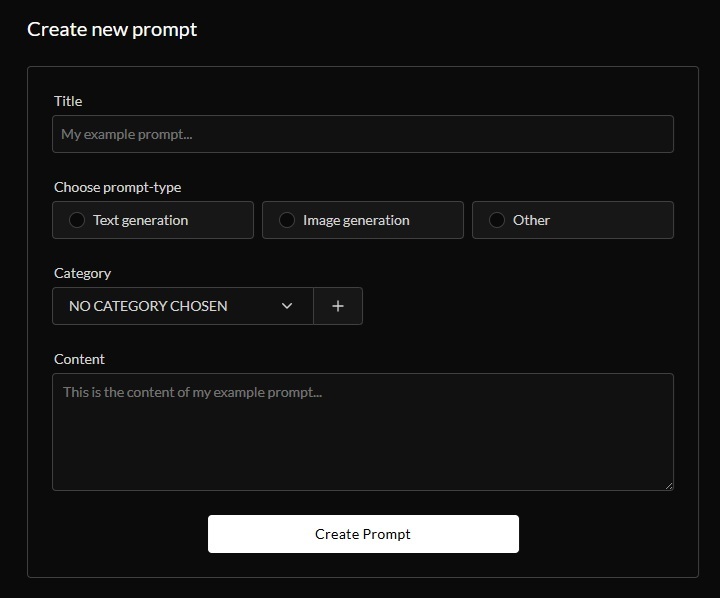
I recommend using a keyword in your prompt title to make it easier to find later. Remember, the more prompts you add, the more you’ll rely on the search feature to find what you need.
Using Prompts With AI Tools
An issue I found with some other AI prompt storage tools and apps was they only worked with certain platforms. You had to link your accounts to make things work.
MyPrompts does what it does best – keeps the process simple. Any chatbot that uses a textbox is compatible. It’s just a matter of copying and pasting the prompt from your database to the chatbot.
Bring up the AI prompt card by using search or opening the category. Hover over it and click the clipboard icon to copy the prompt. You don’t have to open the prompt itself.
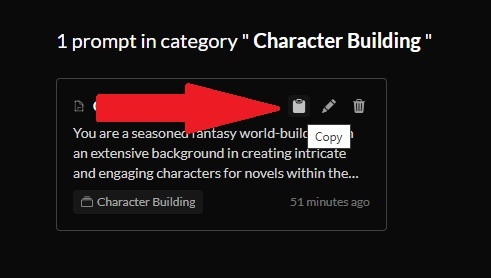
This means it works no matter what device you’re using or what AI chatbot you want to use the prompt with. It’s a universal AI prompt storage tool.
A Focus on Privacy
I hesitated to use a free tool. I instantly assumed I’d be bombarded with ads and any prompts I entered would be sold to the highest bidder. That’s not the case.
MyPrompts stores all prompts privately. They’re not sold or used for AI training. There are no ads at all. Just a clean, minimal interface that makes it easy to find the prompts I’m looking for. The best part is, if you delete your account, all data is deleted with it.
If you’re just starting to save and store AI prompts, try these tips for crafting more effective prompts. Or, try these tools to create prompts for you.