
Surely, I am not alone in my frustration with how Microsoft manages Windows updates. Their pushy approach often disrupts workflows, and the bugs that often follow make things worse. While disabling updates entirely is a security risk, I use these Windows Registry hacks to regain control and make the process far more bearable.
Warning: before following these registry hacks, make sure you back up the Registry. Any incorrect changes in the Registry can lead to system corruption and data loss.
Prevent Windows From Automatically Downloading and Installing Updates
By default, Windows will automatically download and install updates as they become available, and you’ll only be notified when an update needs to restart your PC. I find this behavior very disruptive as they often download and install while I am working, or worse, playing games, leading to ping spikes, stutters, and frame drops.
The following registry hack will prevent Windows from downloading and installing updates automatically, and you’ll get a notification to manually allow:
Open the Windows Registry Editor and move to the following location:
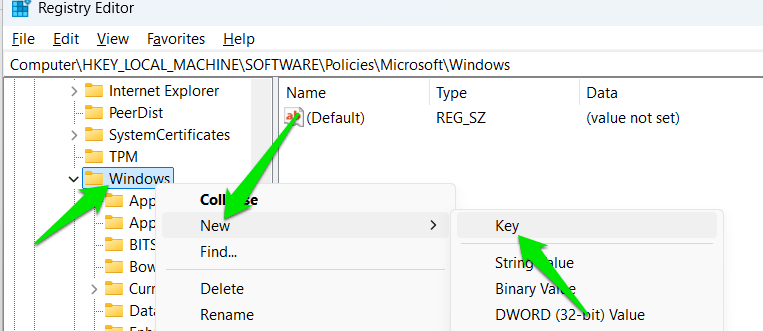
HKEY_LOCAL_MACHINE\SOFTWARE\Policies\Microsoft\WindowsRight-click on the Windows key and select New → Key. Name this key WindowsUpdate. Afterward, create another key under this new WindowsUpdate key and name it AU.
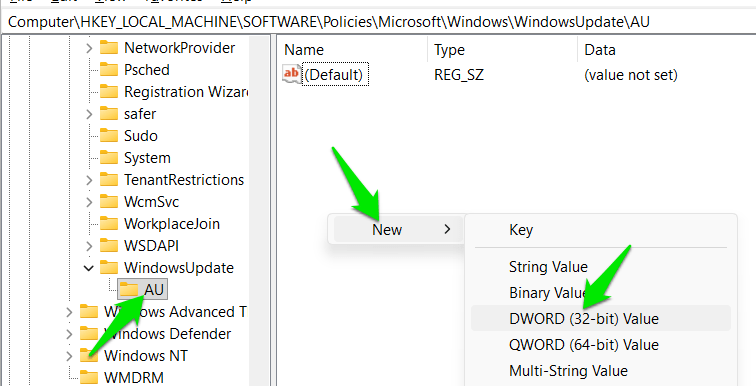
Select the AU key, right-click in the right panel, and select New → DWORD (32-bit) Value.
Name this value AUOptions, double-click on it to open it, and set the value to 2.
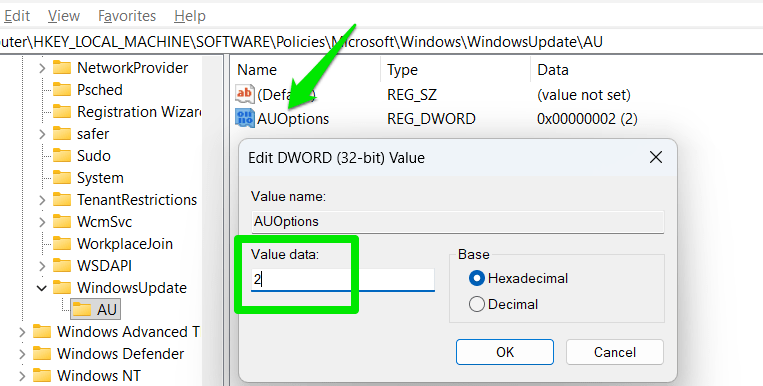
That’s it, now Windows will always ask you for both downloading and installing updates; the whole process will become manual. However, this won’t work if you have Get the latest updates as soon as they’re available option enabled on the Windows Update page. Make sure it’s disabled by opening Windows Settings and going to Windows Update.
Stop Windows From Automatically Restarting to Update
Windows will automatically restart your PC during inactive hours to install updates. This can disrupt work if you leave your PC on during inactive hours. I prefer restarting manually, so I use this registry hack to block Windows from rebooting the system while I am still logged in.
Move to the AU location again in the Registry as we did above. I am providing the path below for you to easily copy/paste:
HKEY_LOCAL_MACHINE\SOFTWARE\Policies\Microsoft\Windows\WindowsUpdate\AUCreate a new DWORD value here and name it NoAutoRebootWithLoggedOnUsers. Double-click on it and set its value to 1.
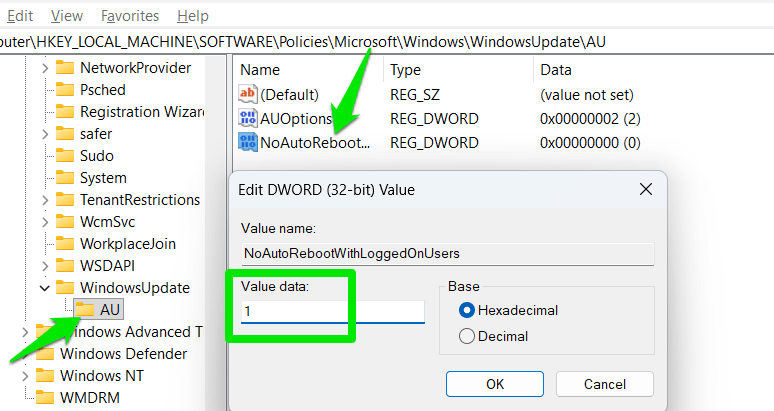
Now Windows will only automatically restart and apply updates when you sign out of your account, and it’s inactive hours period.
Lock Windows to a Specific Version to Stop Feature Upgrades
The yearly Windows feature updates (like 24H2 or 25H2) are usually the most impactful that can completely change UI and workflows. If you don’t want those big updates (and the associated nagging) and still want all other security/cumulative updates, use the following registry hack:
Go to the following location in the Registry:
HKEY_LOCAL_MACHINE\SOFTWARE\Policies\Microsoft\Windows\WindowsUpdateIn WindowsUpdate, you need to create three values: one DWORD and two String values. Just right-click in the right panel and select DWORD (32-bit) Value once and String Value twice. Name and set values of these entries as follows:
- DWORD →
TargetReleaseVersion= 1 - String →
ProductVersion= Windows 11 - String →
TargetReleaseVersionInfo= enter your current Windows version, like25H2.
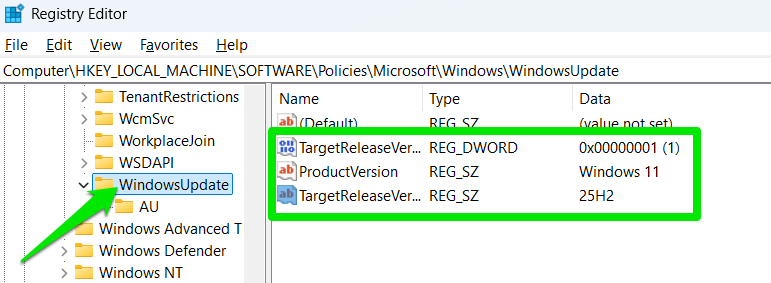
When you need to upgrade, enter the version of Windows you want to upgrade to in the TargetReleaseVersionInfo value. You can also just delete these values.
Prevent Automatic Update of Drivers Through Windows Updates
Windows updater also updates your device drivers, and it doesn’t always select the best. Although Windows does have a UI method to disable automatic driver updates, it only blocks manufacturer apps, not all drivers. I use specific drivers for GPU and update drivers myself manually, so I use this registry hack to completely disable driver updates via Windows updates:
Move to the following location again:
HKEY_LOCAL_MACHINE\SOFTWARE\Policies\Microsoft\Windows\WindowsUpdateIn WindowsUpdate key, create a new DWORD value and name it ExcludeWUDriversInQualityUpdate. Double-click to open it and set its value to 1.
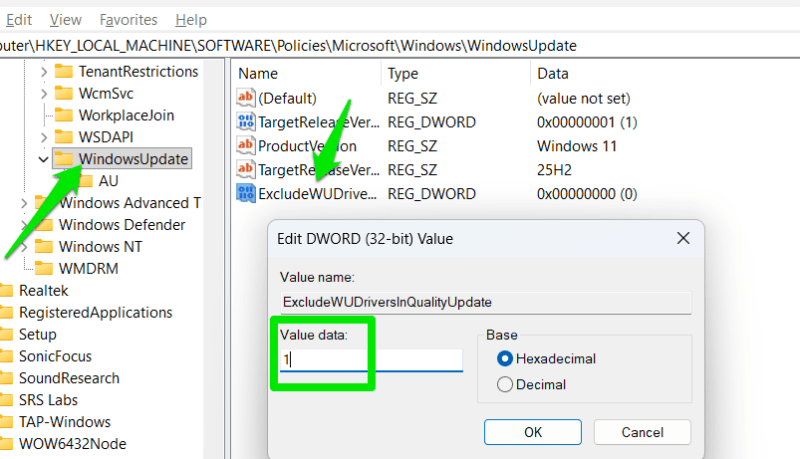
Now, Windows won’t even search for drivers when looking for a new update.
Pause Windows Updates Beyond 5 Weeks
While I don’t disable Windows updates, I do often pause them on newer PCs after fully optimizing them to test and confirm stability. The 5-week limit provided by default is a bit confining, so I use this registry hack to increase that limit:
Access the following location in the Registry:
HKEY_LOCAL_MACHINE\SOFTWARE\Microsoft\WindowsUpdate\UX\SettingsIn Settings, create a new DWORD value and name it FlightSettingsMaxPauseDays. Afterward, open it, set Base to Decimal, and the value to 365 (more days can be selected).
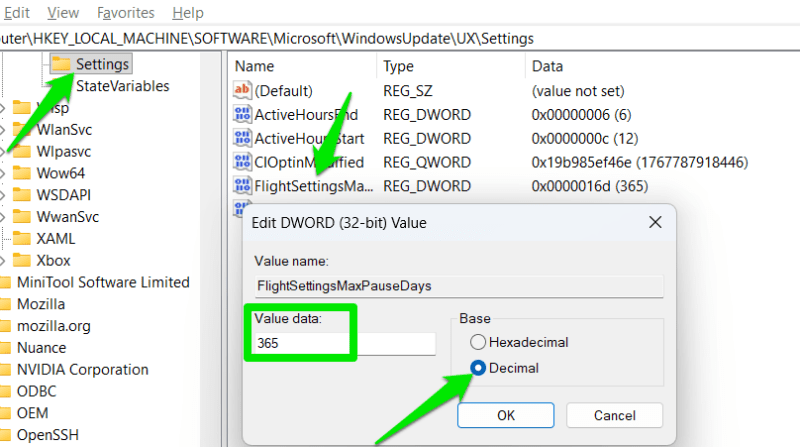
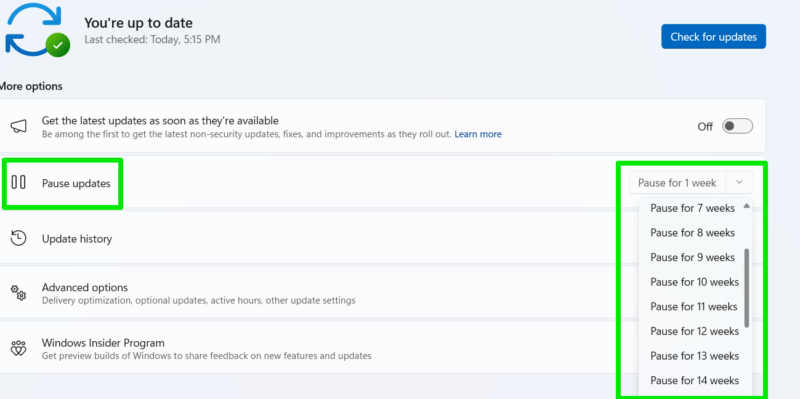
Now open Windows Update in Windows Settings, and the Pause updates drop-down menu will let you select up to 52 weeks of pause.
Keep in mind that Windows can ignore these hacks for emergency updates (very rare); they will be pushed as long as the update service is enabled. If you are also tired of the problems Windows updates introduce, bookmark our guide on the latest Windows update problems and fixes; it’s updated monthly.








