Spotify does a great job at helping you share music with friends, including listening together in real-time. The only problem is it’s hard to know when your friends are actively listening. Now, you can use Spotify Listening Activity to see what your friends are listening to at that moment and even join in.
Spotify Introduces Listening Activity
Spotify’s introduced several great features lately, including their version of a mini-Wrapped called Listening Stats. Now, the music streaming giant is building on the success of their Jam feature by adding real-time Listening Activity. Please note that you do have to be a Spotify Premium user to access this.
While desktop users have had a version of this feature previously, it’s now available for mobile users. It also incorporates into the mobile Messages feature for a more social experience.
If you’re like me, you may tend to listen to your music a little louder than you should. So, you might not hear when a friend texts to see if you’re currently listening. They might be eager to jam with you, but you don’t see their text until it’s too late.
Now, instead of hoping you catch a friend listening at the right time, just open Spotify and check to see which friends are listening.
Connect on Spotify
To see the real-time listening activity of someone, you must be connected on Spotify. There are multiple ways to do this. If you previously linked your Facebook and Spotify accounts, you can use Facebook to request to be friends on Spotify too. Spotify removed the Facebook link option, so this only works if you linked accounts before Spotify took away the option. For most users, use one of the following methods:
Invite Via Messages
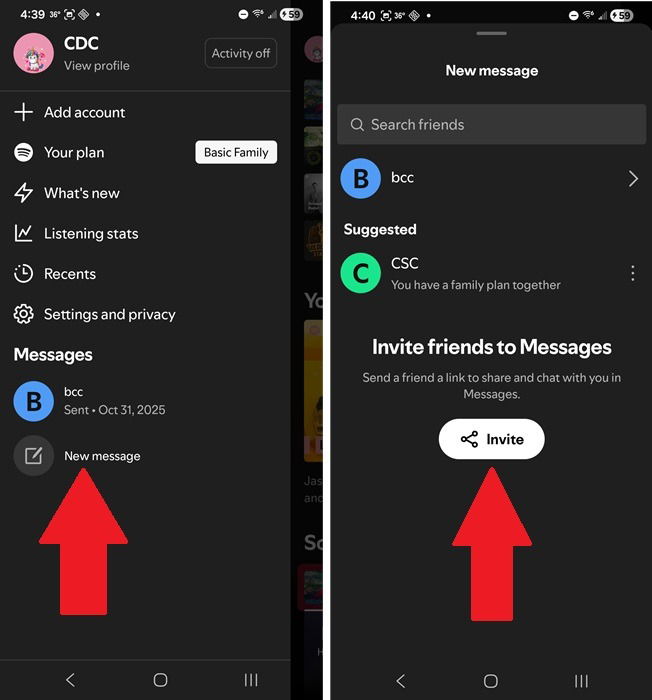
The easiest and preferred method is to connect via Spotify’s Messages feature. This is also where you actually see Listening Activity, so you’ll eventually share messages with each other anyway.
Tap your profile icon, tap New message, and tap Invite. Choose how you want to send the link and who to send it to.
Start a Jam or Collaboration
When you’ve started a Jam or collaborated on a playlist with others, they’ll show up as friends in your messages. If you or your friends have deleted the messages, you may need to invite them again via Messages.
You’re limited to just 32 friends during a Jam, but there’s no limit on the number of friends you can have and view Listening Activity for.
View Real-Time Spotify Listening Activity
Once you’ve got your friends listed in the Messages area, you’re ready to check in on their Listening Activity. Whenever you’re ready to see what your friends are up to or you’re interested in starting a Jam with someone, tap your profile icon to open the side drawer.
If anyone’s actively listening and has their activity turned on, you’ll see their name and current song at the top of your Messages list. Every friend who’s currently listening will appear here.
Tap a friend’s name to view what they’re listening to, queued tracks, and even add tracks to your own library. Make things more social by replying to their activity with one of six emojis.
Now that you know who is listening, tap their profile and tap Request to Jam to send them a message you want to join in. Then, listen in real-time to whatever they’re listening to and control a playlist together.
Remember, if you’re on the free tier, you can join a Jam, but you can only listen on the host’s speaker. Only Premium Spotify members can listen to Jams remotely.
Control Who Sees Your Listening Activity
You’re in full control over who sees your Spotify Listening Activity. By default, it’s supposed to be turned off, but when I checked, mine was on. Since the feature was just launched, I know I didn’t turn it on myself.
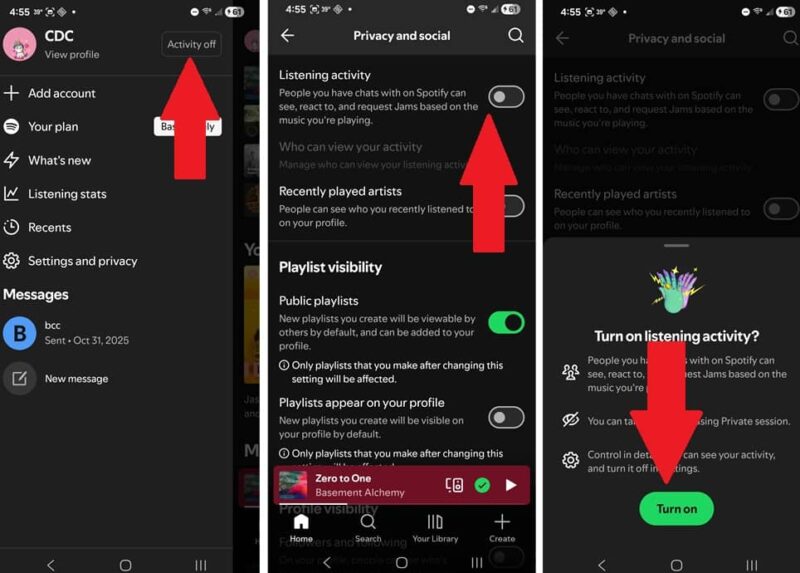
Check to see if your activity is on or off by tapping your profile icon and looking for the Activity On/Off button next to your profile name. Tap it to adjust the setting. Turn on Listening activity and tap Turn on.
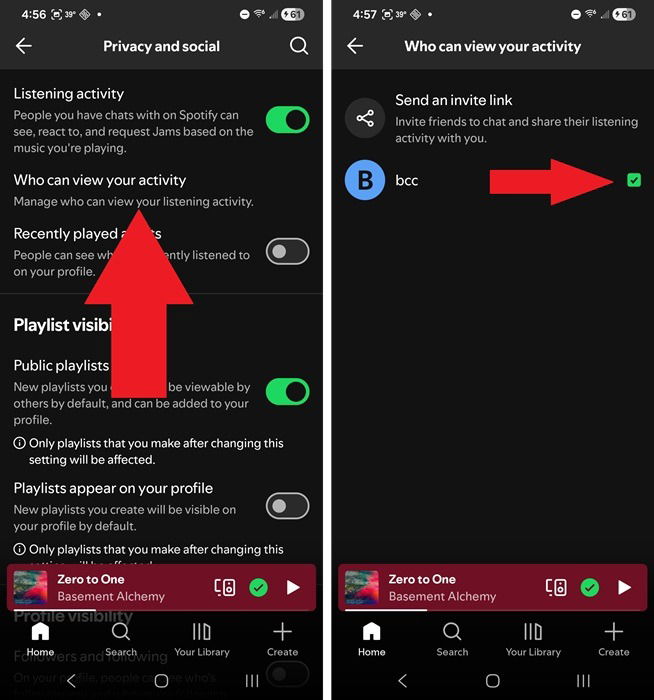
Tap Who can view your activity (you can also access this via your profile icon -> Settings and Privacy. Uncheck any friend you don’t want to view your activity. You can also send invite links from here to add friends.
If you just want to pause your Listening Activity for a short period without changing all your other settings, start a Private Session. No one can view your activity or see if you’re currently listening. This works on mobile, desktop, and the web.
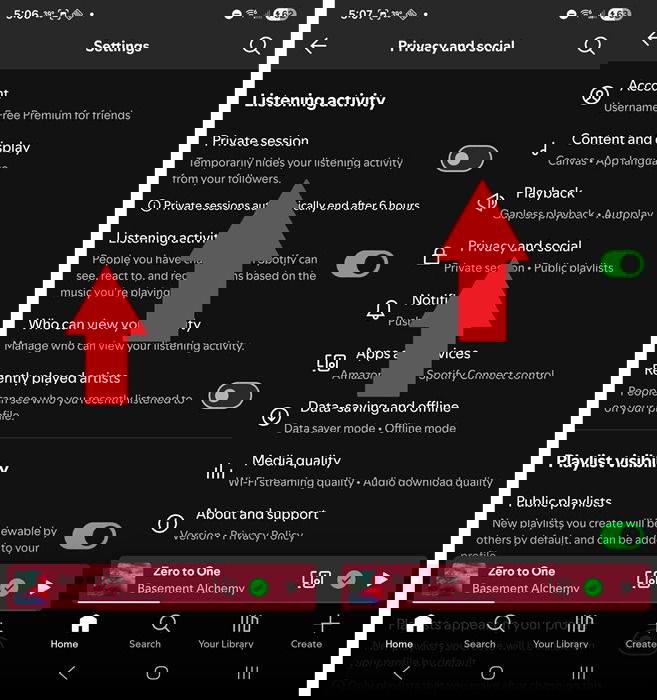
Tap your profile icon and select Settings and privacy -> Privacy and social. Turn on Private session under Listening Activity. This ends after six hours automatically. Or, turn it off manually if you need to end it earlier. This option only appears if your Listening Activity is on.
By viewing your friends’ activity, you’ll start to notice when they usually listen. This makes it much easier to jam together and find new tracks to add to your own playlists. You might want to start by jamming together with your Spotify Wrapped playlists.