Windows does a decent job of updating itself, but third-party apps are another story. Browsers, utilities, and everyday tools often fall behind unless you keep checking them manually. That routine gets old fast. That’s why I started using Patch My PC Home Updater on my Windows 11 PC. It quietly handles app updates for me and removes one of the most annoying parts of PC maintenance.
The Everyday Hassle of App Updates on Windows
Let’s talk about why app updates on Windows can feel like a never-ending chore. Windows Update does a solid job keeping the operating system current, but it skips most third-party software. Even the recent App updates feature in Settings only caters to Microsoft Store-specific apps.
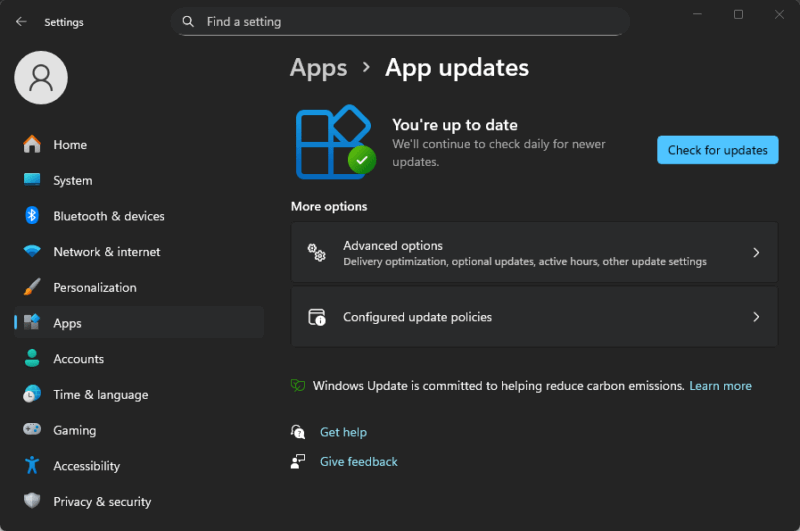
That means tools like Chrome, Zoom, VLC, or random utilities depend on you to keep them current. Some apps update themselves, but many don’t. And when they do, it’s usually through pop-ups at the worst time.
I remember installing a fresh copy of Windows 11 and realizing I had over a dozen apps needing patches right away. Manually visiting websites, downloading installers, and running them one by one ate up my time. Honestly, it’s not something I enjoyed doing, and putting it off or skipping them invites trouble.
Patch My PC’s Simple Approach to Fixing It
Patch My PC Home Updater solves this problem without trying to do too much. It scans your installed apps, checks which ones are outdated, and updates them in one place. No sign-up required, no ads, and no bundled software. It’s just a clean tool that feels and works right.
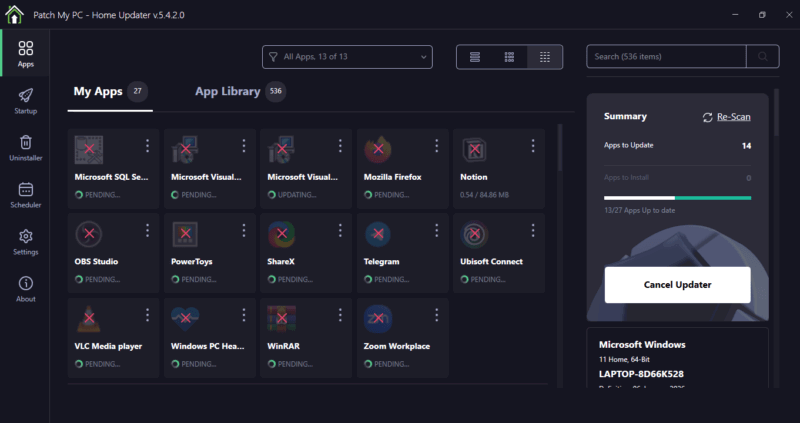
What I like most is how it supports over 500+ common applications, from Adobe products to Wireshark. It even handles portable apps, those lightweight versions you run from a folder without installing.
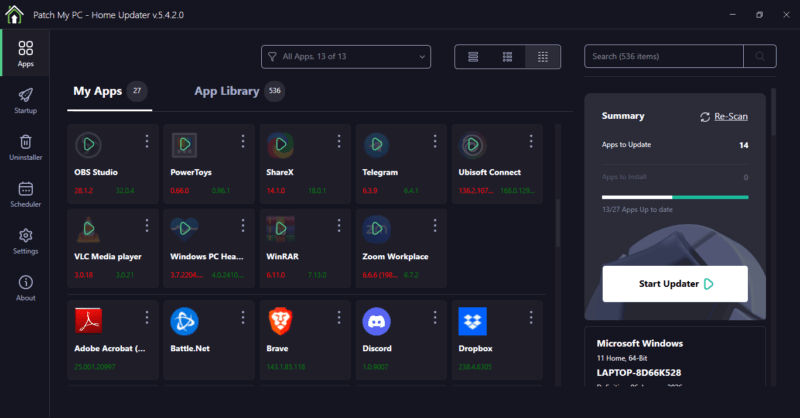
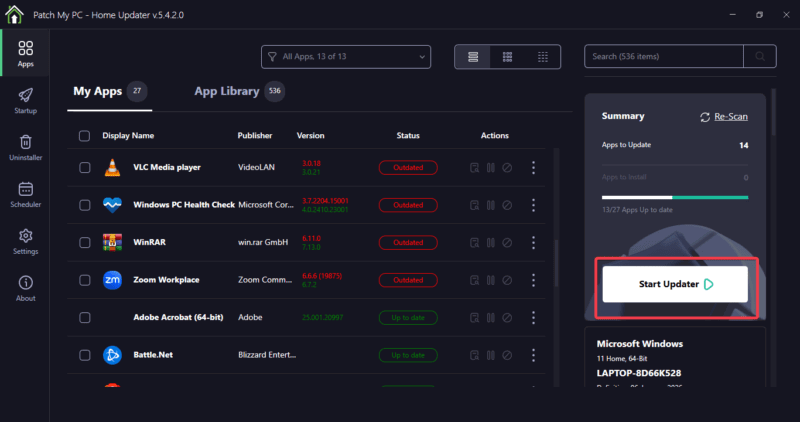
The dashboard uses color codes to clearly mark apps: green for up-to-date and red for anything that needs your attention. This makes it easy for you to see the app status at a glance and know what’s going on without any tech expertise.
Additionally, it pulls updates from official sources and checks them with VirusTotal for safety. That extra layer means you’re not risking bad files. Unlike most updaters that push premium features, Patch My PC Home Updater is completely free for personal use.
Handling Updates and App Management Effortlessly
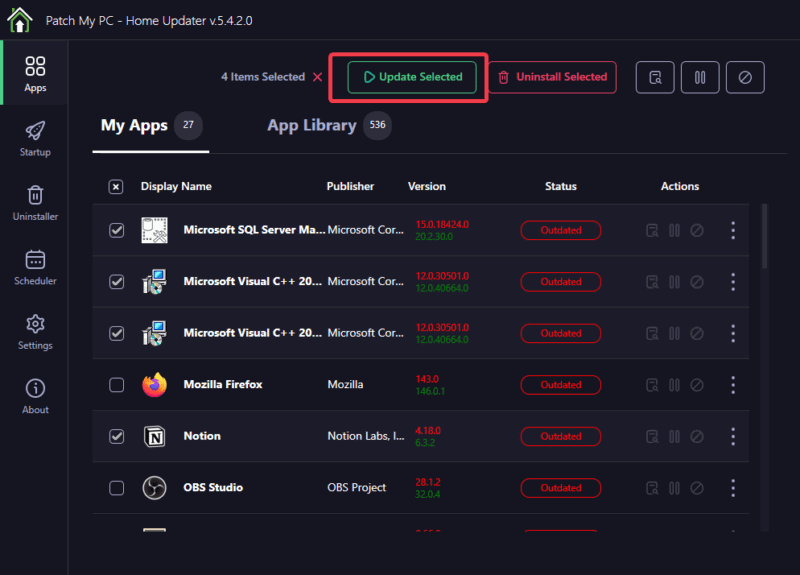
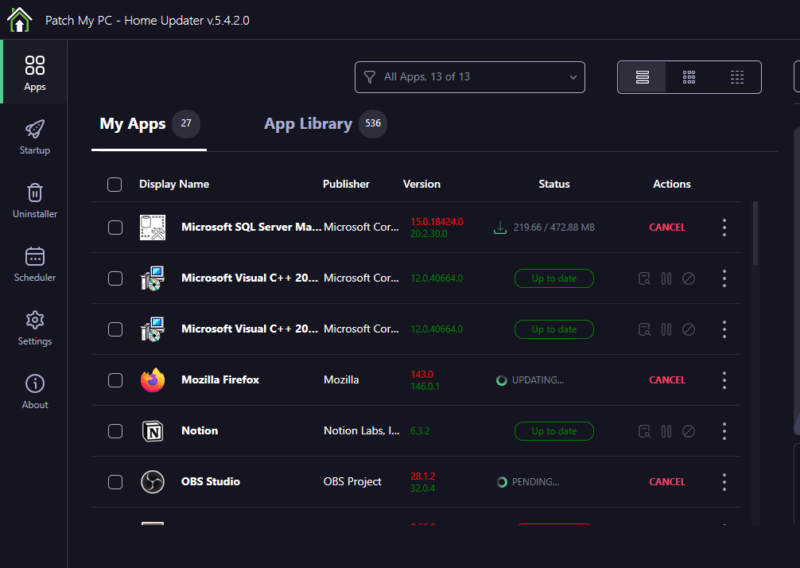
Once set up, Patch My PC Home Updater makes updates feel automatic. Click the Scan button, and it lists outdated apps with details and version numbers. You can update them all at once or pick specific apps.
Silent mode is my favorite. It runs in the background and closes programs gently if needed. Most importantly, it doesn’t interrupt what you’re doing with forced pop-ups.
Scheduling makes it even easier. I have set mine to run automatically at 2 a.m. every night. Even if the PC is asleep, it wakes up, handles updates, and powers down. This works in sleep mode thanks to built-in tasks. For missed schedules, it catches up the next time it runs. After the first week, you almost forget updates are happening at all.
Beyond updates, it also helps with basic app management. The library allows you to install new apps, such as 7-Zip or Notepad++, directly, all vetted and clean.
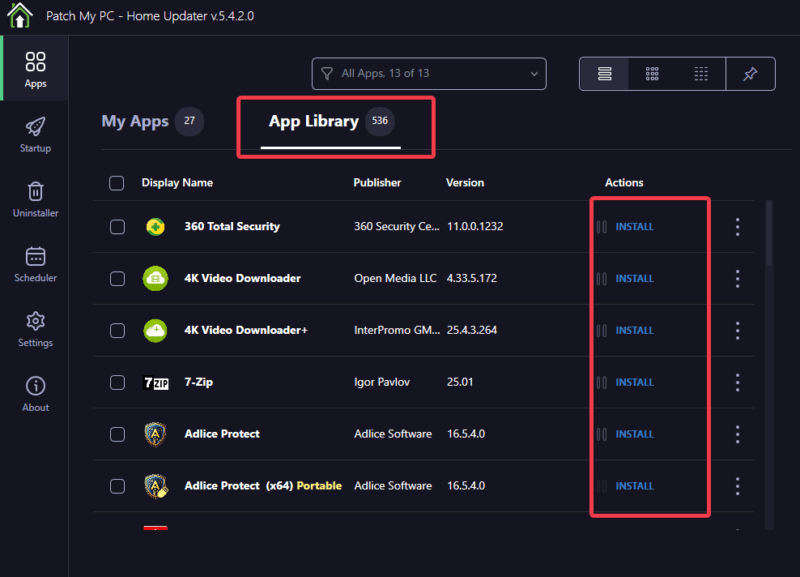
You can bulk uninstall programs at once to free space and clean up startup items that slow down boot times. Pairing it with other optimization tools like Winhance improves results and helps with debloating.
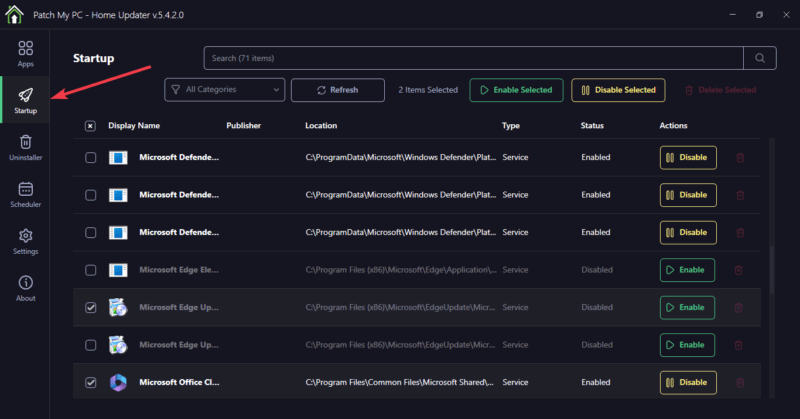
Overall, the Patch My PC Home Updater turns app management from a list of tasks into something you barely notice.
The Improvements You Actually Notice
Security tops the list of standout changes I’ve noticed since I started using Patch My PC Home Updater. It patches vulnerabilities fast, closing gaps that could lead to malware.
Since most attacks target outdated software, this gives real peace of mind. It also integrates with Windows Defender seamlessly, so you can run scans together for full coverage. You can also explore these hidden Windows security features to add an extra layer.
Performance improves naturally as well. Apps behave more predictably, and the system feels more responsive. My browser loads faster, and games run with fewer crashes. The startup tweaks improve boot time, making my PC feel snappier overall. You’ll notice less cluttering due to bloatware.
For shared or family PCs, you can check the logged track to notice what changed. This will make troubleshooting simpler.
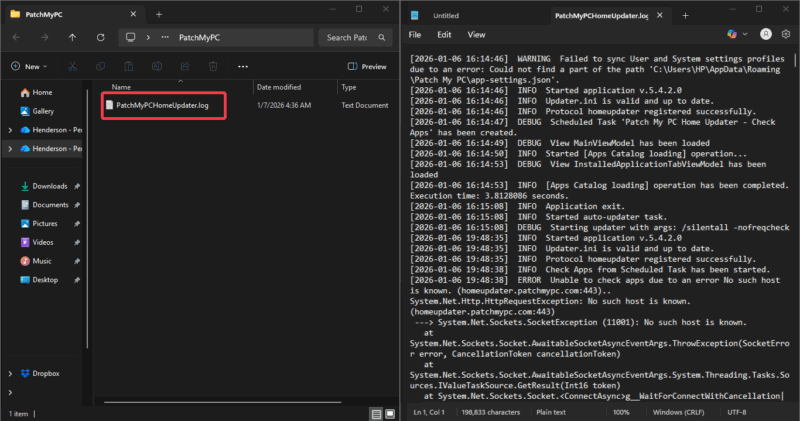
In short, your Windows setup runs quieter and safer. Workflows improve, and you reclaim the time previously lost to manual searches. It’s those tiny daily wins that make it stick.
Quick Setup and Tips for Daily Use
Getting started with Patch My PC Home Updater is quick. Download and install the MSI from the official page. Launch it, allow the initial scan, and click Start Updater what the default finds.
If you want to automate it, head to Scheduler, turn on Schedule to automatically update outdated applications. Then, set the time and select how often the process repeats. You can choose daily, weekdays, weekly, monthly, or yearly, and click save schedule.
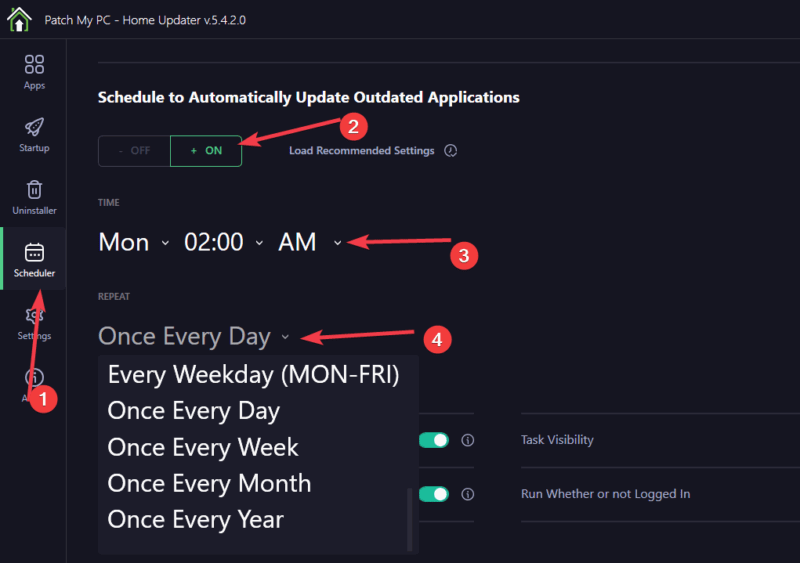
The default works great for most of us, but you can customize exclusions in Settings if you prefer manual control on certain apps. For extra safety, cross-check downloads with VirusTotal manually sometimes.
Quick Tips: Run a full scan after a Windows reinstall to catch everything fast. Enable notifications via Windows Notifications Center for alerts on outdated apps. View detailed logs for skips or errors.
Patch My PC Home Updater fixed one of the most annoying parts of using Windows. On my Windows 11 PC, it replaces manual app updates with a quiet, reliable system that works. It’s free, simple, and effective.
If keeping apps updated feels like a chore you keep delaying, this tool makes Windows maintenance noticeably easier. You’ll wonder how you’ve managed without it.