Docker is a powerful platform that lets users build, run, and manage applications inside containers. To handle tasks like building images or managing containers, networks, and volumes, we use Docker commands. Knowing these commands helps us work with containerized applications efficiently.
In this guide, we’ll explore the important Docker commands every user should learn. Each command includes syntax, examples, and practical use cases to help you understand how they work in real projects.
| Command | Description | Basic Syntax |
|---|---|---|
| docker ps | List running containers | docker ps [OPTIONS] |
| docker run | Create and start a new container from an image. | docker run [OPTIONS] IMAGE |
| docker stop | Stop a running container. | docker stop CONTAINER |
| docker start | Resume a previously stopped container. | docker start CONTAINER |
| docker restart | Restart a container to apply changes. | docker restart CONTAINER |
| docker exec | Run a command inside a running container. | docker exec [OPTIONS] CONTAINER COMMAND |
| docker logs | View logs of a container. | docker logs [OPTIONS] CONTAINER |
| docker build | Create a custom Docker image from a Dockerfile. | docker build [OPTIONS] PATH |
| docker images | List local Docker images. | docker images |
| docker rmi | Remove a Docker image. | docker rmi IMAGE |
| docker pull | Download an image from a registry. | docker pull IMAGE |
| docker push | Push an image to a registry. | docker push IMAGE |
| docker stats | Monitor real-time resource usage. | docker stats [CONTAINER] |
| docker system prune | Remove unused containers, images, networks, and optionally volumes. | docker system prune [OPTIONS] |
| docker-compose up | Start multi-container services defined in a compose file. | docker-compose up [OPTIONS] |
| docker-compose down | Stop and remove multi-container services. | docker-compose down |
Now let’s look at some simple examples to understand how these commands work in real situations.
List Docker Containers
The docker ps command shows all running containers. It works like a task manager for Docker and displays the container ID, name, status, and port mappings.
docker ps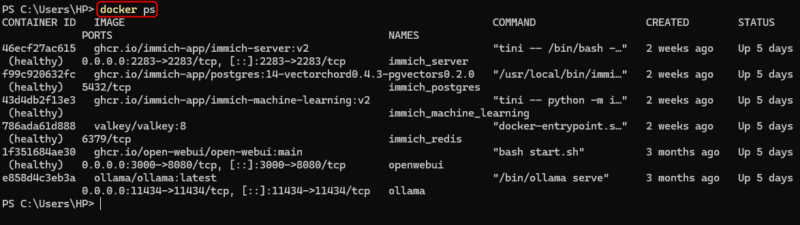
You can also use the docker ps command with the -a option to view both running and stopped containers.
docker ps -a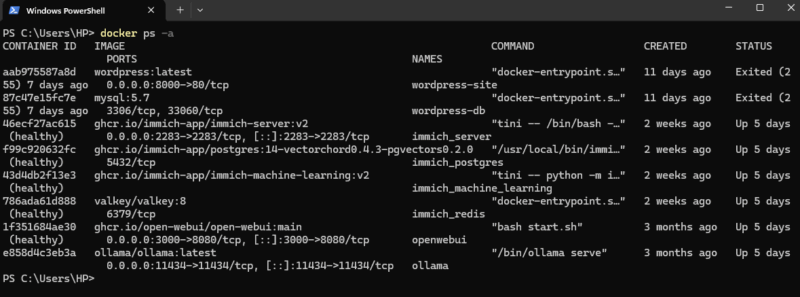
Create and Start a New Container
The docker run command is used to start a new container from an image, which is usually the first step when launching an application.
docker run [OPTIONS] IMAGE [COMMAND] [ARG...]You can adjust how the container starts by using different options. For example, the -d option runs the container in the background so your terminal stays free, and the -p option maps ports between your system and the container. Here is a simple example.
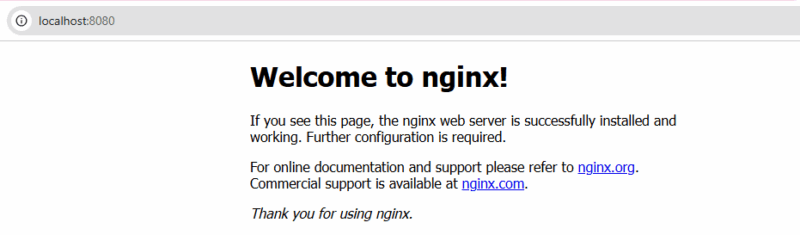
docker run -d -p 8080:80 nginx
This command starts an NGINX container in the background and makes it accessible on port 8080 of your machine. Open your browser and go to http://localhost:8080 or whichever port you mapped. If everything is working, you should see the default NGINX welcome page.
Show Logs of a Container
The docker logs command lets you view the output generated by a container, whether it’s running or already stopped. It’s especially useful when you want to check what’s happening inside your application, look for errors, or understand why something isn’t working as expected. For example, you can use the following command to view the logs of a specific container, such as openwebui.
docker logs openwebui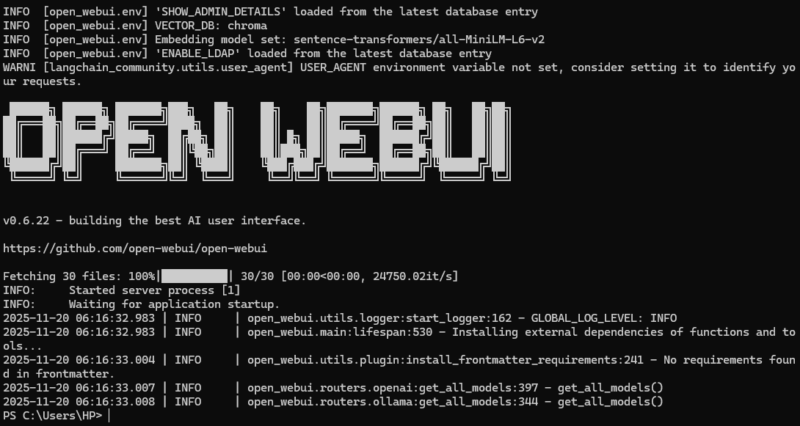
Download an Image from a Registry
The docker pull command is used to download a Docker image from a public or private registry, such as Docker Hub. We run it when the required image isn’t already on our system. It helps us quickly get ready-made images without building them from scratch. We can also pull specific versions using tags, which ensures we’re working with the exact image version we need.
For example, you can run the following command to fetch the latest Ubuntu image.
docker pull ubuntu:latest
Inspect a Container or Image
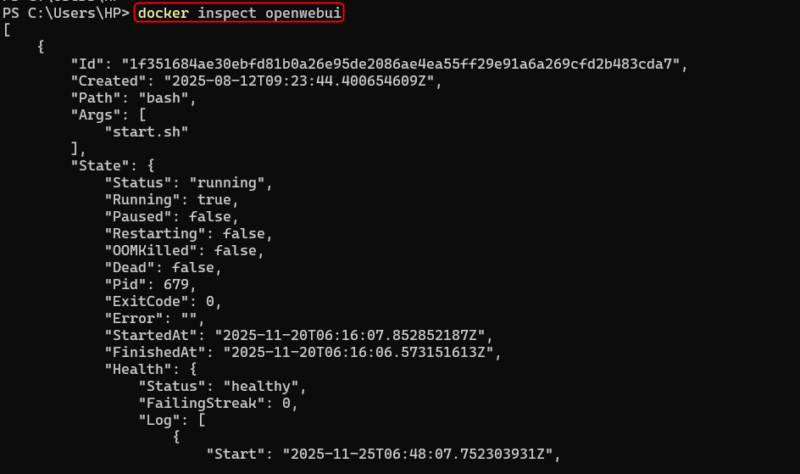
The docker inspect command gives you detailed technical information about a container or image, such as network settings, mounted volumes, environment variables, and configuration details. For example, we use this command to inspect the OpenWebUI container.
docker inspect openwebuiThis command is useful for debugging configuration issues or checking how a container is structured internally.
Monitor Resource Usage
The docker stats command lets you track real-time network, CPU, memory, and disk usage for running containers.
docker stats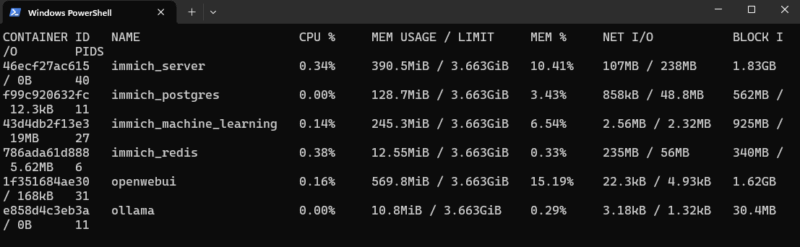
You can also monitor a single container.
docker stats openwebuiIt works like a live performance dashboard for Docker.

Start Multi-Container Applications
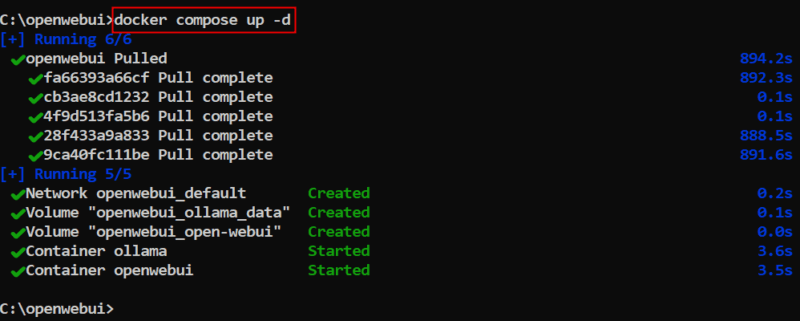
If your project uses multiple services like a backend API, frontend app, and database, you can manage all of them with Docker Compose. For example, you can use the following command to start everything defined in your Docker file.
docker compose up -dHere, the -d flag runs services in the background. This command makes it easier to handle complex applications with just one command.
Clean Up Unused Docker Resources
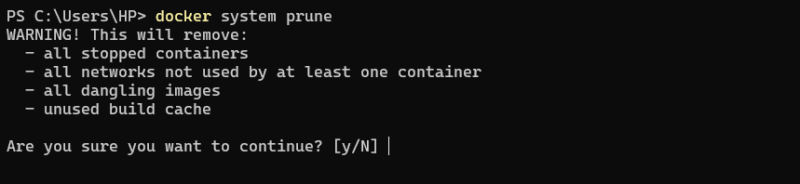
Docker collects unused data over time, such as old images, stopped containers, dangling volumes, and unused networks. You can clean them up with the following command.
docker system pruneType y to clean the stopped containers, unused networks, dangling images, and unused build cache.
If you want to remove everything, including unused volumes and all unused images (not just dangling ones), you can use the following command.
docker system prune -a --volumes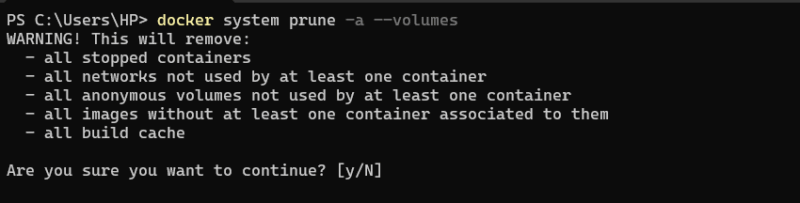
This keeps your system clean and prevents storage issues.
View All Available Docker Commands
If you ever forget a Docker command or want to explore more options, you can access the help page with this command.
docker --help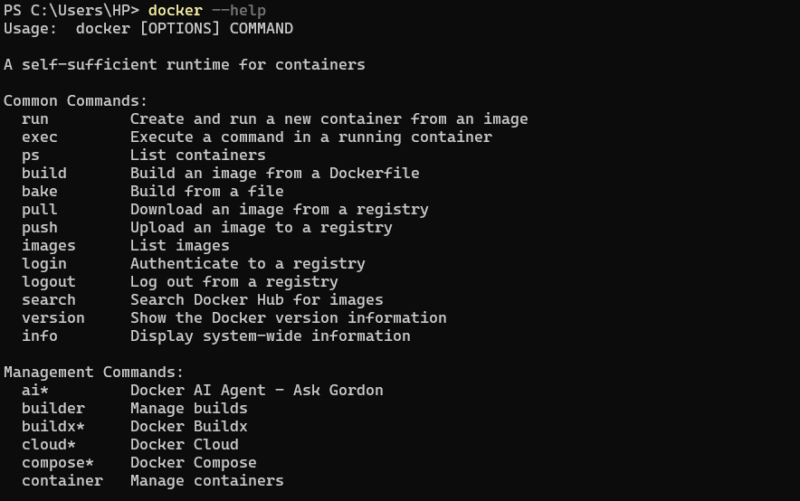
Similarly, you can access the help page of a specific Docker command by specifying the command name. For example, the following command returns available flags, subcommands, and detailed descriptions for the docker ps command.
docker ps --help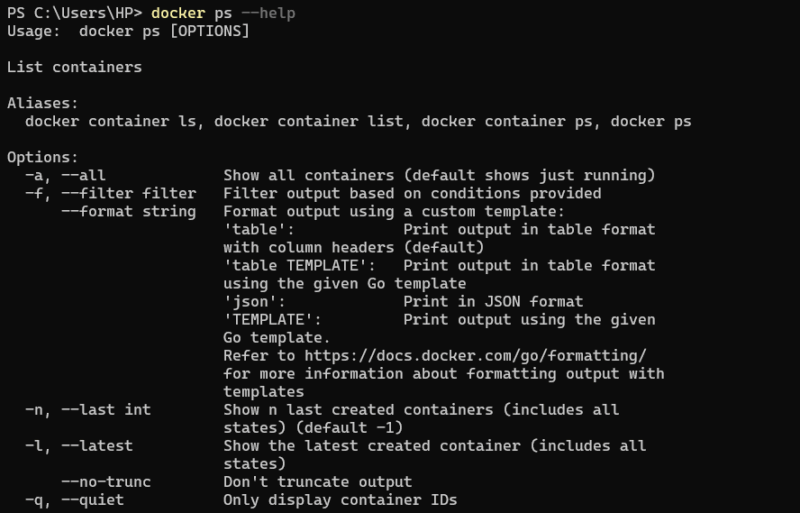
This sums up the most important Docker commands developers use every day. You can also try other Docker tools like Docker Compose, Docker Desktop, or Docker Hub to manage and run your applications in even more useful ways.