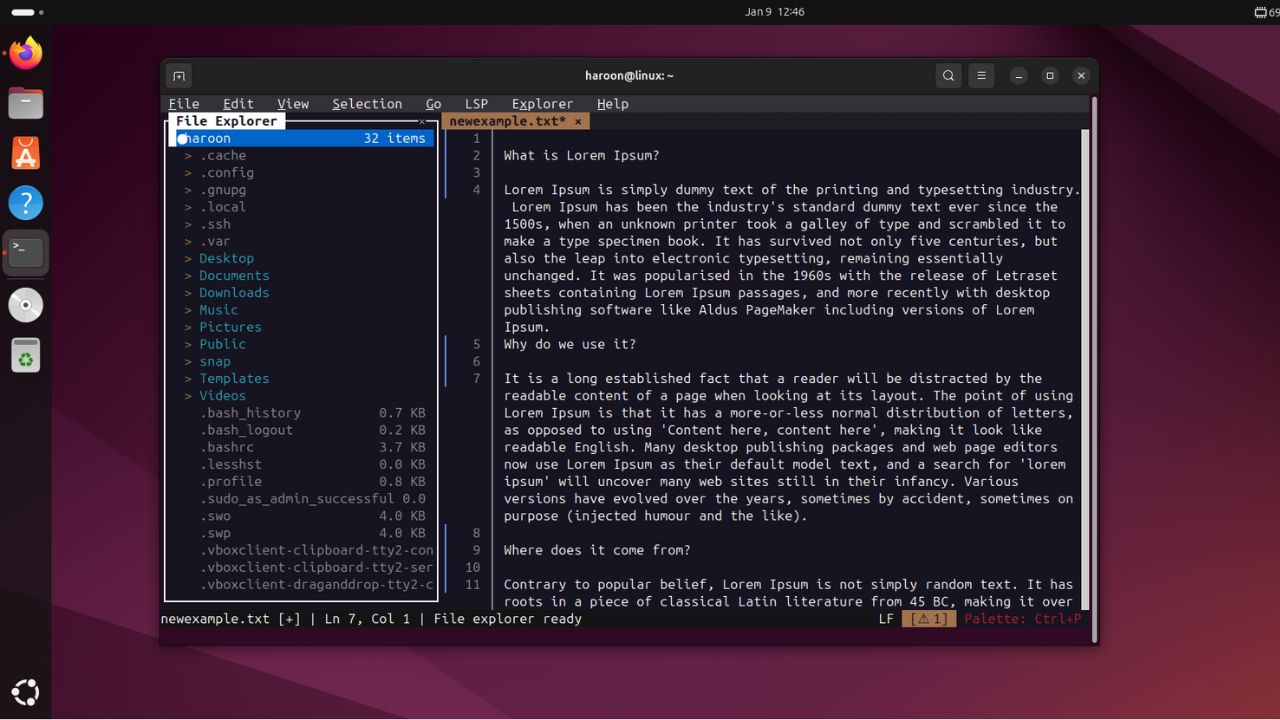
If you work in the terminal long enough, you eventually hit a wall with traditional text editors. Nano feels safe but limited, while Vi and Vim feel powerful but demand a steep learning curve. Over time, I started wishing for a terminal editor that behaved more like modern editors while still living entirely inside the terminal. That is what made Fresh interesting to me.
Fresh is an open-source, terminal-based text editor written in Rust. It takes many things we love about modern graphical editors, such as familiar shortcuts, mouse support, and an intuitive interface, and brings them into the terminal. Instead of relying on modal editing or memorizing command sequences, Fresh focuses on ease of use and discoverability. You can open it and start working right away.
Key Features of Fresh
Let us take a look at the specific features that make the Fresh text editor such a useful Linux tool.
- Fresh adopts conventional editing behavior, allowing users to start working immediately without learning modes or special command syntax. For example, you can highlight text and use Ctrl + C to copy, and Ctrl + V to paste it at another location.
- It includes an integrated terminal pane, enabling both editing and command execution within a single interface.
- The editor supports direct pointer interaction, allowing precise cursor placement, text selection, and smooth scrolling with your mouse.
- It embeds a directory navigator (File explorer) that lets users locate, open, and manage files without returning to the shell.
- Fresh supports flexible layouts with split views, pane orientation controls, line wrapping, line numbers, and theming for personalized workflows.
- The editor can render Markdown content inline, making it suitable for writing and reviewing documentation.
- It uses an internal text handling model designed to edit very large files efficiently without loading the entire file into memory at once.
- The editor provides advanced editing capabilities such as deep undo and redo history, multi-cursor editing, column-based selection, smart indentation, comment toggling, and system clipboard integration.
- Fresh enables precise navigation through features like go to line, bracket matching, word-based movement, position history, bookmarks, and jumping directly to language server-reported errors.
- Search and replace is powerful and responsive, supporting incremental search, regular expressions, selection-scoped operations, and fast project-wide searches.
- Keyboard macros allow you to record and replay repetitive editing actions, improving productivity during repetitive tasks.
- Fresh integrates Git features such as displaying repository status in file navigation and providing a visual Git log viewer for inspecting history.
- The editor can be extended using TypeScript through a sandboxed plugin system, allowing customization while keeping extensions isolated from the core editor.
Installation and Getting Started
Fresh is not yet available in the official repositories of most Linux distributions, but it provides a quick and reliable install script that automatically detects your system and chooses the best method. This gives you a stable setup with the latest features directly from upstream.
To install Fresh using the recommended quick method, run this command:
curl https://raw.githubusercontent.com/sinelaw/fresh/refs/heads/master/scripts/install.sh | sh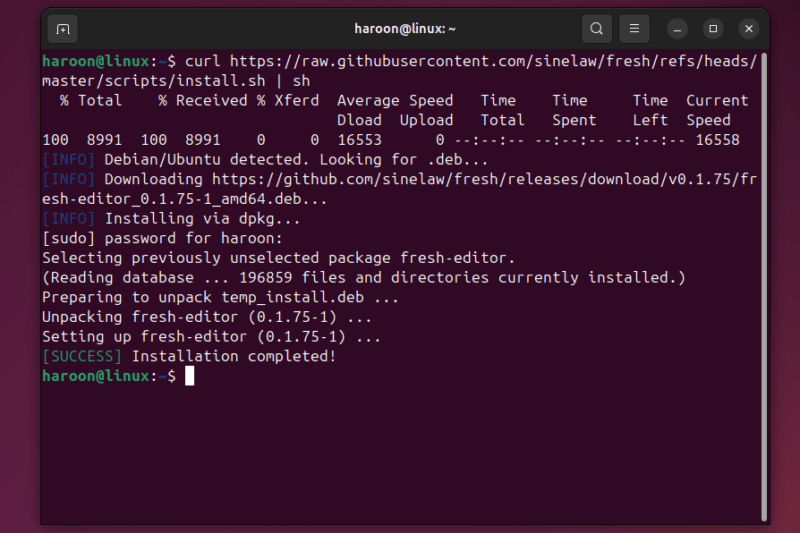
Furthermore, if you have the Rust toolchain installed, you can install it via Cargo for access to the most recent version:
cargo install fresh-editorOn Arch-based systems, the binary package from the AUR is recommended for faster installation:
yay -S fresh-editor-binFor further installation details, you can check the installation guide on GitHub. There are also portable options like AppImage and Flatpak available.
Once you install it on your system using any preferred method, you can launch Fresh directly from your terminal by typing:
fresh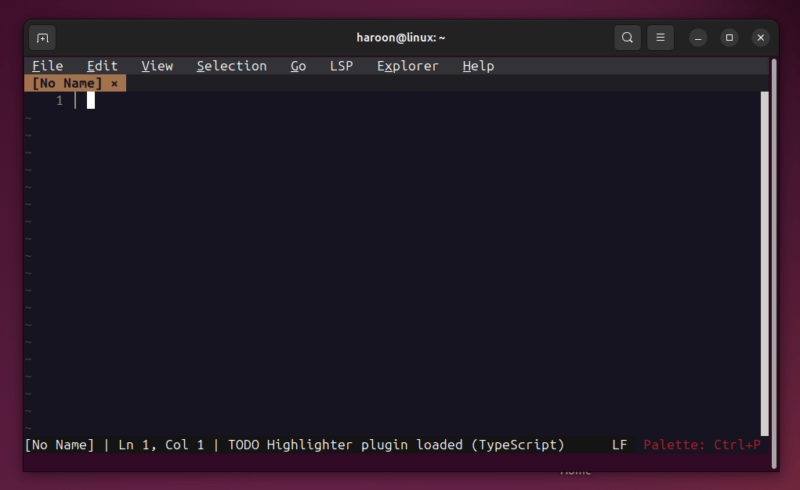
The interface opens instantly in your terminal with a clean, intuitive layout. Further, you can also launch Fresh with a specific file by running this:
fresh filename.txtAlternatively, you can open Fresh first and then load files using the File menu or the built-in file browser. Once a file is open, Fresh displays it in a tabbed interface, so you can work on multiple files at the same time.
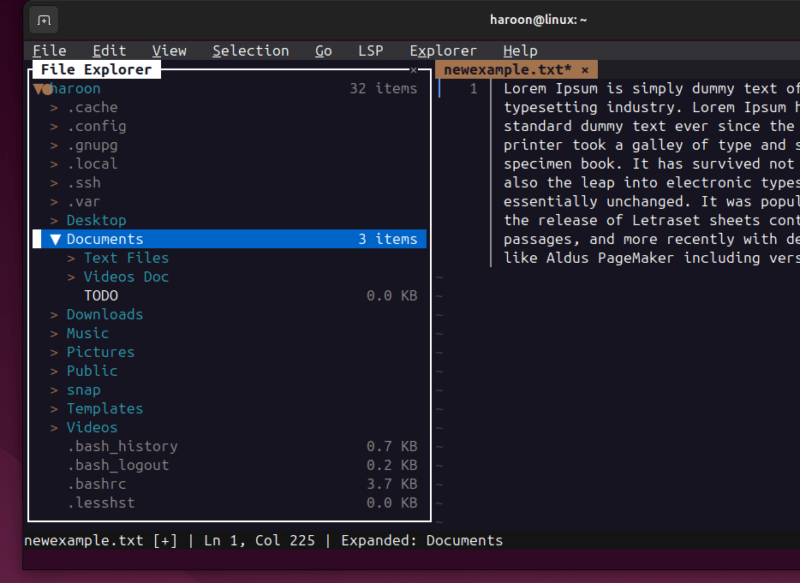
Syntax highlighting is available for a wide range of programming and markup languages. In many cases, Fresh detects the file type automatically and applies highlighting without any extra setup. If needed, you can manually enable or change the syntax mode from the menu.
Fresh vs. Traditional Terminal Editors
For a long time, traditional editors such as nano, Vi, and Vim have been go-to tools for many Linux users. However, for newcomers to Linux, these editors can feel unintuitive and present a steep learning curve. For example, the nano editor emphasizes simplicity but offers limited functionality and minimal extensibility. Then there is Vim, which relies on modal editing and can be highly efficient for experienced users but difficult for newcomers or occasional users.
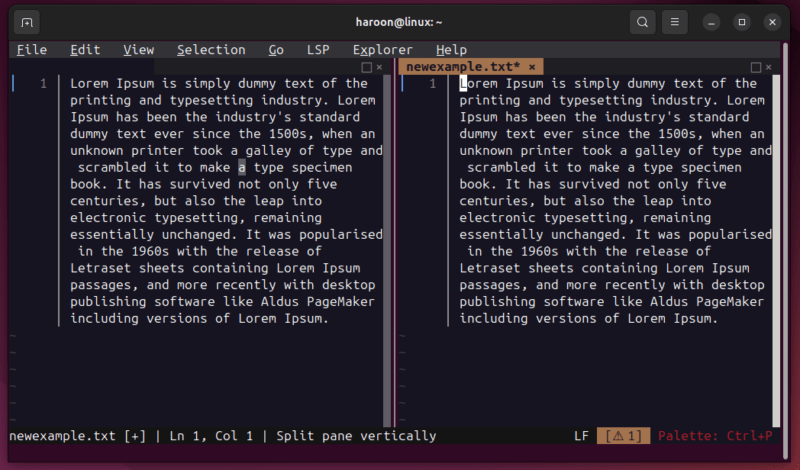
Fresh takes a different approach by avoiding modal editing entirely and using familiar editing behaviors commonly found in graphical editors. Instead of memorizing modes and command sequences, you can interact with text using standard shortcuts, menus, and a command palette. This lowers the learning curve and makes features easier to discover without external documentation.
Do not get me wrong; if you have spent ten years mastering Vim, then Fresh may not be for you. Vim remains unmatched for deeply customized modal workflows and plugin ecosystems. Fresh instead focuses on providing a modern, ready-to-use experience inside the terminal. It bridges the gap between lightweight terminal editors and full graphical editors without attempting to replace either completely.
Final Thoughts
Fresh is well suited for you if you want modern editor conveniences and features like file explorers, split views, and LSP support without switching to a GUI editor. Give Fresh a try. Download it and use it alongside your current text editor; after some time, you might switch to it. However, Fresh is not the only option; you can also try other Linux-compatible text editors.








