If you’ve ever tried listening to a WhatsApp voice note while watching a movie, you know how frustrating it is to keep adjusting the master volume as you switch. While there is a volume mixer in Windows to adjust the volume per app, it is hidden in the Settings panel and not so accessible. This is where EarTrumpet comes in. With it, you get precise, per-app audio control directly from the taskbar, allowing you to mute a notification without silencing your movie on your Windows.
EarTrumpet can Control Individual App Volume Directly From the Taskbar
EarTrumpet is a free Windows app that replaces the default volume mixer by allowing you to directly control volume output per app or browser, directly from the taskbar.
First, it allows you to control volume output for specific apps (like Chrome vs. Spotify) directly from the taskbar. You can visually monitor which apps are producing sound. And you can assign different apps to different output devices instantly, for example, music to speakers, Zoom to headphones.
Once you install it, EarTrumpet automatically integrates into your taskbar. No account setup is required.
Setting Up EarTrumpet
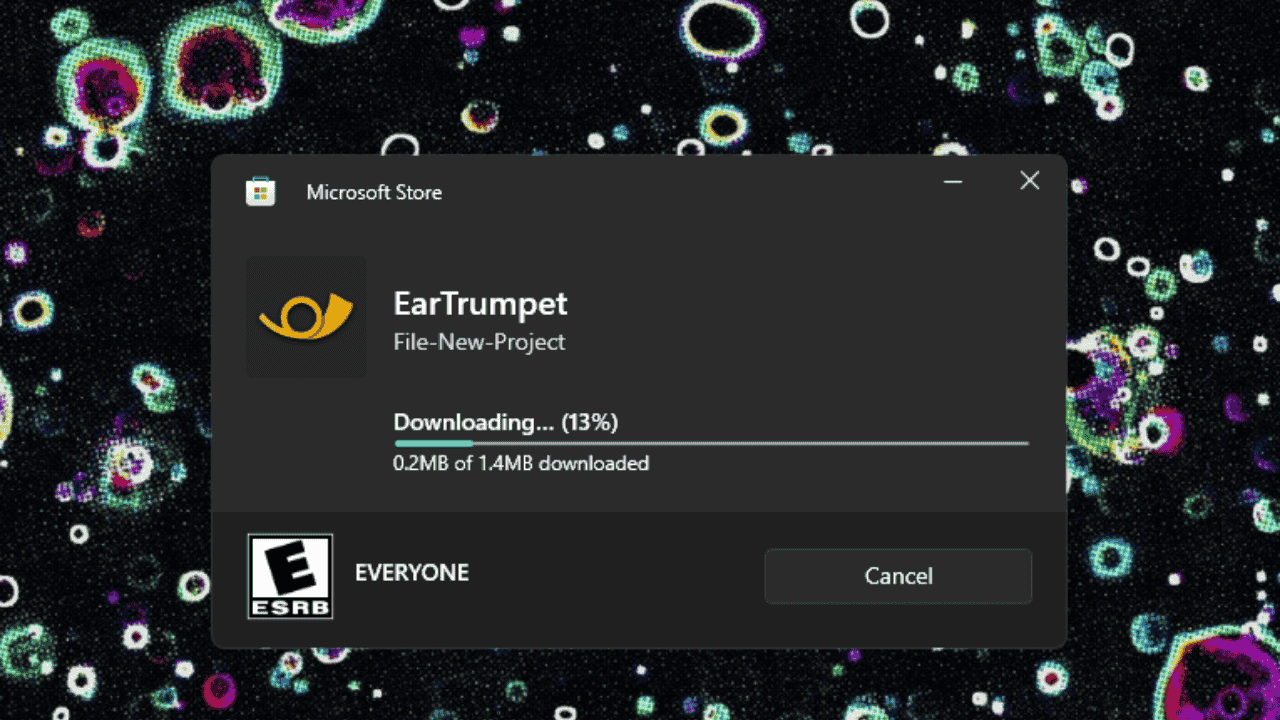
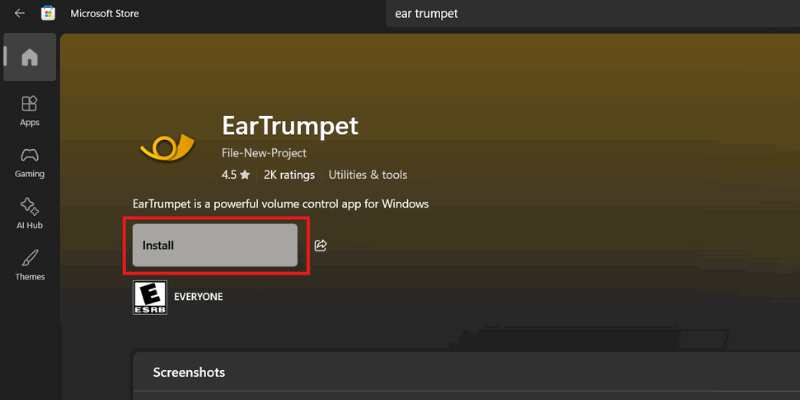
EarTrumpet is available directly from the Microsoft Store, which, in a way, makes your installation straightforward and secure.
On the Windows taskbar, EarTrumpet’s volume icon usually looks identical to the standard Windows speaker icon or in the Show hidden icons menu. This can be confusing because you end up with two volume buttons next to each other.
If you’re running Windows 10, you can hide the Windows default volume icon by right-clicking an empty space on the Taskbar and select Taskbar settings → Turn system icons on or off. Find Volume in the list and toggle the switch to Off.
For Windows 11 Users, you cannot hide the default volume icon because it is permanently glued to the Wi-Fi and Battery icons. Instead, I recommend that you change the EarTrumpet icon so you can tell them apart.
To do this, left-click the EarTrumpet icon on your taskbar. Then click the Settings → General, and toggle Use legacy Ear Trumpet icon.


The icon will change from a speaker to a unique trumpet logo, making it easy to distinguish from the system default.
Control Volume Levels for Individual Apps
When you click the EarTrumpet icon on your taskbar, you will see a list of every app currently producing audio.
To adjust the volume, drag the slider for any specific app (like Spotify) to lower its volume without affecting your system’s master volume.
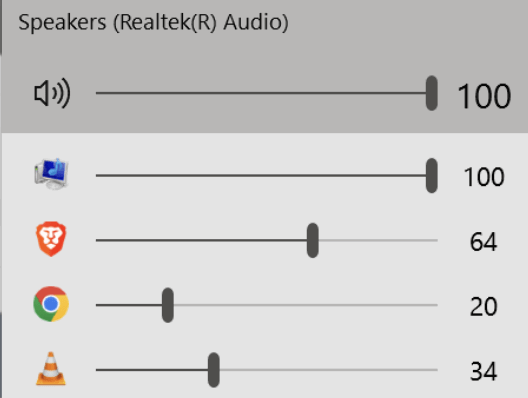
When muting an app, click the app icon to instantly mute just that program.
Note: The main Windows volume still acts as a Master Switch. If your Windows system volume is set to zero or a very low level, you won’t hear anything even if you turn an individual app to 100% using EarTrumpet.
Assign Different Audio Outputs Per App
Instead of switching your entire system from speakers to headphones, you can assign specific apps to specific devices. A music app can play through external speakers, while a browser or meeting app stays on headphones.
To switch outputs while playing audio from multiple sources, click the Ear Trumpet icon on the taskbar, locate the application you want to move in the list of active audio streams.
Right-click on the icon or name of that specific app. A small menu will appear above it. Look for a Rightwards Arrow over a Leftwards Arrow icon that looks like this (⇄).

A list of your available playback devices (Headphones, Realtek Audio, etc.) will appear. Click the device you want that specific app to play through. The change is then applied immediately.
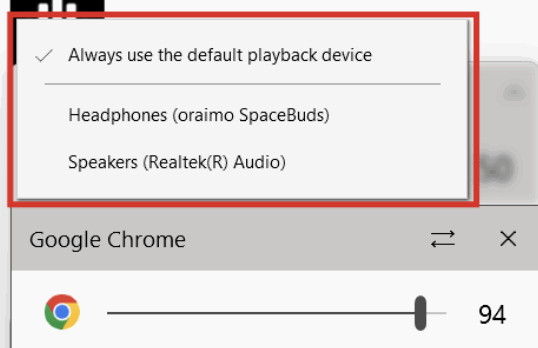
Pro tip: If you want an app to follow your main system audio again, repeat the steps and select Default. The app will then move under the matching device section in EarTrumpet, making it easy to see where its audio is playing.
Does EarTrumpet Slow Down Your PC or Drain Battery?
From my experience, EarTrumpet doesn’t impact system performance or battery life, even on lower-powered laptops. This is because it uses existing Windows Audio APIs (Application Programming Interfaces) rather than building a new sound engine from scratch. It essentially acts as a skin for features Windows already has, but hides deep in menus.
If you regularly run multiple audio-producing apps or sometimes want to have calming music in the background while you join in on a meeting or play or game, then EarTrumpet is ideal, because it can switch between output devices.
If you decide to stick with the defaults but find they aren’t working, check out our guide on how to fix a Windows volume mixer that won’t open. But, if you want to customize your experience further, learn on how to change your Windows notification sounds.