Your desktop is where real work happens, and nothing is better than a workspace that feels like your own. While the Personalization setting does all the heavy lifting, I use Windows Registry hacks to perfect the finer details. Below are my favorite Registry hacks that make my Windows desktop better.
Warning: before applying these registry hacks, ensure you back up the Registry. Incorrect changes to the Registry can result in system corruption and data loss.
Remove Wallpaper Image Compression for JPG/JPEG Files
Windows automatically compresses JPG/JPEG images to 85% quality of the original when you use them as wallpaper to save RAM and system resources. It’s mostly an outdated tweak for old PCs. While it’s not important on newer PCs, it still affects wallpaper quality, which is very apparent on high-resolution or already compressed images.
You can disable this behavior and make Windows load the wallpaper at its original resolution.
To automatically apply these changes without editing the Registry, run the following command in Windows PowerShell:
New-ItemProperty -Path "HKCU:\Control Panel\Desktop" -Name "JPEGImportQuality" -Value 100 -PropertyType DWORD -ForceAlternatively, if you prefer to do it manually, open the Windows Registry and move to the following location:
HKEY_CURRENT_USER\Control Panel\DesktopRight-click in the right panel and select New → DWORD (32-bit) Value.
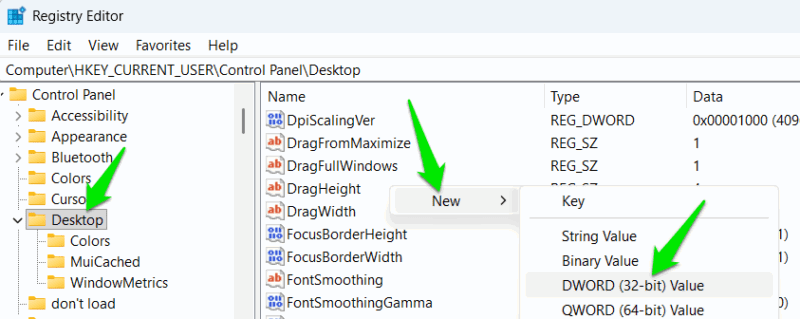
Name this new value JPEGImportQuality and double-click on it to open it. Here, select Decimal under the Base section and set its value to 100.
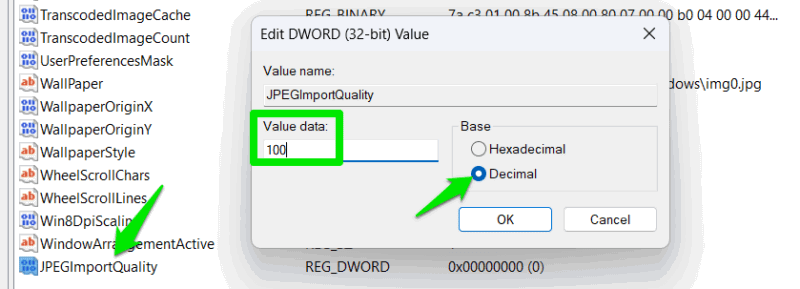
You’ll have to restart the PC or restart the File Explorer and apply the wallpaper again for the changes to take effect.
Make Submenu Items Reveal Faster in Context Menu
The desktop context menu has several submenus for viewing, sorting, and new items. While most stay static, I interact with the New menu daily, and it’s annoying that it takes half a second to open. You’ve likely noticed this delay as well; it exists because Windows adds a default 400ms pause to submenus to avoid opening them unintentionally.
If you prefer your submenus to open instantly, use this registry hack to control the submenu opening delay period:
Run this PowerShell command:
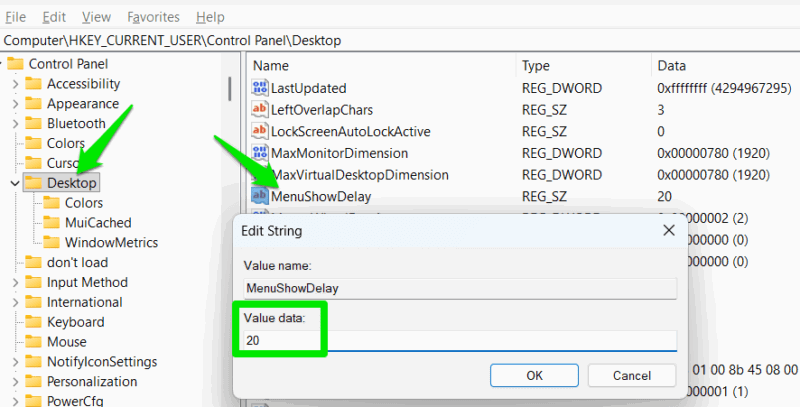
Set-ItemProperty -Path "HKCU:\Control Panel\Desktop" -Name "MenuShowDelay" -Value "20" -ForceAlternatively, in the Windows Registy, move to the following location:
HKEY_CURRENT_USER\Control Panel\DesktopHere, double-click on the MenuShowDelay entry and change its value to 20. While you can also select 0 to make it instant, I personally find the experience a bit too “twitchy” and less smooth.
Remove “- Shortcut” Text from New Shortcuts on Desktop
I really don’t like that Windows automatically appends “- Shortcut” text at the end of every shortcut I create on the desktop. The arrow on the icon already tells me what it is; there is no need to make labels unnecessarily long and messy. If that extra text bothers you too, here is how to disable it:
Run this PowerShell command to apply automatically:
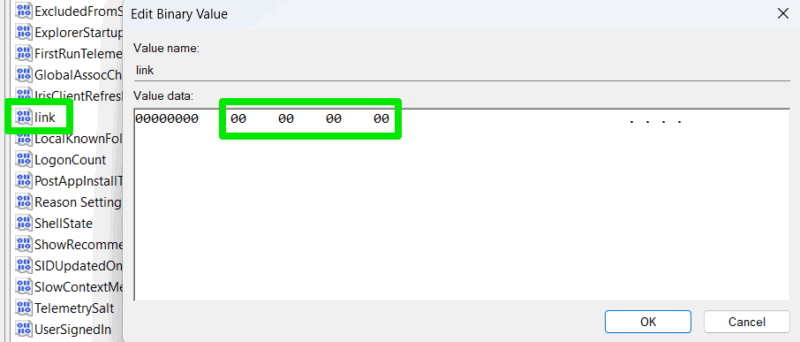
Set-ItemProperty -Path "HKCU:\Software\Microsoft\Windows\CurrentVersion\Explorer" -Name "link" -Value ([byte[]] @(0x00,0x00,0x00,0x00)) -ForceAlternatively, go to this location in the Registry:
HKEY_CURRENT_USER\SOFTWARE\Microsoft\Windows\CurrentVersion\ExplorerOpen the link entry and set its value to 00 00 00 00. You’ll have to restart the PC for changes to take effect, and it will only apply to shortcuts created onward.
Get Faster Information From Taskbar Items
Similar to submenu delays, Windows imposes a brief pause before displaying info-tips or thumbnail previews when you hover over taskbar items. While it affects all items, I especially find this delay annoying when I am working with apps with multiple instances open, as it delays the thumbnail preview/interaction.
Furthermore, I also use the ThrottleStop icon to monitor CPU temps without leaving the desktop, so faster information matters a lot to me.
Run this PowerShell command:
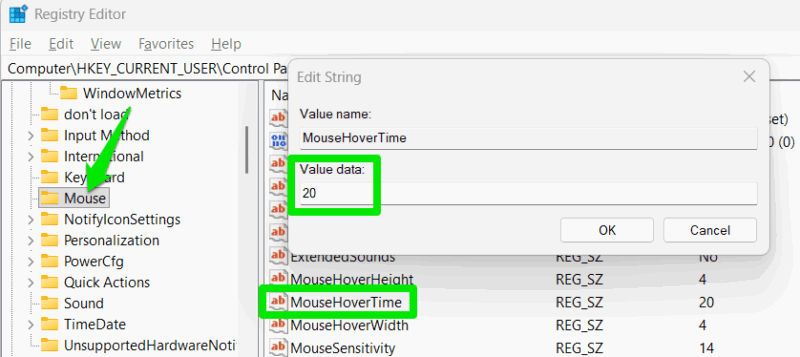
Set-ItemProperty -Path "HKCU:\Control Panel\Mouse" -Name "MouseHoverTime" -Value "20" -ForceAlternatively, go to this location in the Registry Editor:
HKEY_CURRENT_USER\Control Panel\MouseOpen the MouseHoverTime entry and set its value to 20. You’ll have to restart the PC for the changes to take effect. Now, you’ll see all additional information from icons instantly, including third-party app icons.
Increase/Decrease Desktop Icon Spacing
The icons on the desktop are spaced over a fixed invisible grid. It decides how close or far icons can be on the desktop. The default size works for most, but if you have lots of desktop icons, you might want to decrease the grid size to fit in more items. On the contrary, you may want to increase the grid size to view longer icon names easily or make interaction easier.
I personally prefer a more compact view, so I decrease desktop icon spacing while increasing icon size (Ctrl+mouse wheel) enough to easily see. This registry hack helps achieve this:
Below, I am providing the PowerShell commands for both horizontal and vertical spacing. I am using my compact -800 setup, but you can edit the values in the command as you need:
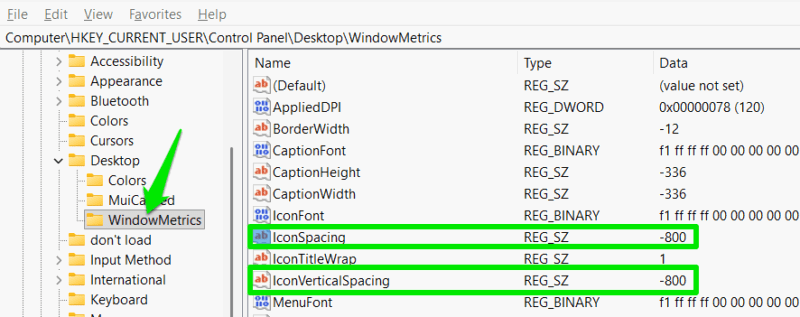
Set-ItemProperty -Path "HKCU:\Control Panel\Desktop\WindowMetrics" -Name "IconSpacing" -Value "-800" -ForceSet-ItemProperty -Path "HKCU:\Control Panel\Desktop\WindowMetrics" -Name "IconVerticalSpacing" -Value "-800" -ForceAlterrnatively, move to this location in the Registry:
HKEY_CURRENT_USER\Control Panel\Desktop\WindowMetricsHere, IconSpacing represents horizontal space, and IconVerticalSpacing represents vertical space. The default values are -1125; you can increase/decrease this negative value to adjust desktop icon spacing. For example, for my compact view, I use -800 for both.
You don’t need to use the same vertical/horizontal spacing. For example, you can set IconSpacing to -1500 and keep IconVerticalSpacing to -1125 to allow more room for icon names.
These tweaks may seem small, but combined, they really make your overall desktop experience faster and cleaner. If you are having trouble taming the desktop, you might want to follow this desktop cleaning routine.