Windows 11’s Start Menu should be a fast local launcher, but more often than not, when you type in a keyword, you get a laggy Bing search result, suggested searches, and online results, making it less efficient. By making the following changes, you can prevent it from displaying Bing search results.
Why Windows 11 Forces Web Search in the Start Menu
By default, the Windows 11 search tool is designed to function as a gateway to both local and online files. The goal is to provide instant answers, such as stock prices or weather, without opening a browser. While useful for checking the weather, this web integration makes the search experience slower, clutters the interface with trending news, and even raises privacy concerns.
You can disable web search to improve the speed of the Start Menu. Since the system no longer waits for server responses or loads web thumbnails, local results for apps and documents appear significantly faster.
Stop Windows 11 From Searching the Web Using the Registry
Windows 11 users don’t have access to Group Policy, so you must use the Registry Editor. This works on all editions of Windows.
Get started by opening the registry editor. Navigate to the following path (you can copy and paste this into the top address bar):
HKEY_CURRENT_USER\Software\Policies\Microsoft\Windows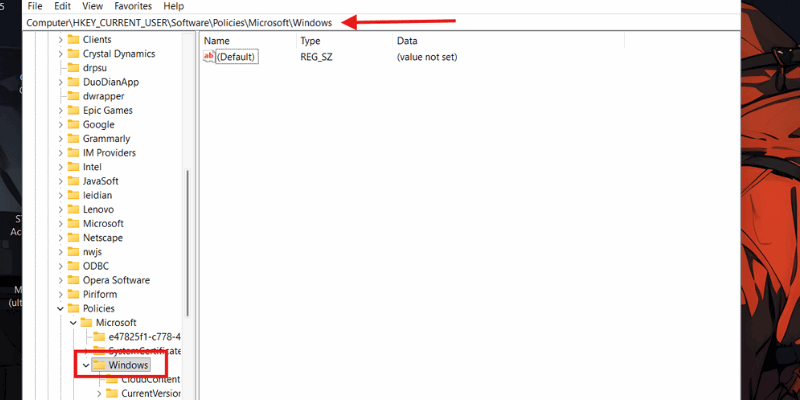
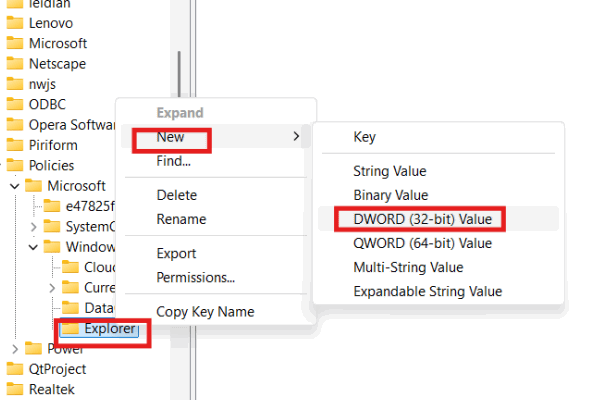
Check if you have a folder named Explorer under the Windows folder. If not, right-click Windows → New → Key and name it Explorer.
Right-click the Explorer folder, and select New → DWORD (32-bit) Value.
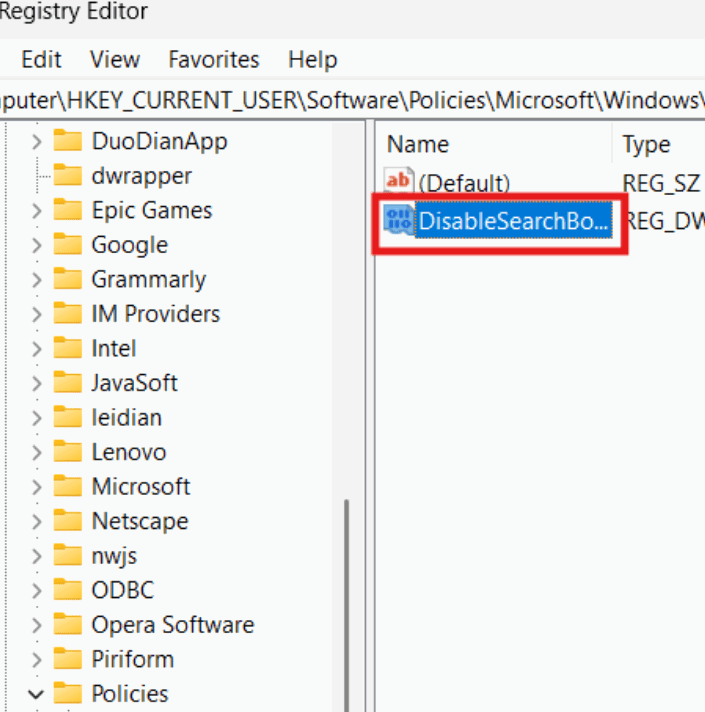
Name it DisableSearchBoxSuggestions.
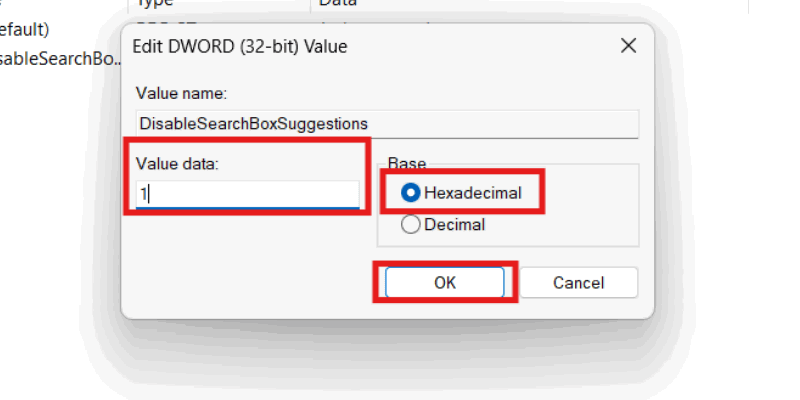
Double-click your new value and change the Value data to 1. Also, ensure the base value is in Hexadecimal.
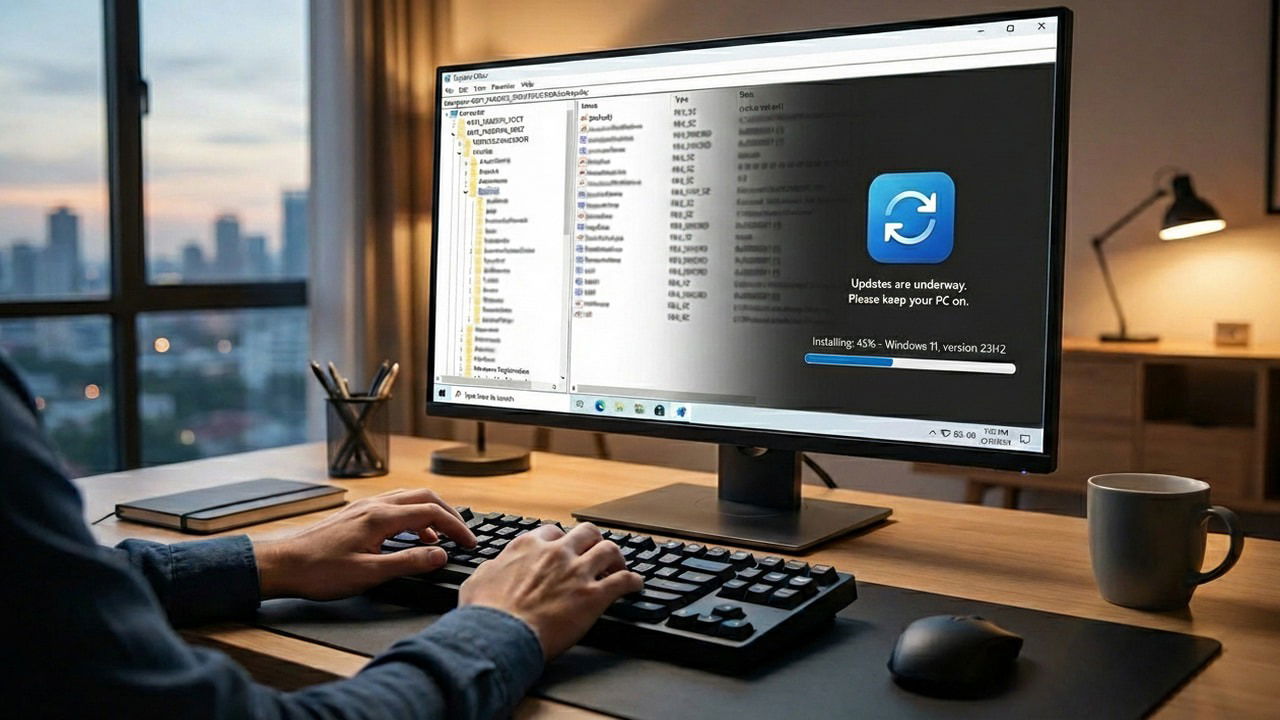
Restart your PC for the changes to take effect.
Pro Tip: If you want the changes to apply immediately without a full reboot, open Task Manager, right-click Windows Explorer, and select Restart.
Does Disabling Web Search Break Anything?
No, disabling web search is a type of targeted change that does not harm your system. It simply turns off the web category within the search interface. If you type in a term that doesn’t exist on your computer, Windows will report it as No results found instead of sending that text to Bing.
However, keep in mind that you’d also lose the ability to perform quick unit conversions, directly check the weather, or use any other processes in the Start Menu that use the internet.
Use Everything Instead
If editing your system settings sounds intimidating, or if you actually like web search sometimes but hate it for finding files, the best solution is to use a different tool entirely.
Everything is a lightweight search utility that monitors your file system in real-time. Unlike the Windows Start Menu, it indexes 100% of your files instantly and never connects to the internet.
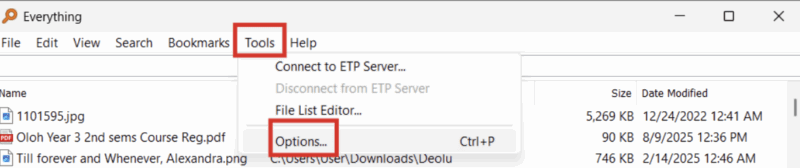
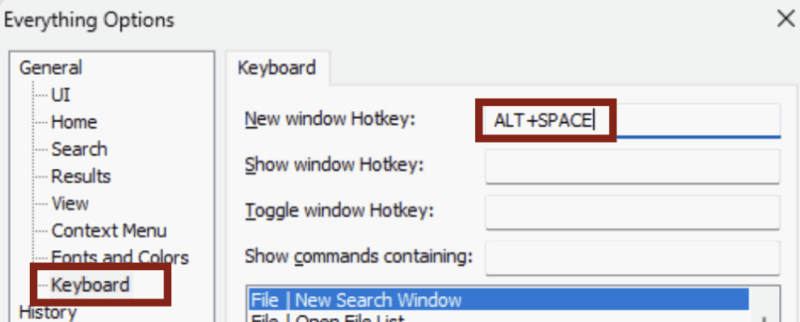
To set it up as a Start Menu replacement, download and install Everything. Launch the app and go to Tools → Options→ General → Keyboard.
Set the New window hotkey to something accessible, like Alt + Space, and then click Apply.
Go to Results (in the sidebar) and check Close window on execute. Afterward, click Apply and then Ok and your settings should save.

Now, whenever you need to find a file, just hit Alt + Space, type your query, and press Enter. The window opens instantly, finds your file, and vanishes the moment you launch it, mimicking the behavior of the Start Menu but with zero web links.
Good to know: Everything also supports powerful search syntax. For example, you can type *.jpg size:>5mb to instantly find all photos on your computer larger than 5MB, something the standard Start Menu struggles to do.
Choose the Right Solution for Your Use Case
The best solution for you depends on what actually bothers you about Windows 11’s search behavior. If you want the Start Menu to stay local only, disabling web search is the cleanest fix.
Everything, on the other hand, would work better if your primary frustration is a sluggish or inaccurate file search. It also solves the privacy issue of web searches and offers a more effective search engine than you can get from Windows 11’s Start Menu.
The registry isn’t just for turning off web search. You can also use it to customize your lock screen, and gamers can unlock a few competitive tweaks as well.