iPhone reminders are great, until one slips past you because your phone isn’t nearby. In iOS 26.2, Apple addresses this issue by allowing you to add an alarm to important reminders, making sure they’re heard when you’re not looking at your screen. Here’s how to make your reminders impossible to miss.
Good to know: did you know that with this trick, you can reduce the screen brightness beyond the allowed minimum?
Attach an Alarm to a Urgent Reminder on iPhone
To be able to take advantage of this feature, you will need to ensure you’ve updated to the latest version of iOS, which at the time of writing this article is 26.2. To verify that’s the case, open Settings on your device and navigate to General → Software Update. If you notice the update is currently available, install it.
By default, when a regular reminder is triggered on your iPhone, you will hear a notification sound and see a notification banner on your screen. Let’s see how you can improve this setup.
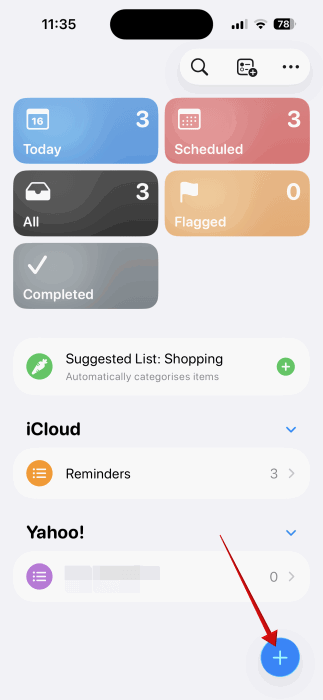
Open the Reminders app on your iPhone and create a new reminder by pressing on the blue + button in the lower right corner.
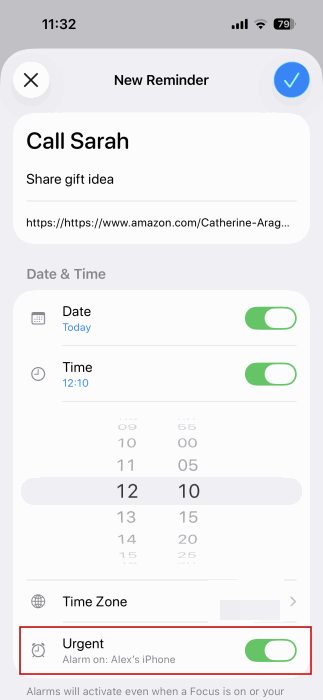
Add a title and any notes you might have, as well as a URL. Then set the Date, and Time. Once all this is done, don’t forget to mark the reminder as Urgent by toggling on the last option. This will automatically create an alarm for the reminder. Do note that this alarm is not visible in the Clock app on your iPhone.
If you’re trying to make a reminder you’ve previously created Urgent, tap the All button to view all your reminders.
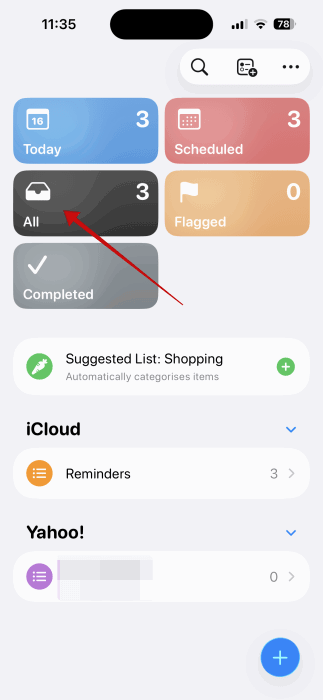
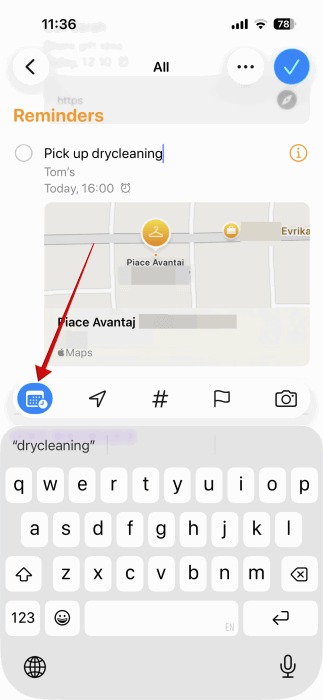
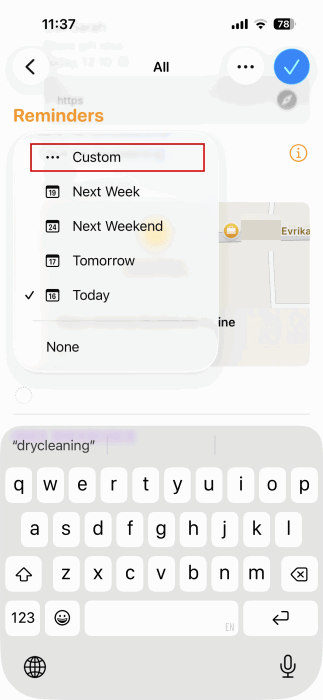
Find the one in question and tap on it. Press on the calendar icon below to view date/time details. Select Custom and enable the Urgent toggle from there.
You can also create Urgent reminders on Mac, as well. They will show on your iPhone, if you’ve previously connected the two devices.
Tip: autocorrect feels worse in iOS 26.2? Check here to see how to fix it.
Reschedule an Urgent Reminder on iPhone
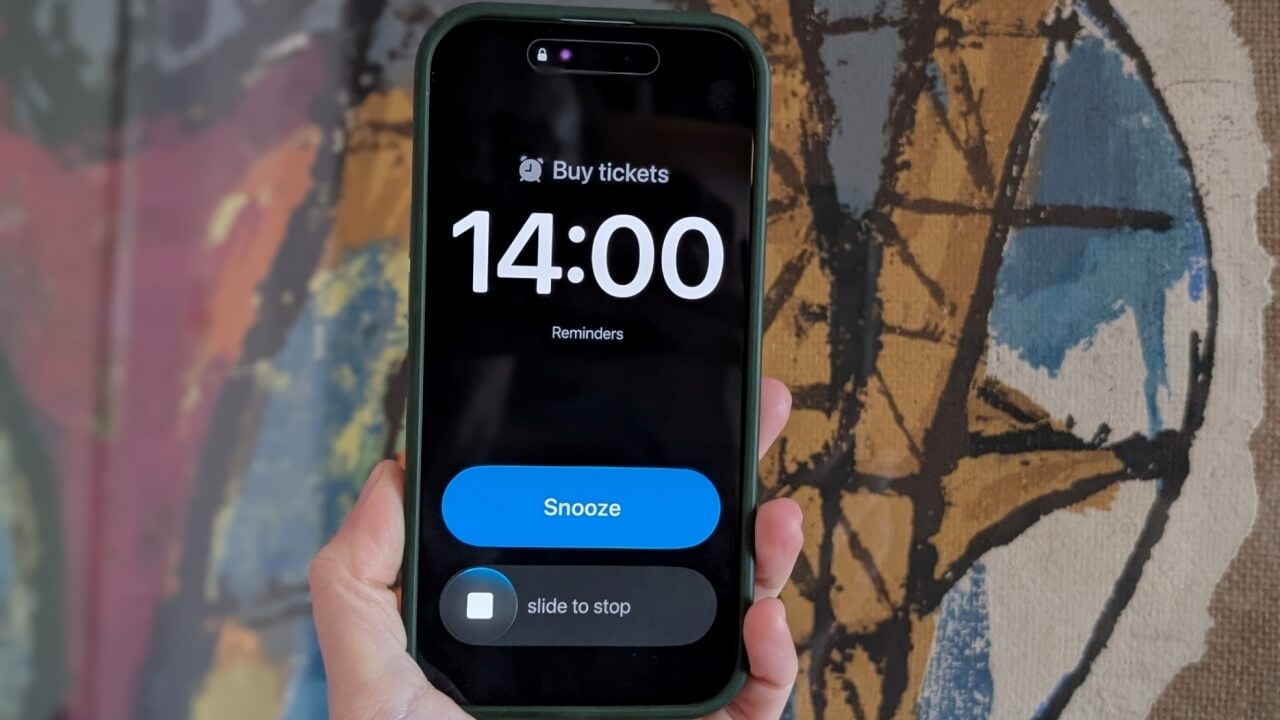
When the Urgent reminder fires, it will take up your entire screen, as a normal alarm does. You can opt to Snooze it for another 9 minutes. However, unlike the Clock alarm, you won’t be able to change the Snooze duration.
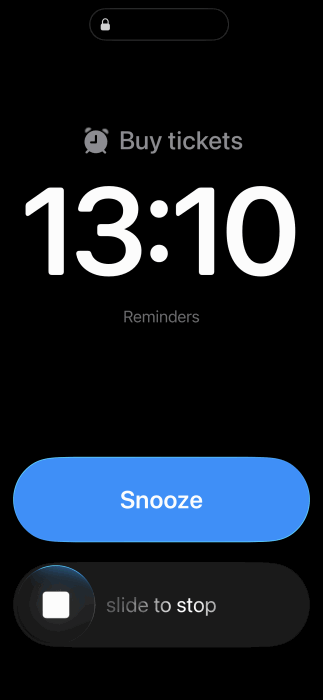
The other option is Slide to Stop. If you opt for this, your iPhone will display a Live Activity that displays the reminder’s name with an option to mark it as complete.
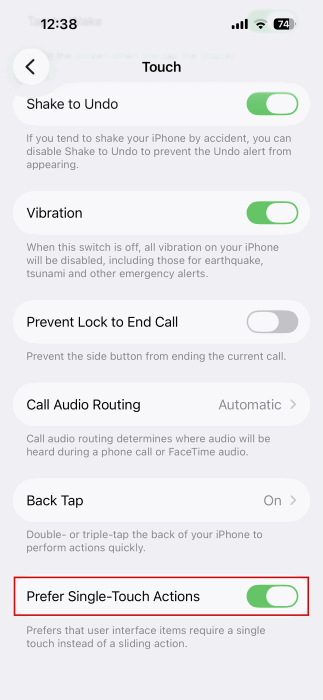
In case you prefer, you can change the Slide to Stop button to just Stop. To do so, go to Settings → Accessibility → Touch. Turn on the Prefer Single-Touch Actions.
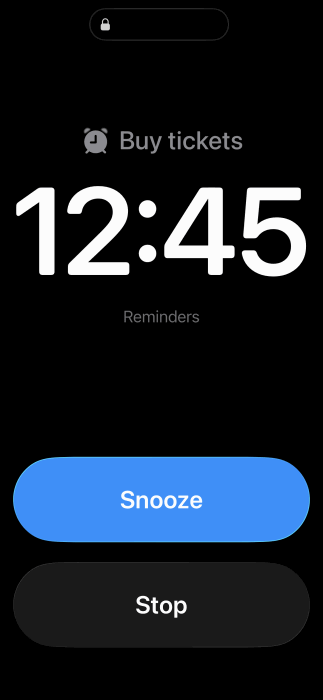
Once you press the Stop (or Slide to Stop) button, a Live Activity banner will pop up that includes the name of the reminder. Most importantly, from here you can tap Reschedule, which takes you to the Reminders app where you can set the reminder for a later time or date. You can also turn off the Urgent toggle if you think it’s not needed anymore.
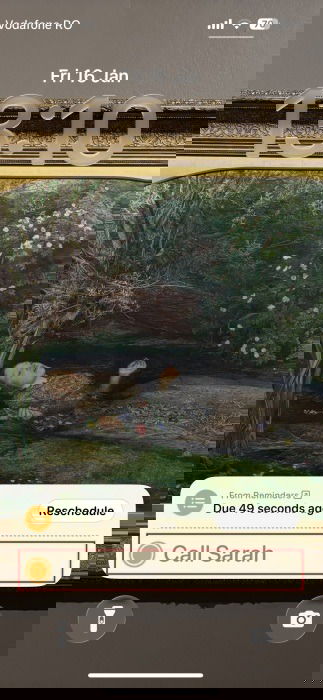
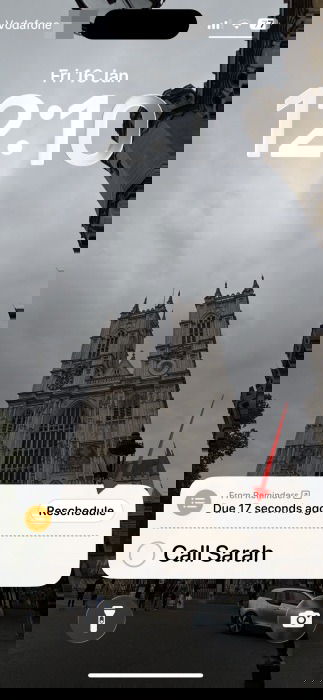
Note that you won’t be able to dismiss the Live Activity from your lock screen unless you take some sort of action. You have to either reschedule it or mark it as done.
If the Urgent reminder goes off while your phone’s screen is on, it will appear at the top of the display showing Zzz (for Snooze) and X (for Stop).
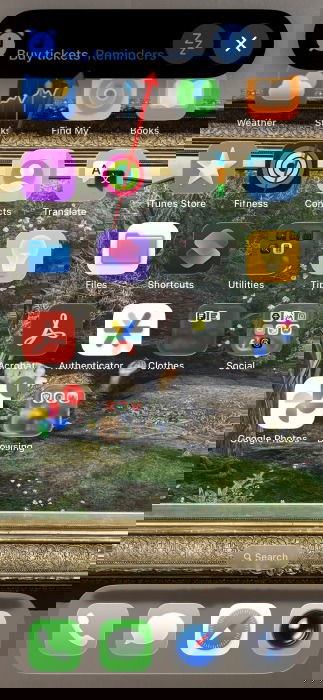
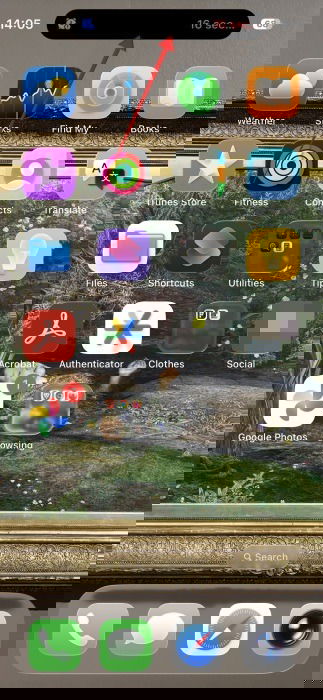
If your phone has a Dynamic Island, and you swipe up the notification, it will show in the area at the top. Check how you can hide notifications in Dynamic Island here.
Replace the Snooze Button with Complete for Urgent Reminders on iPhone
If you’re confident you don’t need to Snooze your urgent reminders, you can replace the button with a Complete button.
To do this, open the Settings app and head down to Apps. Find Reminders in the list.
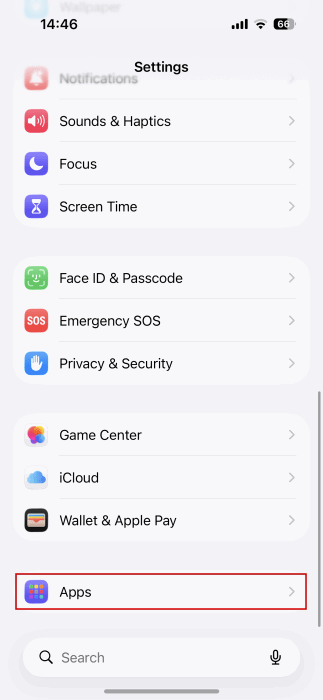
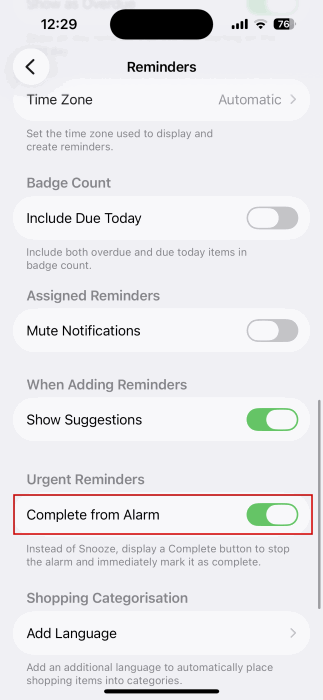
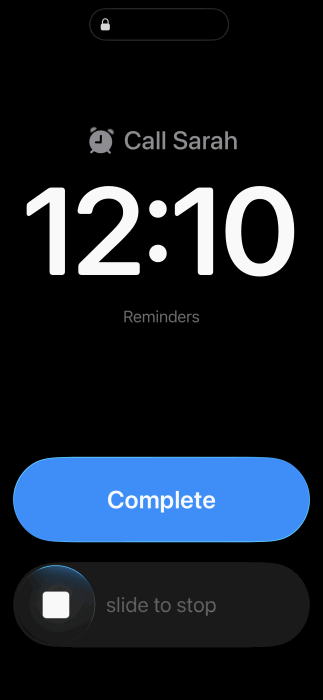
Toggle on the Complete from Alarm under the Urgent Reminders.
Now when the Urgent reminder sets off, you should see the Complete button on the screen.
Worried about forgetting to return calls? Check here how you can easily set up callback reminders on your iPhone.