File conversion used to be a huge headache for me. It is often a hit-or-miss, and constantly had to jump between different websites and apps, just to get things done. The process was usually slow, confusing, and often frustrating, especially when files got lost or formatting broke. That is when I discovered FileWizard, and it completely changed the way I manage my file conversion. FileWizard can convert documents, compress videos, manage files, and even perform advanced tasks like OCR and text-to-speech, all locally, safely, and efficiently. Tasks that used to take me hours now take just minutes, and managing files has never been this effortless.
FileWizard Makes File Handling Simple
FileWizard isn’t just a file converter. It combines file conversion, compression, file management, OCR, transcription, and text-to-speech into a single, locally running application. It solves the most common file conversion problems.
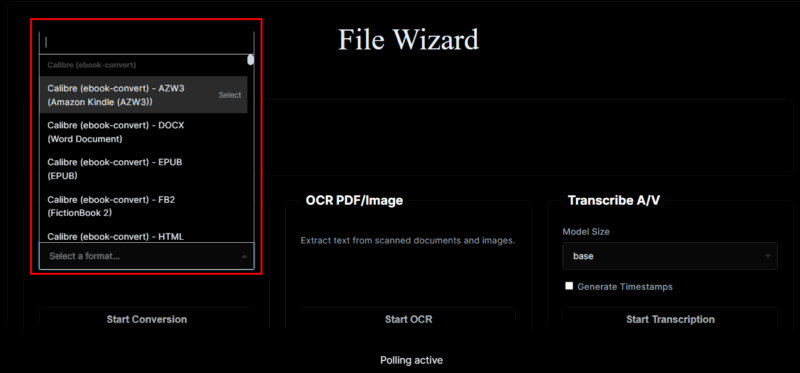
The interface is simple and predictable: select a file, choose the output format, and start the conversion. I can also drag and drop files directly into the interface, and the app immediately shows the uploaded file with a progress indicator.
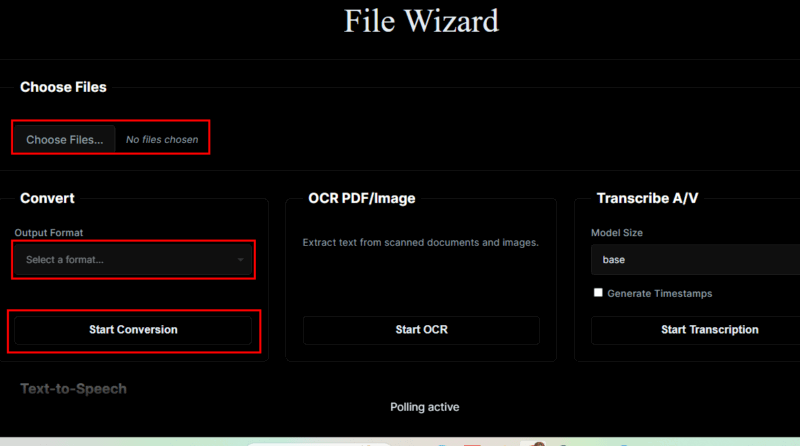
There are no ads, upload limits, or forced sign-ups. More importantly, the output quality is consistent. When converting documents, formatting stays intact. When converting media files, quality does not degrade unexpectedly. This reliability matters when files are meant for professional or client-facing use.
Everything Runs Locally for Complete Privacy and Control
One of the biggest reasons I trust FileWizard is that it runs locally. My files are processed on my own system, not uploaded to an unknown server.
FileWizard avoids many common problems found in online tools, such as slow uploads, server downtime, and unclear data retention policies. When I work with confidential documents, internal business files, or recorded conversations, it gives me real peace of mind.
Handle Everything in One Place
What really makes FileWizard a game-changer for me is how it consolidates multiple tasks into a single tool. I no longer switch between different services for document conversion, media compression, transcription, OCR, or basic file handling. Having everything in one place saves time and reduces friction, especially when I’m working under pressure.
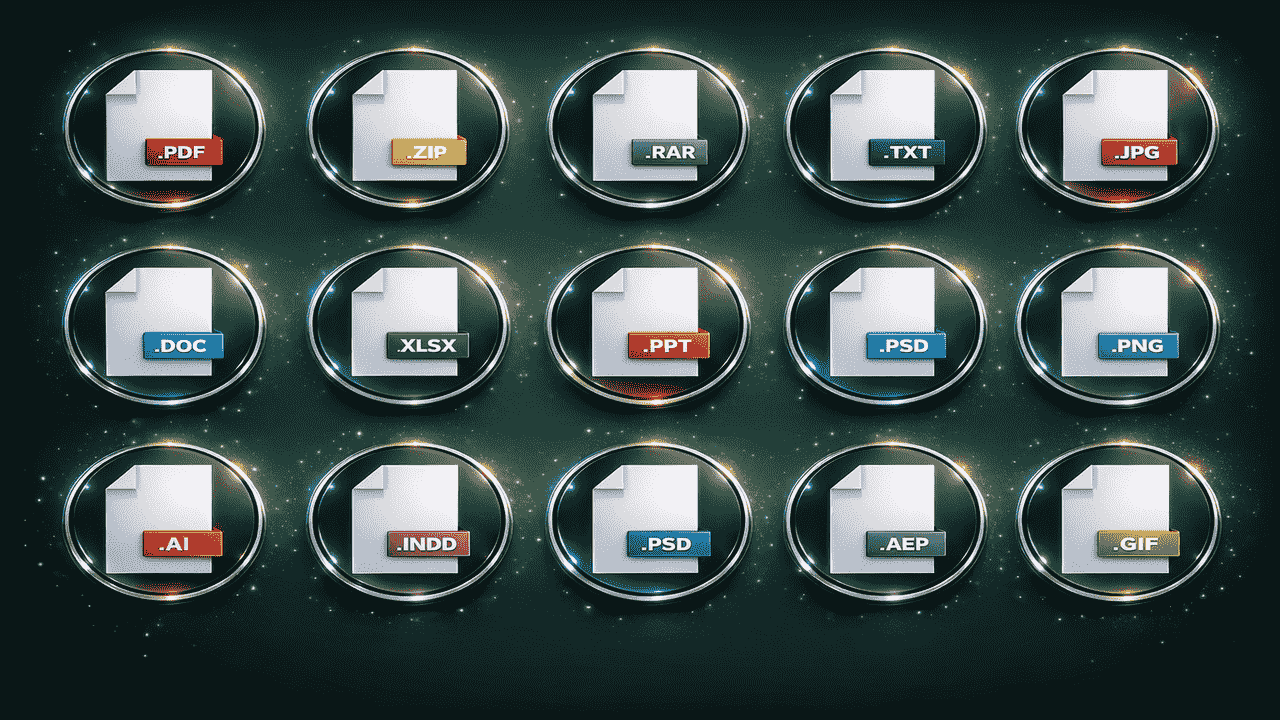
FileWizard supports all the file formats I regularly deal with, including documents, images, audio, and video. Its advanced features are genuinely useful in day-to-day work.
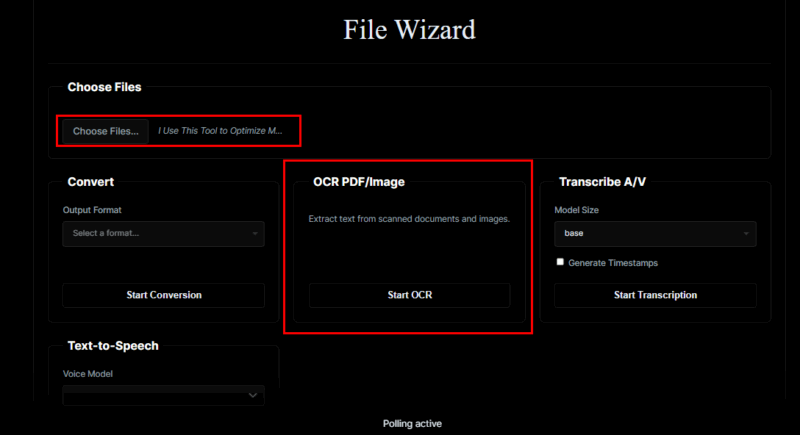
FileWizard’s OCR enables me to extract text from images and scanned PDFs, allowing me to search, edit, and reuse content without retyping it. This is especially useful when working with archived or scanned documents.
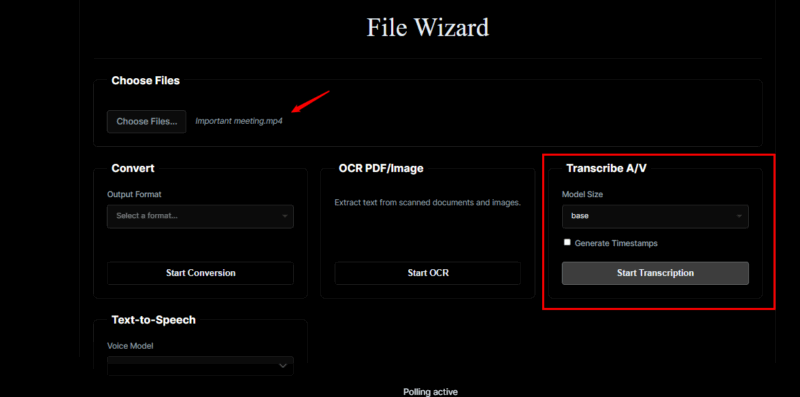
The transcription feature allows me to convert video and audio files into text directly on my system. I use it for meetings, interviews, and recorded notes. The output typically requires only minimal cleanup, which saves a significant amount of time.
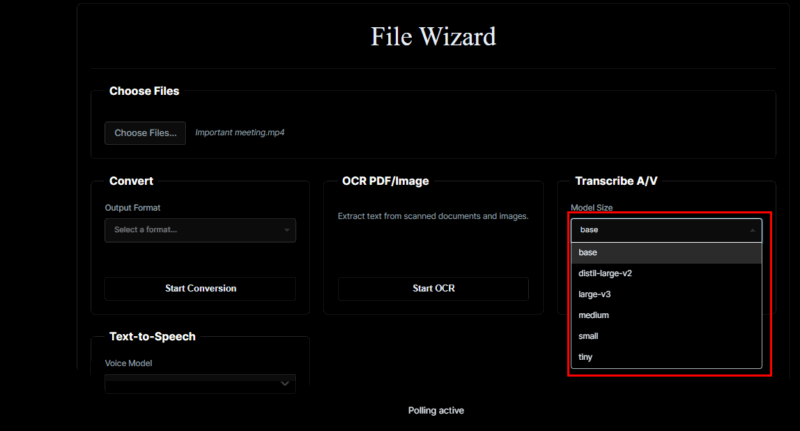
What I also appreciate is the flexibility in transcription models. FileWizard offers multiple model sizes, so I can choose one based on my project needs. For quick drafts or shorter recordings, I use a smaller model for faster results. For important meetings or longer interviews where accuracy matters more, I switch to a larger model. This flexibility helps me balance speed, accuracy, and system resources without changing tools.
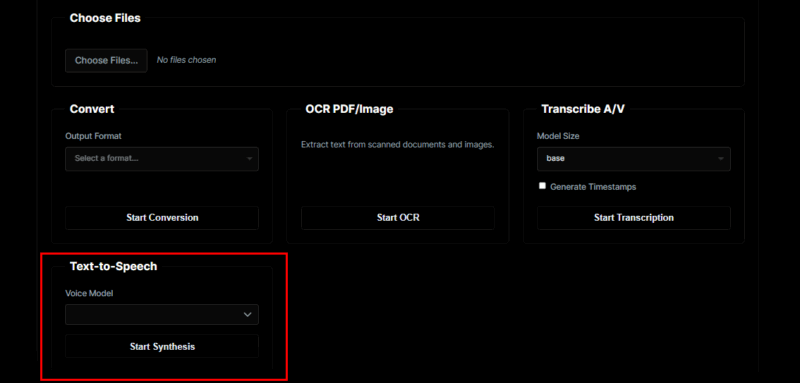
With text-to-speech, I can listen to long documents instead of reading them on screen. I often use this when multitasking or reviewing lengthy material, as it makes the process less tiring.
Keeping Track of My Files
I really like FileWizard’s file history feature. It keeps a record of every processed file, including documents, PDFs, images, audio, and videos. I can revisit past files at any time without reprocessing them, which makes managing ongoing projects much easier.
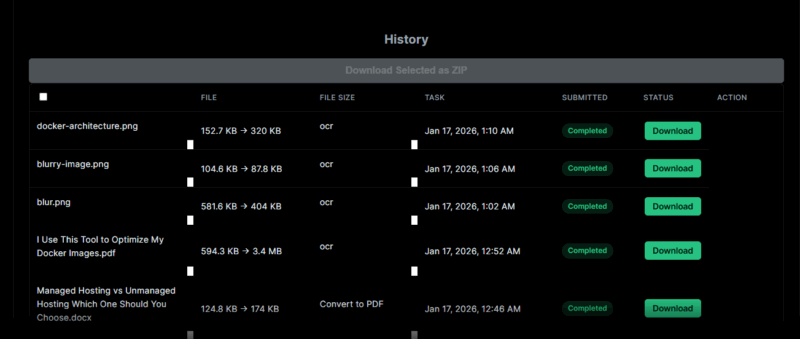
This feature helps maintain workflow continuity and allows me to download or reference older files whenever needed.
Getting FileWizard Up and Running
Setting up FileWizard was easier than I expected, and I chose Docker for a clean, local deployment. I already use Docker for other tools, so this fits naturally into my workflow.
First, create a local directory to store FileWizard data. This directory holds converted files, transcription and OCR models, and other application data:
mkdir C:\FileWizard\data
cd ~/FileWizard\data
Next, pull the official FileWizard Docker image:
docker pull loredcast/filewizard:latest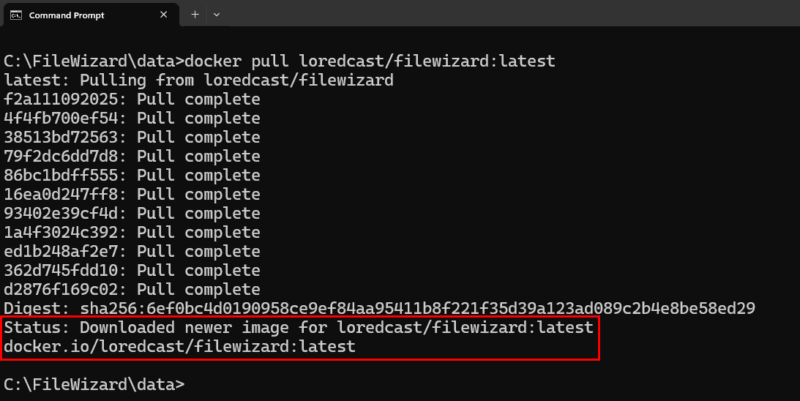
If disk space is a concern, there is also a smaller image available:
docker pull loredcast/filewizard:smallAfter downloading the image, start the container and map the data directory for persistent storage:
docker run -d --name filewizard -p 8080:8000 -v C:\FileWizard\data:/data --restart unless-stopped loredcast/filewizard:latest
After the container started, open your browser and navigate to http://localhost:8080. The FileWizard web interface loaded immediately, ready for file uploads and conversions.
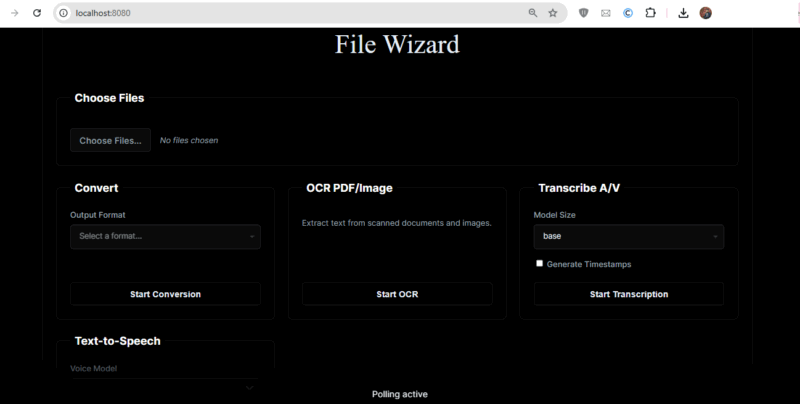
That’s it. I can now test file conversion and transcription.
It Doesn’t Replace Everything, and That’s Fine
FileWizard is not meant to replace every specialized or cloud-based tool. If your workflow depends heavily on real-time collaboration or online sharing, you’ll likely still need additional services.
However, for local processing, privacy-focused workflows, and reliable file handling, FileWizard performs extremely well and covers far more ground than I initially expected.