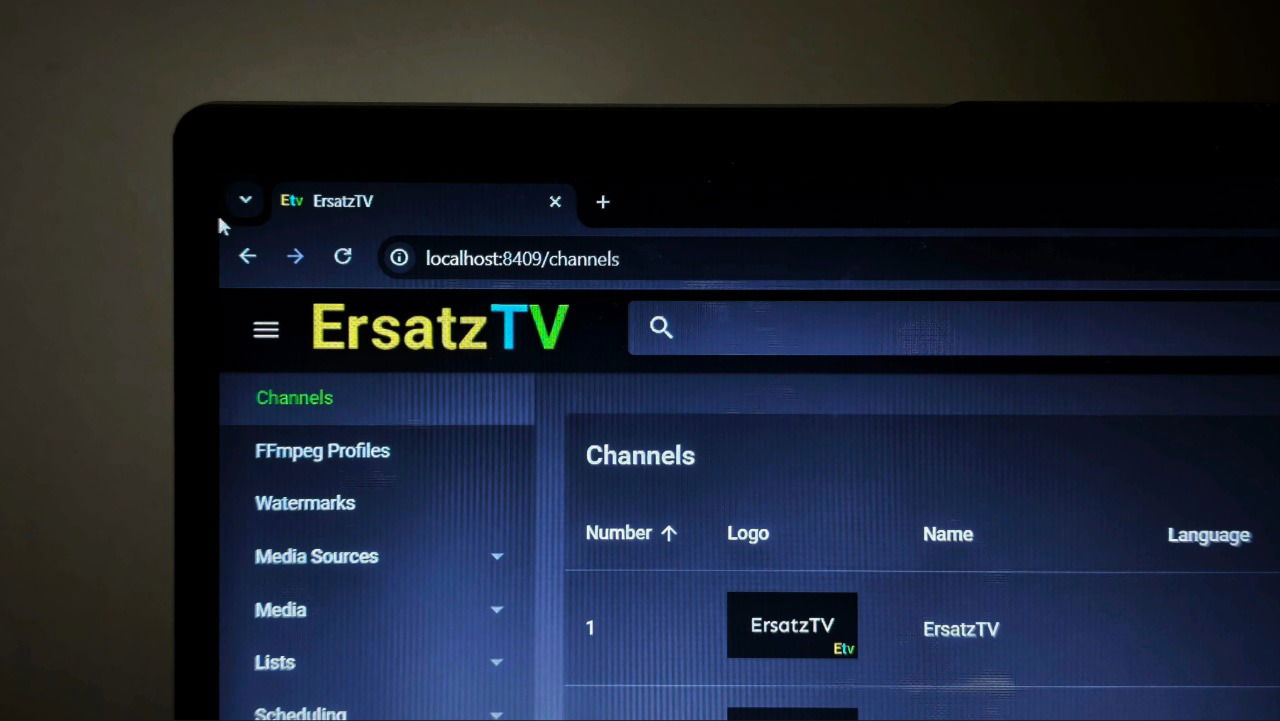
Flipping through TV channels is a feeling that isn’t very old, yet it’s quickly disappearing. One big reason is the lack of control over what you get to watch. Growing up, I always wanted control over the content on TV channels, minus the ads. Thanks to ErsatzTV, that’s finally possible. This open-source app lets you take your self-hosted media, whether it’s from a Jellyfin server or local files, and turn it into traditional TV-style streaming channels. You can curate channels like “24/7 Comedy Movies” or “My Favorite TV Show Marathon” that play on a continuous schedule, just like broadcast television.
ErsatzTV Turns Your Media Library Into a Live TV Service
ErsatzTV is a free, open-source application that turns your existing media library into a personal live TV service. It works like a private IPTV server, creating continuous channels and an electronic program guide from content you already own. You can run it on its own using local media folders, or connect it to media servers like Jellyfin, Plex, or Emby to reuse your existing libraries and metadata.
You can mix and match sources freely. ErsatzTV only reads your files and server data, it never modifies them. The core idea is virtual TV channels. You can create as many channels as you like, assign channel numbers, names, and custom logos, and decide exactly what plays on each one. A channel might be dedicated to a single show, a genre, or a rotating mix of movies and episodes.
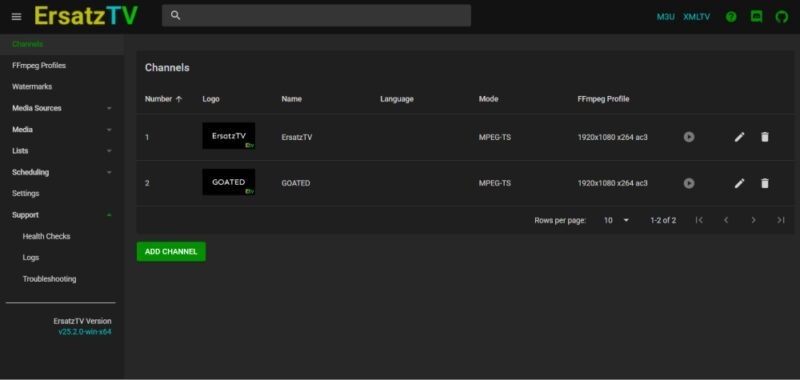
Instead of picking random items on the fly, ErsatzTV uses collections and schedules to control playback. You can run content in order, shuffle it endlessly, or schedule specific blocks at fixed times. This makes it easy to build anything from a simple 24/7 loop to a more traditional TV-style lineup.
Streaming happens over standard IPTV formats using an M3U playlist and an XMLTV guide. HLS is used by default for smooth playback, with optional transcoding when needed. If your hardware supports it, you can enable GPU acceleration for better performance, or switch to direct streaming to avoid transcoding altogether. On top of that, ErsatzTV supports fillers like bumpers or retro commercials, subtitle handling, and a range of optional advanced tweaks if you want to go deeper.
Setting Up ErsatzTV
Setting up ErsatzTV comes down to three things – installing the app, connecting your media, and creating a channel. You don’t need Docker or command-line tools unless you want them. The pre-built installers are more than enough.
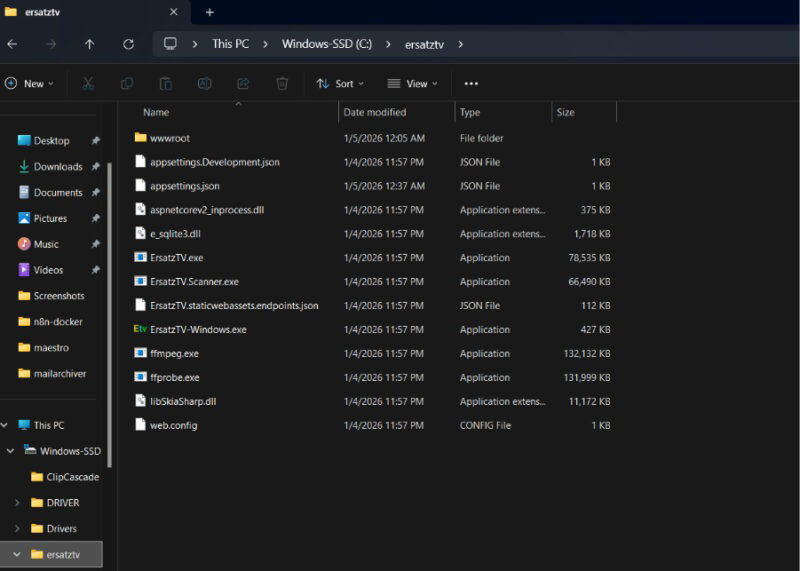
Start by downloading the latest ErsatzTV for your platform. On Windows, extract the ZIP to a folder like “C:\ersatztv” and run ErsatzTV-Windows.exe. Everything you need, including FFmpeg, is bundled, and the app runs quietly in the system tray.
On macOS, open the .dmg, drag ErsatzTV into Applications, and approve it in System Settings on first launch. You’ll also need FFmpeg installed separately. The easiest way to do so is through Homebrew. Simply run the following command in the terminal:
brew install ffmpegOn Linux, extract the tarball, run the ErsatzTV binary, and make sure FFmpeg and FFprobe are installed. Depending on the distro, you can run the following to install the two:
sudo apt install ffmpegWhen ErsatzTV is running, open a browser and go to http://localhost:8409 or use your server’s IP if it’s running headless. This web UI is where all configuration happens.
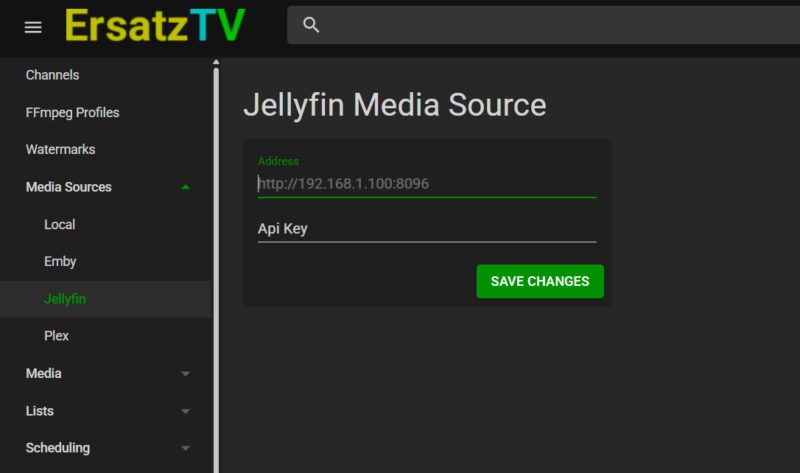
Now you’ll need to connect your media source. I’m using Jellyfin here, but the steps are largely the same for Plex and other supported sources. To add your media, go to Media Sources and choose Jellyfin. Enter your Jellyfin server address, which is the same URL you normally use to access it. For a local server, this is usually something like http://192.168.x.x:8096 or http://localhost:8096.
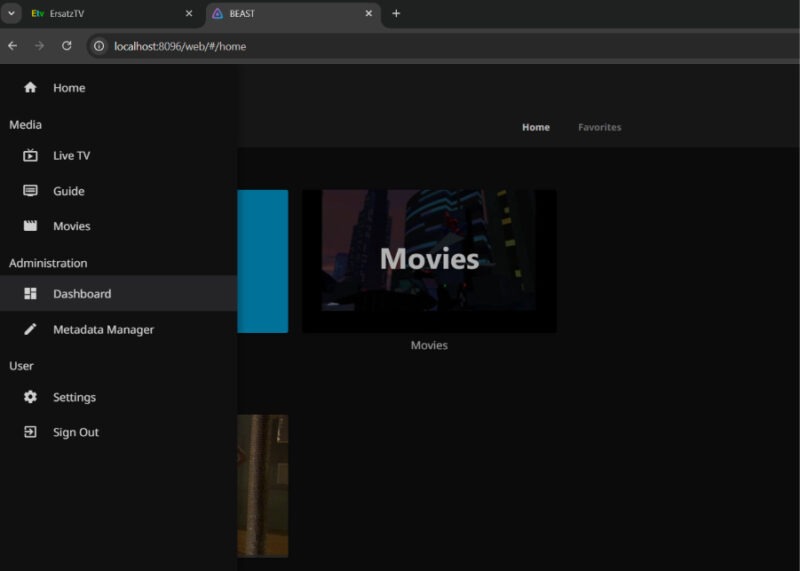
Next, generate an API key in Jellyfin by going to Dashboard.
Select Advanced → API Keys and click the + button.
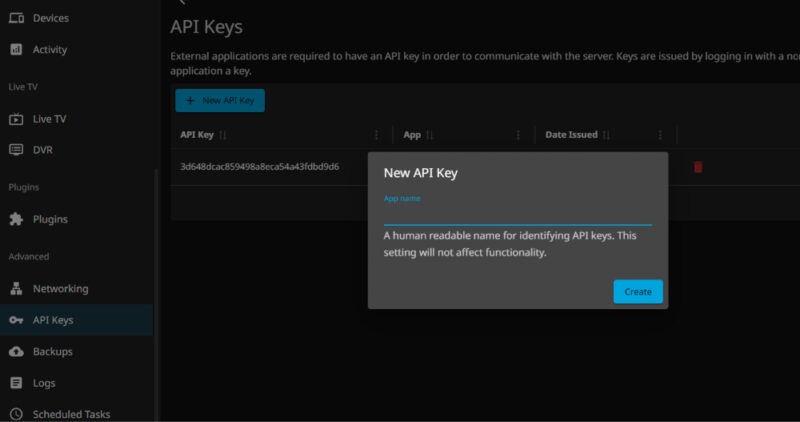
Copy the generated key and paste it into ErsatzTV, then click Save Changes. ErsatzTV will now link to your Jellyfin server without requiring your Jellyfin login credentials.
If you are not using Jellyfin, you can also add local folders under Media Sources. Select Local and let ErsatzTV scan them.
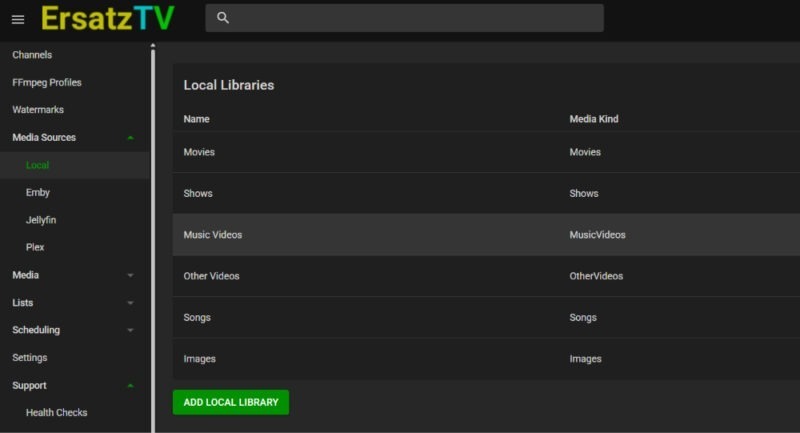
With media in place, create a collection. Collections are playlists that channels run on. Add a new collection, browse or search your library, and add the content you want.
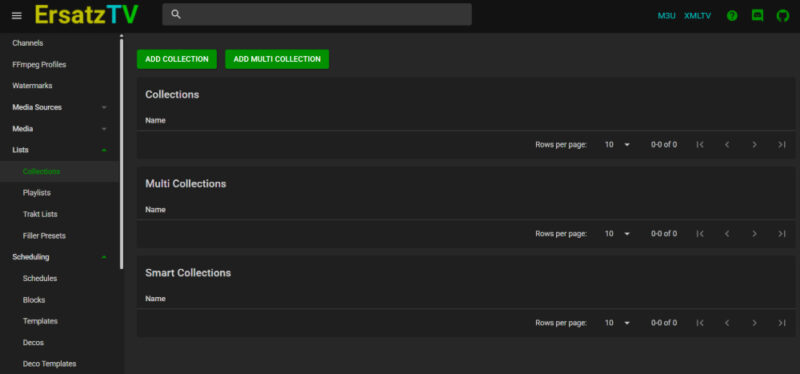
Finally, create a channel, give it a name and number, and leave the defaults in place. HLS streaming works well for most setups. Create a schedule that points to your collection, set it to shuffle and flood for continuous playback, then link the schedule to the channel using a playout. Once that’s done, your channel is live and ready to watch.
Streaming ErsatzTV to Your Devices
At this point, ErsatzTV is running, and your channels are live. The next step is actually watching them. ErsatzTV exposes each channel as a standard IPTV stream along with an EPG, which makes it easy to plug into existing media apps. Since I’m using Jellyfin, I’ll walk you through the steps for that, but the process is similar for Emby and other apps as well.
To watch through Jellyfin, open the Jellyfin admin dashboard and go to Live TV. Add a new tuner device and choose M3U Tuner. When prompted for a file or URL, paste ErsatzTV’s playlist URL. Next, add the guide data. Still under Live TV, add a new XMLTV guide provider and paste the ErsatzTV guide URL. Save it and give Jellyfin a moment to load the data.
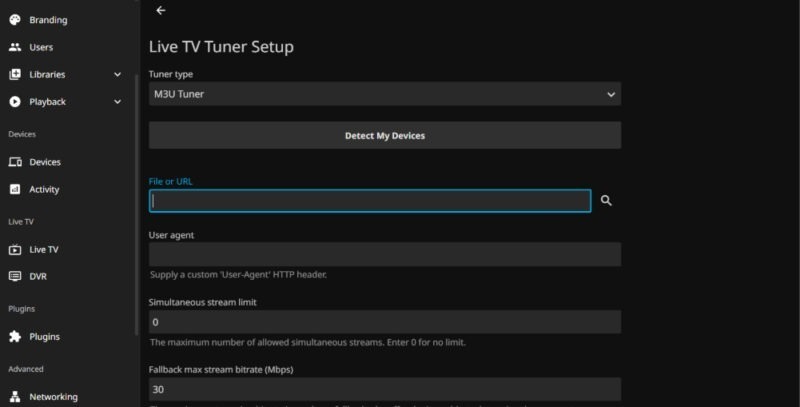
Once that’s done, head to Live TV in Jellyfin. You should see your custom channels listed with names, numbers, logos, and a full program guide. Click a channel and hit play to start watching, just like regular live TV. You can use any device with a Jellyfin client to watch these channels. For instance, on a smart TV with the Jellyfin app, navigate to the Live TV section. You’ll find your channels and can watch them full-screen.
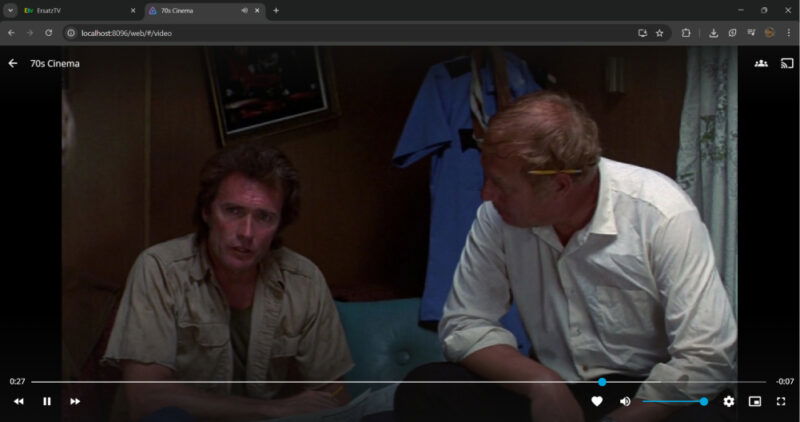
Because ErsatzTV uses standard M3U and XMLTV feeds, you’re not locked into Jellyfin. You can also use IPTV apps like TiviMate, Kodi’s IPTV client, Channels DVR, or even VLC by pointing them at the same playlist and guide URLs.
Plex doesn’t natively accept arbitrary M3U sources via its UI (unless you have Plex Pass and use the Live TV & DVR with an XML guide in a roundabout way), but ErsatzTV can emulate an HDHomeRun, which Plex can detect.
ErsatzTV takes a bit of effort to set up, but once everything is running, it’s well worth the time. While you’re at it, you might also want to check out a few other apps that can make your TV worth using.