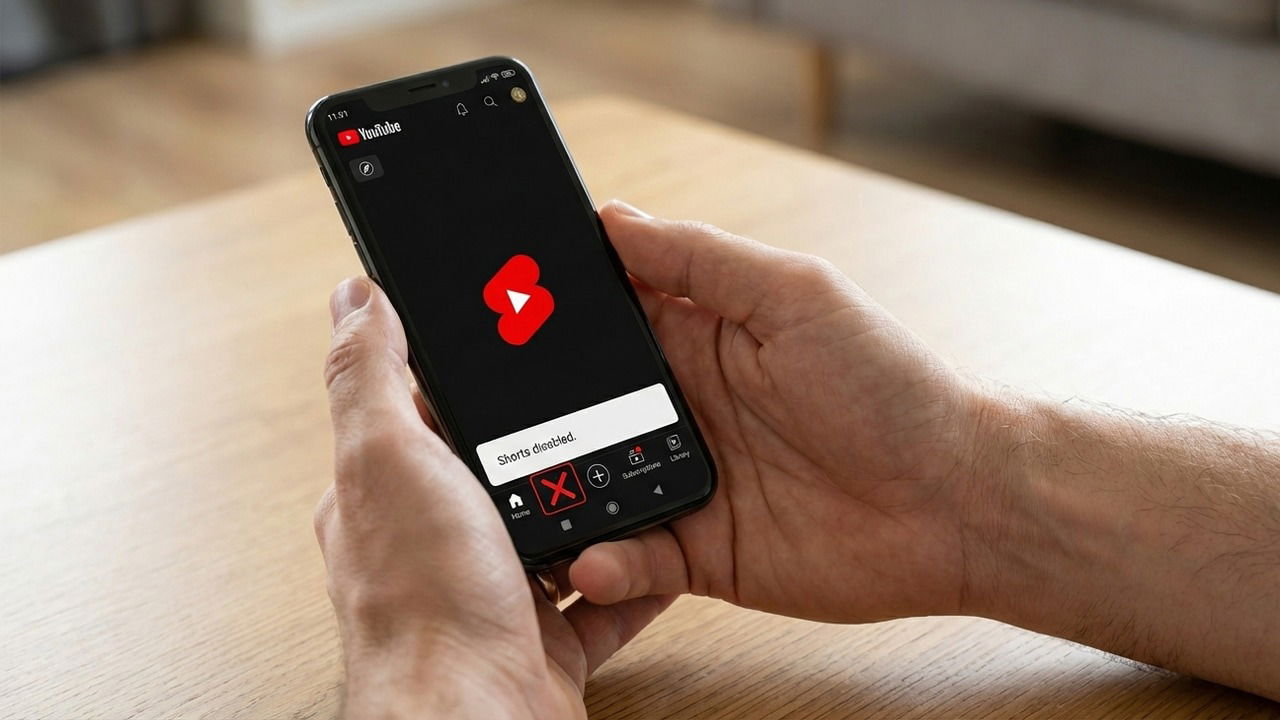
While YouTube Shorts offer great bite-sized entertainment, they can become incredibly addictive and lead to a never-ending loop of scrolling. It also doesn’t help that they appear everywhere on the platform, from your home feed to your search results. If you are tired of seeing them, here is how to disable Shorts on both desktop and Android.
Keep Shorts Out of YouTube Search Results
Shorts are the top results for most searches right now, and it can be very annoying when you are simply looking for long-form videos. If you dislike Shorts only because they are taking over search results, then you don’t need a specific tool to get rid of them.
YouTube has recently introduced a new filter to get rid of Shorts from search results. They will still appear on your home feed or the dedicated Shorts section, but your searches will be safe. Here’s how to filter them out:
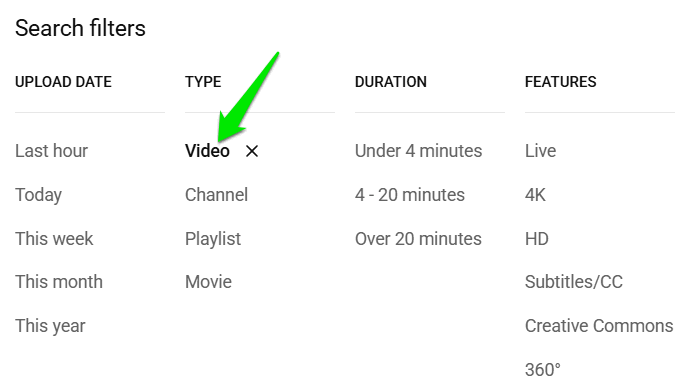
Search for something on YouTube and click the Filters button. Here, under the Type section, select Video. The results will refresh and remove all videos.
Similar steps can be followed on the YouTube mobile app. Search for something and then select Search filters from the dots menu in the top-right corner. Now, select Video under Type and apply the filter.
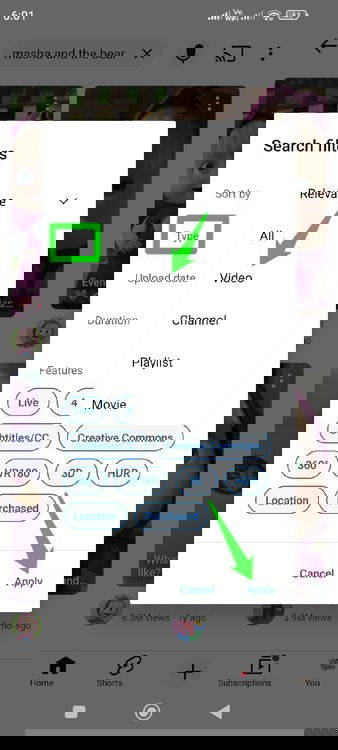
Keep in mind that this feature is still rolling out and may not be available for you, depending on your region.
Disable YouTube Shorts on Desktop
If you don’t want to see Shorts at all on YouTube, you’ll have to use a third-party extension for YouTube since Google doesn’t offer such a feature built in. There are many extensions that can block Shorts on YouTube, but we recommend Youtube-shorts block as it’s the easiest to use and is available for both Chrome and Firefox.
By default, the extension forces Shorts to play as regular landscape videos, which prevents users from doomscrolling. To completely block Shorts, click on the extension icon and open the dots menu. Here, enable the hide “shorts” tab and hide shorts video options.
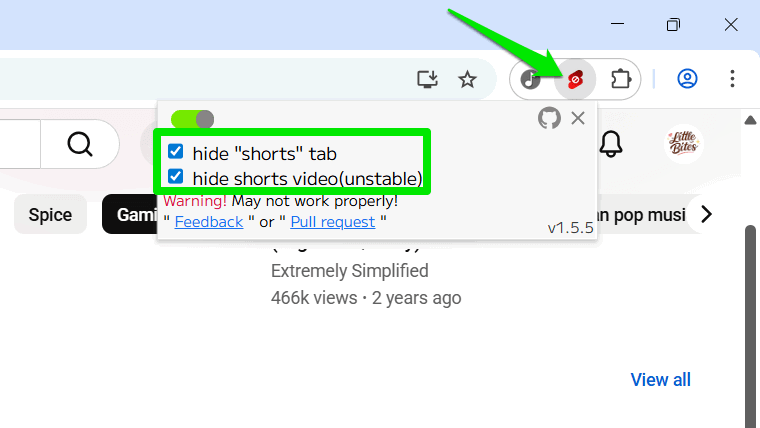
The extension will remove Shorts from the home feed, its tab in the left panel, and even from search results. However, in the case of search results, you might see Shorts for a fraction of a second before they get removed.
Disable YouTube Shorts on Android
Things are a bit different on Android, as you can’t use a third-party tool to change official YouTube app features. So your best bet is to use workarounds that usually aren’t as smooth as just blocking Shorts in the YouTube app. Below are two ways you can indirectly get rid of Shorts on YouTube on Android phones.
Use the No Shorts App to Block Shorts
If you want to get rid of Shorts because of their addictive nature and how they lead to endless scrolling, the No Shorts app will be enough for you. This app can block Shorts by not letting you open them. You will still see Shorts and will be able to interact with them, but as soon as you open one, it will close automatically.
It does this by using the accessibility permission to monitor when you open a short video in a supported app (including YouTube) and immediately closes it. All you have to do is launch the app, give it accessibility permission, and enable the Shorts toggle. In our tests, we opened Shorts back-to-back in succession, and it immediately closed all of them before they even became full screen.
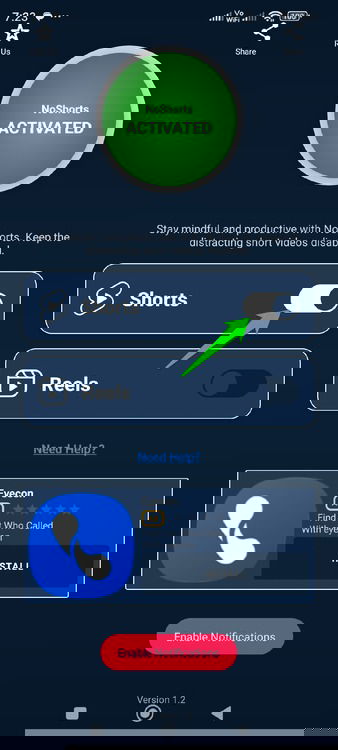
Keep in mind that accessibility permissions allow apps to view and interact with your screen, which carries inherent risks when enabled. No Shorts app does say it only tracks specific package names and text to detect and close Shorts, but the risk is there.
Use a Third-Party YouTube Client That Blocks Shorts
If you want to block Shorts from appearing in the YouTube interface, you’ll have to use a third-party YouTube client that can block Shorts. We recommend New Pipe for this, a privacy-focused alternative that also includes additional features, such as playing videos in the background.
Since it’s not available on the Google Play Store, you’ll have to first enable app installation from unknown sources on your Android phone. Afterward, download New Pipe from the official website and install it (you can also find it in F-Droid).
Shorts are enabled by default in it, so you’ll have to disable them first. Open its Settings from the main menu, move to Content → Channel tabs, and uncheck the Shorts option. This will remove both the Shorts tab and Shorts from the home feed. However, sometimes they may still appear in search results.
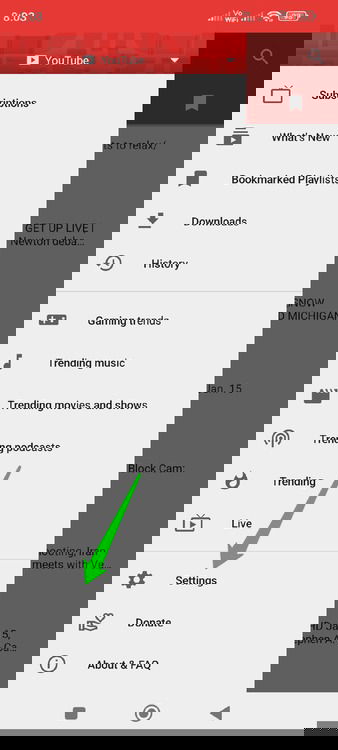
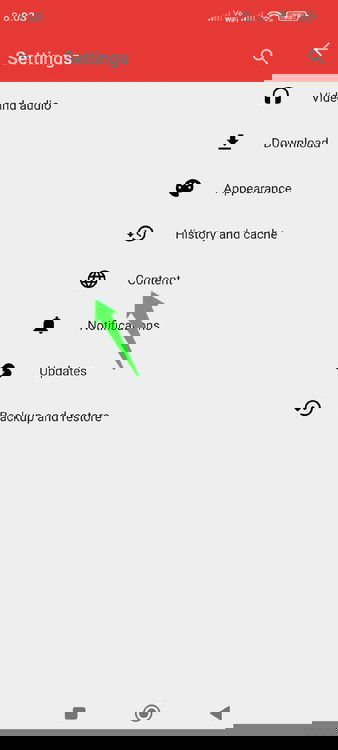
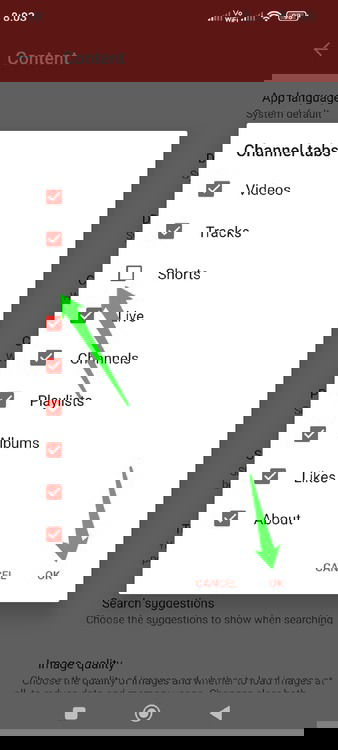
Beyond these methods, some users also reduce Shorts by marking them as “Not Interested” to train their recommendations. Also, if Shorts are leading to phone addiction, try this trick to curb phone addiction using grayscale.