


If you haven’t been keeping up with the browser news, Microsoft Edge has recently upgraded itself to a Chromium base. This, in turn, has brought along some handy new tools which make browsing a little easier.
If you have vision problems, you may be interested in Edge’s built-in reading tool, which makes reading webpages easier. Let’s break down this feature and see how it can help you.
Also read: Microsoft Edge (Chromium Version) vs Google Chrome
How to Access the Reading Tool
By default, you won’t see the reading tool button when surfing the Internet. It only comes out of hiding when you’re on a webpage that the reading tool can help with.
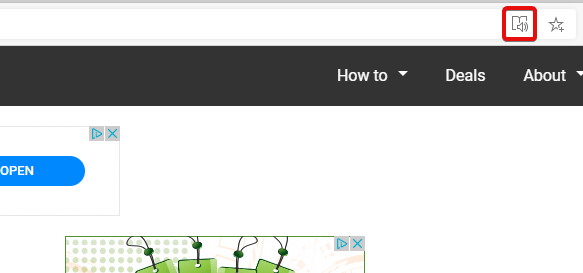
You’ll know when the reading tool is available when you see the immersive reader button appear. Keep an eye on your URL bar: when you see a button that looks like a book with a speaker in front of it, click it to activate the reading tool.
Using the Reading Tool to Read Webpages
If you can’t read the article, why not have the computer read it for you? To do this, click the “Read aloud” button to start dictation.
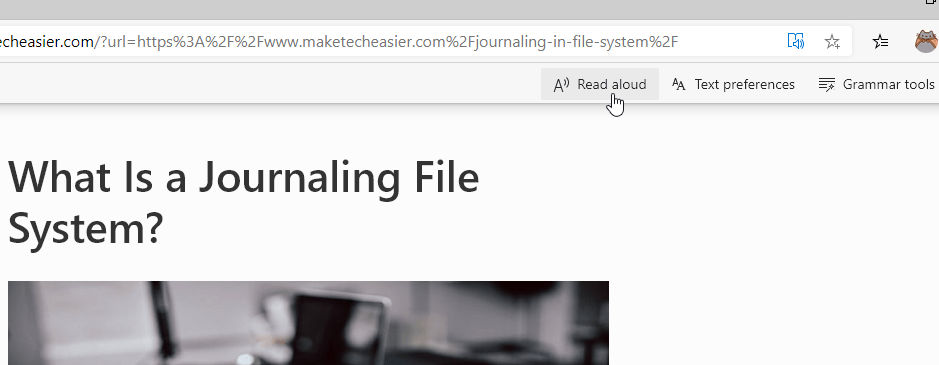
If you want to pause the dictation or skip forward and backward, you can do so using the buttons at the top. Pressing the backward or forward buttons will jump between paragraphs, so you can easily jump to the desired point.
Once the dictation has started, you can tweak the voice to your liking. If you click “Voice options” at the top right, you can change both the speed and the voice used for dictation. When choosing a voice, keep an eye out for characters labeled as “Natural.” These sound a lot more human than the other more robotic voices.
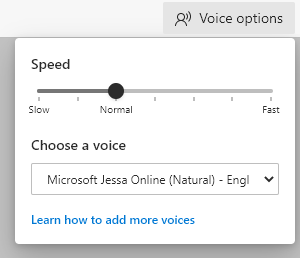
If the voice is reading too quickly or too slowly, use the voice options to change the speed. You can change this during the dictation, allowing you to tweak it until it’s just the right speed.
When you’re finished with dictation, click the “X” next to the voice options button to stop the reading.
Also read: How to Create and Use Multiple User Profiles for Microsoft Edge
Editing Text Size with the Reading Tool
If the text size is a little too small for your liking, you can change this in the reading tool. Just click “Text preferences” at the top, then adjust the text to your liking.
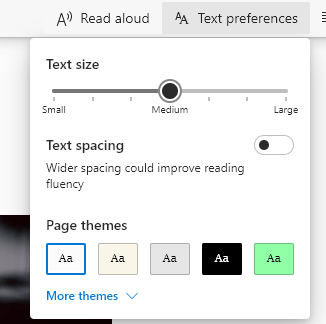
This option lets you increase the size of the text, so you can adjust the letter size until it’s perfect. You also have an option to add text spacing, which adds a large gap between each letter so you can easily detect each one.
If you don’t like the website’s background and font color, you can change these to make the text easier to read. If you don’t like the options available, just click “More themes” to see even more choices to pick from.
Using the Grammar Option with the Reading Tool
The grammar tool is one of the more interesting options here. This lets you break down words into syllables, which may make it easier for you to read it aloud.
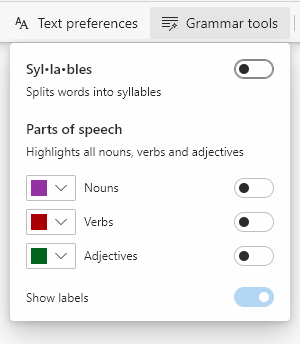
You can also highlight the nouns, verbs, and adjectives in an article and customize the color of the highlights. This is useful if you struggle with grammar and want to see which words are which.
Better Reading in Edge
Microsoft’s new Chromium-based Edge browser is still brand new, but it already has some nice features hidden away. The reading tool is one of these, which makes browsing articles easier for those with vision problems. If you are looking for more features, you can also install extensions from the Chrome Web store.