

You already use Google Pay to make shopping easier, but did you know you can use Google Pay to track spending too? Simply link your debit and credit cards to let the app display your spending habits, allowing you to create the best budget for your finances.
[mte_toc]What Is Google Pay?
Google Pay launched in 2018 (as Google Wallet, then rebranded as Android Pay before becoming Google Pay) and was primarily envisioned as a way to make payments with your smartphone. Basically, a user could link their debit, credit, and loyalty cards to the app. Google Pay would allow the user to make contactless payments using their phone, reducing the need to pull out a wallet or rummage through a bag.
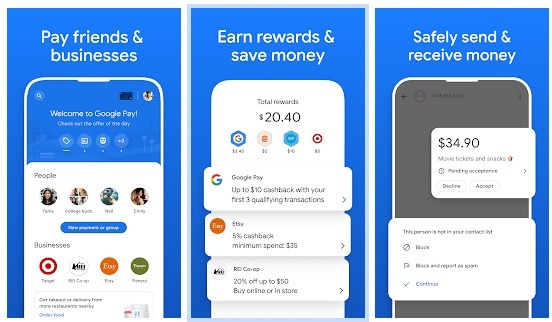
While Google Pay is primarily focused on these contactless mobile payments via smartphone, the app boasts other features as well. One such feature is a peer-to-peer payment system similar to Venmo. Furthermore, Google Pay automatically curates available deals and discounts, based on your location and personal spending history. It’ll also help you track your spending.
As of June 2024, many Google Pay features are moving to Google Wallet instead. This is for U.S. users only.
How Does Google Pay Help with Budgeting?
Google Pay has expanded its abilities over time. One of the most useful is the Insights feature. Insights allows users to link their bank accounts to the Google Pay app. Doing so gives users the opportunity to track their spending, leading to an overview of their current financial situation, including how much money they have and how much they are spending.

Google Pay also provides users with detailed charts and graphs to help people understand where their money is going. The app also helps users digitize and organize their receipts, which is super handy come tax time.
Download the Google Pay App
To get started, download the latest version of the Google Pay app. If you already have the app (such as G Pay) on your phone, there’s a chance that it may be an older version that doesn’t have the “Insights” feature.
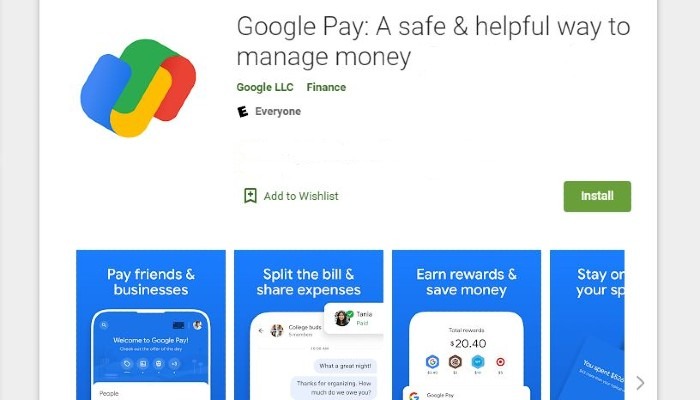
Make sure you grab the latest version of Google Pay for your Android or iOS device. Once you’ve installed the Google Pay app, launch it and sign in using your Google account credentials.
Link Your Bank Account
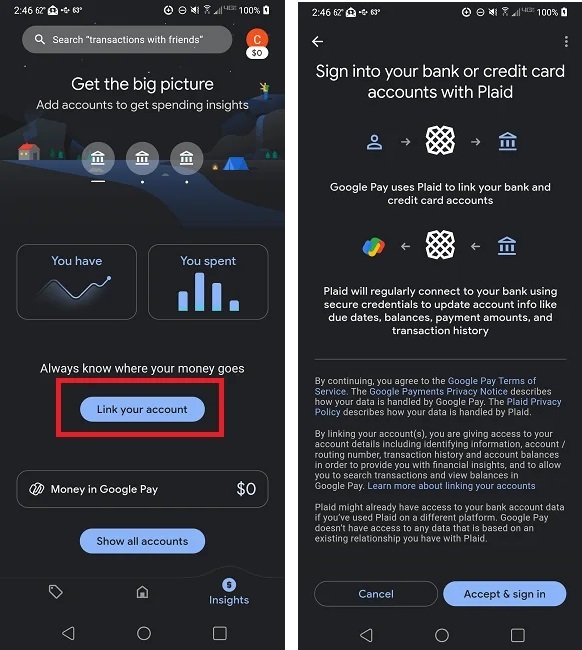
For Google Pay to track spending, you’ll want to link your bank account. In Google Pay, tap Insights ($) in the bottom right. Or, tap Track spending.
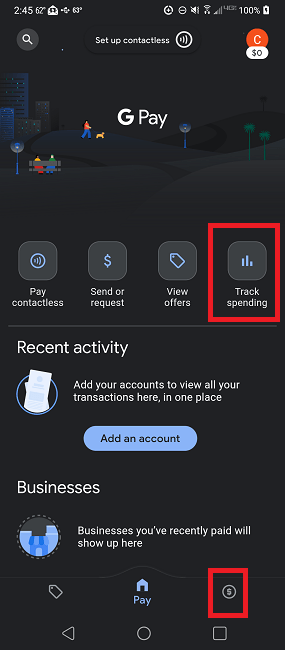
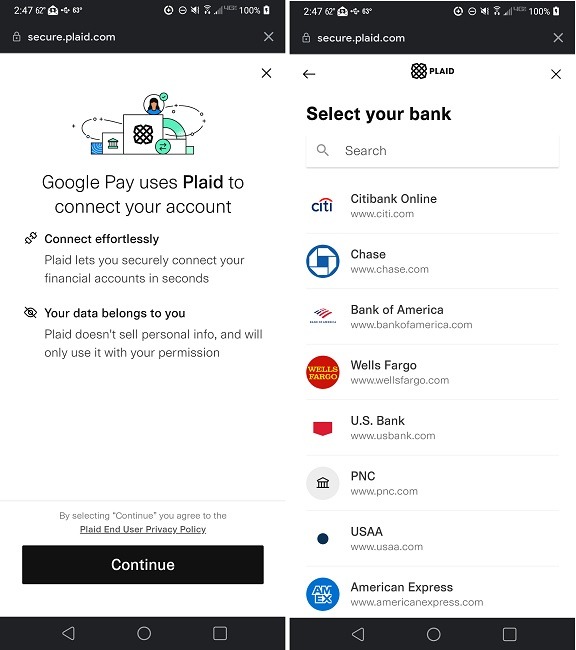
Tap Link your account. The next screen explains that Google uses a service called Plaid to link your bank account. You won’t be able to take advantage of Google Pay’s budget tracking feature unless you tap on Accept & sign in. Doing so will bring you to another screen that asks you to accept the details of the Privacy Policy. Tap on Continue if you agree.
With the legal stuff out of the way, you can finally link your bank account to Google Pay. Use the search bar at the top of the screen to find your bank, and select it, then punch in your bank login credentials. Tap on the submit button to link your account.
Note: different banks will have different login credentials. Carefully follow the steps on screen to link your bank account. If you can’t find your bank, it may not be supported by Google Pay. Or, if you’re having issues with the app itself, try these troubleshooting methods.
What Is Plaid?
As explained earlier, Google Pay uses the Plaid service to link your bank account to the app. You may be asking what a fabric pattern has to do with your personal finances?

Plaid is a financial services company that enables applications (like Google Pay) to connect to user bank accounts. This enables the user to check their balances and make payments via the app of their choice. Think of it this way: instead of having separate apps for all of your financial accounts, Plaid allows you to integrate these accounts into a singular app (like Google Pay).
How to See All of Your Transactions
Now that you’ve linked your bank account to Google Pay to track spending, you’ll can take advantage of the Insights feature. Be aware that it may take a few minutes before your bank account is linked to Google Pay. Once your account is linked, look for the Your Money section. This is broken down into two categories: You have and You spent, providing users with a snapshot of their finances.
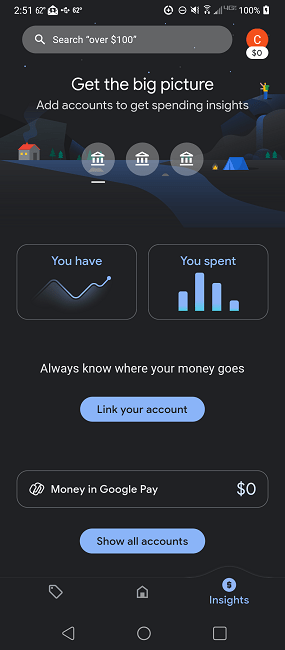
Go to Insights -> Show all accounts to see an itemized list of your purchases. It includes various charts to help you visualize your spending habits, a list of upcoming expenses, such as utility bills, and the ability to search and view receipts stored in your Gmail and Google Photos accounts.
To make it easier to view what you need, filter transactions by account and time period. Or, search for a specific transaction by retailer or keyword.
Note: if you don’t see any data, it’s because Google Pay has not had enough time to analyze your spending habits.
Tracking your spending is the first step in creating an effective budget. If you want to go beyond Google Pay, try these budget apps. Or, if you prefer using a spreadsheet, check out these Google Sheets budget templates. For Notion users, try these templates.
Image credit: Unsplash