Many apps and programs require you to sign up with your email address in order for you to receive their services. However, these services also include regular email updates about their service and promotions. These unwanted updates can be really annoying, and they are one of the main reasons why many people like using a disposable email for such signups.
If you use your personal email address to sign up for such services, then most probably your email account will be filled with promotional emails. Thankfully, all legit companies offer an “Unsubscribe” button to easily opt out of such emails. Gmail makes it very easy to unsubscribe from such emails, and in this article we will show you three ways to unsubscribe from newsletters in Gmail.
1. Unsubscribe from a Newsletter
Let’s go through the basic process of how you can unsubscribe from email newsletters in Gmail. It is compulsory for all companies (legit ones) to include an “unsubscribe” option in their newsletters. However, some companies may try to obscure the unsubscribe link in their emails. In most cases it’s at the bottom of the email in tiny blue or grey letters, but some also add it right below their original message.
Fortunately, Gmail can automatically detect the unsubscribe button and automatically show it to you right next to the sender’s email. Just open the newsletter that is bugging you, and click on the “Unsubscribe” button at the top next to the sender’s email. A new tab will open where you can confirm the prompt to unsubscribe.
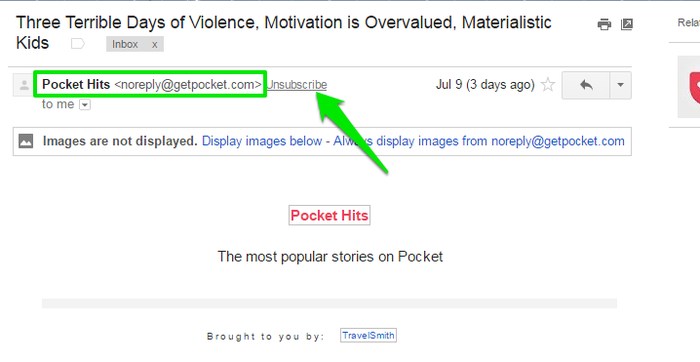
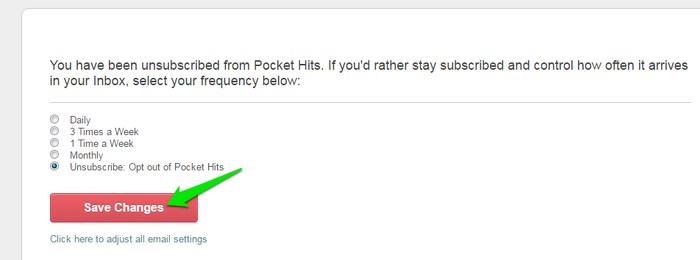
In case Gmail fails to put the unsubscribe button next to the sender’s email, look carefully at the end of the email to see if there is a unsubscribe button. You will most probably be able to find one. If you don’t, just double-check and then mark the email as “Spam.”
2. Find Newsletters in Bulk and Unsubscribe
Gmail inbox has three sections – Primary, Social and Promotions. All the newsletters are scattered over all of these three sections depending on their type, so you need to put all of them in one place if you are planning to get rid of the unwanted newsletters.
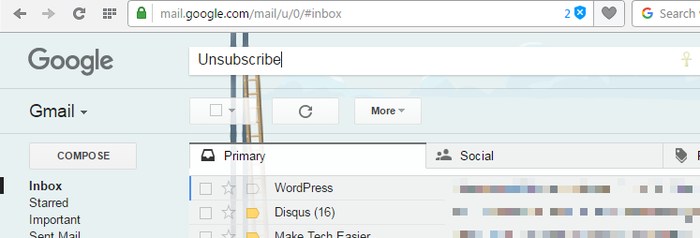
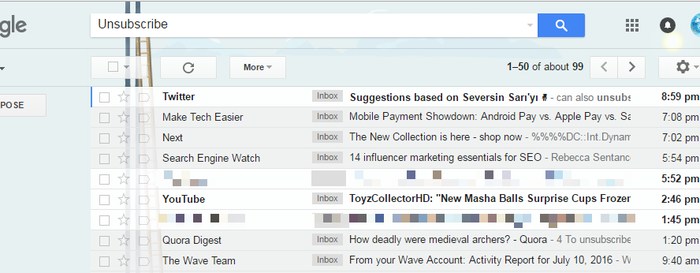
To list all of them in one place, simply search for “Unsubscribe” in the top search bar and hit Enter. As most newsletters have an unsubscribe button, you will automatically see all email newsletters in your account. Now you can simply follow the instructions in the first method to unsubscribe from unwanted newsletters.
3. Use a Third-Party Service to Unsubscribe in Bulk
If you don’t mind sharing your email and contacts information with a third-party service, then you can use a third-party service to easily unsubscribe from email newsletters in bulk. For this purpose Unroll.me is a reliable service that is very simple to use.
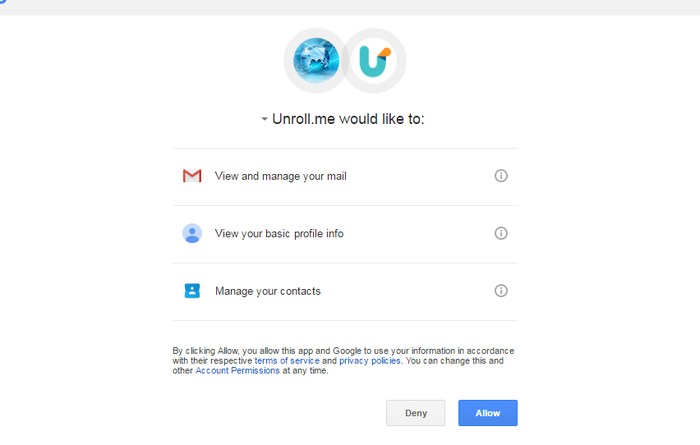
Visit the Unroll.me main page and click on the “Get Started” button at the top-right corner. On the next page enter you email address and click on “Continue.” Unroll.me will ask for permission to view and manage all your emails and also manage your contacts. (Privacy-conscious people should carefully read this line again.)
Once you allow the access, Unroll.me will list all email newsletter senders in your account in its interactive interface. You will only see the company names with an “Unsubscribe” next to them. Just a click on the “Unsubscribe” button will immediately opt you out of the newsletter without any redirects. You can quickly go through the list and easily unsubscribe with a single click. It took me less than a minute to unsubscribe from over thirty unwanted email newsletters.
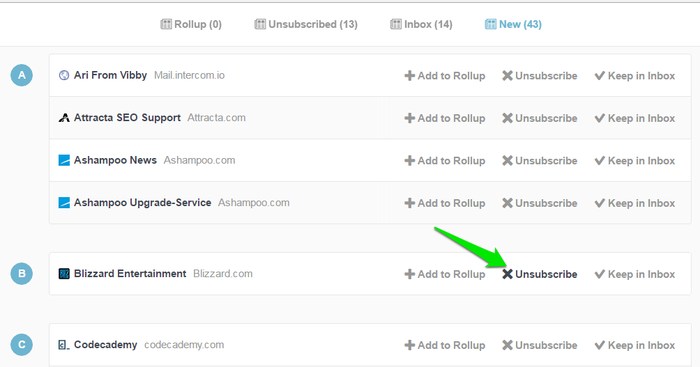
The best part is that Unroll.me keeps a record of all the newsletters you unsubscribe from, and you can subscribe to these newsletters again any time you like.
Conclusion
If you want your Gmail account to be free of unwanted emails and notifications, then it is important to unsubscribe from email newsletters you don’t want. I will not recommend you go for a third-party service just to unsubscribe from some newsletters, as you can easily do it yourself right from Gmail with a little effort. Although, if you are planning on unsubscribing from hundreds of newsletters and don’t mind sharing your information, then Unroll.me is a good option.
Do you know any other ways to unsubscribe from email newsletters in Gmail? Let us know in the comments.