


We are living in the era of multi-device and multi-platform. Chances are the devices that you use at home are different from the devices you use at work. Your family, friends, and colleagues are also living in multiple environments. Problems arise when you need to send files between devices and platforms.
Email is one of the oldest and most popular ways to exchange files but not necessarily the most practical. There are many attempts to solve this problem such as the Apple-environment-only solution of DeskConnect, cloud-based sending system Droplr, or even cloud storage like Dropbox.
One of the available file exchange solutions that can cater to multi-platform users is SendAnywhere.
Send Your Files Anywhere
SendAnywhere is a free service that will help users send their files anywhere from and to all platforms with no login required. And – according to the FAQ – with no limit to the file size. That being said, the web version of the service stated that the maximum file size is 1GB via the web interface and 20GB via the desktop app.
For example, you could quickly send the music loop created in your phone to the laptop that you’re working on, or you can share the group selfies to all group members, whether they are nearby or not. The only requirement is they are connected to the Internet.
The file is protected by a unique six-digit code to prevent unauthorized people from intercepting them. But you can opt to log in if you want to. By logging in you save yourself the hassle of inputting the six-digit code every time you receive a file from the other devices.
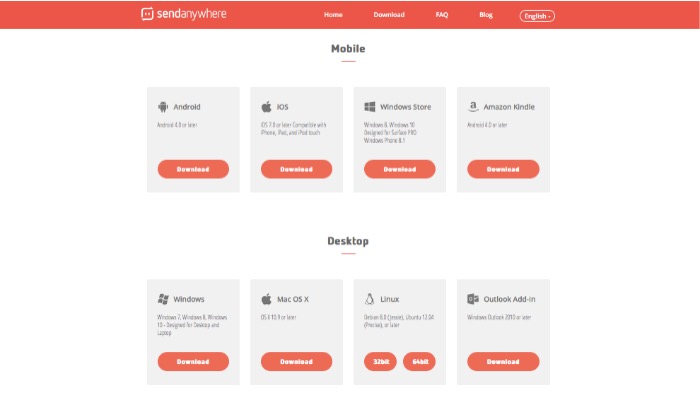
The service is available as web apps, accessible from any device using any browser. Additionally, SendAnywhere is also available as a native app for all the major OSes on both mobile (iOS, Android, and Windows) and desktop (Mac, Windows, and Linux). It’s also available as a Chrome extension and WordPress plugin.
Sending and Receiving Files
To send a file you only need to upload it to the SendAnywhere server. You can use one of the available methods. For example, let’s try to use the web app to send and the desktop app to receive.
First, go to SendAnywhere on the Web and click “Add Files.” Choose the file(s) that you want to send, and click the “Send” button. You can customize the sender’s profile if you want to.
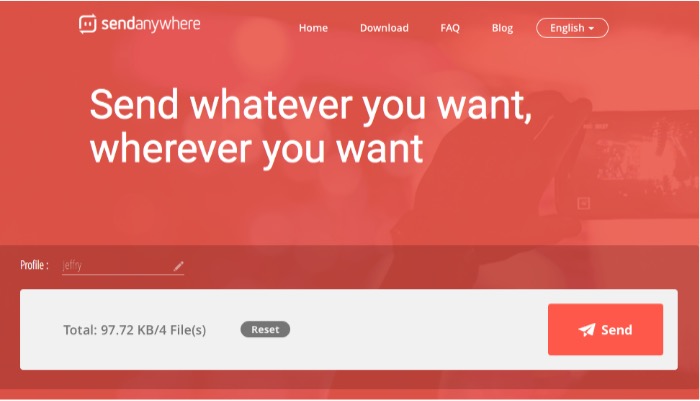
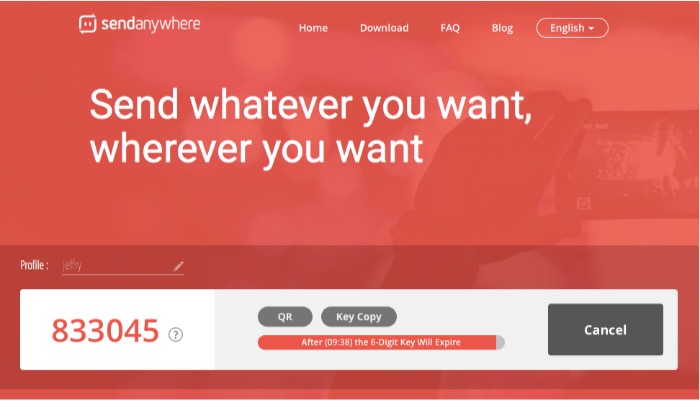
You will get the six-digit key that will expire after ten minutes. Use the key on the device where you want to receive the files or send it separately to the people whom you want to share the files with. You will also see the number of files and their total size.
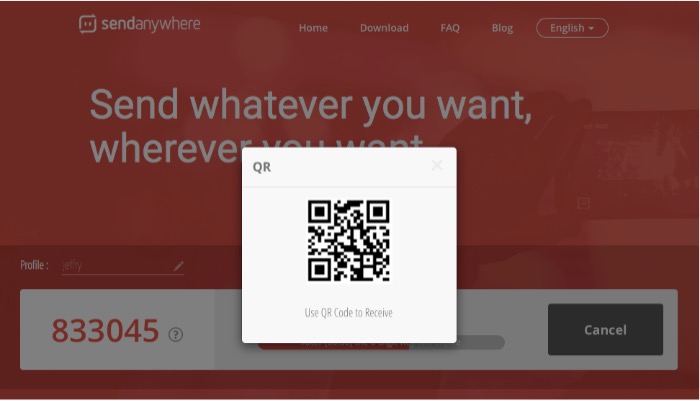
Alternatively, you can scan the QR code to receive them.
Then, open the desktop app (or mobile app) on another gadget and click “Receive” You will be asked to input the six-digit key.
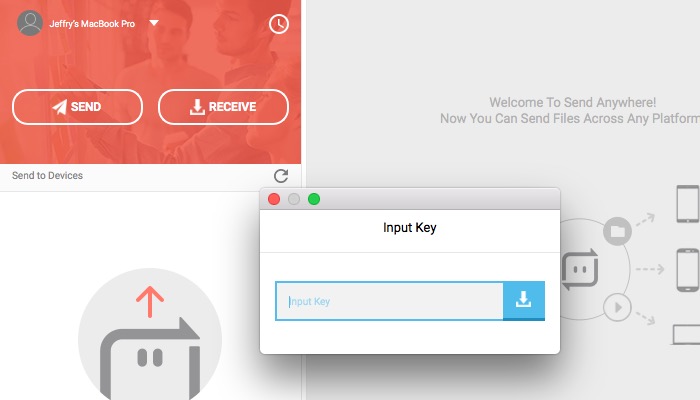
After providing the app with the key, you can download the files to your device’s local storage.
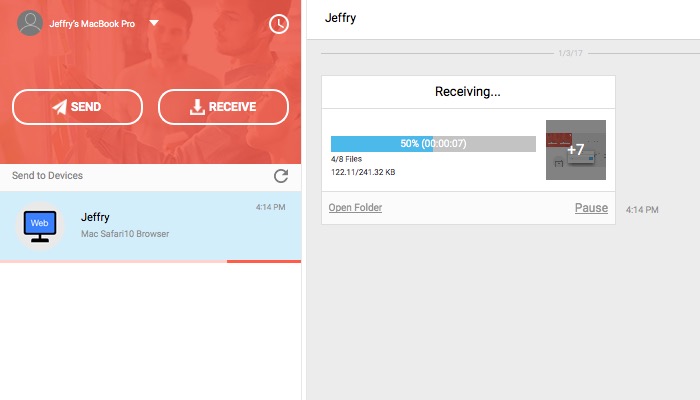
The app’s interface will be more or less similar with slight differences from one device to another, but the process will be the same regardless of the platform that you use.
Please also note that the time needed to send and receive files will depend heavily on the file size and the speed of your Internet connection.
I think that SendAnywhere is a great service to use for sending and receiving files if you are working in a multiple platform environment. While everything worked fast in my experiment of sending and receiving multiple image files, I haven’t tried to use it to send gigabytes of files.
Maybe if you deal with that files that are that large, it’s better to use online storage to keep the files and share their URLs. If the transfer fails, you don’t need to re-upload the files.
What file transfer service do you use and why? Share your experience using the comments below.
Image credit: SendAnywhere blog