


Sometimes lately it can be necessary to use propriety products. Open source enthusiasts would love to have a cloud-based storage facility, but the fact remains that companies like Google, Amazon, Dropbox and Microsoft have cornered the cloud storage market. They offer reliable products for free, and this means that yes, they will scan or read your files in order to comply with legal requests or to serve adverts. It is a fact of life, but this doesn’t mean you shouldn’t use them.
OneDrive is Microsoft’s cloud-based storage offering, and even though it is naturally suited to the Windows platform, it will connect with Linux-based machines with little effort. There are a number of ways to do this, and this is where the onedrive script comes into play.
Also read: How to Troubleshoot OneDrive Sync Issues
OneDrive
Onedrive is a CLI-based client that allows you to sync quickly and easily with OneDrive.
In order to install onedrive, first you need to install some dependencies and set up git, unless you already have it. Head to the Terminal and enter one of the following.
For Ubuntu:
sudo apt install libcurl4-openssl-dev git
sudo apt install libsqlite3-dev
If you are using Ubuntu 18.04 or newer, use snap to install dmd:
sudo snap install --classic dmd && sudo snap install --classic dub
If not:
sudo wget http://master.dl.sourceforge.net/project/d-apt/files/d-apt.list -O /etc/apt/sources.list.d/d-apt.list
sudo apt-get update && sudo apt-get -y --allow-unauthenticated install --reinstall d-apt-keyring
sudo apt-get update && sudo apt-get install dmd-compiler dub
For Fedora:
sudo yum install libcurl-devel git
sudo yum install sqlite-devel
curl -fsS https://dlang.org/install.sh | bash -s dmd
Arch Linux:
sudo pacman -S curl sqlite dlang git
Installation
After installing the dependencies, fetch the files with git:
git clone https://github.com/abraunegg/onedrive.git
And compile and install it:
cd onedrive
./configure
make
sudo make install
After you have done this, now you need to authorize onedrive with Microsoft so it can access your account. Simply enter the following in the Terminal:
onedrive
And it will prompt you to visit the URL to get authorization.
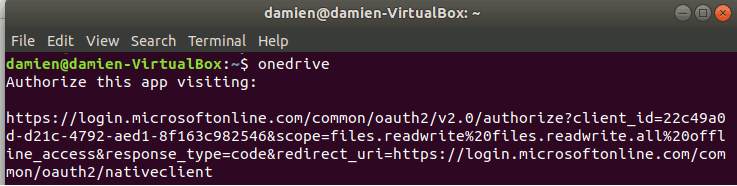
Log in to your OneDrive account, and grant the app permission to access your account.
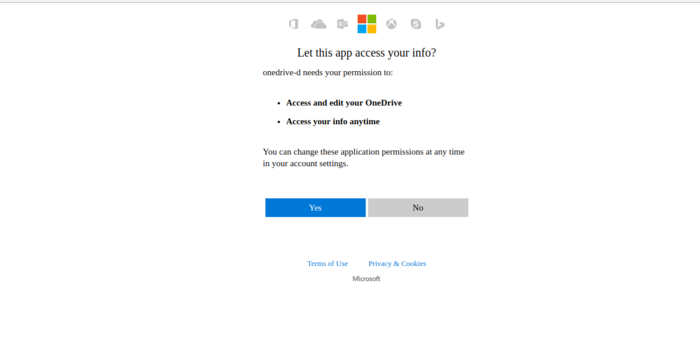
Once this is done, you will be presented with a blank white page. Copy the URL and paste it into the Terminal at the prompt.

This will complete the setting up.
To start synchronizing OneDrive to your local folder, run
onedrive --synchronize
Onedrive will start downloading all your files in the cloud to your local folder.
Alternatively, you can run:
onedrive --monitor
to get it to monitor your local folder for changes.
Configuration
You can find the “config” file at the onedrive git folder. To make it active, move it to the “~/.config/onedrive/” folder.
mkdir -p ~/.config/onedrive
cp ~/onedrive/config ~/ .config/onedrive/config
Open the config file. There are three options that you can configure: “sync_dir” and “skip_files.”
- sync_dir: the location to store your OneDrive files. All files placed in/removed from this folder will be synced to the cloud.
- skip_files: the file type (or file pattern) that won’t be synced.
- monitor_interval: the time interval between sync operations.
Once you have made the changes, save and restart onedrive.
At any time, you can check your configuration with the command:
onedrive --display-config
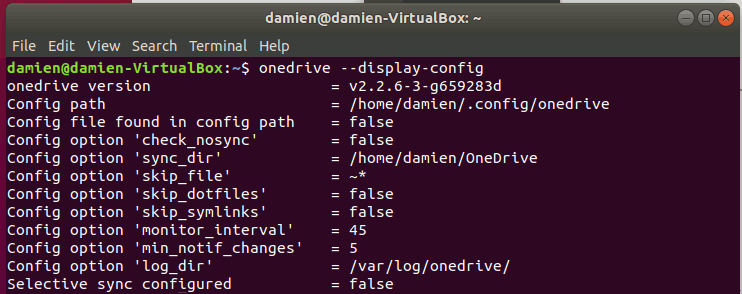
Sync List
If you prefer to use selective sync rather than sync the whole OneDrive folder, you can create a file named “sync_list,” and place it in the “~/.config/onedrive” folder. Inside the file add the relative path (from the synced OneDrive folder) to the files/folders you want to sync.
Starting onedrive at login
By default, onedrive doesn’t start when the user logs in. To get it to run automatically when you log in, you can add onedrive --monitor to your startup application.
Now your OneDrive will sync with your Linux system. How do you sync OneDrive to your setup, and do you prefer other tools? Let us know in the comments section below.
This post was updated in March 2019 with a working repository.
Image credit: Microsoft OneDrive