In my previous post I showed you how to block websites from asking for your location. But that’s not the only annoying thing that modern browsers allow websites to do. In fact, most websites, including YouTube, will not ask for your location but for permission to show you notifications.
Web notifications are not all that bad and can be useful at times. For instance, by clicking “allow” you grant permission to that website to show you notifications whenever a new article is published on a blog, or when items on your wishlist are available for sale.
On the other hand, that permission may be abused. Some sites may spam you by displaying text advertisements on those notifications. If you don’t intend to ever allow sites to show you notifications, you can easily turn off this feature in the settings. In this post we’ll take a look at how to disable push notification pop-ups in Chrome, Firefox, and Edge browsers.
Google Chrome
Turning off this feature in Google Chrome is very simple. Simply follow the steps below:
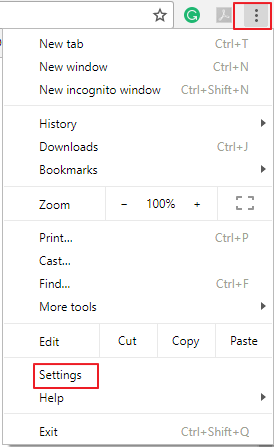
1. Click on the menu icon (marked by 3 vertical dots) located at the top right corner of the address bar and select Settings.
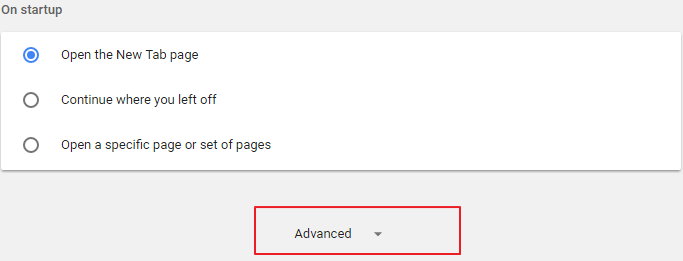
2. In the Settings tab scroll down to the bottom of the page and click on the “Advanced” button.
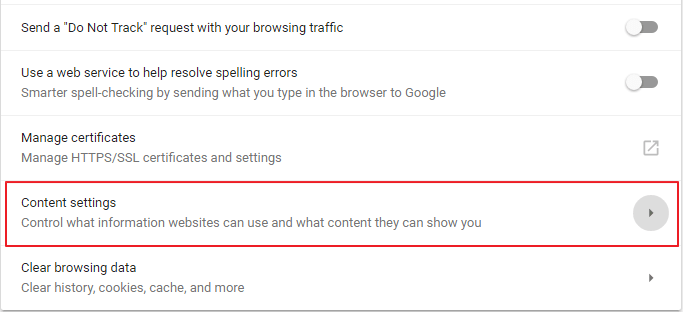
3. On the “Privacy & Security” section, select “Content Settings. ”
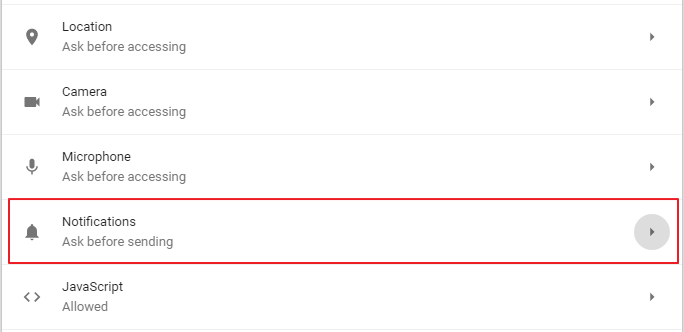
4. The Content Settings tab will open. Under Content Settings, scroll down to the “Notifications” section and click on it. This will open the notifications tab.
5. Click the option that says “Ask before sending” to turn off the switch. You will also be able to see a list of the sites that often ask you to allow push notifications and another list of the sites you have already granted permission to send you notifications.
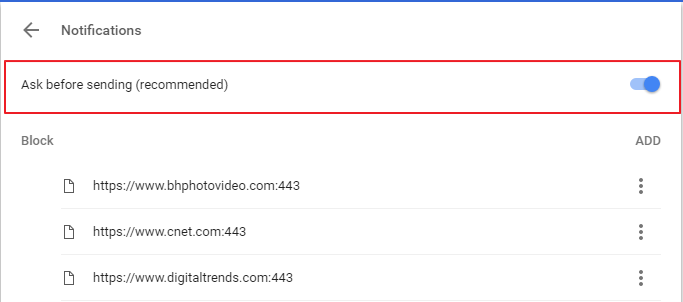
To disable notification access to any website you have already granted permission, click on the three vertical dots to the right side of the site’s URL and select “Remove” to revoke the permission.
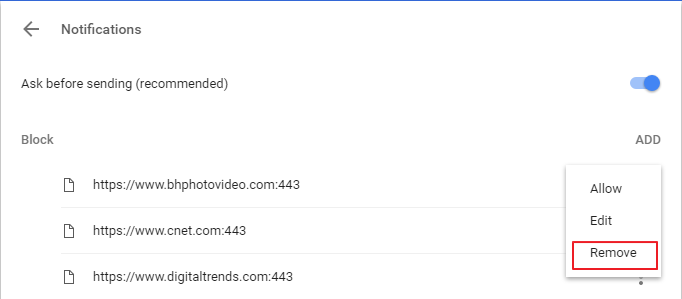
That’s it. Doing so will stop that site from sending you notifications.
Mozilla Firefox
Unlike Google Chrome, Firefox doesn’t have a dedicated option to stop websites from sending push notifications. However, it does have a “Do not disturb” option that when enabled blocks all kinds of notifications until you restart Firefox. To activate this feature type about:preferences#content in the address bar and click Enter. Check the “Do not disturb me” box, and this will disable all notifications.
But if you want to stop some websites from bugging you with notification prompts permanently, you’ll have to change the settings from the hidden about:config page. Here’s how you do it:
1. Type about:config in Firefox’s address bar and hit Enter. A warning will appear; just click on “I accept the risk” to continue.
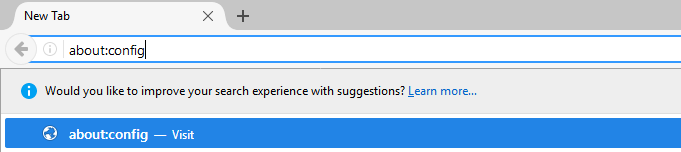
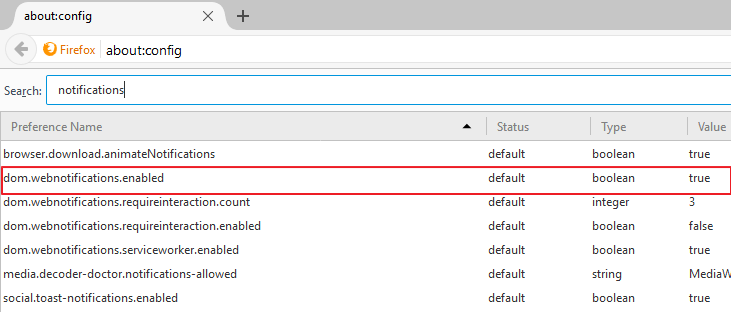
2. This will open a huge list of items that are completely alien to you. Just ignore them and type “Notifications” in the search box.
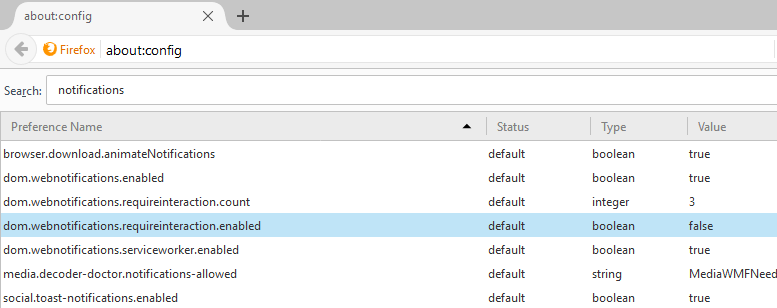
3. Now look for the option that reads dom.webnotifications.enabled. Its value is set to “True” by default.
4. Double click on it to set its value to “False.” This change will disable all web notifications.
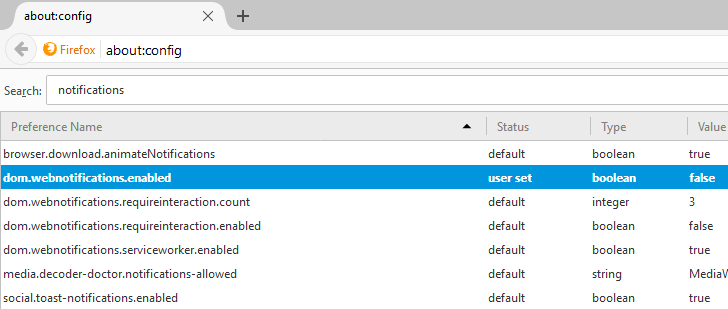
Setting this feature to False prevents all websites from sending you notifications. Firefox doesn’t give you the option to grant permission to some sites; this feature affects all sites.
Microsoft Edge
Microsoft Edge gained support for push notification in the Windows 10 Anniversary Update. Unfortunately, Edge does not offer the option to disable push notifications entirely. The only thing you can do is to click “No” whenever a site asks for permission to show notifications. The good thing is that Edge will remember your preferences and will not prompt again for those sites you deny access. However, new sites will still bug you with permission requests.
Wrapping Things Up
Many webmasters have adopted browser notifications in their websites as a way to push updates to their followers and visitors. Unfortunately, most people don’t like this feature, especially users who spend most of their time on the Internet. We hope that this article will help to remove that annoyance from your life.
Hope you enjoyed reading the article. Feel free to comment and share.