


VirtualBox is one of the most popular Windows development tools available today. It allows you to install another operating system on top of your native operating Windows 10 system. That way you can switch between these operating systems at will.
But over time the virtual machine (VM), also known as the guest operating system, may grow due to files you have saved and other activities you’ve done inside the OS.
Funnily enough, deleting files directly from inside the VM doesn’t free up the storage space for the host system to use. If you have a need to free up more storage space, these are the steps to shrink a VirtualBox VM and reclaim lost space.
Dynamic Memory vs. Fixed Size Memory
If you selected the “Fixed Size” option when you first created the VM, this guide won’t work for you. The reason is because you’ve already agreed to a fixed size for VirtualBox to use for the guest OS. It can’t grow nor shrink beyond a set limit.
If you selected “Dynamic Size” upon creating the VM, then you are set for the next steps. Dynamic Size allows for the OS to grow its storage allocation dynamically.
1. Delete and Clear Space in Guest OS
You can do this for both Windows and Linux OS.
For Windows as Guest Operating System
1. Delete unwanted files inside the Windows guest OS. Go to the Recycle Bin inside your guest OS and delete all the unnecessary files. Uninstall all unwanted applications and remove all unnecessary backups (like Windows.old, old Windows restore points, etc.). The goal is to free up as much space as you can from inside the guest OS.
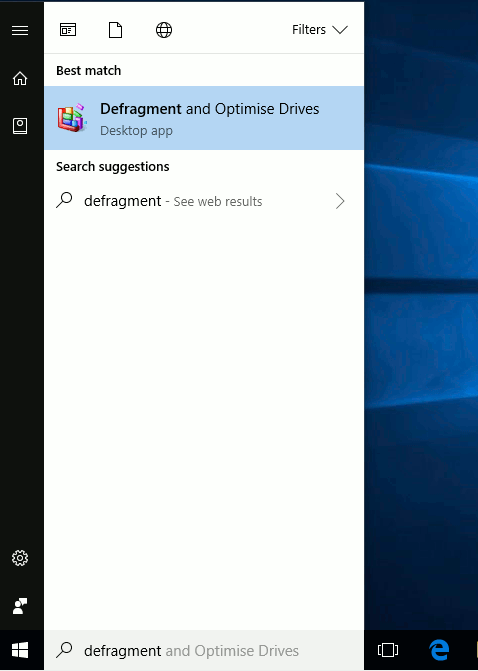
2. Open Disk Defragmenter. If your guest OS is Windows 10, just search for “defragment” in the Start menu and open “Defragment and Optimise Drives” option.
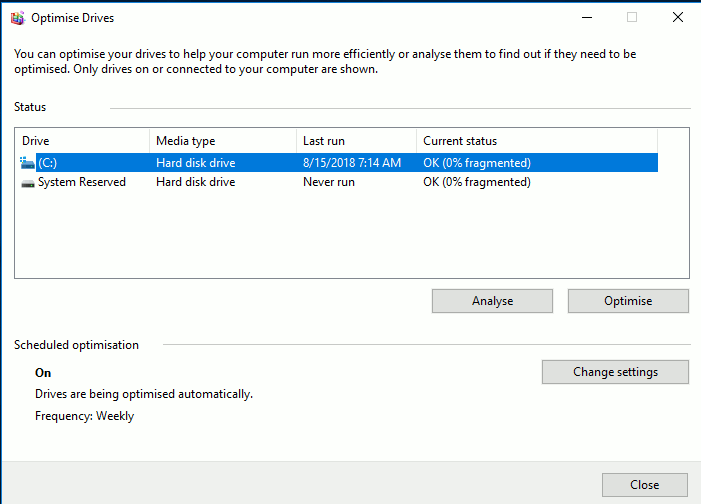
Choose the disk you want to defragment and click “Optimise”.
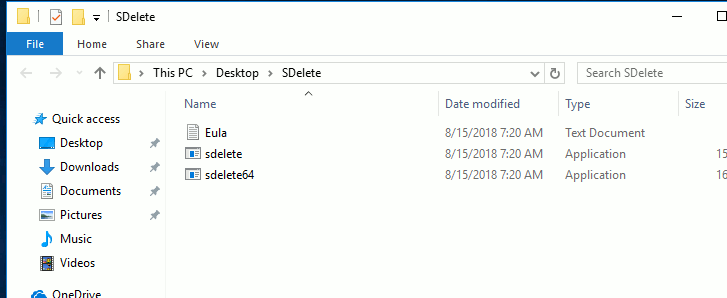
3. Download the SDelete file. This is a command line utility to securely delete files from the system. Extract the SDelete utility to the Desktop. You should find 3 files in the folder: Eula, sdelete and sdelete64.
4. Next, open the command prompt and cd to the SDelete folder.
cd Desktop/SDeleteRun the following command:
sdelete.exe c: -z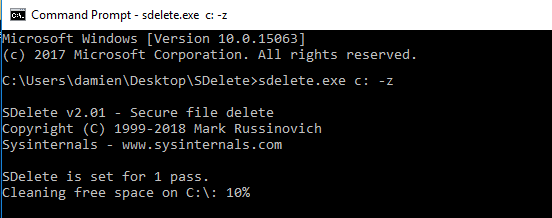
The -z flag instruct it to zero free space, which is required for virtual disk optimization. Zeroing free space means fill up all the free space with zeroes, so they can be removed and reclaimed later on.
5. As soon as it finishes this process, shut down your Windows guest and VirtualBox. Now you should be back to your native Windows 10 OS.
For Linux as Guest Operating System
If Linux is what you have installed on your VirtualBox, then follow the next step to free memory internally.
Note: we are using Ubuntu for this tutorial.
1. Start the Linux guest from Virtualbox. On bootup, press the “Esc” button repeatedly to initiate the advanced boot interface.
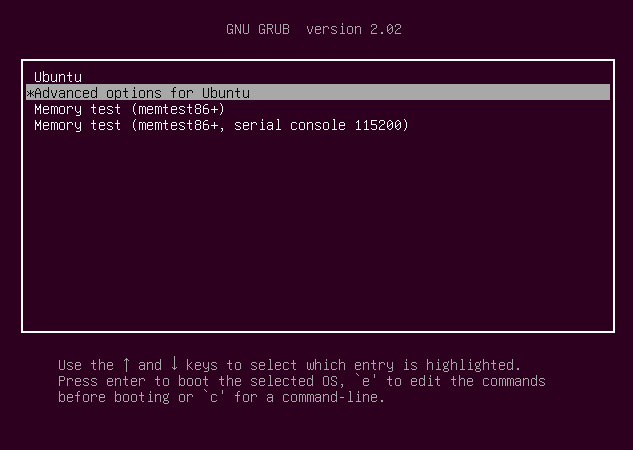
2. Multiple boot options will be shown to you. Select “Advanced options for Ubuntu.”
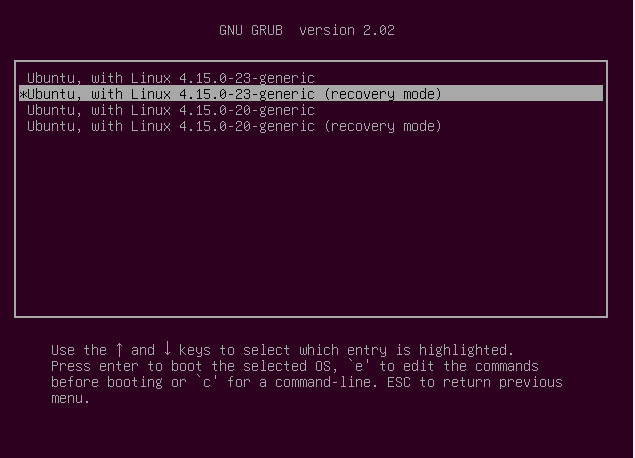
3. Select “Recovery Mode.”
4. Choose the root folder when prompted.
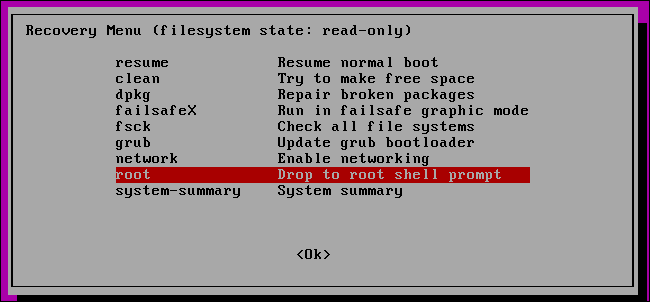
5. Next, choose “boot to recovery” and press Enter for maintenance.
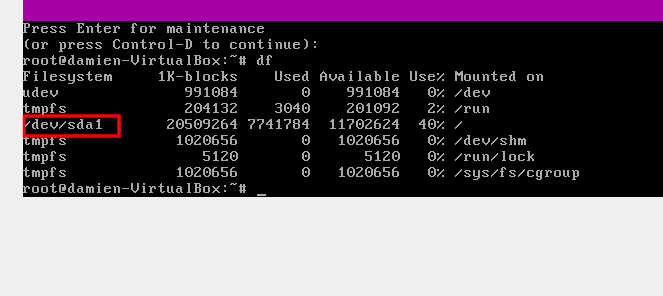
6. Inside the command interface, run the following commands:
dfA screen will appear with a list of all the drives attached for a Linux guest. Find the one you want to clear. (In this case it is “/dev/sda1.”)
7. Run:
zerofree -v /dev/sda1This code will find the unallocated blocks with non-zero value content and fill them with zeroes so they can be reclaimed later.
8. As soon as the program is done executing, run:
shutdown -h nowThis command shuts down the Linux OS. Now power down VirtualBox and close the application.
2. Reclaim Freed Space in Guest OS
After you have freed up storage space in the guest OS, it is time to reclaim the space and add it back to your host OS.
1. Open command prompt inside Windows 10. Inside the command prompt run this command:
diskpart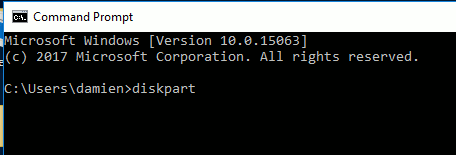
2. A new shell program named DISKPART should come up. Select Yes when it prompts for admin access.
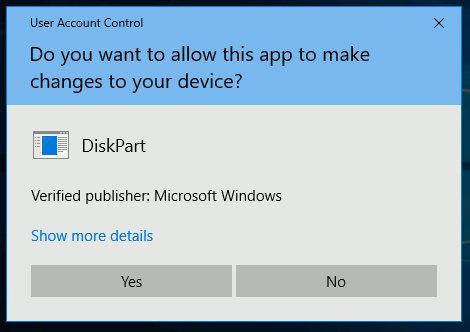
3. Inside Diskpart you will need to specify the path to your VDisk file. This file is the virtual hard drive for your guest OS. Once you have it, copy the path and run:
select vdisk file = “V:path-to-your-vdisk-file”Click Enter to run.
4. When it completes its process, run:
attach vdisk readonly5. Run:
compact vdisk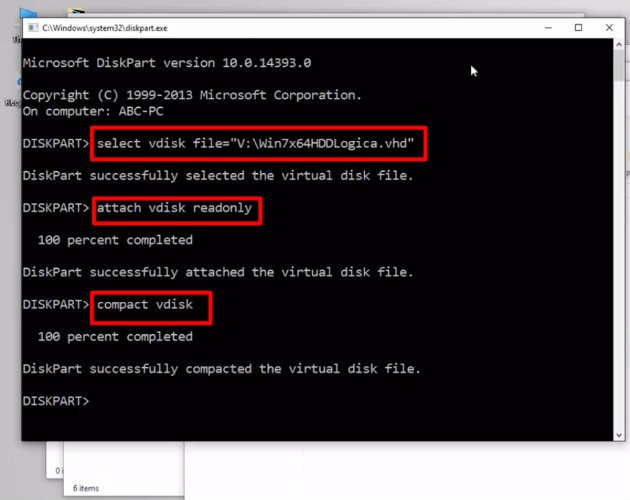
6. Wait for it to complete this process, then run:
detach vdisk
exit
Now all the space you have freed inside your guest OS should be reclaimed by your native Windows 10 OS.
Wrapping Up
If you are not careful about your VirtualBox usage, the guest OS ‘s size can grow exponentially without your knowledge. When that happens, and you are running out of storage space in your host system, this tutorial will help you to shrink VirtualBox VM and reclaim the lost space so you can put it to other use.