

Whether you’re an executive or a stay-at-home parent, chances are you’re a very busy person. It seems like we’re all busy these days, trying to juggle as many tasks as possible and cram them into a single day. Because of this, many of us use calendar apps to stay organized, and we frequently need to share them with other people. Luckily, Google Calendars offers users many ways to share their entire calendar with other people.
[mte_toc]Also read: The Best Google Docs Templates to Organize Your Life
How to Share Your Calendar with People Who Have Google Accounts
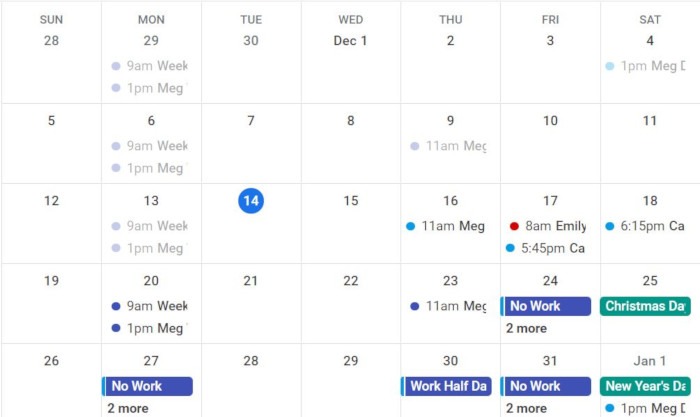
Google allows you to share your Google Calendar with anyone at any time. By sharing your calendar with an individual or team, you’re granting them access to see all events and reminders listed on that specific Google Calendar (unless you change the visibility of specific events). Therefore, you should use discretion when sharing your entire calendar with someone.
Also read: 8 Free Alternatives to Google Forms
How to Share Your Google Calendar with an Individual
If you’d like to share your Google Calendar with another individual and know their email address, follow these steps:
- Open Google Calendar from your computer. (Note: You cannot share your calendar through the smartphone app.)
- Scroll down the left side of the page until you find the section titled “My Calendars.”
- Locate the calendar you’d like to share from the list, then click “More -> Settings and Sharing.”
- Once the page loads, scroll down to the section labeled “Share With Specific People.”
- Click the button labeled “Add People,” then type in the email addresses of individuals you’d like to share your calendar with.
- Tap the “Permissions” drop-down menu to select how much access you’d like the individuals to have.
- Click “Send” to share the calendar with the addresses you added.
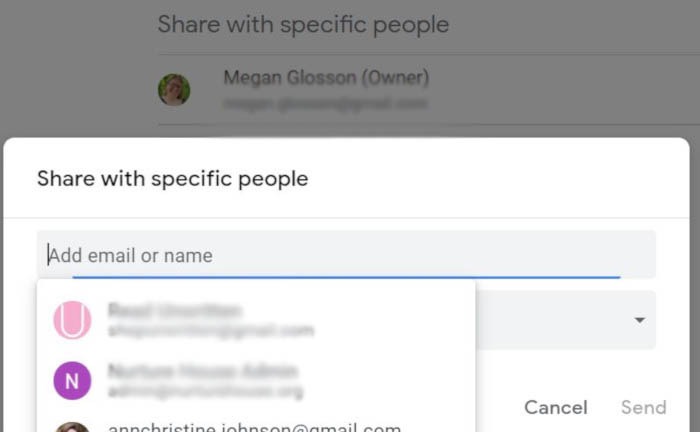
Once you share your calendar, the individuals receiving the link will need to have Google Calendar already set up (meaning they will need a Google account). They will also need to click on the emailed link before the shared calendar can be viewed.
Also read: The 10 Best Google Chrome Extensions for Productivity
How to Share Your Calendar with a Group or Team
Although it’s easy to share a personal calendar with another individual, there are also times you may want to share a professional calendar with an entire group or team of individuals on the same email server. If your company has a Google Group set up, you can easily do this by following the same steps listed above. However, once you go to add individual email addresses, you’ll instead add the Google Group address that sends to everyone in the group.
If you haven’t set up a Google Group for your workplace or organization yet, you can easily do that by following these steps:
- Go to Google Groups.
- Click the “Create Group” button in the upper-left corner of the page.
- Follow the steps outlined on the screen to add group members and establish group settings.
- Click “Create Group.”
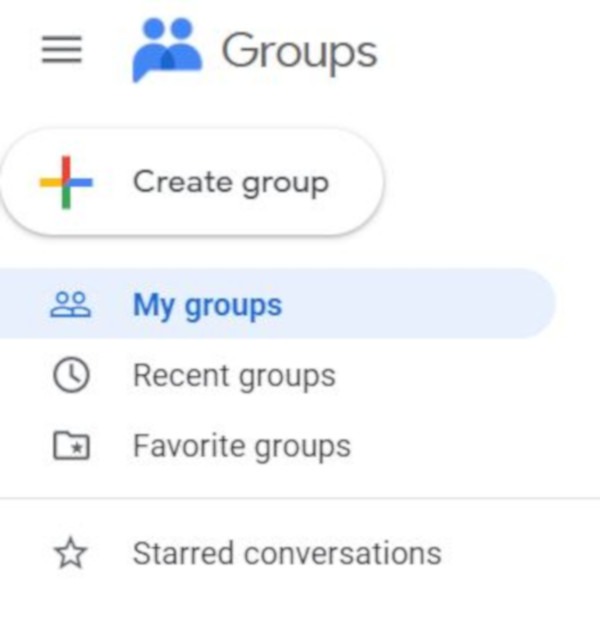
Once your group is set up, you can use the group email generated by Google to message everyone in the group or share a group calendar with everyone.
Also read: 10 Calendar Apps That Make Great Google Calendar Alternatives
How to Share Your Calendar with Someone Who Doesn’t Have a Google Account
There are times you may need to share a Google Calendar with an individual who doesn’t have a Google account. You can absolutely still share the calendar with them, but it requires you to make the calendar public so that you can share a URL to it (just like you would with a Google Doc).
If you’d like to share your Google Calendar with another individual who doesn’t have a Google account, follow these steps:
- Open Google Calendar from your computer.
- Scroll down the left side of the page until you find the section titled “My Calendars.”
- Locate the calendar you’d like to share from the list, then click “More -> Settings and Sharing.”
- Once the page loads, scroll down to the section labeled “Access Permissions for Events.”
- Click the checkbox next to the words “Make Available to Public.” You’ll be asked whether you’re sure you want to make the calendar public. Click “OK.”
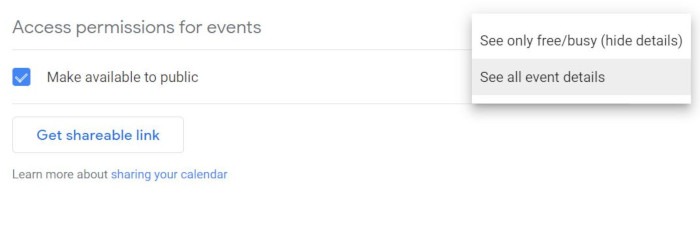
- Once the calendar is public, you can select on the right side whether you want people to see all the event details on your calendar or only see when you’re free and busy. This is really a personal preference.
- Click “Get Sharable Link,” then send the link via email or instant message to anyone you’d like to access your calendar.
Also read: How to Sync Your Calendar with Amazon Alexa
How to Add Your Google Calendar to a Website
Once you make your calendar public, you can also add the calendar to your website. This may be helpful if you would like people to save specific events to their own calendars or have access to available times for appointments.
To add your calendar to your website, follow these steps:
- Open Google Calendar from your computer.
- Click the gear at the top-right corner of your Google Calendar page, then press “Settings.”
- Scroll down the left side until you see “Settings for my Calendars.”
- Select the calendar you’d like to add to your website, then click “Integrate Calendar.”
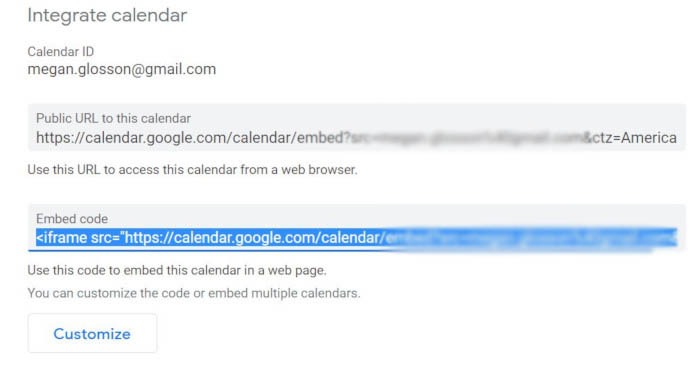
- Find the embed code (should be the second box from the top) and copy the iframe code displayed.
- If you’d like to customze the code further, click the button labeled “Customize,” then choose the settings you want. Copy the code provided at the top of the customization page.
- Once you have the code, go to your website and drop it in where you’d like it to appear – no fancy coding required!
Also read: 7 Online Platforms to Build Apps without Coding
How to Sync Your Google Calendar on iOS
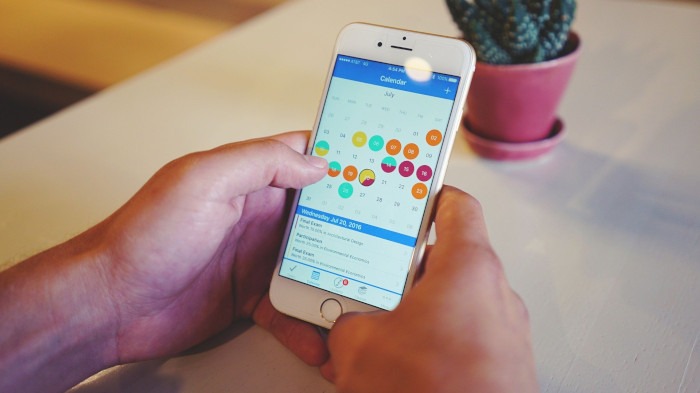
Many iPhone users prefer iPhone’s built-in calendar app to Google Calendar. Therefore, there may be instances where your coworkers or family members need to sync the Google Calendar you shared with their iPhone calendar app. Here’s how to add a new email address and sync that calendar:
- Open the Settings app on your iPhone.
- Tap “Passwords and Accounts” on the left side.
- Tap “Add Account” to add the user’s Gmail account to the iPhone. (Note: If the account is already visible, you can skip this step and the next.)
- From “Add Account,” click on “Google,” then sign in with the user’s Gmail address and password.
- Once the account is set up, click it and go to the options menu where you’ll select which Google services you’d like to sync with your iPhone. Make sure the calendar (and any other service you’d like) is turned on.
- Hit “Save” before leaving this menu.
- Open your iPhone calendar app and tap “Calendars” at the bottom.
- Click the checkmark next to the Google Calendar you’d like visible on your iPhone calendar. You’re all set!
Also read: How to Add Any Email Address to Your iPhone
Frequently Asked Questions
1. Why would I want to share my Google Calendar?
There are many reasons why someone may want to share their Google Calendar with another individual. At work, you may need to share your calendar with coworkers so that you can schedule meetings or share upcoming deadlines. At home, you may need to share appointments and sporting events so that you can avoid co-parenting conflicts and miscommunication. It really just depends on your individual needs.
2. Who can see my calendar if I post it to a website?
When you share your Google Calendar to a website, you can choose specific privacy settings that will transfer over into the embed code. Unless you’ve checked the box to make your calendar public, not everyone will be able to see it from your website.