Whether you’re a new PayPal user looking to send or receive payments, or an existing user who wants verification details, the following guide provides all the information you need to set up a PayPal account.
Disclaimer: the instructions below only cover setting up a personal account. A tutorial on setting up a business account will be published at a later time.
How to Sign Up for PayPal
You’ll have to register with PayPal before you can set up your new account. Click the large Sign Up button on the homepage, then choose your account type, Personal or Business. With a personal PayPal account, you can manage money, shop online, and even use its cryptocurrency feature in the U.S.
Add your PayPal email address, then mobile phone number, and confirm using a security code before creating a password. Keep it at more than eight characters, with at least two letters, numbers, or symbols.
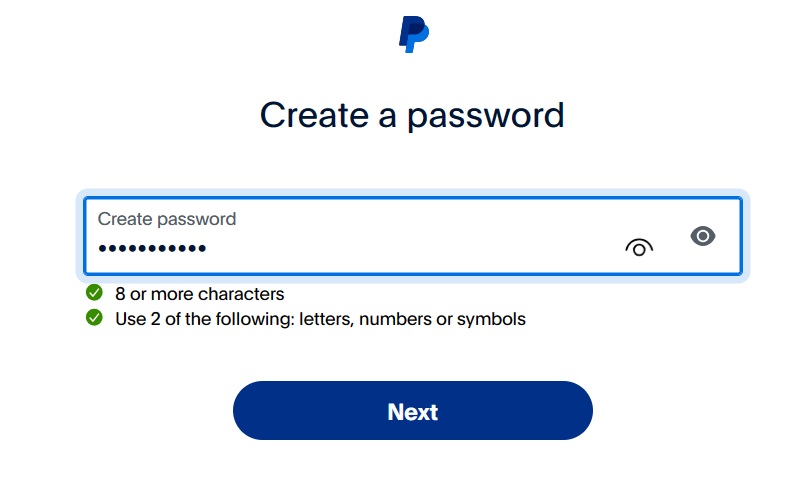
After creating a password, provide your personal information, which should match your official ID. Then, add your street address. Your PayPal account will be ready, pending a few verifications.
When creating an email account for PayPal, remember that it’s the first thing senders and recipients see, so give it some thought. It’s okay to use Gmail or Hotmail. However, for greater trust, consider using a reputable domain – either your business name or a combination of your first and last name.
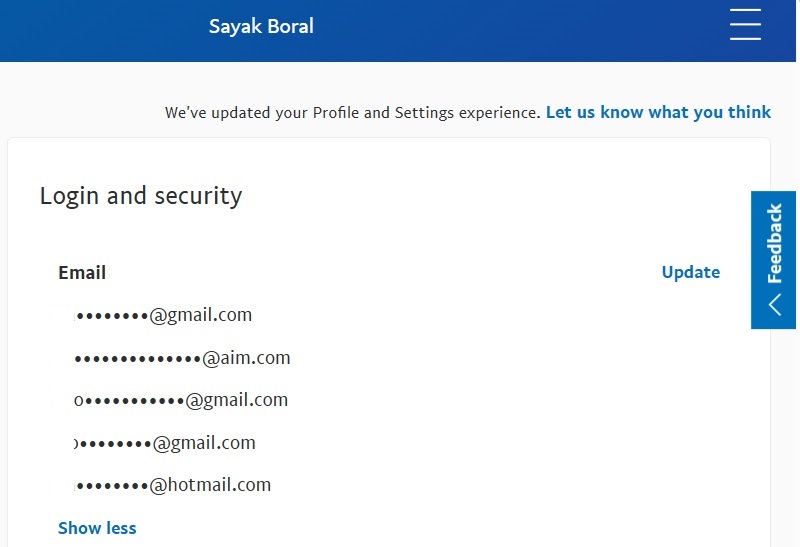
Furthermore, PayPal allows you to add up to seven email addresses to your account, and you can use any of them to sign in. To access all of them after signing in, click your profile name, and go to Profile settings -> Login and security -> Email. Click Update to add or remove your email accounts.
If you’re not in the U.S., check out the local PayPal website for your home country. (You’ll find a link at the bottom of the homepage.) Set up multiple PayPal accounts within the same country, but each should have its own financial information. PayPal only allows you to have separate PayPal accounts in different countries if you’re a legal resident of a country other than your own.
Tip: check out our guide on using PayPal to send or receive payments in your own country or internationally.
Confirm Your PayPal Account
PayPal and other payment alternatives, like Payoneer and Wise, handle important financial information. For security and legal requirements, it asks you to verify your account details.
Confirm Your Email Address
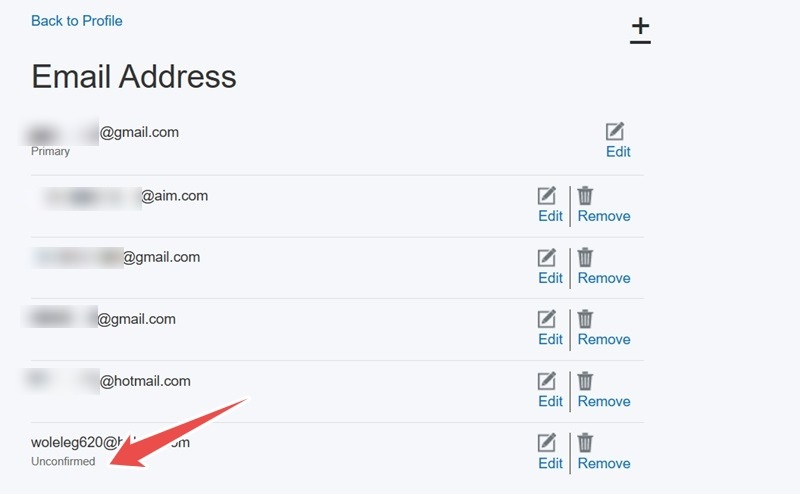
You will get a confirmation email as soon as you create your new PayPal account. Check your email spam folder if you don’t receive a message. If it’s not there, go to Email Address, and click Unconfirmed next to the email that needs verification. Do this in the mobile app or on the website. Click Confirm your email address in the pop-up to receive another confirmation email.
Confirm Your Phone Number
You will automatically enroll a phone number when setting up a new PayPal account. To add another phone number, go to Profile settings -> Login and security –>Phone. Click Update next to any unconfirmed phone number, then Confirm your number. This will send off a code to your mobile screen that you can add during a Validate step.
Adding a Government ID to PayPal
Initially, your PayPal account is subject to transaction limits that can be removed by providing an official ID. In the U.S., you can provide utility bills, driver’s license, passport, or any other government-issued official ID.
After signing in to PayPal, keep track of any account notifications using a visible “bell” icon, or go to the Confirm your Identity page. It scans your government-issued ID for facial biometric verifications. You also need a proof of address from the last 12 months.
Add a Payment Method in PayPal
To further verify PayPal accounts, set up a payment method with PayPal. This requires adding a bank account and credit cards. The latter isn’t necessary if your sole objective is to receive and withdraw funds.
Add Bank Account to PayPal
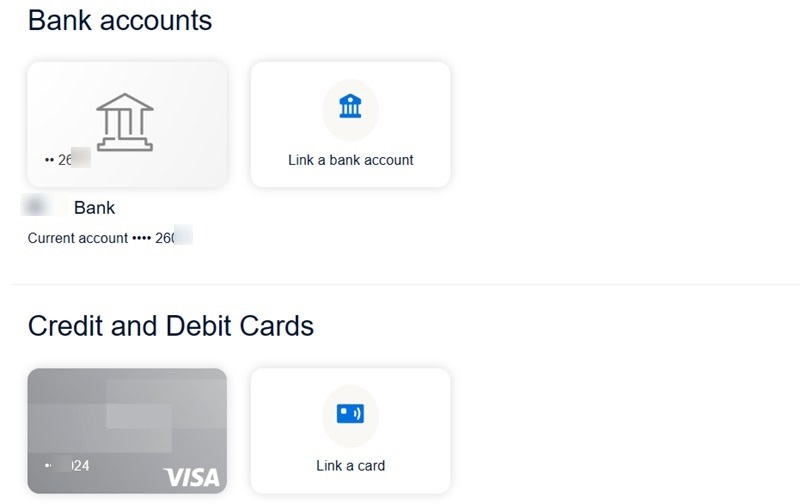
For adding bank accounts, go to your home screen, and tap Wallet -> Link a Card or Bank. Once you click Link a bank account, you can see various banks in a drop-down list. Connect to them by logging in with your banking ID and password. Optionally, enter the bank details manually, then click Agree and Link.
PayPal allows you to add up to eight bank accounts.
Add Credit or Debit Card to PayPal
Adding a credit or debit card is very similar. Under the Credit and Debit Cards section, click Link a card. You can either link a card manually, or scan it using your smartphone camera.
Enter your Debit or credit card number, and choose your Card type, such as Visa, MasterCard, American Express, Diner’s, or Discover. Provide an Expiration date, Security code, and your card Billing address. Click Link card to finalize.
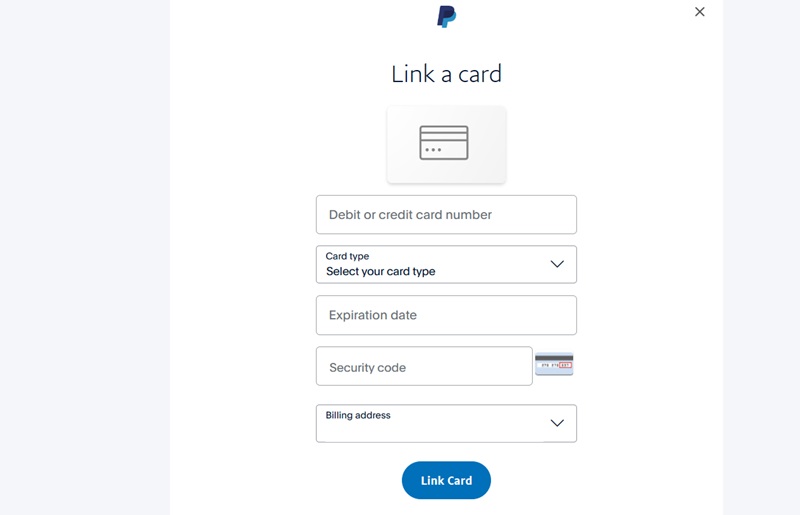
To use the card for online payments, you may need to confirm it. Click Confirm card next to your card details, and follow the instructions. PayPal may charge a small token amount (less than $1), which is refunded eventually.
Add up to 24 cards to your PayPal account after verification.
If PayPal isn’t for you, learn more about using the Wise transfer app. You may also want to use a digital wallet, such as Venmo or Zelle. Check out NFC mobile payment apps, too, such as Google Pay, Apple Pay, and Samsung Pay.
Image credit: Unsplash. All screenshots by Sayak Boral.