


With more and more of your life revolving around sites and apps in your web browser, you will want to keep the most important ones within easy access. One way to do this is to pin your favorite sites on the desktop, taskbar, or Windows Start Menu.
Adding these shortcuts is not a difficult task, but each browser does it differently. Here are the directions for each of the popular browsers: Chrome, Firefox, and the new Microsoft Edge.
Pin a site on Chrome
1. Open the website you want to pin.
2. Click the three dots in the upper-right corner.
3. Click on “More tools.”
4. Choose “Create a shortcut.”
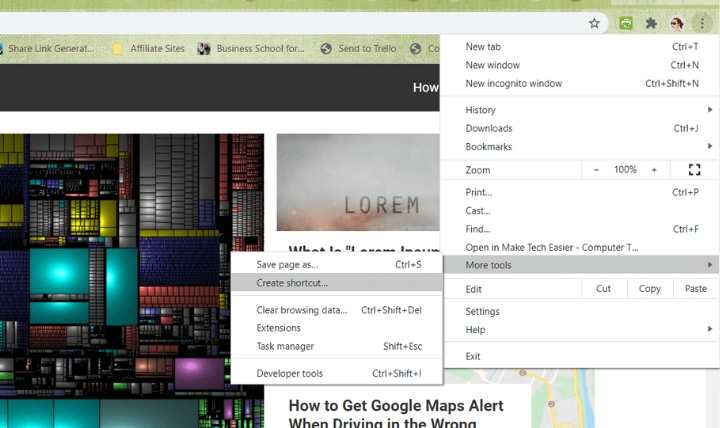
5. In the pop-up window, you can change the name of the shortcut and force the site to open in a new window if you prefer.
6. Click Create. The shortcut will appear on the desktop.

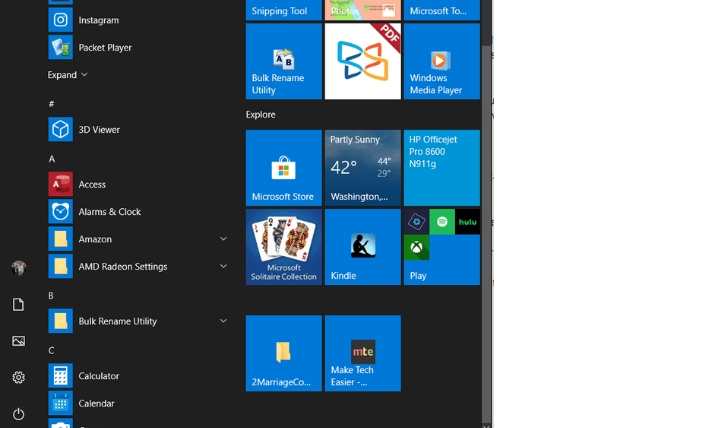
7. If you want the shortcut on your desktop, that’s it. To put the shortcut on your Windows Start Menu, right-click the icon and select “Pin to Start” or “Pin to Taskbar.”
Pin a site using Firefox
The Firefox browser does not allow you to add a shortcut to a site directly from the browser, but you can still make it happen.
1. Type Firefox in the Start menu.
2. Right-click on the program.
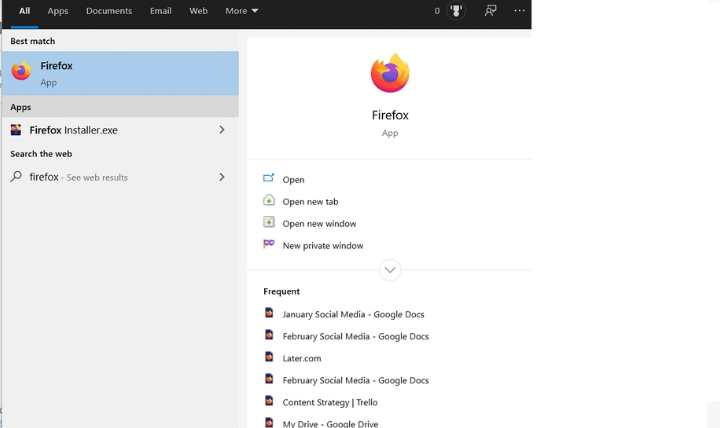
3. Select “Open file location.” A new File Explorer window will open.
4. Right-click Firefox.
5. Click “Create shortcut.”
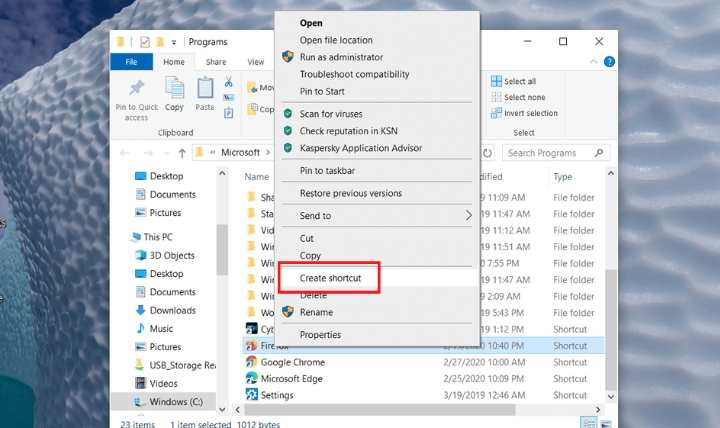
A prompt will appear that states “Windows can’t create a shortcut here. Do you want the shortcut to be placed on the desktop instead?”
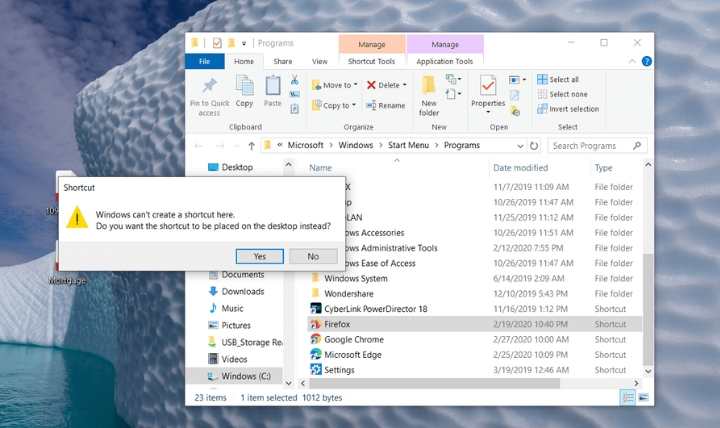
6. Click Yes.
7. Right-click the Firefox icon.
8. Select Properties.
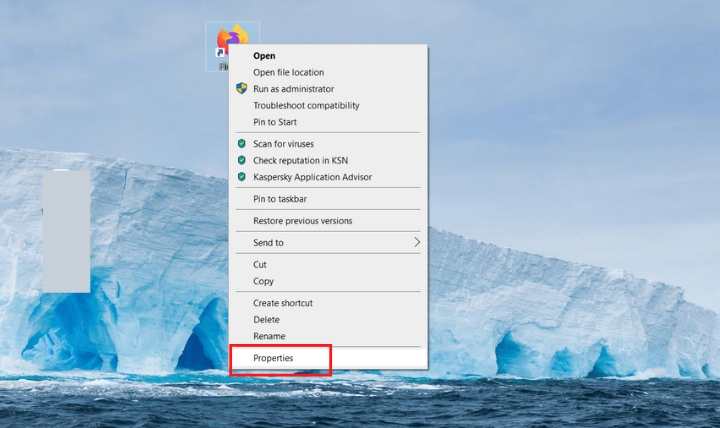
9. In the Target field of the window that opens, add the full URL of the site you want to pin after the quotation mark. You can copy and paste it from the Firefox browser if you’d like.
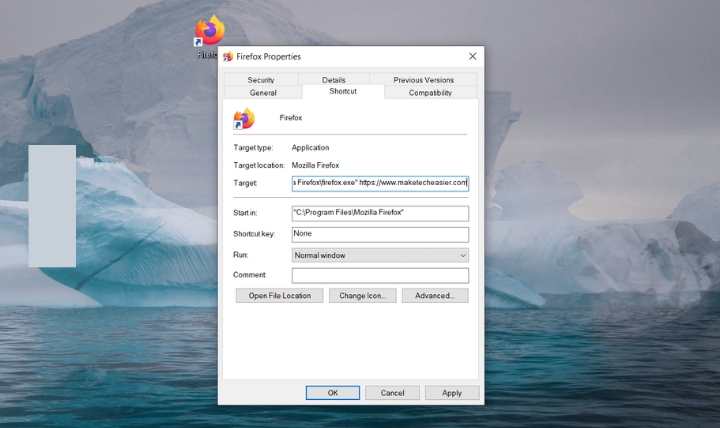
10. Check to make sure you have a Target field that says: “C:\Program Files (x86)\Mozilla Firefox\firefox.exe https://maketecheasier.com.” There must be a space between the quotation mark and the start of the website.
11. Click OK.
12. Right-click the icon and add the shortcut to either the taskbar or the Start menu.
Pin a site with the new Edge
The New Microsoft Edge works in a very similar way to Chrome because they are both based on the open-source Chromium browser. One main difference is Edge cannot pin the website to the Start menu as Chrome does.
1. Click on the three horizontal dots in the top-right corner of the browser.
2. Hover your mouse over “More tools.”
3. Click Pin to the taskbar.
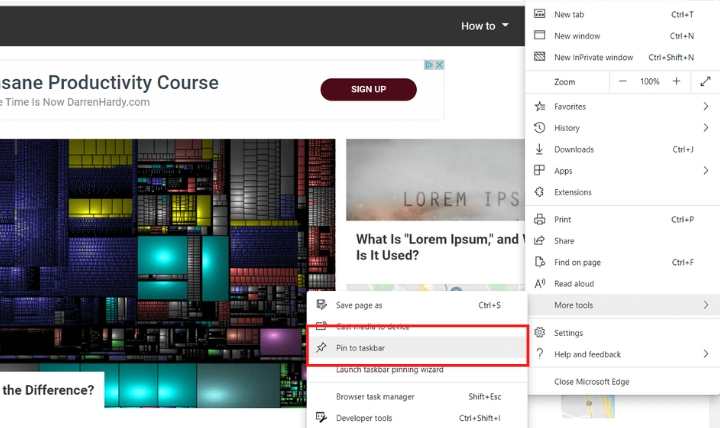
4. Click the Pin button on the window that opens. The icon appears on your taskbar.
The new Edge also has a feature called “Launch Taskbar Pinning Wizard.” This gives you the ability to pin the most popular websites and web apps to your taskbar all at once. To use this feature, click on “Launch Taskbar Pinning Wizard” under the Pin to taskbar option you used to create the shortcut.
A setup wizard will appear, suggesting sites you may want to pin. You must click in the box to select the ones you want. This will add the sites all at one time instead of having to add them one by one.
If you have specific websites that you need to access often, such as those for your job or business, adding these shortcuts can make opening these sites faster and your workflow more efficient.