

Mozilla Firefox and Internet Explorer both come with “Work Offline” mode which lets you browse already-visited web pages offline. If you like the feature there, you will be pleased to know that you can use it on Chrome as well. However, it is still an experimental feature and not officially released yet, so it is not that straightforward to find it and might still have some bugs (though it’s working fine for me so far).
In offline mode, Chrome will create a local cache of all the web pages you visit. If you visit any of these web pages again without an Internet connection, Chrome will let you load a previous copy of the web page from the cache. Let’s see how to enable offline mode in Chrome and how it works.
Note: this feature works on Chrome for Windows, Mac, Linux, Chrome OS and Android, and the below-mentioned instructions work on all these operating systems.
Enable Offline Mode in Chrome
Before you enable offline mode, you should know that you will have to enable the feature from Chrome flags. These are under-development features that are not finalized and may negatively affect your browsing experience. If you don’t know what you are doing, then don’t enable/disable other features listed here, or you will be solely responsible for any damages. Just follow the instructions precisely, and you should have no problem.
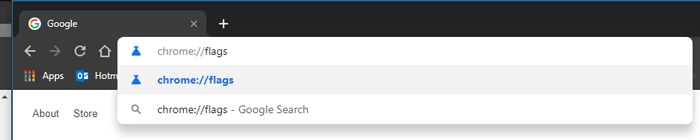
In the Chrome address bar, type chrome://flags and hit Enter. You should see a big list of features with a warning from Google to not mess with these features.
Here you need to find a feature named “Show Saved Copy Button”. It will be a bit hard to find between so many other features, so type “show saved” into the Search flags box to find it quickly.
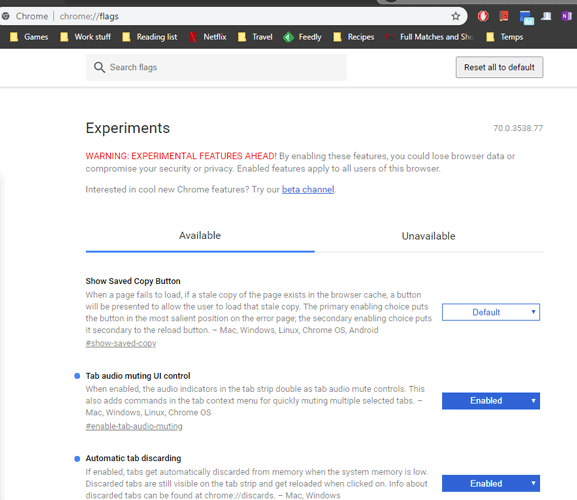
Once found, click “Default” button next to it to open the drop-down menu.
You will see two ways to enable the ‘Show saved copy’ button: “Enable: Primary” and “Enable: Secondary.”
“Enable: Primary” will put the button in the error page and “Enable: Secondary” will put the button next to the “Reload” button. However, in my case, “Enable: Primary” puts the button in the error page, and “Enable: Secondary” just turns that button from blue to gray (functions fine, though). It’s probably a bug, but as long as the function stays the same, there is no problem.
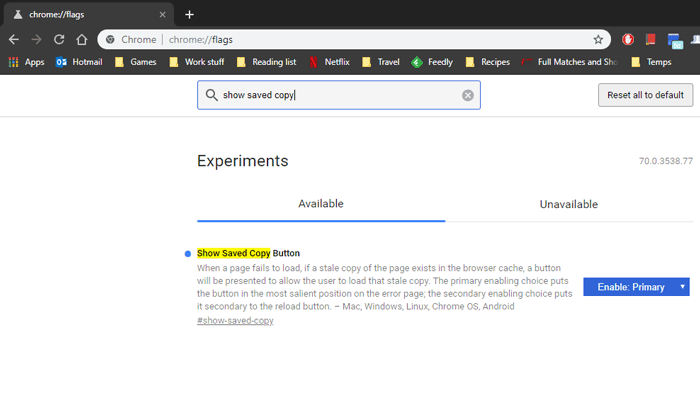
Select your desired “Enable” option, and you will see a “Relaunch Now” button at the bottom of the Chrome window. Click on it to restart Chrome, and the offline mode will be enabled.
Open Web Pages Offline
Now that the offline mode is enabled, you can browse the web as you normally do. Chrome will keep creating a cache of all the web pages you visit. Now when you are offline, if you visit any of the web pages again, you will see a “Show saved copy” button on the error page. Click on it, and the page will be loaded.
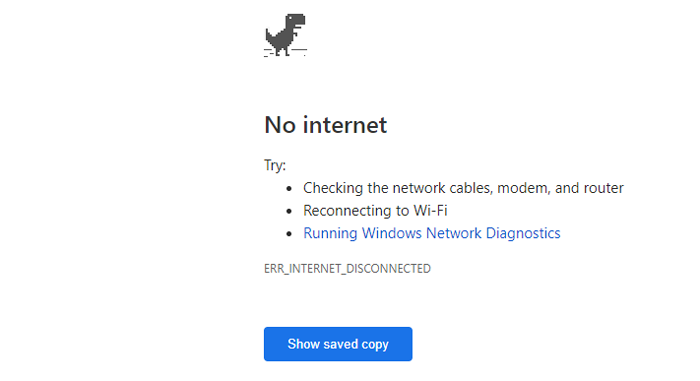
Chrome will cache images, HTML content, JavaScript, CSS stylesheets and everything that doesn’t require an active Internet connection to work. The page should look almost the same as the original one. Although, content like active widgets and videos will not be loaded, and if the page ws updated from the last time you visited, the new updates will not be shown either.

Note: all the web pages are saved as “Internet Cache,” and if “Internet Cache” is deleted, all the stored data will also be deleted. A browser cleaning tool – such as CCleaner – may delete “Internet Cache” in processing, so avoid using such a tool or uncheck Chrome “Internet Cache” from the cleaning list.
Conclusion
Being able to access web pages offline can be really handy in many situations. For example, if you are going to an area where you may not have a proper Internet connection, you could create a cache of the required web pages and visit them offline any time you like. If offline browsing helped you in any way or you found some bugs while using it in Chrome, do mention in the comments to help others.