O+ Connect is a free app that works on both Android and iPhone. It lets you quickly send photos, videos, music, and other files between Oppo, OnePlus, Realme phones, and iPhones. You can do the same between those Android phones and a Windows PC or Mac. The cool part? You don’t need mobile data, cables, or any tricky settings like USB debugging. Just open the app on both devices, and you’re good to go.
Why O+ Connect is the Smartest Way to Transfer Files
O+ Connect (also written as “O Connect” or simply “O+”) is a connectivity protocol common to Oppo (ColorOS), OnePlus (OxygenOS) and Realme (UI). It ensures fast file transfers from these Android devices to other operating systems such as iPhones, Mac, and Windows. It’s a game changer for universal, cross-device connectivity.
- It works across iPhones and Android: this is the first built-in solution that enables synced file transfers between iPhones and Android. The approach feels more intuitive than using “airdrops” between the two platforms.
- Instantaneous file transfers for big files: it can take a long time for multiple files to be transferred from Gmail due to a 25 MB per email limit. Your emails are sometimes stuck in drafts. With Quick Share and Nearby Share, you can run into connection glitches. O+ Connect works using a temporary hotspot so you’re never stuck in a dead zone.
- It skips Microsoft login for transfer to/from Windows: currently, you can use Phone Link app which requires a Microsoft login on your Android device. Many of us find it inconvenient. O+ Connect is a direct file transfer that does not require any Microsoft account.
- First native option between Android and Mac: there were very few convenient options so far to transfer files between Android and Mac devices. It is the first solution that supports both platforms in each direction.
- Screencasting and clipboard support: cross-device interactions are not limited to just file transfers. O+ Connect also supports screencasting and a copy-pasting functionality via clipboard on two different operating systems.
With this new protocol, you get lossless file transfers. This means the file size is of original quality and resolution with no loss in images, or compression issues.
Get Started With O+ Connect
For initial setup, you need to download the O+ Connect app on your non-Android device. You will find their links on the official O+ Connect sites.
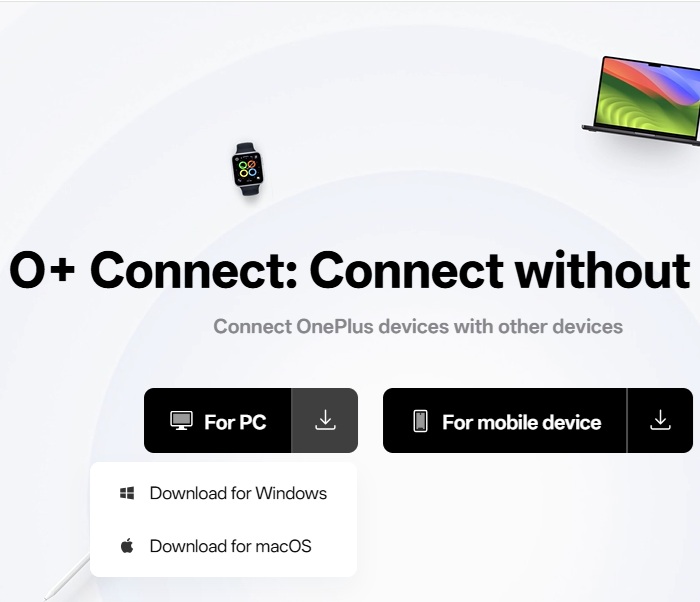
Choose the For PC option to download the O+ Connect app for Windows or Mac,
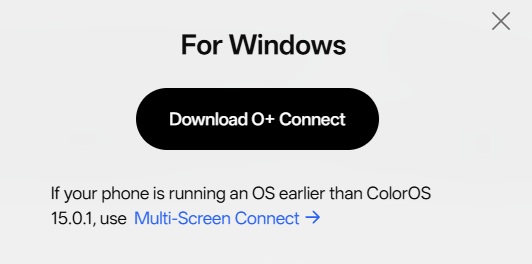
The download link is generated. Again, if your Oppo, OnePlus or Realme versions precedes 15.0.1, you will be redirected to download another Windows app called Multi-Screen connect. If your phone is on the latest version of Android, click the download link that you see right away on the screen.
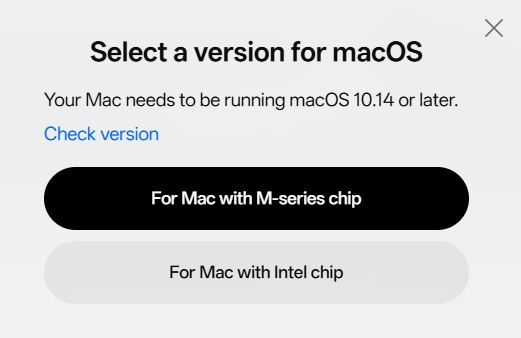
Mac users need to run at least macOS 10.14 or later to be able to use O+ Connect. Also, select the version corresponding to your Mac chip: M-series or Intel.
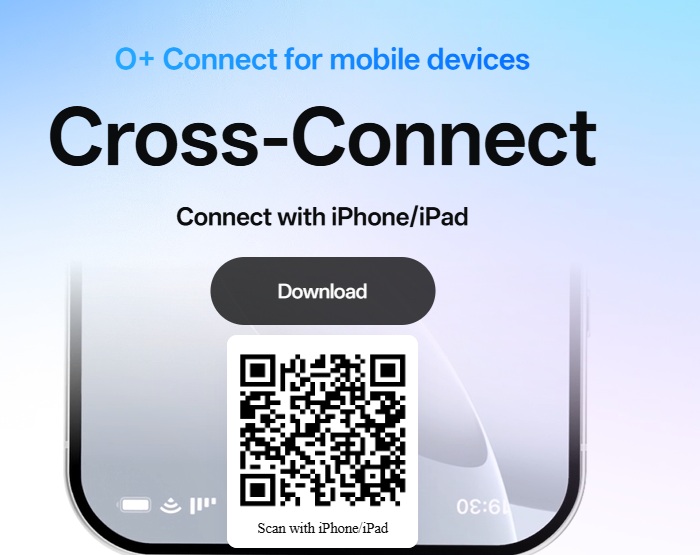
iPhone and iPad users will be redirected to a Cross-Connect app. It should at least support iOS14+. You can pair via QR code or an App Store link.
Install the O+ Connect application on your respective operating systems. It should take barely a few seconds on either Window PC, Mac or iOS. Click Getting Started once the application has been installed.
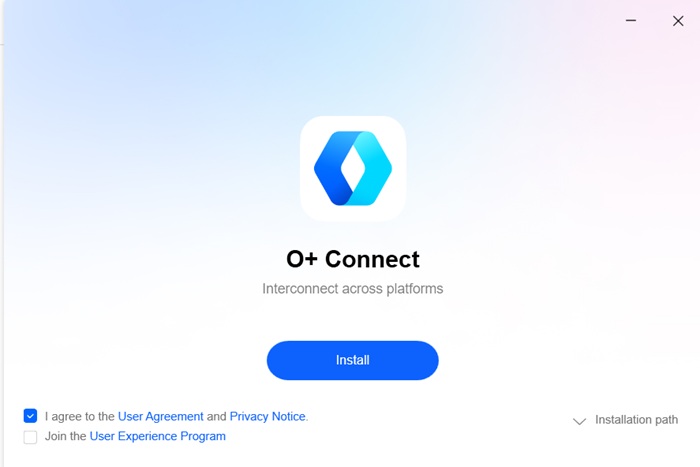
All setups are plug-and-play. You don’t need to create accounts but if you do, you can connect with the device automatically.,
On your non-Android device, you will find a Scan QR code option. The following is for Windows. Go to your Oppo, OnePlus, or Realme phone and scan the QR code for an initial setup.
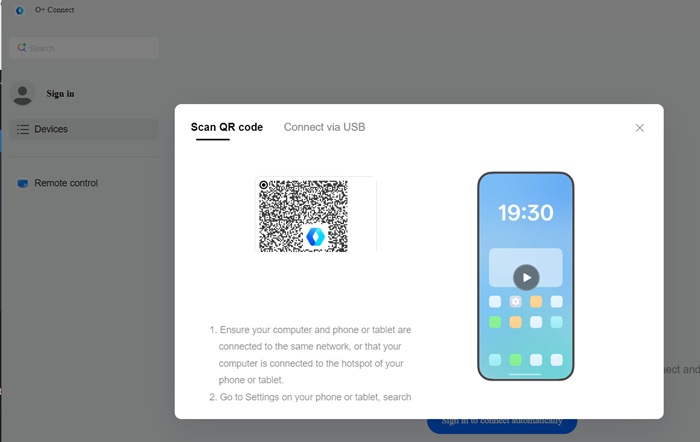
Once the pairing is done, you will see the Oppo, OnePlus or Realme device added to the non-Android screen for future file transfers.
Enabling File Transfer Using O+ Connect
O+ Connect sharing is easy. Just go to a file, document or photo that you want to transfer on your supported Android device. Right-click to Share and select the iPhone or PC option.
Currently, the method works on even lower end Android versions such as Android 8.1 (Oreo), as long as it’s an Oppo, OnePlus, or Realme device.
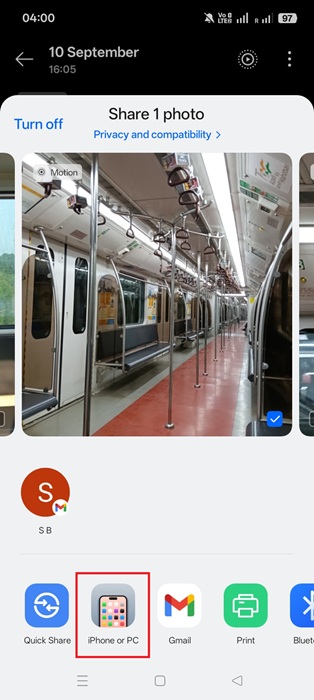
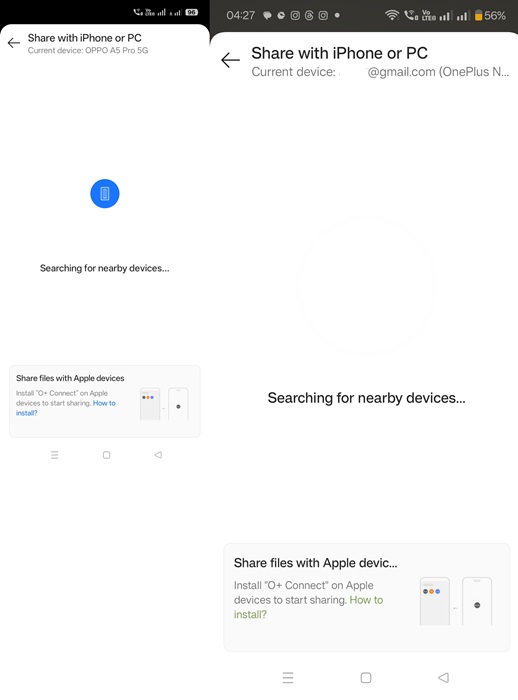
Whether you have a compatible Oppo, OnePlus, or Realme device, you will see a share screen with a text option, Searching for nearby devices. You have a 10-minute window to share the file with receiving devices. The files will quickly transfer in real time.
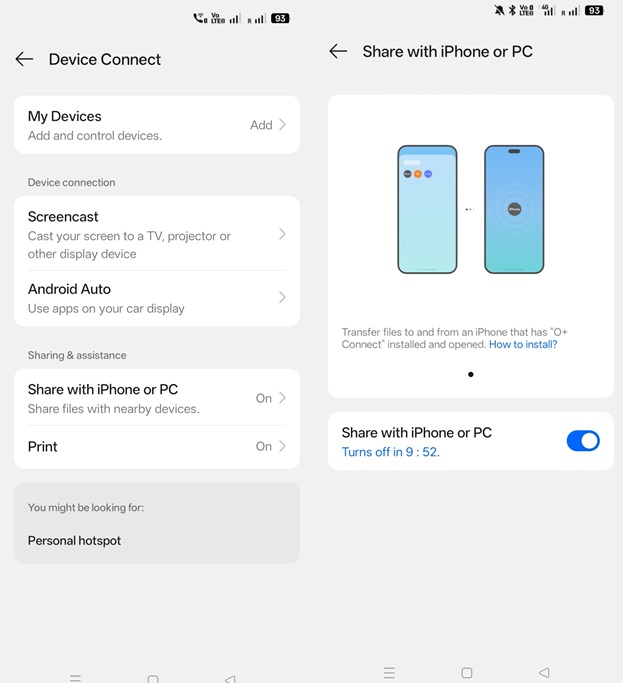
Depending on your device, you may need an additional configuration for sharing files. For Oppo devices, you have to go to Settings -> Device Connect -> Share with iPhone or PC, and turn on the option. Keep it enabled for future file transfers.
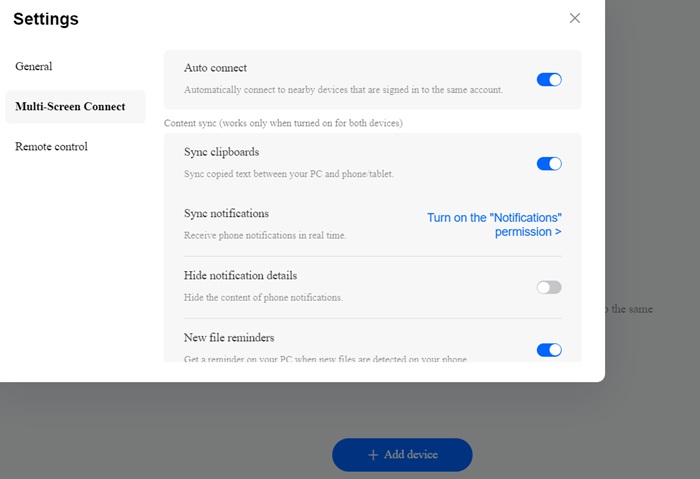
On a non-Android device, go to its O+ Connect Settings to ensure further adjustments such as Auto connect for future, Sync clipboards and notifications. You will also get new file reminders within the non-Android app.
While there are many file transfer modes, O+ Connect is clearly the most advanced one. If you are keen on transferring files between Android and other operating systems, also check out how you can cast your Android screen to a TV.
Google Pixel devices do not support the proprietary O+ Connect. But you can use Google’s cloud accounts and other methods for file transfers.








