

Don’t panic if your Mac’s camera suddenly stops working during a video call or if you see a “No camera connected” or “No camera available” error when you launch an app. Camera issues on the Mac are usually minor, and their solutions can be as simple as just shutting down and powering up your computer. If you’re having trouble with the Mac camera not working and using the built-in camera, try one of these quick fixes to get it working again.
Also read: How to Fix Webcam or Camera Not Working in Windows
Is Another App Using the Camera?
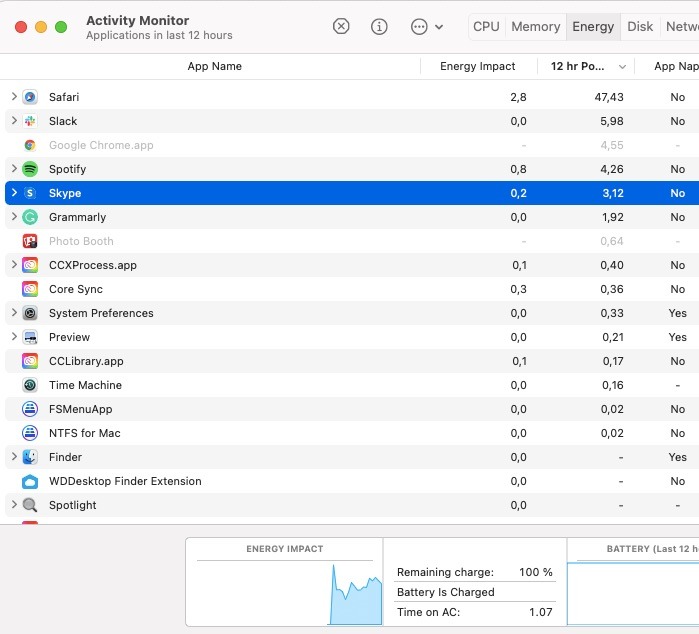
One thing that’s quite easy to forget is that the camera can usually only be used by one app or program on your Mac at any given time. Check to see whether camera-based apps like Skype, FaceTime, Photo Booth, or another app is running either in the foreground or background and close any that you’re not using at that moment.
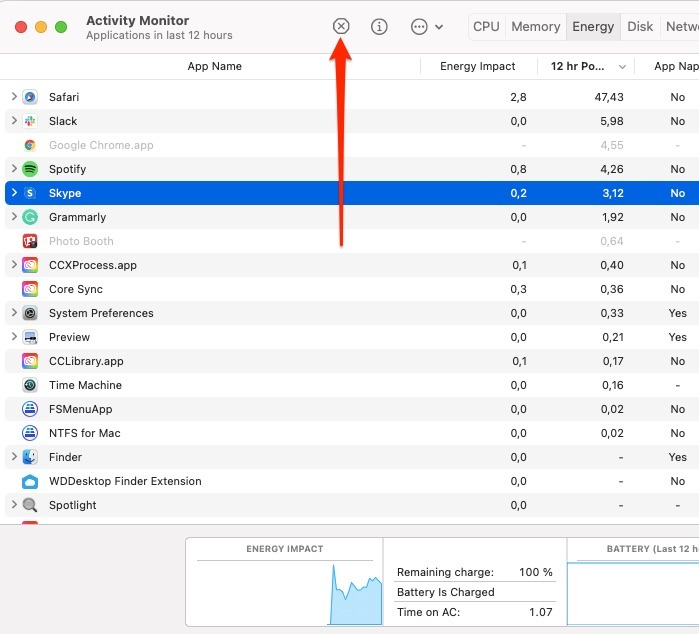
You can check the Activity Monitor (Command + Space, type “activity monitor”) to see whether one of those apps is running in the background. If it is, close it straight from the Activity Monitor.
To close an app in Activity Monitor, click on it in the list, then click the “x” stop sign-style button at the top-left.
Also read: 10 of the Best Android Emulators for Your Desktop
Force Quit VDCAssistant and AppleCameraAssistant
If you need to use your camera right away or can’t dedicate a lot of time to troubleshooting the issue, try restarting camera-related processes like “VDCAssistant” and “AppleCameraAssistant” in the Terminal app. These are programs that run in the background whenever you use your Mac’s built-in camera. Complications with these processes can affect any number of applications that can access the camera, like FaceTime, iMovie, Messages, and Skype.
To force quit VDCAssistant and AppleCameraAssistant:
1. Close any application that has access to your camera.
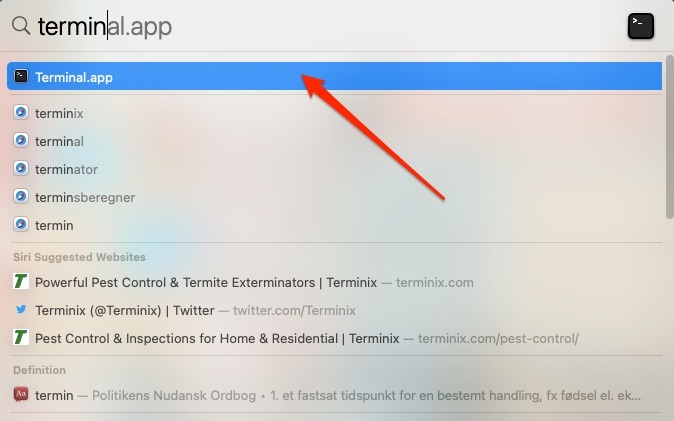
2. Click the Spotlight Search icon, search for Terminal, and press Enter to launch it.
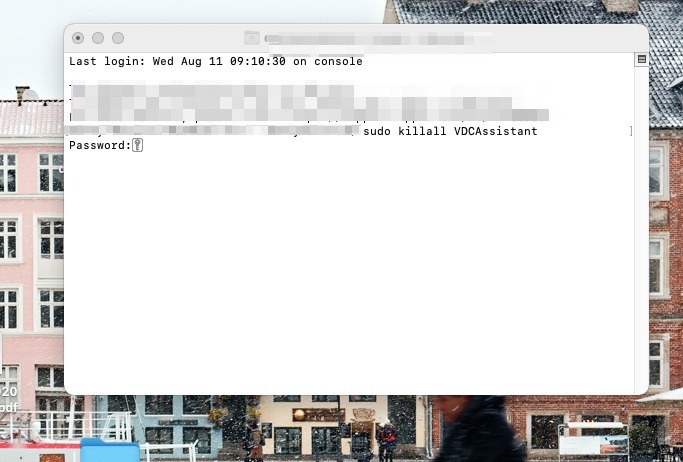
3. Type:
sudo killall VDCAssistant
and press Enter. If prompted, type in your password and press Enter.
4. Type:
sudo killall AppleCameraAssistant
and press Enter.
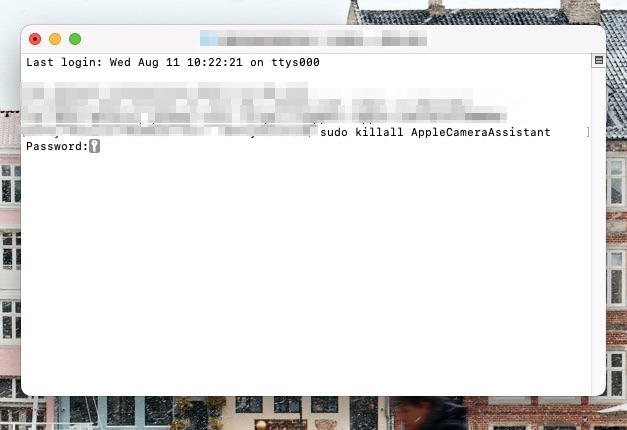
Once you’ve stopped both processes, launch an application that uses the built-in camera and see if the camera not working problem is resolved.
Adjust Your Camera Settings
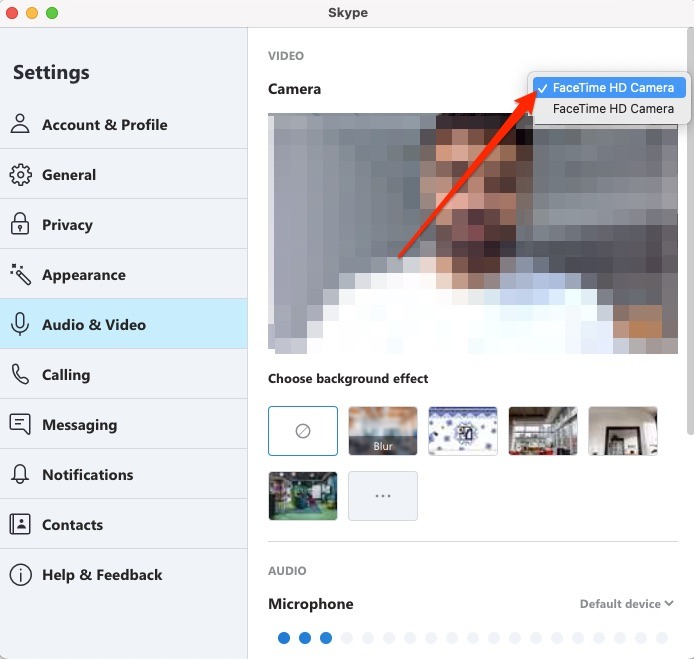
There isn’t a camera section in System Preferences, so you can’t change the camera settings directly. However, most apps that use the built-in camera have adjustable camera settings. FaceTime and Skype let you specify which camera you want to use for video calls, so make sure the built-in camera is selected.
To adjust your camera settings in app:
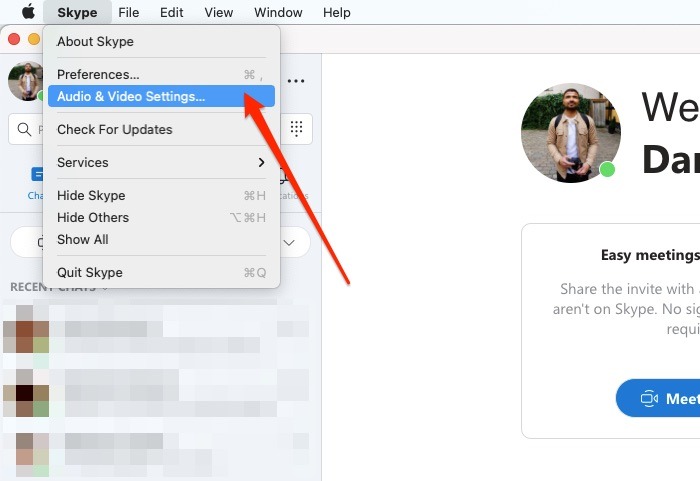
1. Open the app in question. In this instance, we are using Skype.
2. In your Mac’s toolbar, click on the app’s name. You should see an “Audio & Video Settings … ” option or something similar. If you can’t see this, try “Preferences … ”
3. In your settings, you will be able to choose the camera you want to use. Select your built-in camera, which you’ll see titled as “FaceTime HD Camera” or something similar.
Reboot Your Computer
Another quick way to solve camera not working problems is to reboot your Mac. Be sure to completely shut down your Mac instead of choosing the Restart option.
Restarting your computer will close your session and temporarily turn off your Mac but leave the RAM untouched. On the other hand, shutting down your Mac will clear the RAM and end all processes, including ones that might be interfering with your camera.
Update Your Software
If your Mac’s camera isn’t working with a specific photo-editing or video-conferencing app, it may be incompatible with that application. For example, you can’t make video calls using the Skype app if you or the person you’re contacting has an outdated version of Skype. If you want to make video calls, both parties need to update the app to the latest version.
To update an app on your Mac:
1. Open the app on your computer.
2. Click on the app’s name at the top of your screen, and use the pull-down menu to select “Check for Updates.”
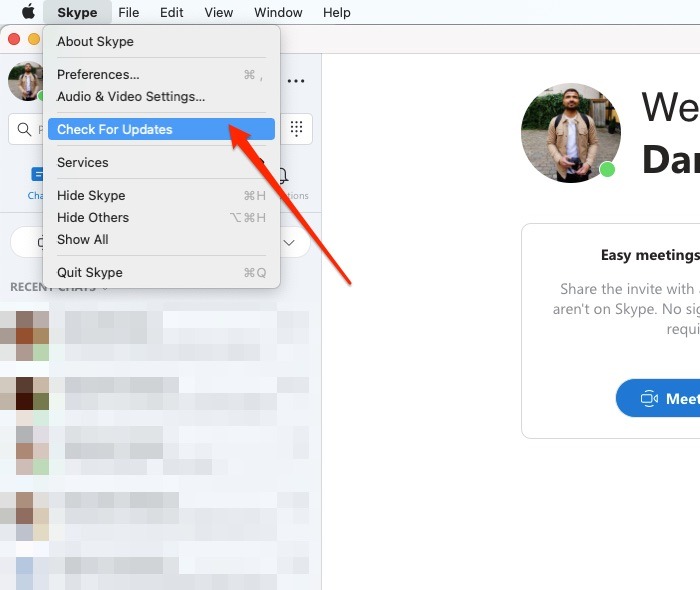
3. If you need to update your app, you’ll see an option to do so in the next screen. Tap on whichever option allows you to update your app and enter your password if necessary.
The same philosophy applies to your operating system. If you’re having camera problems, see if there’s a security update available for your Mac. Apple includes important bug fixes in each build release, so it’s important to update your software to the latest available version. Chances are they’ve identified your camera bug and resolved it in the most recent update.
To update your Mac’s operating system software, go to the Apple logo in the top left, then follow these steps:
1. Select “System Preferences … ”
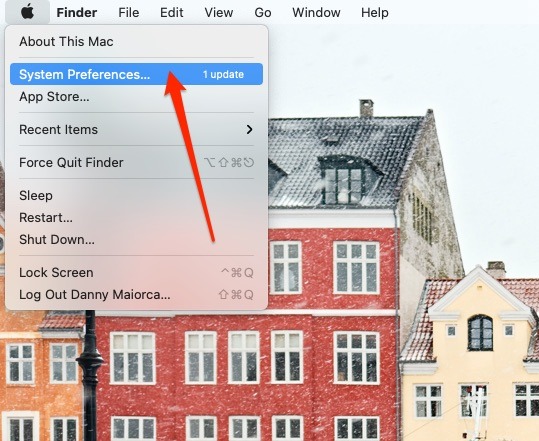
2. Choose “Software Update.”
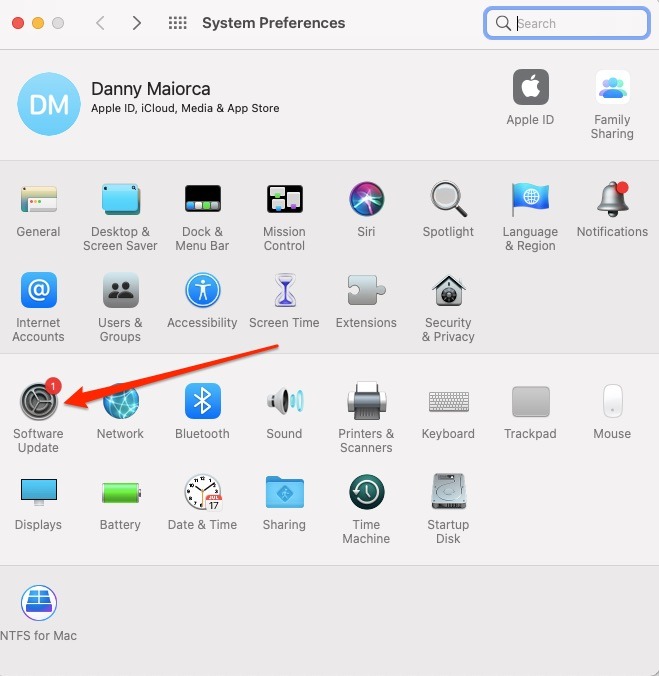
3. If you need to download an update, you’ll see a button that reads “Update Now.”. Tap on this.
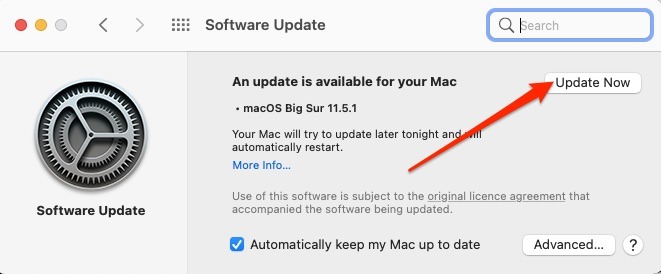
Once your computer has updated, try using your camera again to see if you’ve fixed the problem. If you haven’t, consider restarting your Mac so the changes can take effect.
Give Apps Permission to Use Your Camera
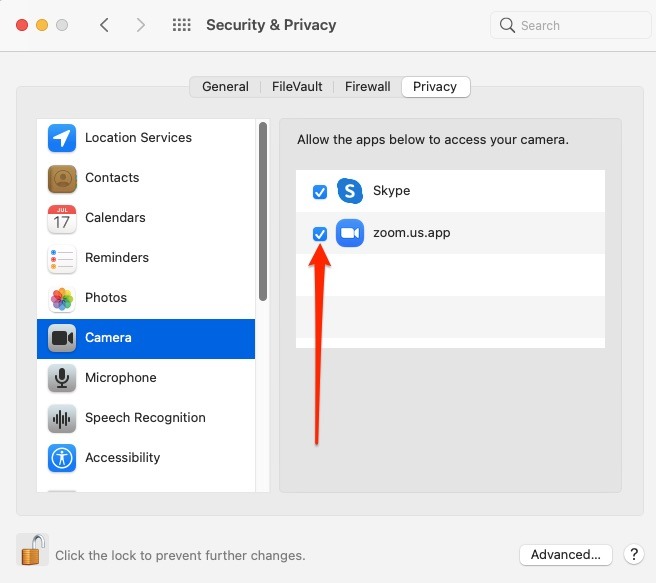
In some cases, you might find that your camera isn’t available because you haven’t given the app permission to use it. If you suspect that this is the case, you’ll need to go into your Mac’s settings and change this.
To give apps permission to use your camera:
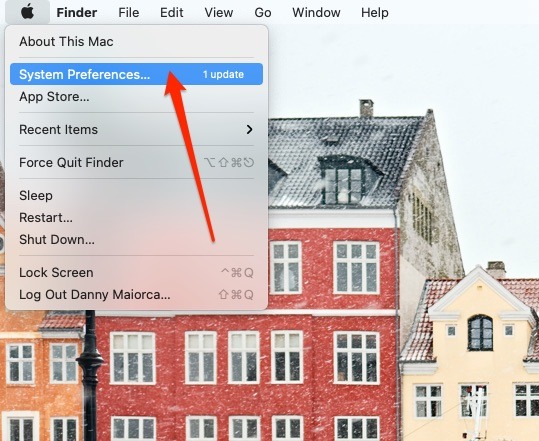
1. Go to the Apple logo in the top-left corner of your screen and click on it to reveal the drop-down menu.
2. Select “System Preferences … “
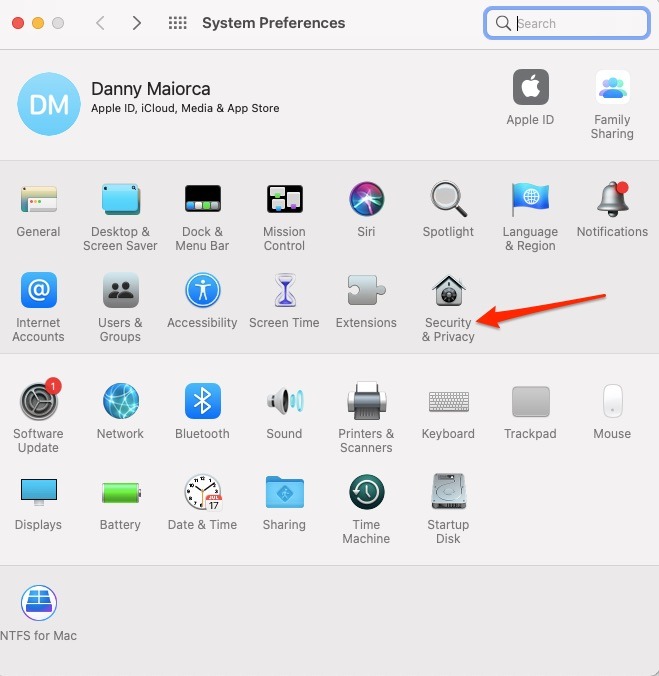
3. In your Mac’s System Preferences, go to “Security & Privacy.”
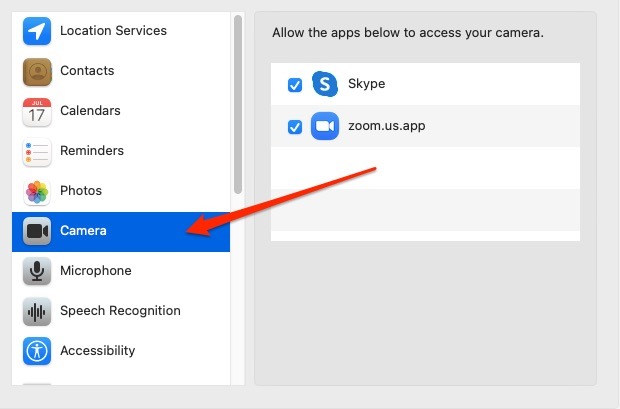
4. Select “Camera” from the list of options on the left side of your screen.
5. To make changes, click on the lock at the bottom of the window and enter your password.
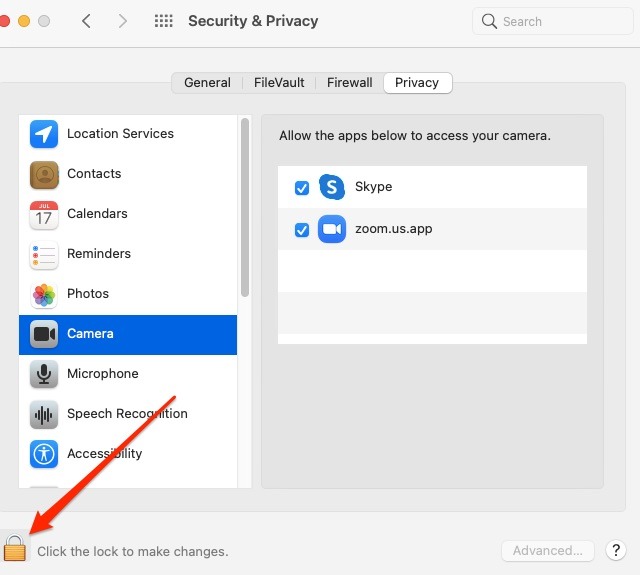
6. Tick the app you want to give permission to use your camera.
Also read: How to Fix Sound Not Working on a Mac
Frequently Asked Questions
1. How do I take a photo with my Mac camera?
To take a photo with your Mac camera, you’ll need to open the Photo Booth app. You can do this by typing “photo booth” in the search bar.
2. Can I adjust the camera on my Mac?
No. The only way you can adjust the height is by tilting your screen up or down or tweaking the height of your chair or desk. You also cannot zoom in or out with your Mac camera.
3. Can I connect external webcams to my Mac?
Yes! You can connect external webcams to your Mac, and you’ll find cameras available for a range of different prices.
4. How do I know if my Mac camera is in use?
When your Mac camera is ready to use, you’ll see a green light next to the camera.
Wrapping Up
In the current world of more people working and studying remotely, using your Mac’s camera for meetings and catch-ups is more important than ever before. If you’ve found that your camera is not working with the likes of Skype and Zoom, don’t worry – changing your settings is straightforward.
It’d be a pretty big coincidence if as you’re reading these very words you happened to spill water on your Macbook, but it’s always good to be prepared in case that does happen. We also have a nice little trick for keeping windows always on top in macOS.