


While browsing multiple tabs, we often encounter websites which automatically play videos without our permission. Even before the webpage has loaded properly, these sites will turn the audio on. To avoid annoyance, you may want to quickly mute the videos and unmute only if necessary.
In this tutorial, we explore native methods to mute tab sounds across Google Chrome, Safari, Opera, Microsoft Edge, and Mozilla Firefox.
Mute a Tab in Google Chrome
On Google Chrome, when you run into a website which autoplays videos, go to the top of the current tab and right-click to select “Mute site.” This will turn the audio off even if the computer speaker is on.
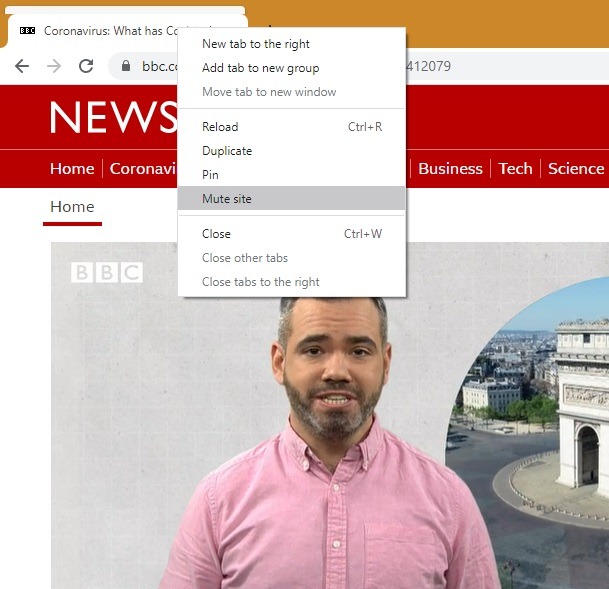
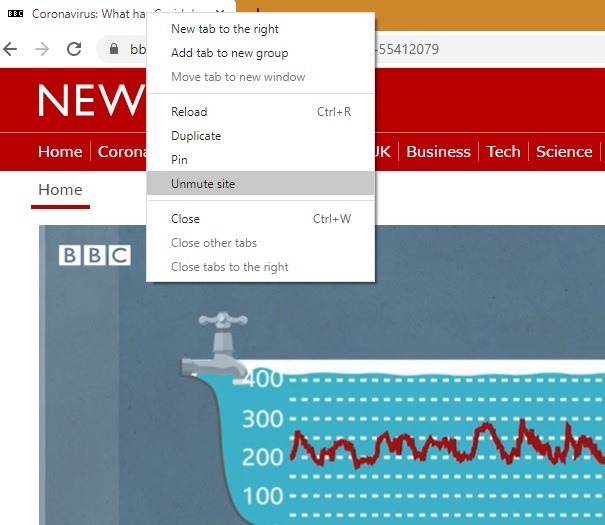
Once muted, continue to watch the video with subtitles or pause it if you just want to read the web contents. If you want to hear the audio once again, you can choose “unmute site” from the same corner.
For a more permanent solution, Google Chrome allows you to mute all sites that play sound. This can be accessed from “Settings -> Privacy and Security -> Site Settings -> Additional Content Settings.”
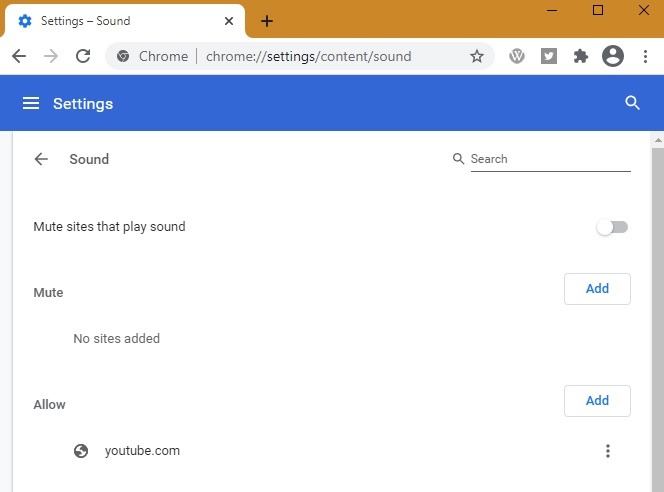
As shown here, you can mute sites that play sounds or allow exceptions for a few news, gaming and entertainment sites.
Mute a Tab in Safari
If you’re using Safari on Mac, you can mute audio in any open tab. Look for the tiny Audio button on the right side of the Smart search field or the tab bar to “mute the tab.” The following screen is for Safari 12 on macOS Mojave. You can find similar placement of the audio button for Safari 14.1 on Big Sur.
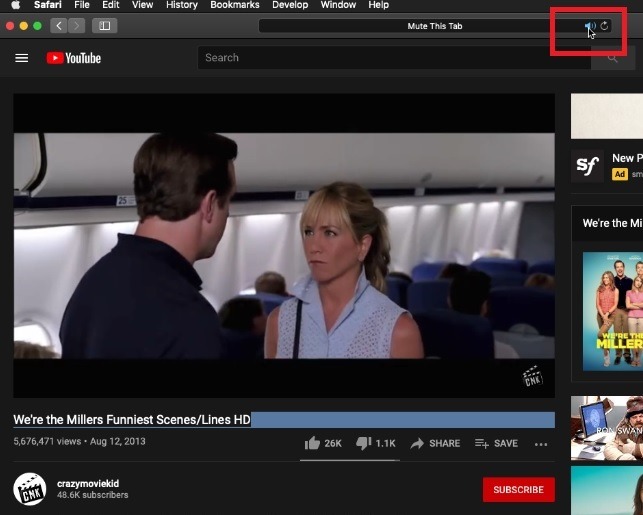
Another option is to right-click on the audio icon to mute the tab from there. This option is useful if multiple tabs are open and you want to mute all the other tabs. Click the muted Audio button anytime to unmute the sounds.

Mute Tab in Opera
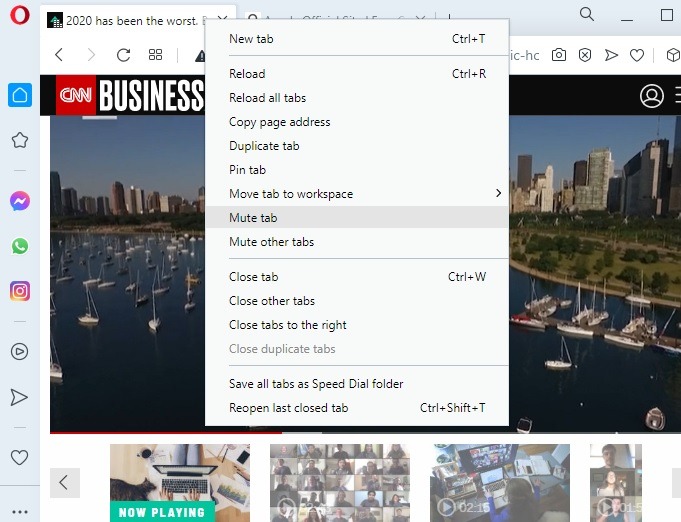
If you’re using the Opera browser, go to the top of the tab where the audio/video is playing. Right-click and select “mute tab,” an option very similar to the one on Google Chrome. To unmute the audio, just click the muted tab and select “unmute tab.” Currently, Opera doesn’t offer a permanent option to mute tabs.
Mute Tab in Microsoft Edge
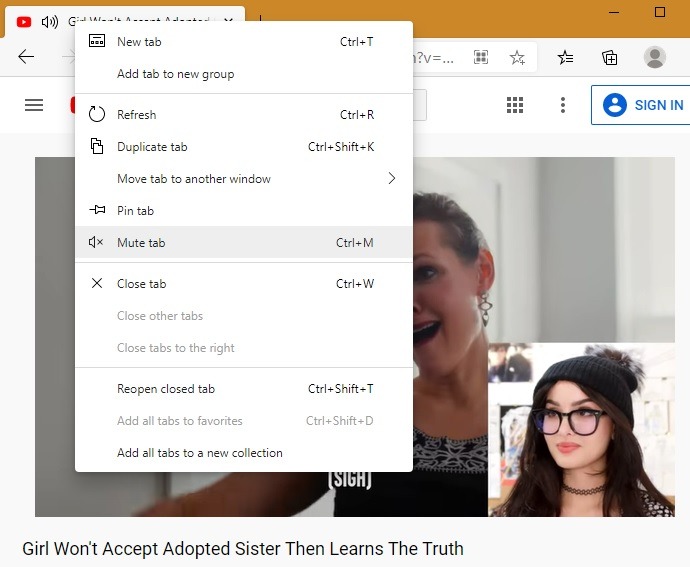
The Microsoft Edge browser has a similar option to mute the current tabs as Chrome and Opera. Go to the top of the tab and right-click to select the mute option. Unmuting is also similarly done from that same icon.
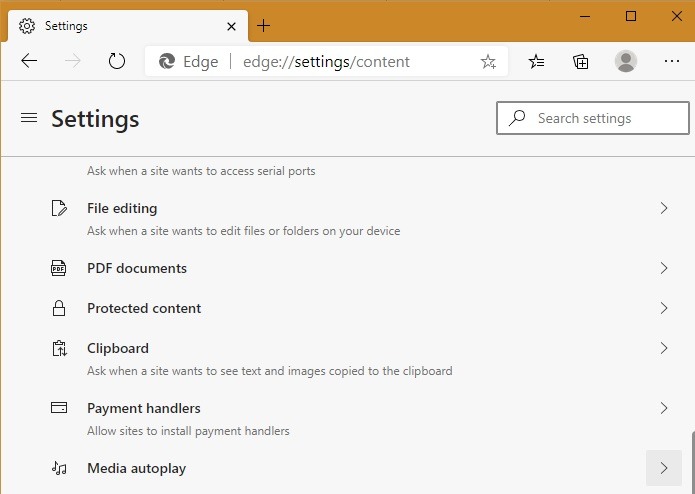
For a more permanent solution in muting audio, go to “Settings -> Cookies and Site Permissions -> Media autoplay.” Here you can control if audio and video play automatically on sites. The media will only play depending on how you’ve visited the page and whether you interacted with the media in the past. Refresh the page to see changes to this setting.
Mute Tab in Firefox
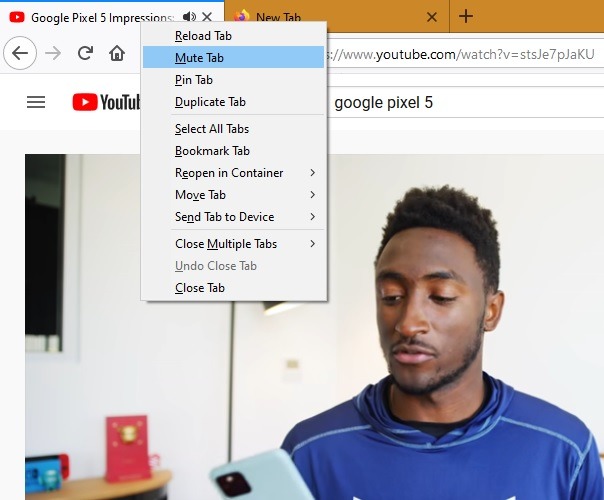
Firefox has one of the strictest solutions to deal with autoplay videos. Like the other browsers, you can turn off the audio from the tab on top by selecting “mute tab.” Unmuting is also done from the same position.
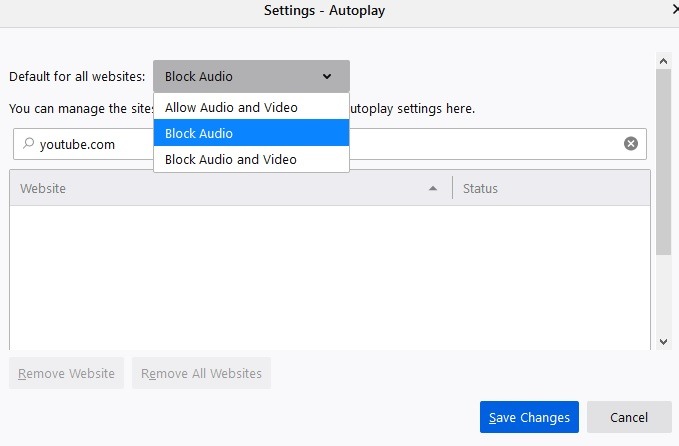
For a more permanent setting, go to the “Autoplay Settings” from “Preferences -> “Privacy.”
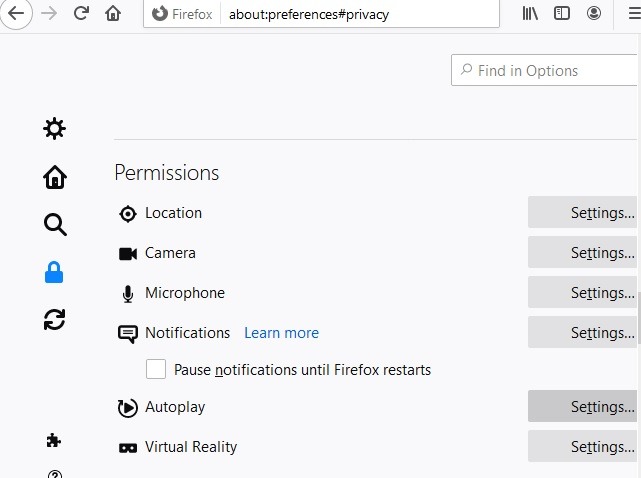
Here you can set the default for all websites to block audio and video and selectively allow audio and video for specific sites.
Have you encountered unwanted web audio recently while surfing your favorite websites? You learned here how to mute the browser tabs for various browsers. You may also want to learn how to enable Chrome flags to optimize your browsing experience on Chrome.