

When checking out a location in Google Maps, you may want to know the distance it would be to travel so that you can decide whether to walk or take the car. This guide shows how to measure distance using Google Maps via various methods.
Good to know: is Google Maps not working as it should? These options could restore functionality to the app.
[mte_toc]How to See Distance with Directions Feature
You can measure the distance between two points by using the Directions feature in Google Maps. It’s probably the most straightforward method.
Mobile
Open the Google Maps app and either search for a destination using the search bar at the top, or find it on the map, and tap on it.
Press the directions button to see your route.
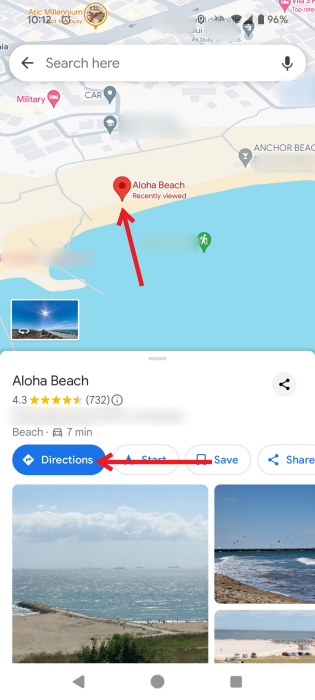
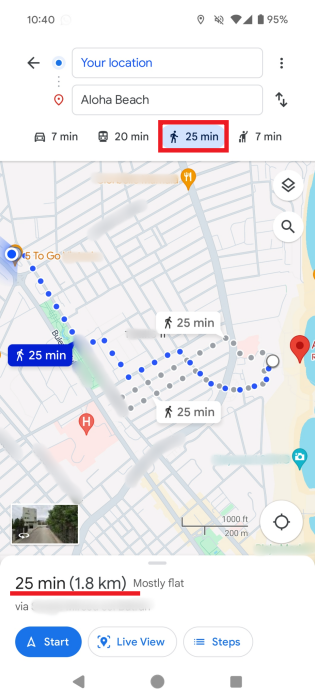
At the bottom of the screen, by default, you’ll see the estimated time it will take to get there by car. Next to it will be the distance between your location and the destination.
Tap on a different route on the map to view and compare the distances. You can also switch between means of transportation and check those distances.
Tip: while Google Maps doesn’t have a built-in radius feature, this tutorial shows how to draw a radius in the app.
PC
You can view similar details regarding the distance to your destination on PC.
Just as before, either search for the destination or click it on the map. Press the Destinations button on the pop-up.
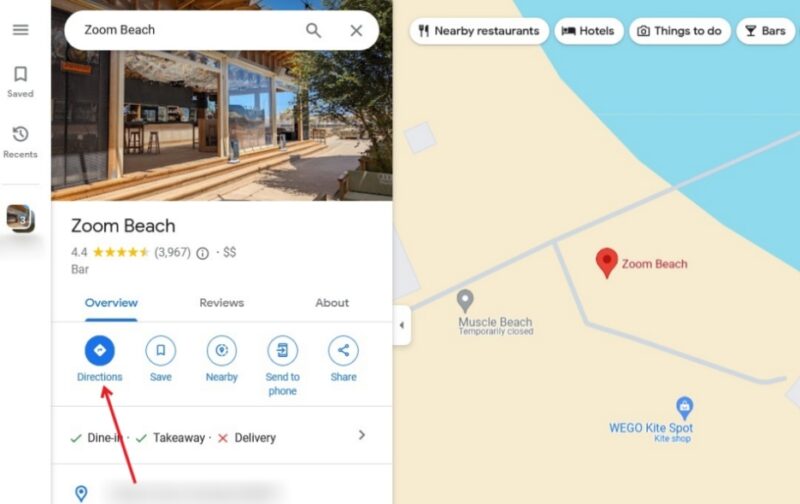
Google Maps will display all the available routes to your destination, while also displaying the distance. You can switch between several means of transportation and compare distances.
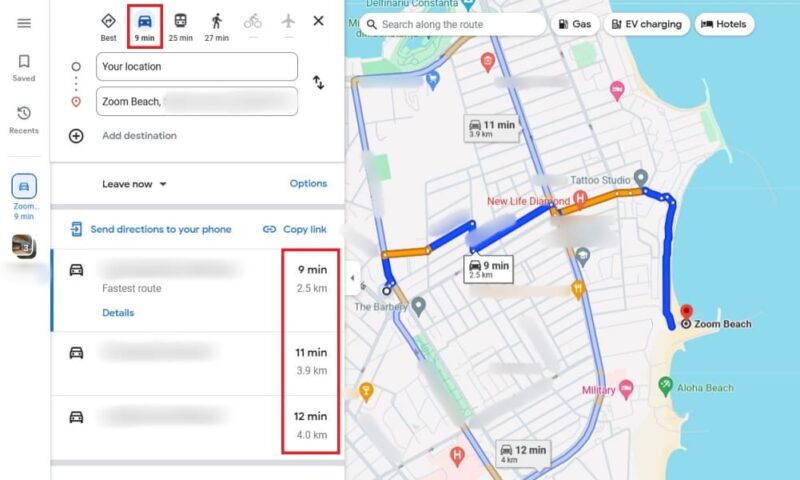
FYI: want to step away from Google Maps? Check out the best Googe Maps alternatives.
Note: Once you know the distance, you can easily find the halfway point between two pins.
How to See Distance with Measure Distance Feature
Another way to measure distance between two or more points using Google Maps is with the Measure distance feature. This is a better option if you want to measure the distance to a point that is not on the map, or calculate the distance between multiple points.
Mobile
Open Google Maps on your Android device or iPhone, and search for a location, or find it on the map. Long-press it until the red pin appears.
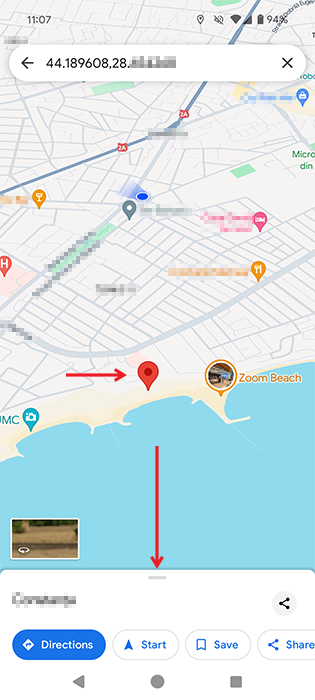
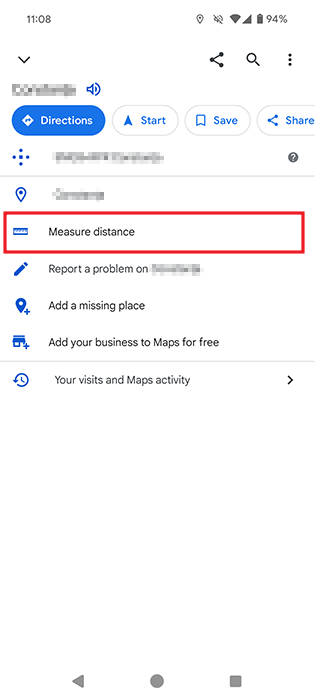
When Google Maps gives you information on the address you typed, it will appear at the bottom. Swipe up from the bottom of the display to reveal additional information about the location. Select the Measure distance option.
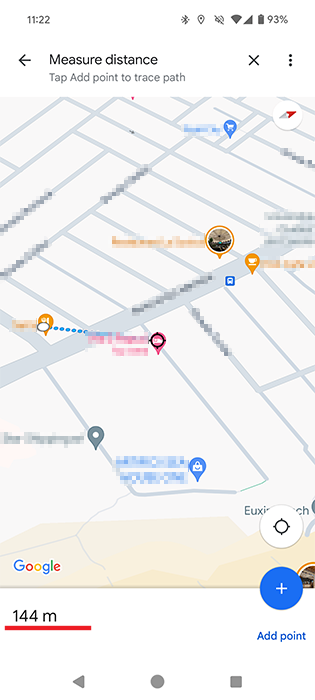
A black circle will appear with a few blue dots. If you swipe your finger to the right on your display, the dots will move to the left. Place the black circle on your current location, for instance, and the distance will appear at the bottom left of your display.
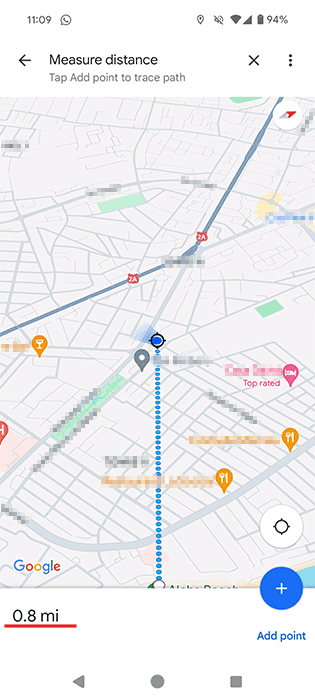
There is also a way to measure the distance between various points. Do this by tapping on the Add point option on the bottom right, and start adding a new destination.
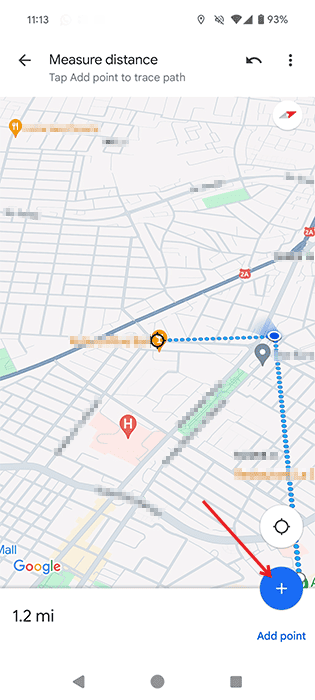
After you tap this option, place the black circle on the third location, and the sum of all the points you add will appear at the bottom.
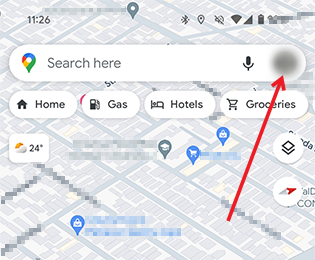
The distance will be shown in miles, but if you want to view it in meters instead of kilometers or vice versa, you can change this by going back to the main Google Maps screen. Press on your profile picture in the upper-right corner (in the search bar) and select Settings from the menu that appears.
Swipe down to the Distance units option. Select the units you prefer.
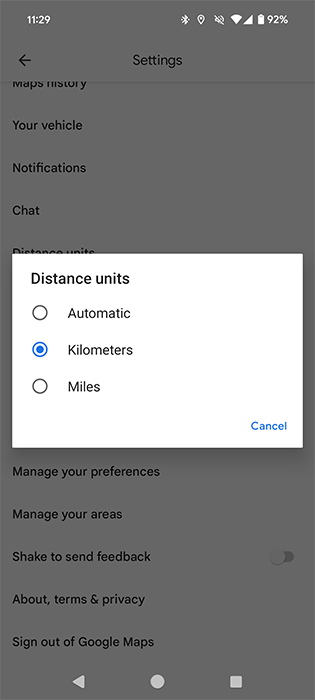
View the distance in your preferred measuring unit.
Tip: you can control Spotify from within Google Maps (and Waze) for safer navigation.
PC
It’s even easier to measure the distance using the Web version of Google Maps on your desktop browser.
To mark point A, right-click on the starting point, and choose the Measure distance option.
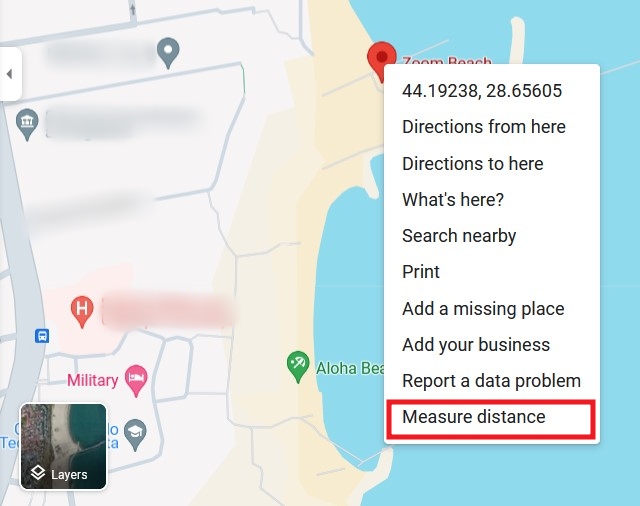
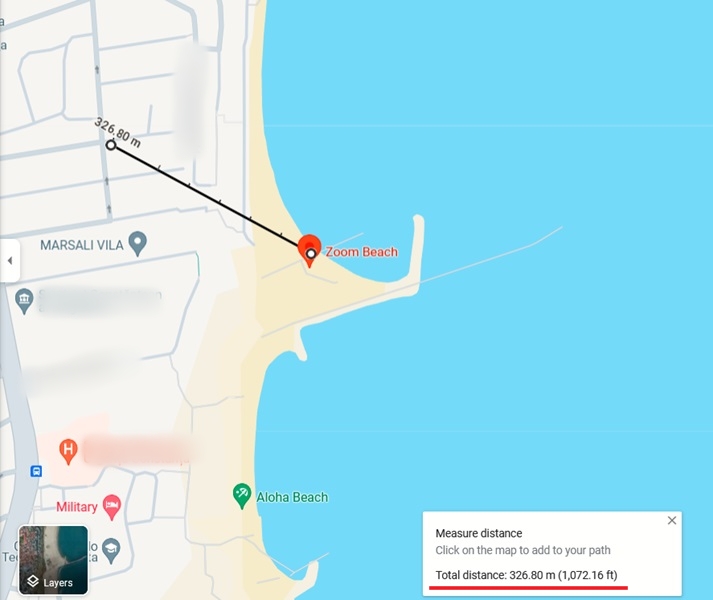
The distance will be marked with a black circle near the destination point. You’ll also be able to view the distance in both meters and feet at the bottom.
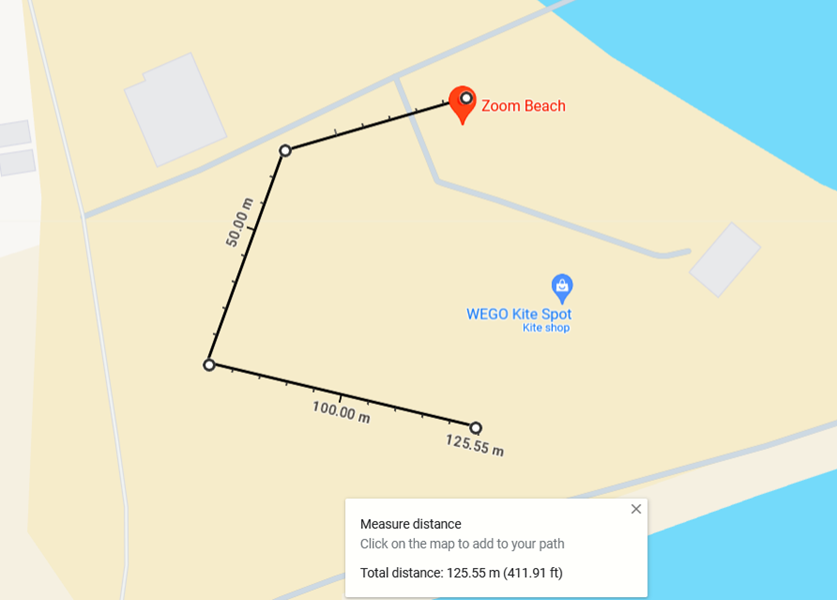
Add as many additional destinations as you want. You only need to click on the next spot on the map to see the distance from the last point you clicked. View the total distance at the bottom.
Tip: learn more about dropped pins in Google Maps for more accurate directions.
There are many more things you can do with Google Maps to make it worth exploring. For instance, you can save a route on Google Maps. Also learn how to check traffic with Google Maps.
Image credit: Pexels. All screenshots by Alexandra Arici.