


Just like other browsers, Microsoft Edge allows you to view and manage your saved passwords. Whenever you visit a website that requires you to sign in, Edge will ask whether you want it to remember your password for that site the next time you log in. This tutorial shows how to check, edit, or delete your saved passwords in Edge on PC, Android, and iPhone.
Good to know: is Microsoft Edge not responding on your PC? Try these fixes to go back to browsing.
[mte_toc]View Saved Passwords on PC
On the Edge browser, click on the three-dot icon at the top, and select Settings.
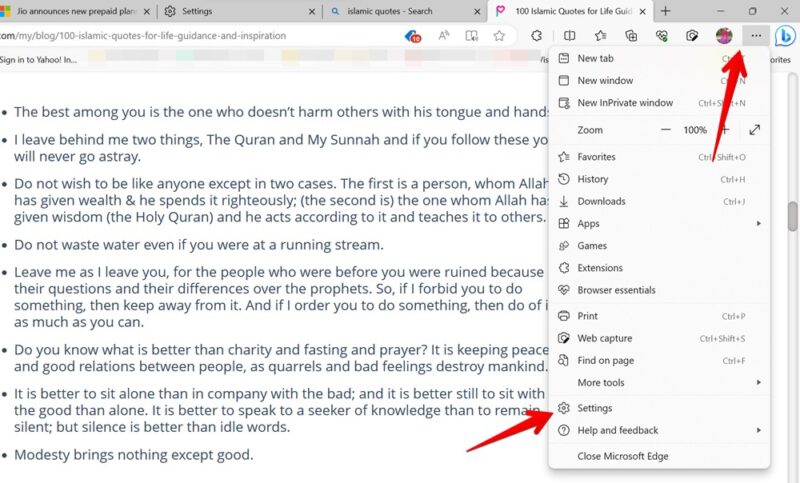
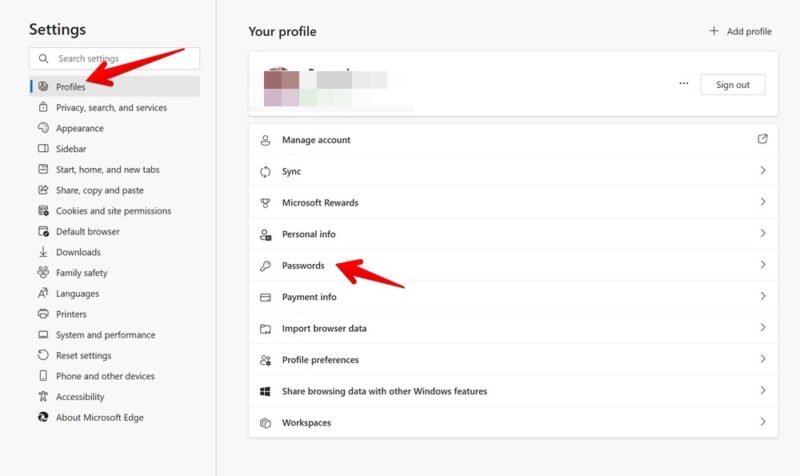
Click Profiles from the left sidebar, and go to Passwords in the right panel to view your saved passwords.
Click on the desired website. You will be asked to verify your identity to see the saved passwords.
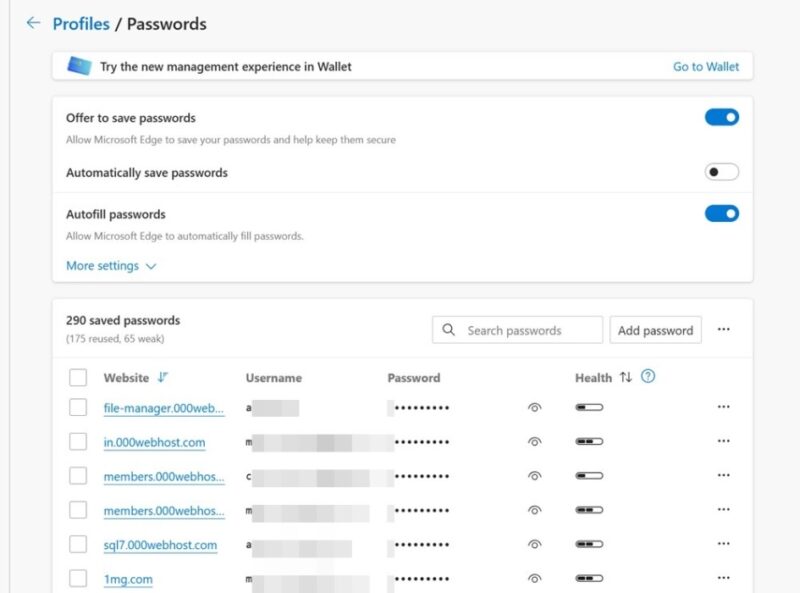
Tip: learn how to see passwords in a browser instead of dots.
View Saved Passwords on Mobile
The steps to view your password on the Microsoft Edge browser are similar.
Open Edge, tap on the three-bar icon at the bottom, and select Settings.
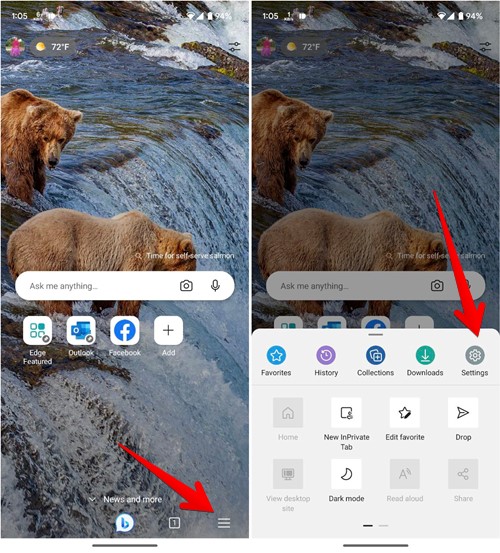
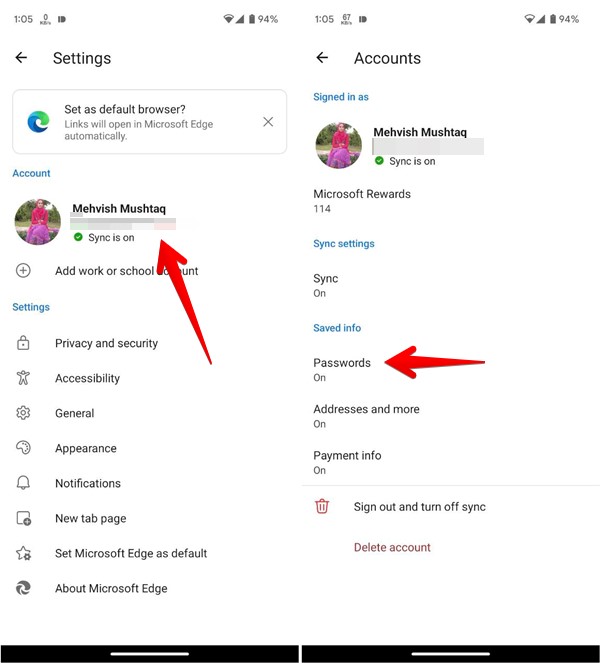
Tap on your name at the top, and select Passwords.
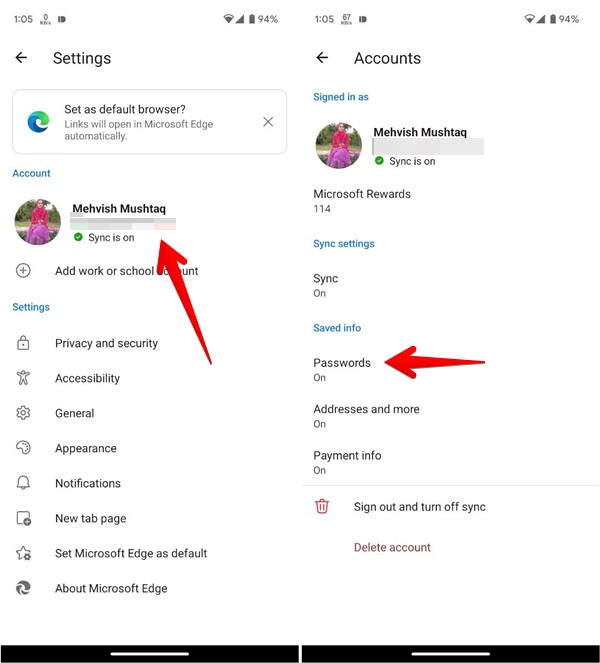
Scroll down to see the list of websites with saved passwords on the Edge browser. Tap on a website to see its details, then tap on the eye-shaped icon to view a saved password. You will have to verify your identity to see the password.
Find out: how Microsoft Edge WebView2 Runtime allows you to view web content in any applications.
Manage Saved Passwords on PC
While the password list in Edge is generated automatically as you save your passwords to the browser, you can manage its contents on PC.
Edit or Delete Passwords
To edit or delete saved passwords in the Edge browser on a computer, go to the Passwords section as previously explained.
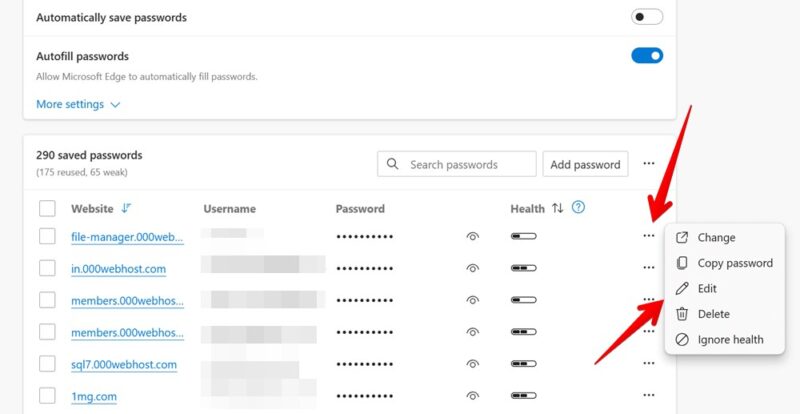
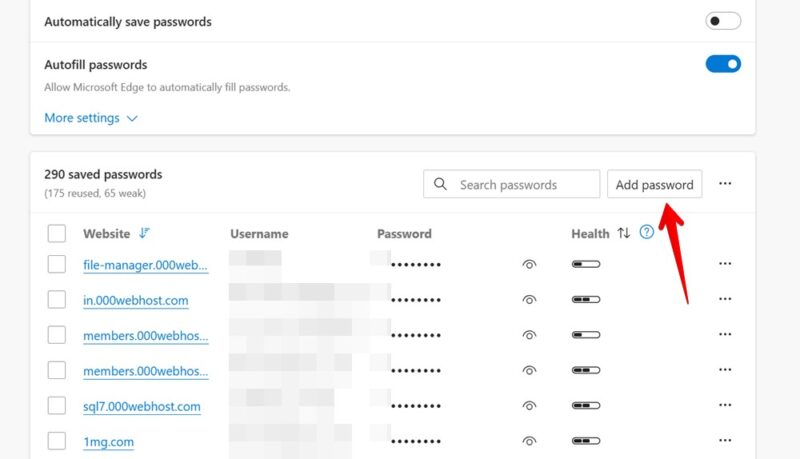
Click on the three-dot icon next to the password, and select Edit or Delete.
Tip: use the search box to quickly find the desired website.
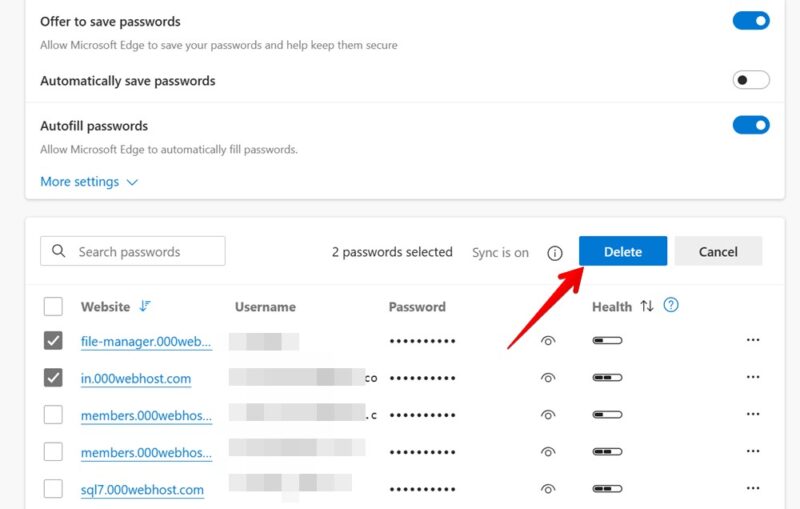
If you want to delete passwords in bulk on Edge, click on the selection boxes next to the passwords, then click on the Delete button to remove multiple passwords.
Tip: if you’re a Chrome user, learn how to take advantage of Password Manager in Google’s browser.
Add Password Manually
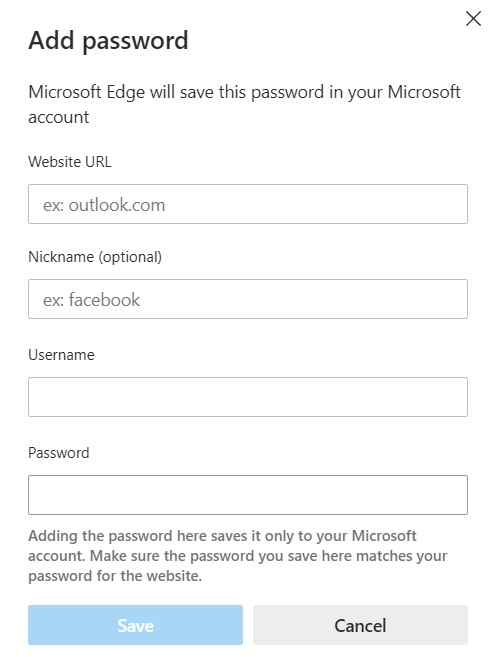
You can also add passwords manually in Edge by clicking on the Add Password button above the list of passwords.
Enter the site details.
Microsoft Edge also allows you to import or export passwords. Click on the three-dot icon on the passwords screen next to the Add password button. Select the option you need.

FYI: get up to speed with these keyboard shortcuts for the Edge browser to boost your productivity.
Manage Saved Passwords on Mobile
To delete a saved password in the Edge browser on Android, go to the Passwords section. Tap on a website, then on the trash can icon to delete a saved password.
Alternatively, if you want to edit the password or username, enter the new details in the appropriate fields, and press the Done button.
Tip: a search icon is also available in the top right on Android.
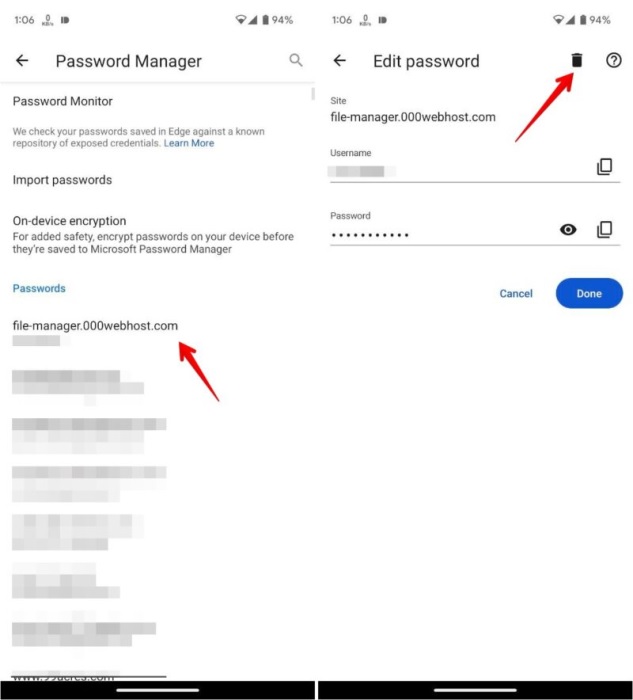
Note that you cannot add passwords manually in Edge for Android.
Manage Passwords on iPhone
Go to the Passwords section in the Edge browser on your iPhone to view saved passwords. Swipe left on the desired website, and press the Delete button.
Note: you can also use the search bar at the top to quickly find the site.
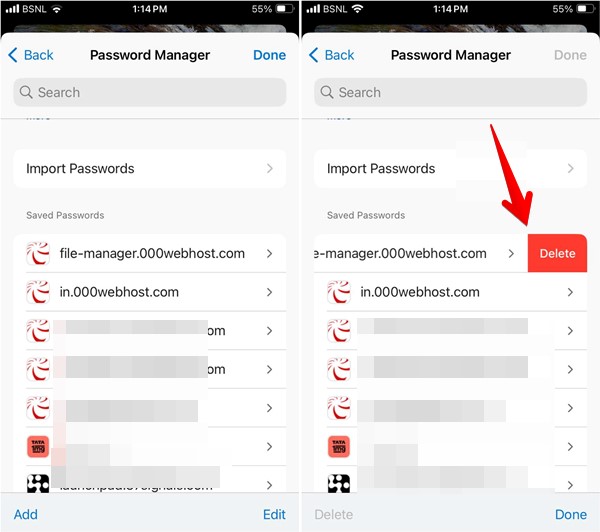
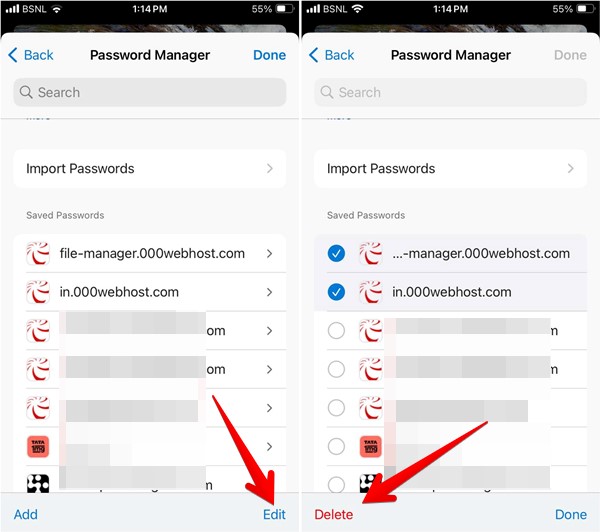
Alternatively, if you want to delete passwords in bulk, tap on the Edit button, select the websites, then tap Delete.
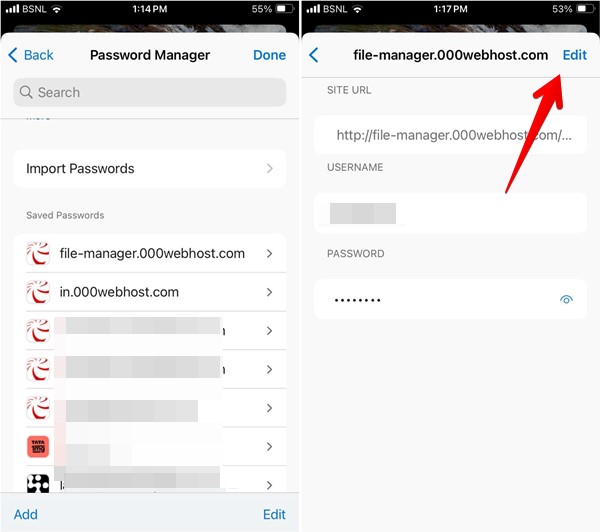
To change a saved password, tap on the website in the Saved Passwords section, then press the Edit button at the top, and make changes to your password. Finally, tap Done.
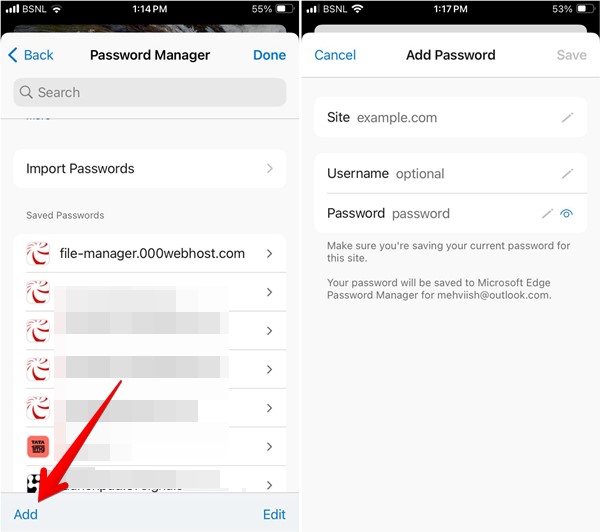
To add a new password manually, tap on the Add button, then enter the details of the website, like username, password, and URL. Tap the Save button.
Tip: learn how to import or export favorites in the Edge browser.
Keeping an Eye on Your Passwords
Although Edge provides a convenient way to manage your saved passwords, you can also use third-party password manager tools, like 1Password, to save your passwords.
Image source: Flaticon All screenshots by Mehvish Mushtaq