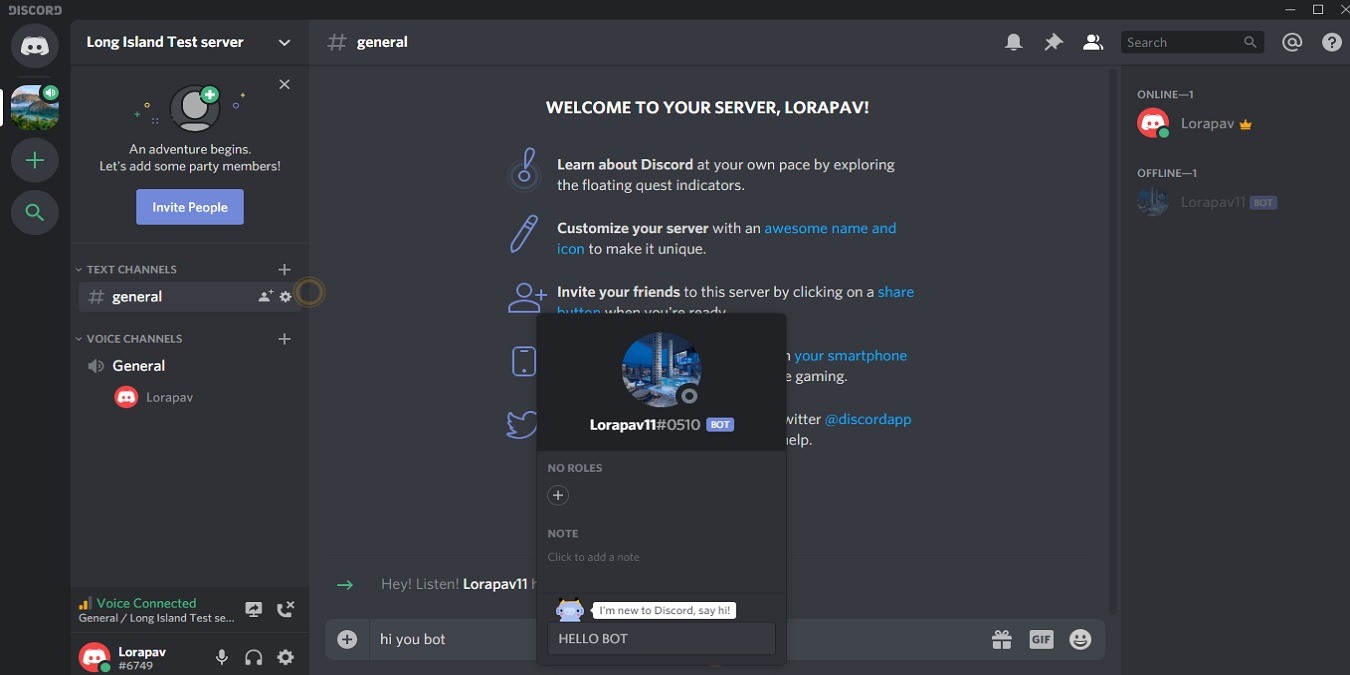
Creating a custom Discord bot is a fun and engaging way to sustain the interest of your community server. When you invite your friends over to your channel, the bot will manage their interactions in your absence. For example, if a user is misbehaving, the bot can kick him or her out.
To do that, you have to acquaint yourself with some programming and steps to create your bot and add it to your server. The following guide simplifies what has to be done with easy-to-understand screenshots.
Also read: 15 Best Discord Bots to Improve Your Discord Server
Creating Discord Bot on Developer Portal
Log in to your Discord account and go to the developer portal. Here, you can create a new bot “application.”
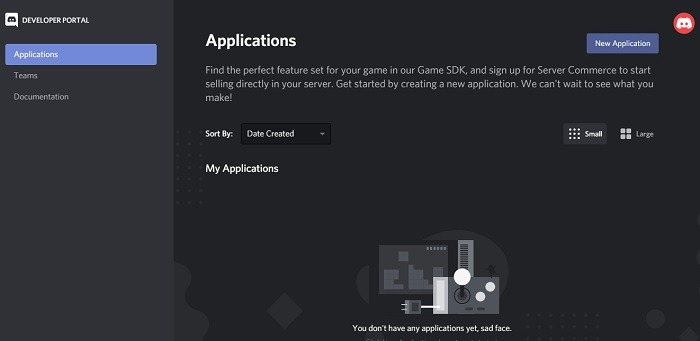
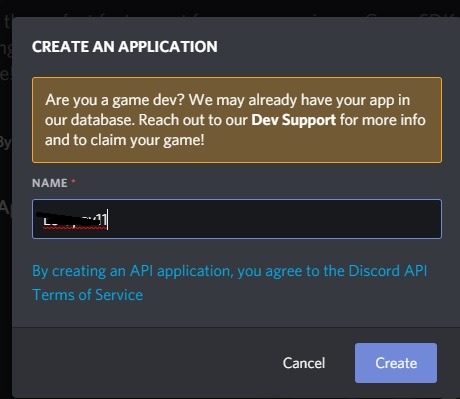
Give your application a desired name and click “Create.”
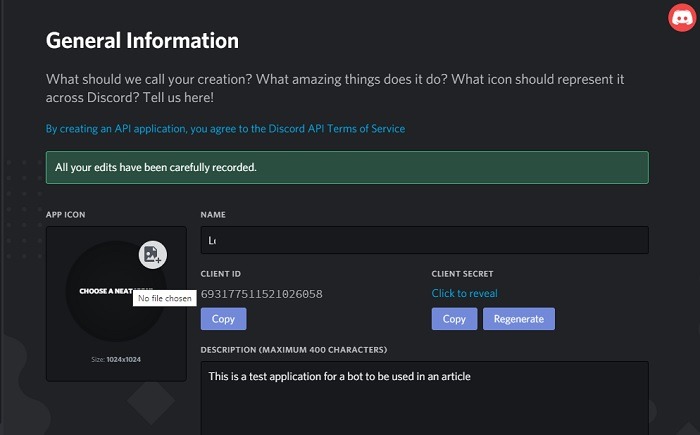
In the next step fill in some details regarding what this application is all about. You can choose an app icon. Remember to save the changes.
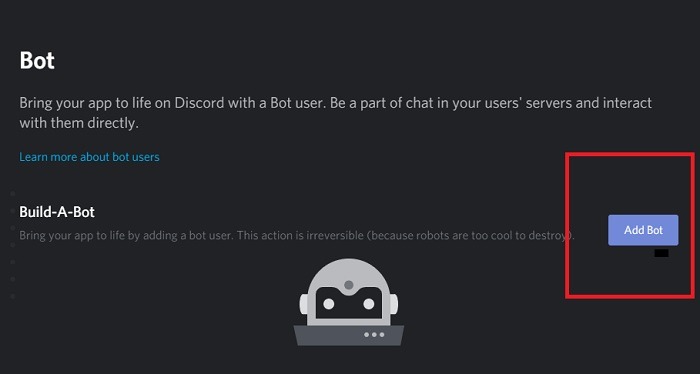
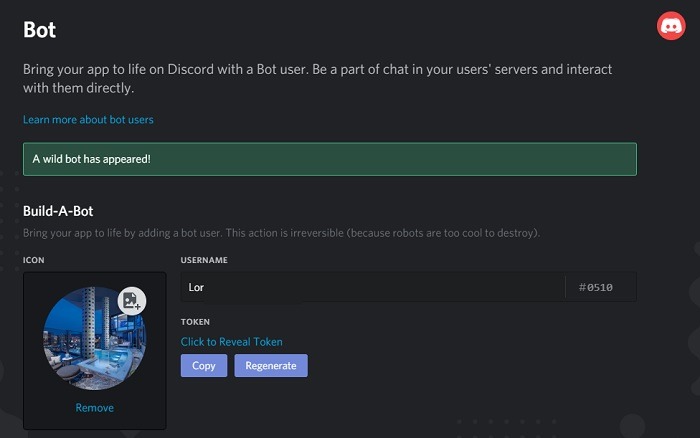
Now add a bot using the “build-a-bot” feature of the portal.
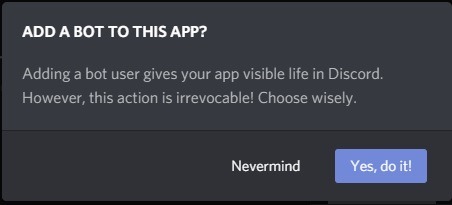
Give your consent to adding a bot to the app. The action is irrevocable.
After you complete the above steps, a wild bot is created. However, it is not ready to be shared yet. For that, you need to provide additional information.
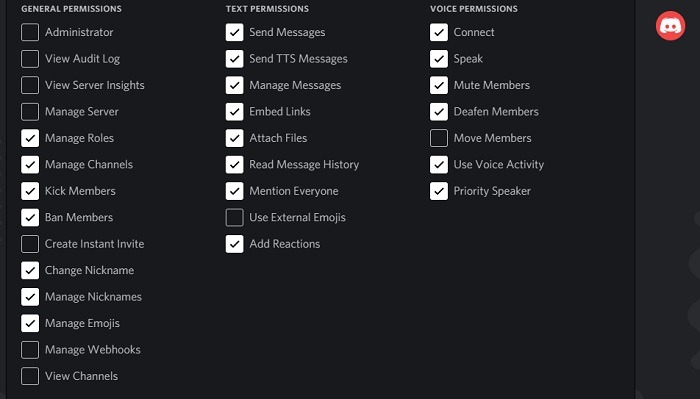
Make a checklist of what your bot can do. You should not give it administrator privileges, as then it can control your server. Feel free to let it mute or ban members, prioritize speakers, add reactions, embed links, manage nicknames, and much more. Each level of permission provided by you has its own unique ID you can see on the dashboard itself.
Also read: 9 Best Discord Gaming Bots You Must Add to Your Server
Creating the Code for Your Discord Bot
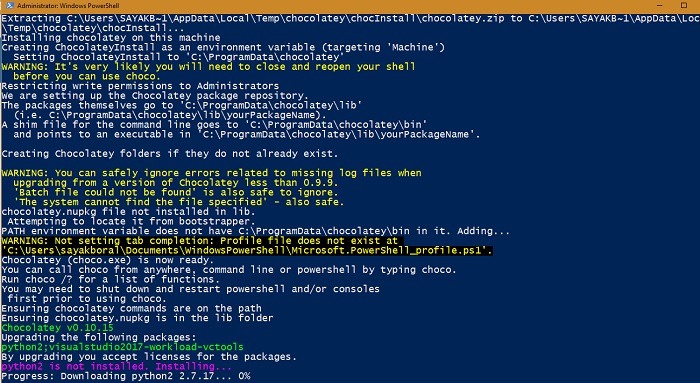
If you are a programmer, you will want to modify the bot’s functions quite a bit. This demonstration uses node.js, a JavaScript runtime environment. Once installed for Windows, you may want to install “additional tools,” which can be done directly from the command terminal. It will install Chocolatey, Visual Studio, and other programs in Windows Powershell.
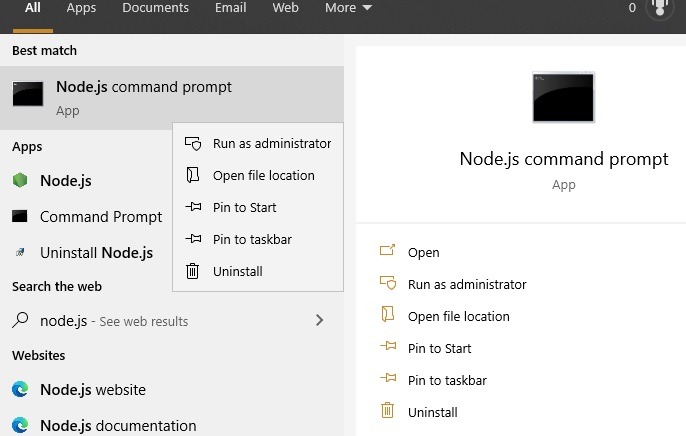
Download and install Node.js for Windows x64 and then run the following specific program from the Start menu. It’s a Node.js command prompt. (Don’t run the other Node.js application file, as it has a different use.)
Once the environment has been set up for using Node.js, you will have to install “discord.js with voice support” using the following code.
npm install discord.js @discordjs/opus
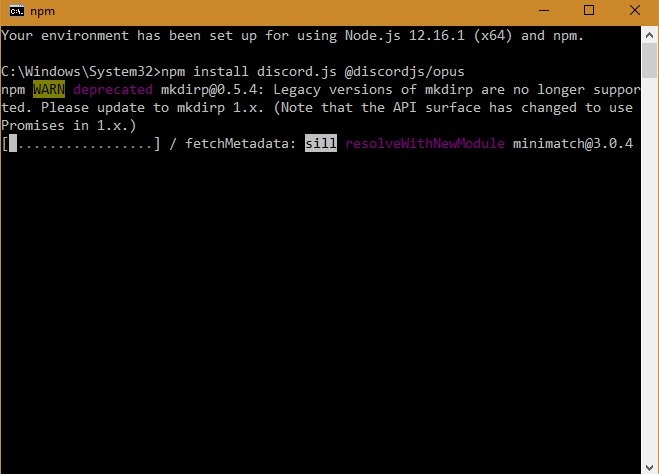
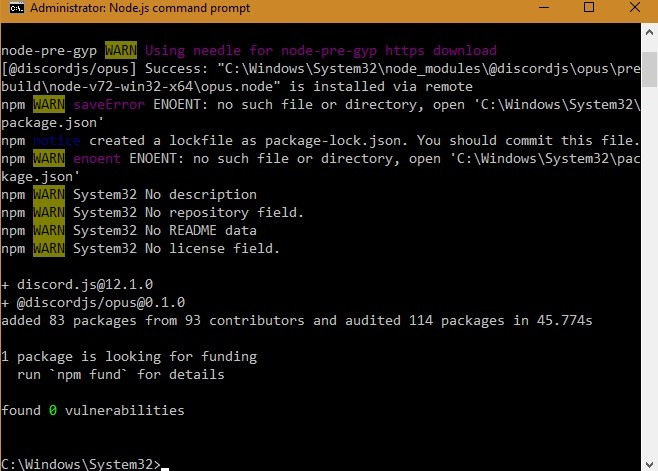
You should see a success status for the number of packages created.
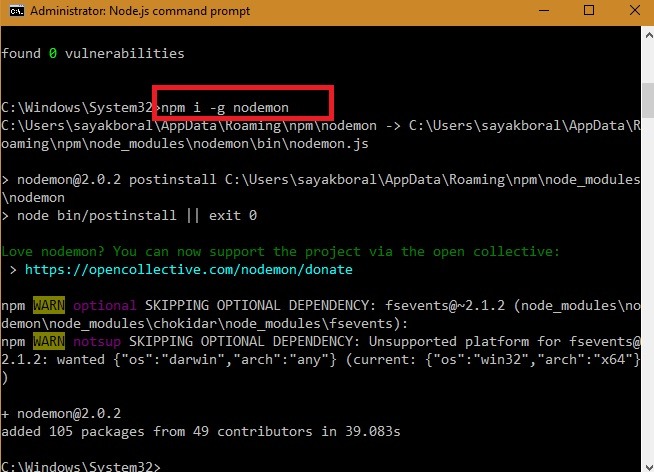
Install nodemon as shown below.
npm i -g nodemon
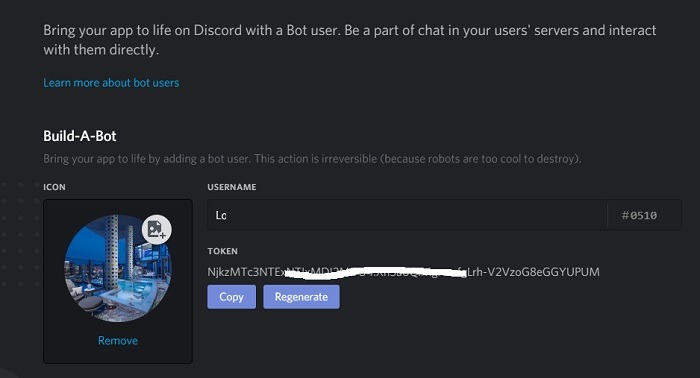
Go back to your Discord bot on your developer portal webpage. Click the icon for “click to reveal token,” and it will display an alphanumeric key, which is your private Admin. Don’t share the token with anyone, as it is easily hackable.
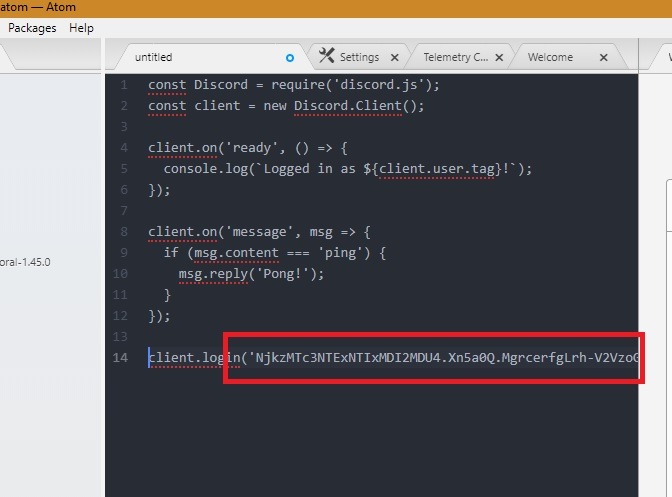
Check the code example shown at the official Discord site.
const Discord = require('discord.js');
const client = new Discord.Client();
client.on('ready', () => {
    console.log(`Logged in as ${client.user.tag}!`);
});
client.on('message', msg => {
    if (msg.content === 'ping') {
        msg.reply('pong');
    }
});
client.login('token');
Instead of a token in the last line of code, copy-paste your own Discord bot token.
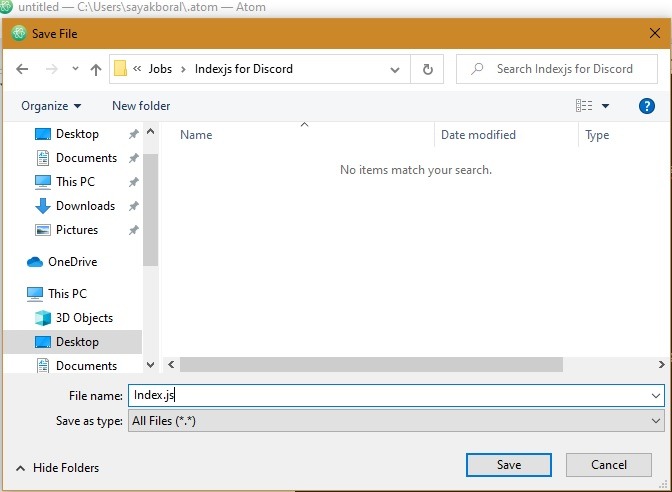
Save the file as “Index.js” in any folder which is directly accessible from the Command prompt. It can have any name as long as it is a .js file.
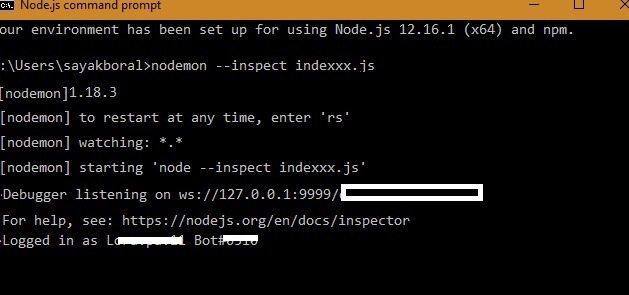
Now, to run the bot, enter the following code.
nodemon --inspect "file name".js
When it’s ready, the Node.js will then log you into your Discord API. There is also an editor mode in Node.js which you can access from .help option. This is where you can introduce further edits to your bot.
Also read: What Are Stage Channels and How to Use Them in Discord
Adding the Bot to Your Server
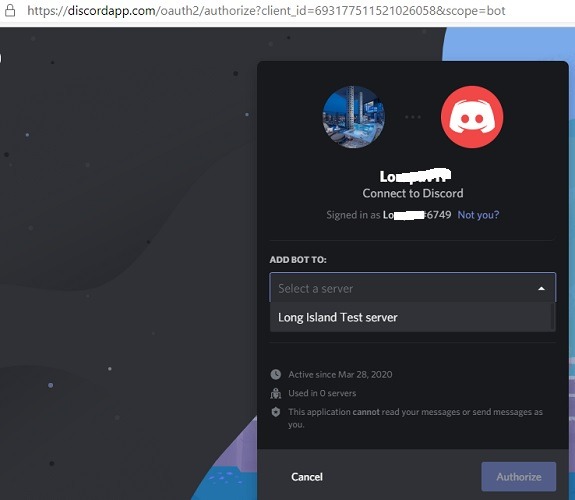
Once your bot has been created, you will want to add it to your Discord server. For that, you will need a link such as the following:
https://discordapp.com/oauth2/authorize?client_id=123456789012345678&scope=bot
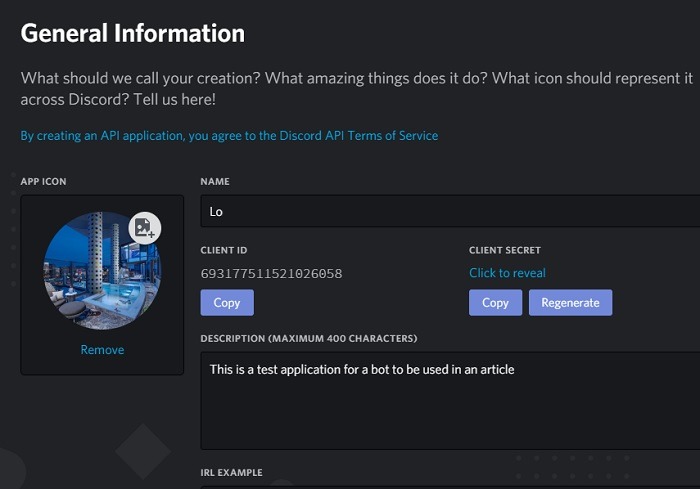
The “client ID” is found in General information under the Application where you have saved the bot.
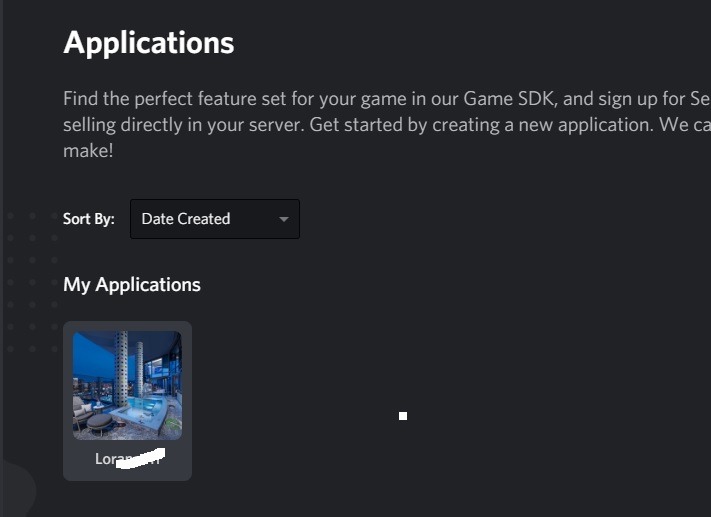
In the below screen, you can see the client ID for the bot that was created in the first section.
Open a browser and enter the link shared above. Simply replace the client ID with yours. You can choose the server where you can add the bot.
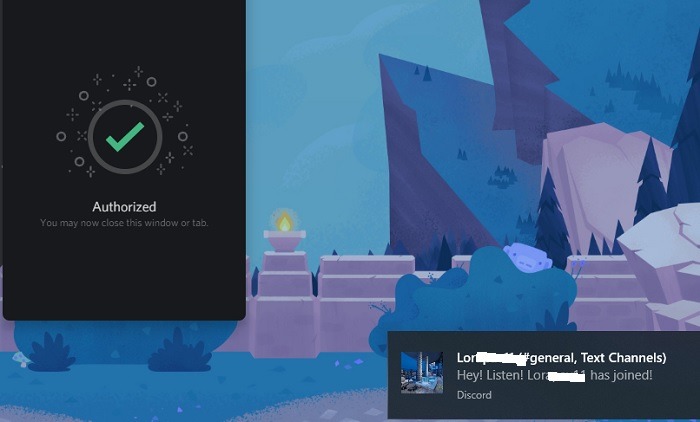
If the bot is successfully created, you will see an “authorized” message which shows the app has been connected to your Discord server. If you have the Discord server installed for Windows, you should see an alert in the system tray as shown here.
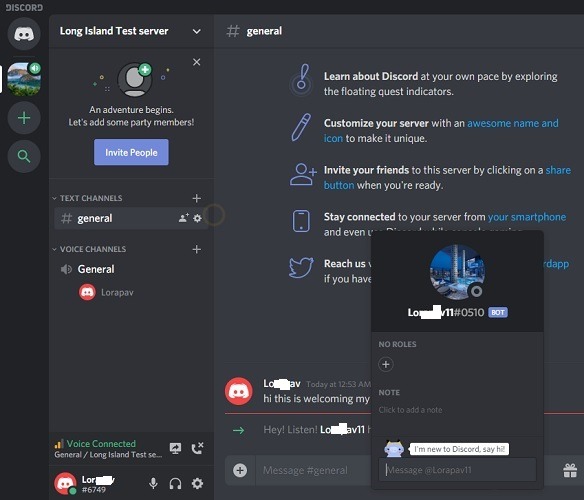
The created bot has been successfully added to the Discord server.
Discord bots are an interactive means to build interest in your server. For more information on working with custom Discord bots, refer to this official manual.
Have you created your own Discord bot? What was its purpose? Please share your ideas in the comments.
Also read: How to Install Discord on Ubuntu Linux