


Even with tools like bookmarks and favorites available to you, keeping your web browsing streamlined can still be challenging – especially if your screen tends to be crowded with windows and tabs over time. Luckily, macOS Sonoma adds a nifty feature to Safari called web apps. This tool lets you save a webpage as a web app for easy access from the Dock. This tutorial shows how to make an app from a web page on Safari.
[mte_toc]How to Create a Web App in Safari
The ability to save a webpage as a Home Screen app has been on the iPhone and iPad for a while. Apple added this feature to Mac with macOS Sonoma. Follow these steps to create your own web app:
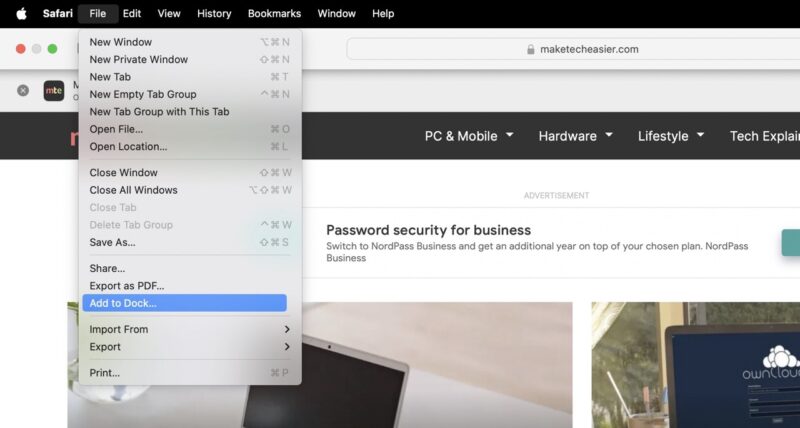
Open Safari and navigate to the webpage you want to turn into a web app. Select File -> Add to Dock from the menu bar.
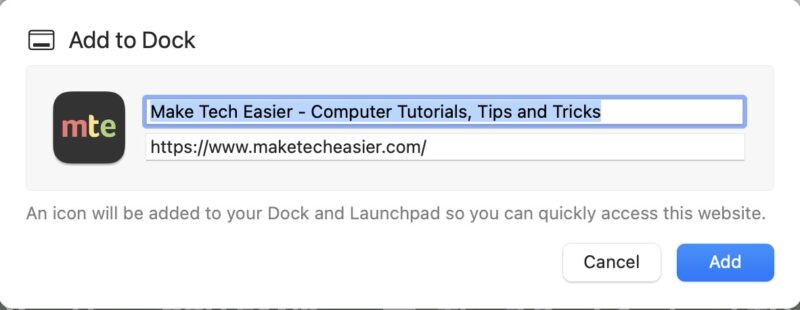
Edit the web app’s name, then click Add.
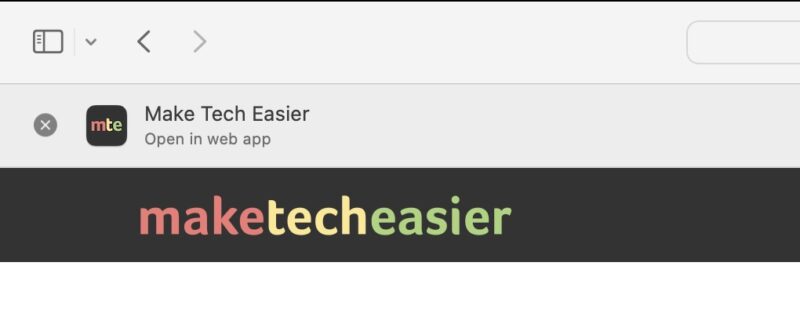
Your new web app will appear in the Dock. When you visit the website in Safari, a notification will prompt you to open it in the web app. Just click Open to be redirected to it.
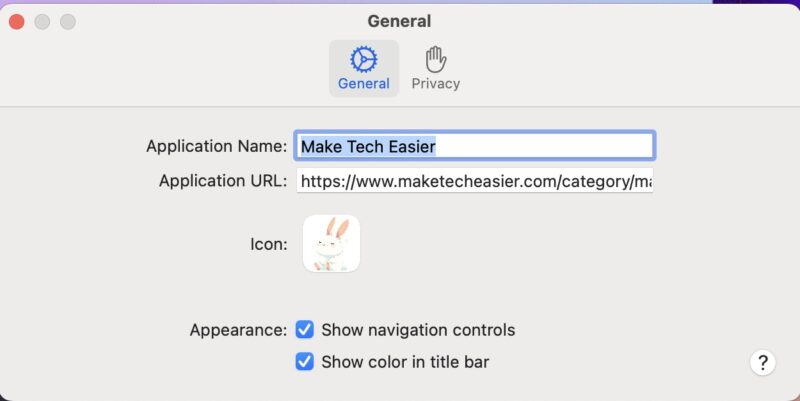
You can customize your web app’s settings, including the app’s name, icon, and URL. Open the web app, click its name in the menu bar, and select Settings.
Where to Find Your Web Apps
Safari web apps are easy to find via your Dock. However, if you remove them or can’t find them there for any reason, you can access each one in your Applications list or by using Spotlight.
Finding Safari Web Apps in the Applications Folder
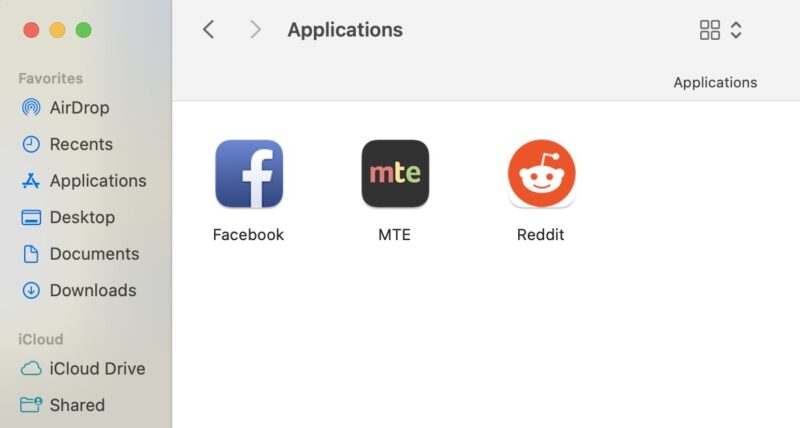
Your Mac also saves your web apps in the Applications Folder in your Home folder. Open a new Finder window, then select Applications. You should see all the web apps you’ve made here.
Use Launchpad and Spotlight to Find Web Apps
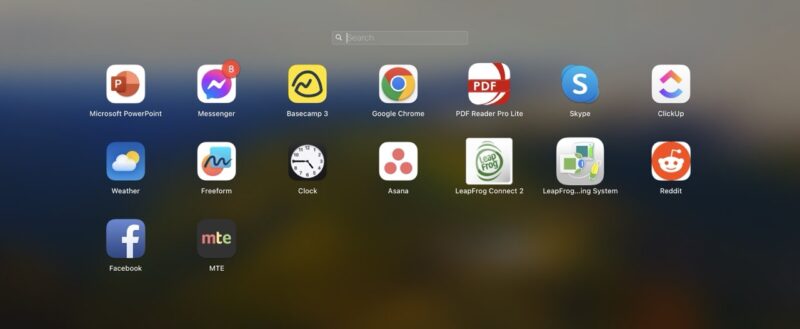
If you prefer using Launchpad, you can search for a Safari web app on Spotlight by clicking the Search icon in the menu bar and typing in the name of your web app.
How to Manage Web App Notifications
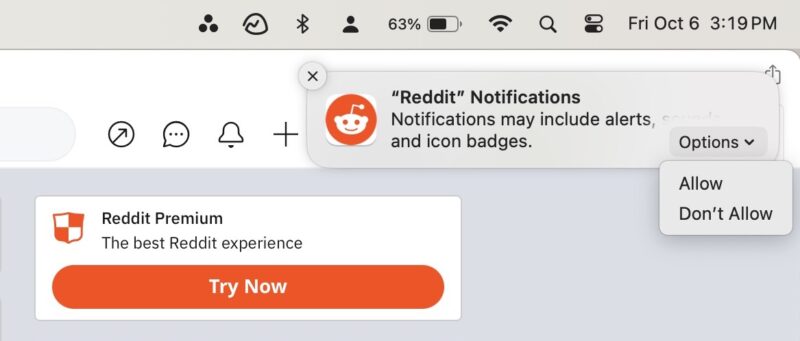
For websites that typically give you notifications, such as an email service or a news site, the web app you create for it will ask permission to send you notifications. The website notification request will appear when you first open the web app.
When you open the web app, click Options in the pop-up, and select Allow or Don’t Allow.
How to Fix a Web App With Missing Notifications
If the web app does not ask for notification permission, it’s probably because you’ve already permitted Safari. But you can check these settings at any time.
To check a Safari web app’s permissions, open Safari -> Settings. Click the Websites tab, and select Notifications in the sidebar.
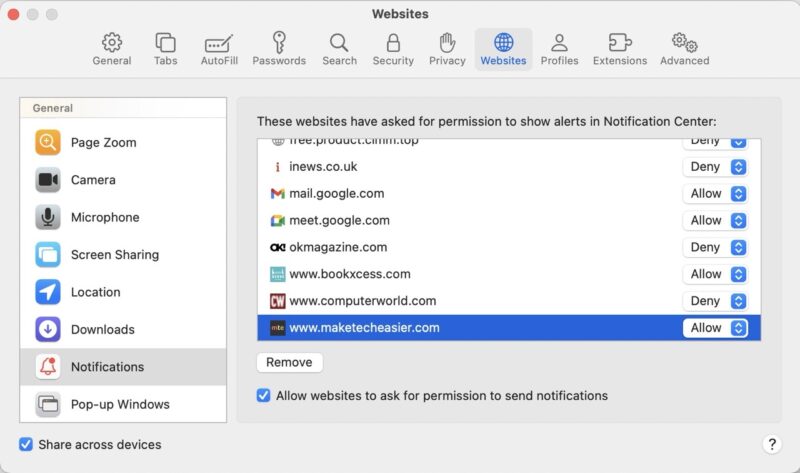
Scroll to find the website for which you’ve created a web app. It will specify whether you allowed or denied notifications.
Once you highlight the website, click Remove at the bottom. Then, close the window.
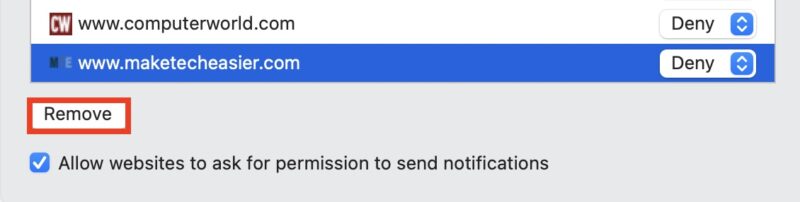
After you do this, you must remove the web app you previously made and create a new one. Then, open the web app, wait for the pop-up asking for permission for the web app to send you notifications, and respond to it.
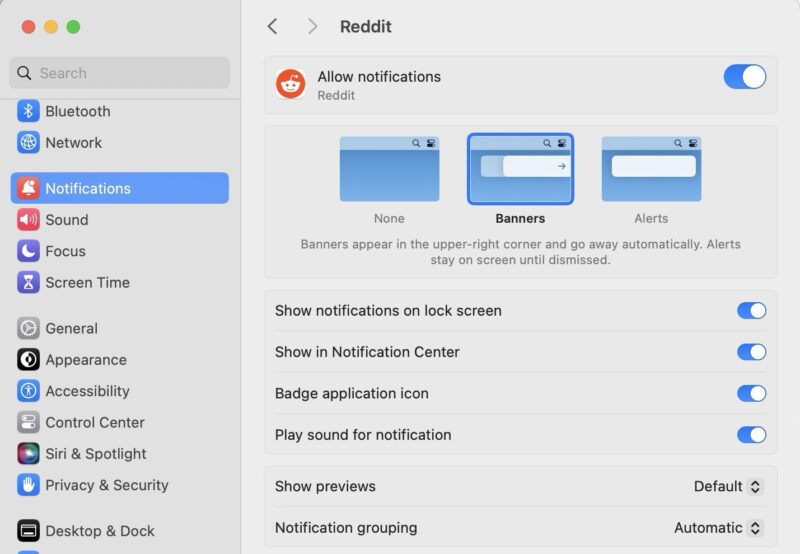
Like other apps, you’ll see the number of unread notifications as a red badge on the top-right of the app’s icon. You’ll also see the notifications on your Mac’s Notification Center and lock screen.
You can manage notifications on Mac for your web app just as you would for any other application. Head to System Settings, click Notification in the sidebar, and look for your web app. Modify where and how you want your web app’s notifications to appear.
Streamline Web Browsing
With web apps, you can easily access your favorite websites without contributing to Safari’s clutter. Additionally, directly sending you notifications makes sure you won’t miss anything.
If web apps aren’t for you, you can customize Safari to suit your preferences and needs.
Image credit: Pexels. All screenshots by Rachel Melegrito.