

Travelling and adventure have never been this enjoyable throughout history. One day you could be basking in the warmth of tropical Africa. And the next day you could be sipping hot soup with the Eskimos somewhere near the North Pole.
The good news is your digital devices also travel with you. As soon as you arrive, you find that your dates and time change to reflect your new location. Google Search switches your search location, too. Time to immerse yourself in the new culture, right?
But not everyone is happy about these changes. Some may want to keep their device’s settings unchanged, regardless of the timezone and location. Thankfully, there are workarounds. Here are five ways to restore your control over your search and location settings.
1. Use a VPN
Google, and the Internet in general, can detect your location through your IP address. By using a VPN you can mask your location and efficiently trick Google to believe you are somewhere else – like back home!
1. Sign up for a VPN service and download its software. Premium VPN services are usually faster and have more locations options.
2. Connect to the Internet, then open your VPN software. Choose the location you want to reflect your search location, then hit “Connect.”
3. Once connected, head over to What Is My IP Address. This website will confirm whether your location has indeed changed or not.
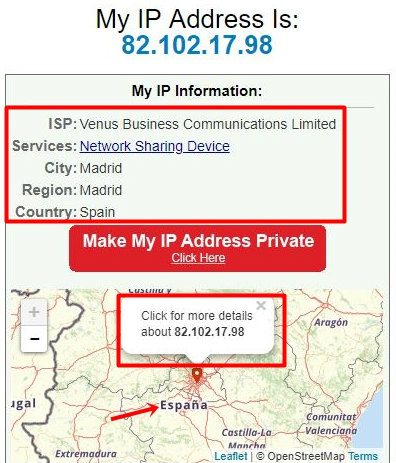
If it shows your new location, then you can now access the local content of that selected location. This trick works on both mobile and PC devices.
2. Use Google AdPreview Tool
The Google AdPreview Tool suits advertisers who have to be able to access the various local content available in all parts of the world. This access helps ad publishers in their research and also helps improve their strategy and content.
This tool is also available to all Google users. Using this tool you can tailor your Google search results to cities and locations as you wish.
1. Go to Google AdPreview. It will provide a group of settings that you can edit.
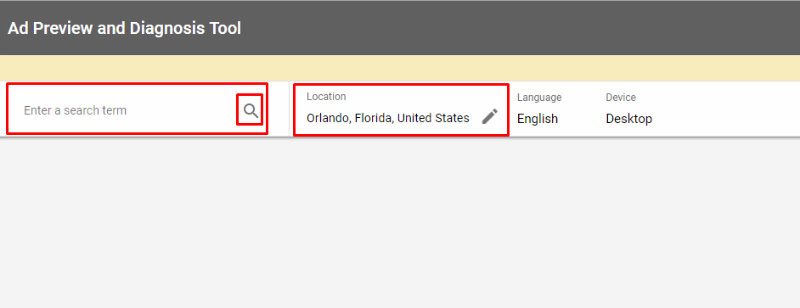
2. Click on the location displayed and change it to your chosen location.
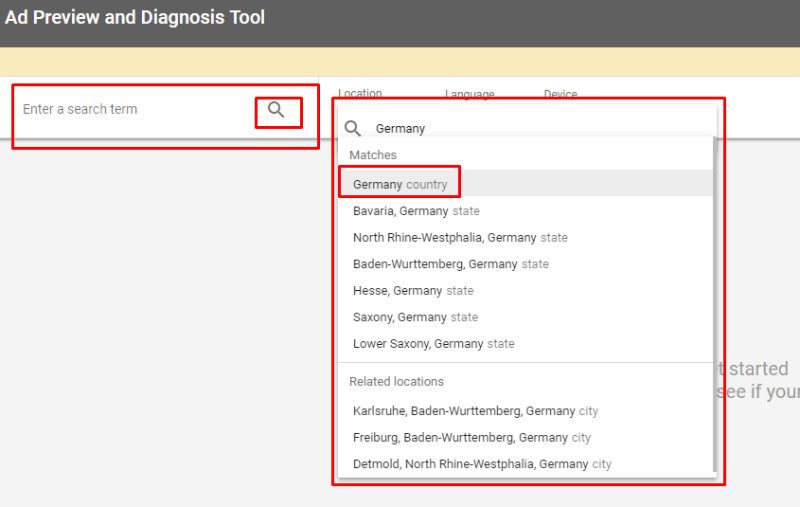
3. Edit the search bar to search for what you want, and you should now be back home!
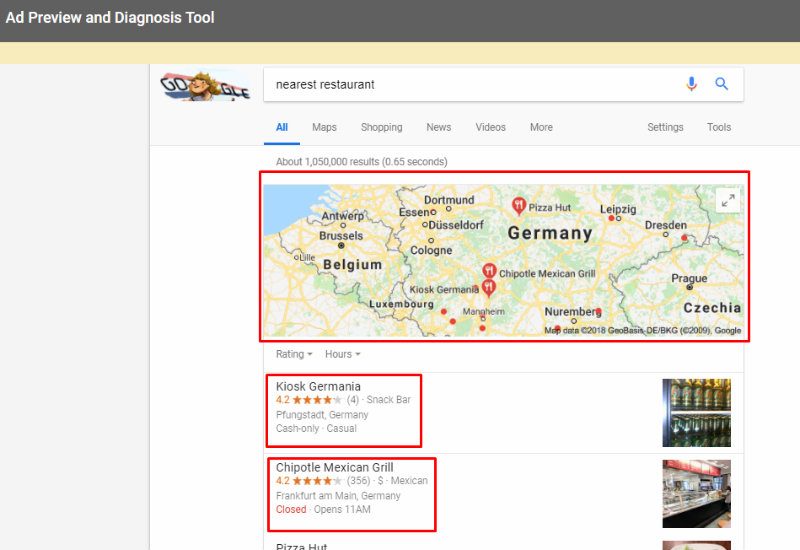
AdPreview is probably the second most convenient way to access your Google location setting.
3. Using ISearchFrom
ISearchFrom is a web application that allows you full control over location settings. It is a search engine that allows you to search for information in different locations at will. If you want an easy way to search for news information back home, this is the tool to use.
It provides a couple of forms and settings for you to tweak. Each parameter affects the eventual search result, so you have to be deliberate about editing them.
Go to ISearchFrom and set the search parameters as you see fit and click “Search.”
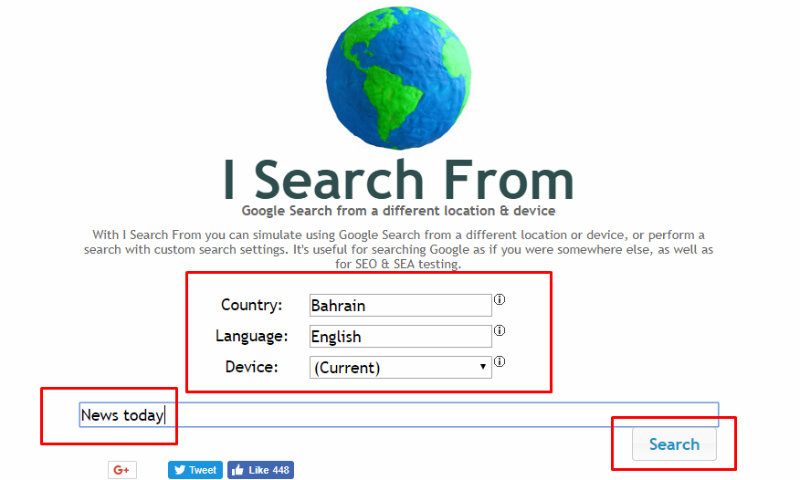
The following image is what you’ll get.
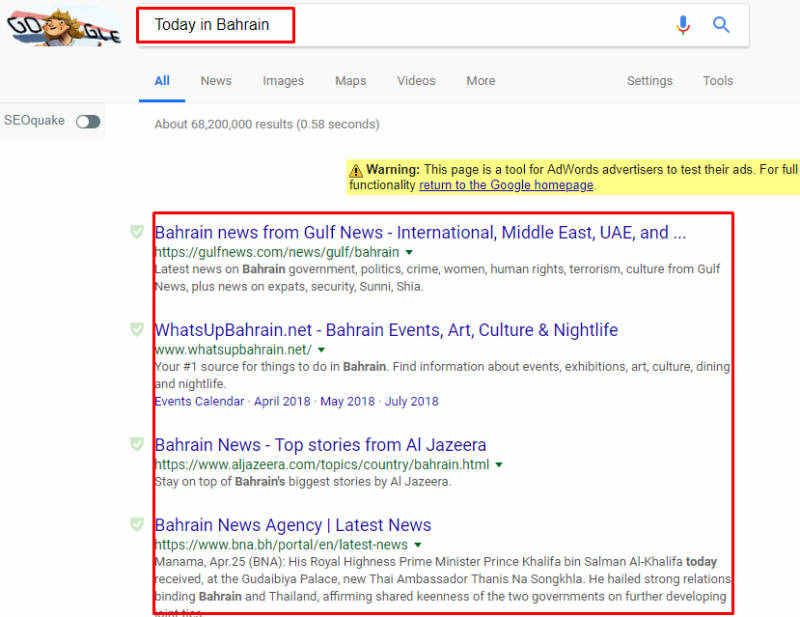
This tool is handy. Although it doesn’t look maintained, it does the job well.
4. Location Emulation in Google Chrome
This method is quite advanced. It requires you to edit your location from Google Chrome developer tools directly.
It allows you to choose any latitude and longitude on earth. This functionality means you can be anywhere, even in the middle of the Atlantic Ocean if you want. All you have to do is tweak the location settings.
1. Launch your Google Chrome browser.
2. Open a new tab and check for any location you want using Latlong.net. It shows the precise longitude and latitude. Copy this down
3. Now go to Developer Tools using Ctrl + Shift + I
4. Click on the “three dots” to bring out more settings. Next, click on “More Tools,” then click on “Sensors.”
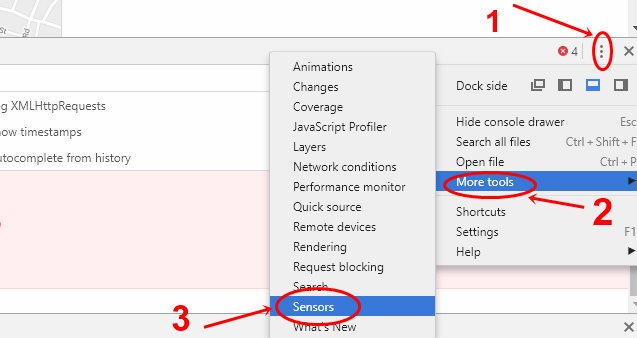
5. The next page is the Geolocation Emulator. Click on it and choose a custom location.
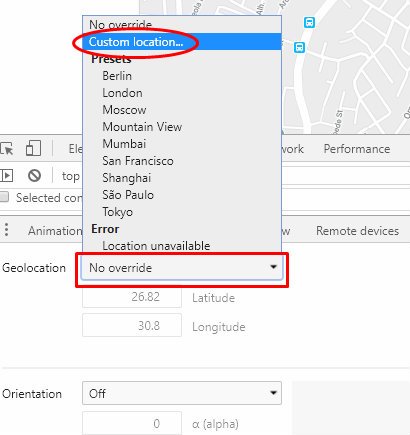
6. Recall the details of the latitude and longitude you saved in step two? Paste them into the “Emulate geolocation coordinates” input boxes.
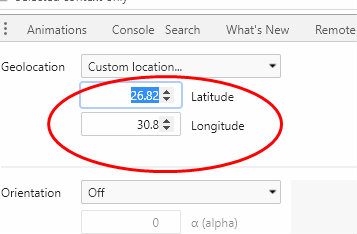
Now you can search the location like you were there. This feature is baked deep into Chrome functionality so you can expect it to be very reliable.
5. Using the ‘&near=cityname’ Parameter
Google’s search engine has a couple of hidden features that can help refine your search to a great extent. One of them is “parameters.” You can add parameters to your Google search queries to determine what results it displays. The “&near=” parameter is one of them.
Here’s how to do this.
1. Open the Google search page.
2. Type in your search queries and click “Search.”
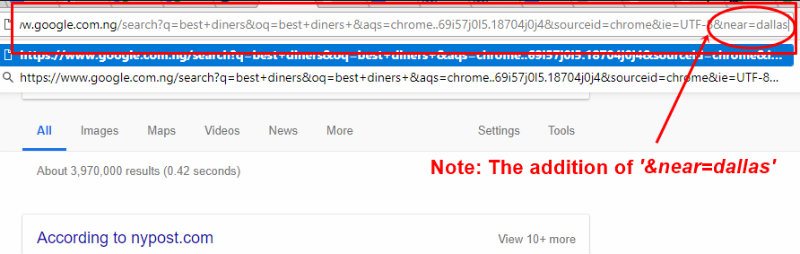
3. Next, edit the URL of the search result by adding “&near=cityname.” City name can be Dallas, Texas, Atlanta, etc.
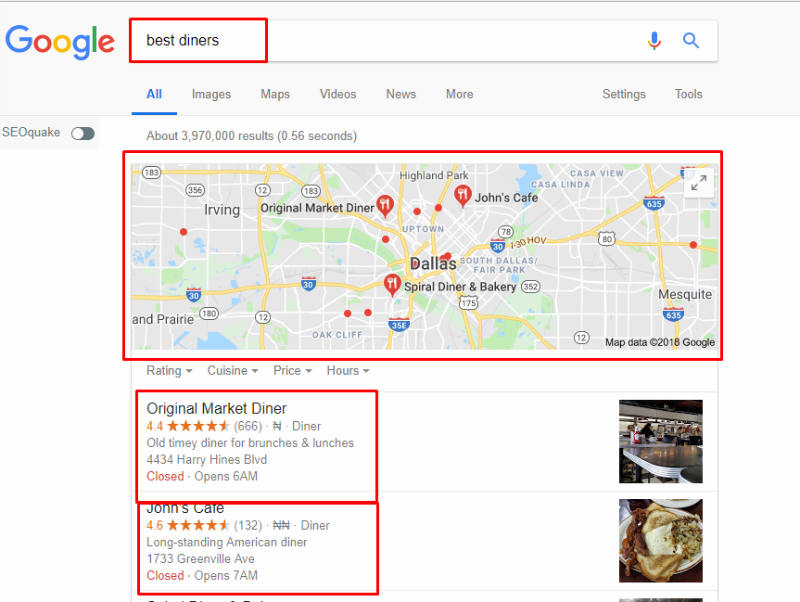
Now you have what you were searching for.
To Wrap It Up
Tweaking location features and managing search engine results are a necessity more times than not. The tricks to getting your preferred search results lie in the tweaks illustrated above. Learn and master them as well so that you don’t ruin a perfect holiday because you switched location for a few days.