


A comment system is a very important feature for an interactive website. It is also necessary to help create traffic to a website. When using a WordPress website, the Disqus Comment System is one of the best commenting systems to improve comments and discussions.
It comes with a couple of features, among them the following:
- Enabling the website visitors to connect by using their social media accounts such as Twitter, Facebook, and Google+ among others.
- It is compatible with many content management systems, meaning comments can be moved easily when you move a blog to a different platform.
- Security is given priority in Disqus. One does not need to be worried about spam since it comes with a built-in spam protection system.
- Google indexes the comments on the comment system, therefore raising the ranking on search engines.
- One does not need to create a different database for the comments since they are stored on the same database system.
In this article we discuss how to install and set up the comment system on a WordPress website.
Creating a Disqus Account
The first step is creating a Disqus account. After successfully creating the account, log in using your credentials. You will be taken to a screen similar to the following image.
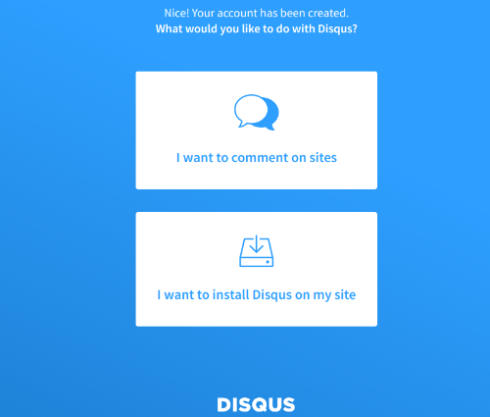
We are going to choose the second option above, which will allow us to install Disqus on our site. Selecting the second option takes you to the screen below. Here you are required to enter your website name and choose a category.
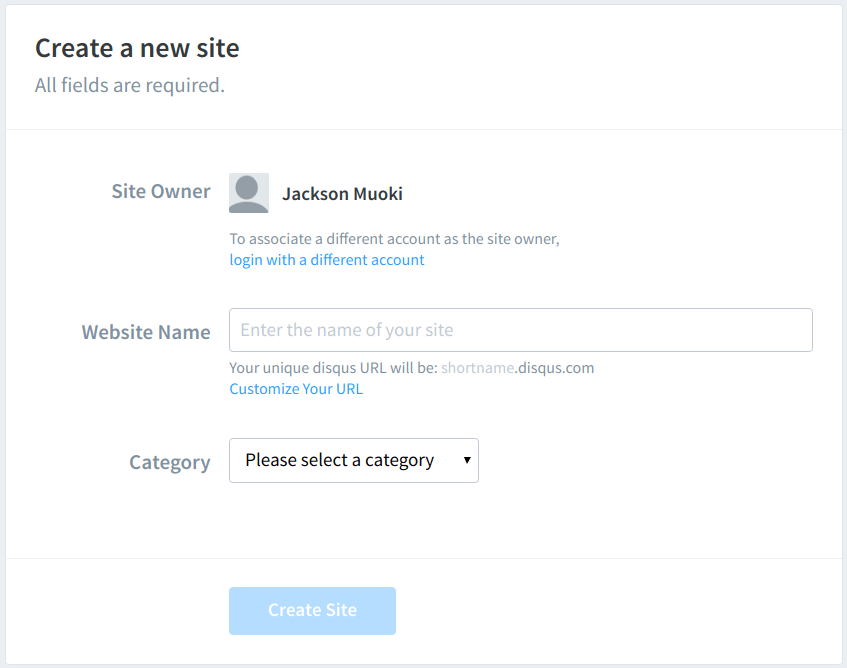
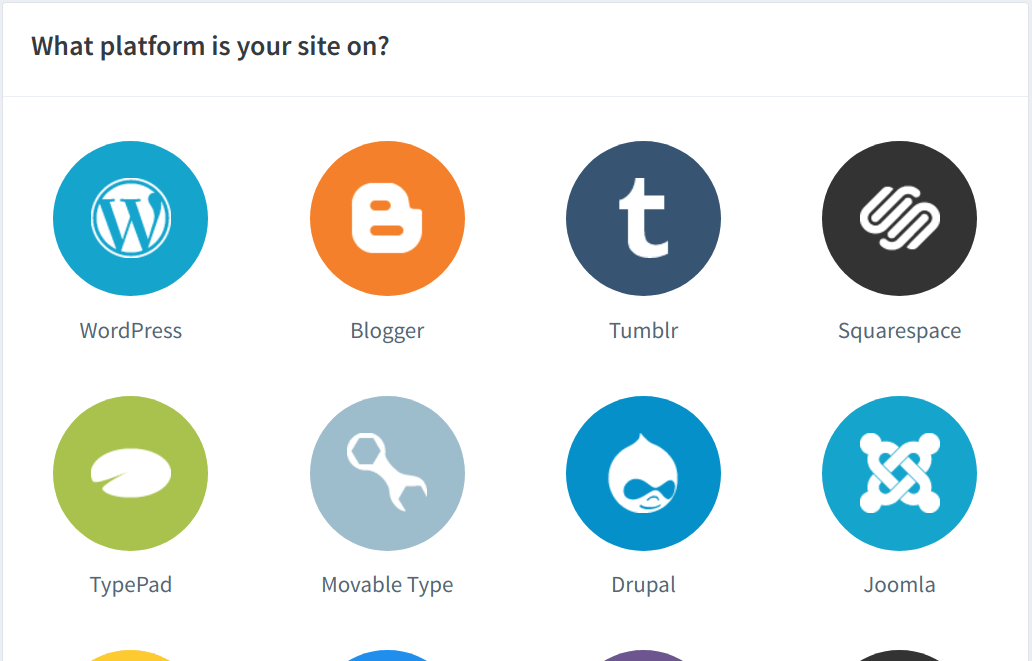
After filling in the website name and choosing the category, you will be taken to another screen where you are supposed to choose a plan. In this case we are choosing the basic plan which is free. This takes you to another screen where you choose the platform your site is running on. In this case we are choosing WordPress.
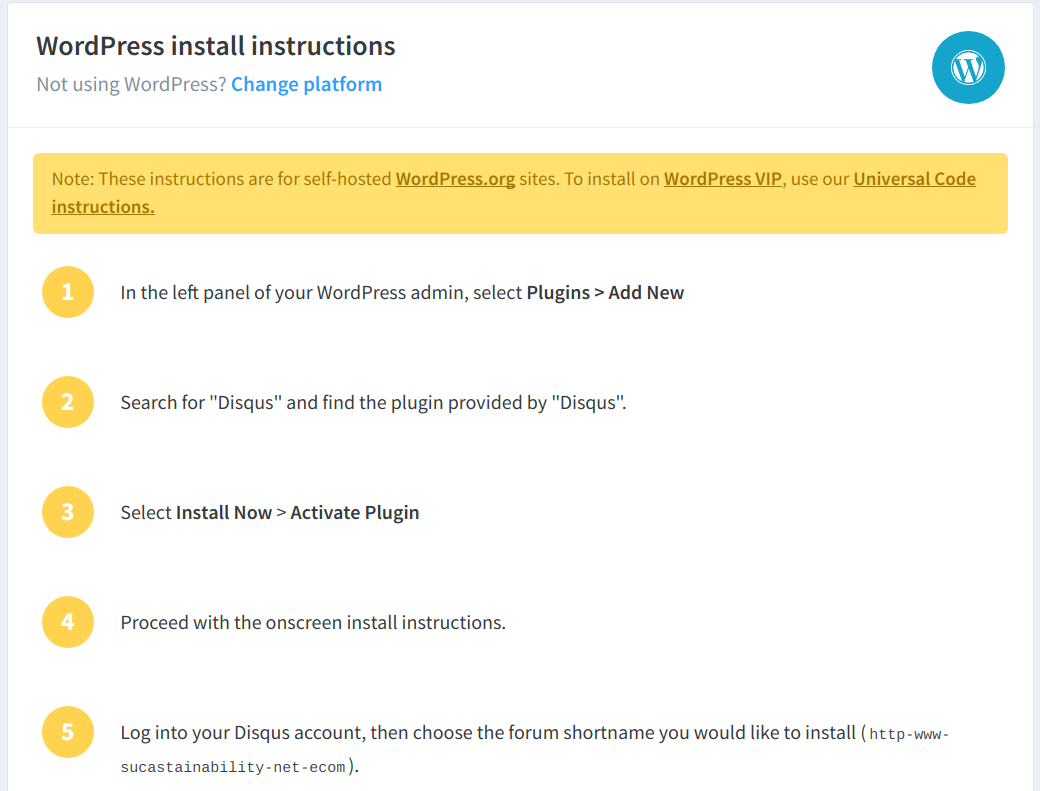
You are then taken to a screen where there are instructions on how to proceed. The instructions depend on whether you are running a self-hosted WordPress or not.
Installation of the Plugin
The next step is to log in to the WordPress dashboard as Administrator and proceed to the “Plugins” button, then click on “Add New.” This takes us to the plugins page. Search for “Disqus” and click on the “Install Now” button as show below.
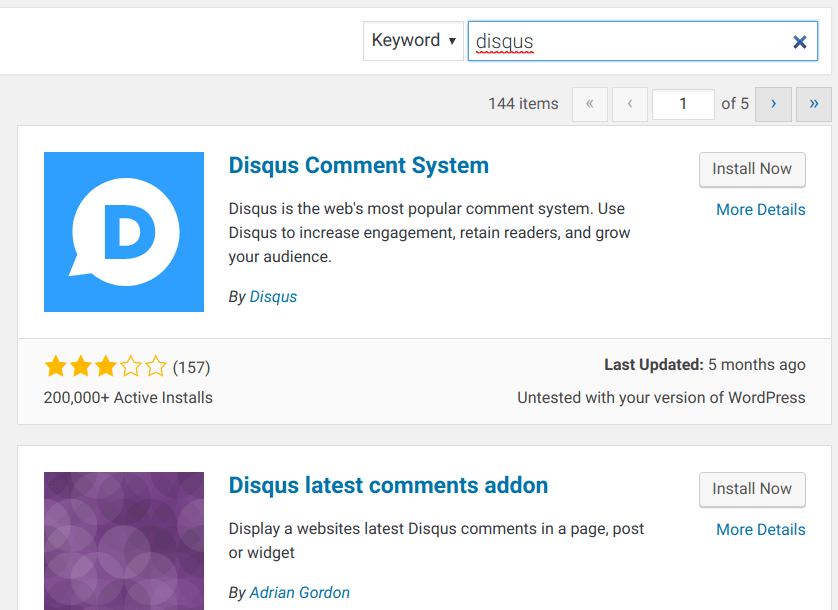
After installation, click on the “Activate Plugin” button. You have now successfully installed and activated the plugin. The next step is to configure it so that we can use it. To activate the plugin, click on “Plugins” again on the left side of the WordPress dashboard screen, then locate “Disqus Comment System.” Below the plugin there is a “Configure” link as shown below. Click on the link.
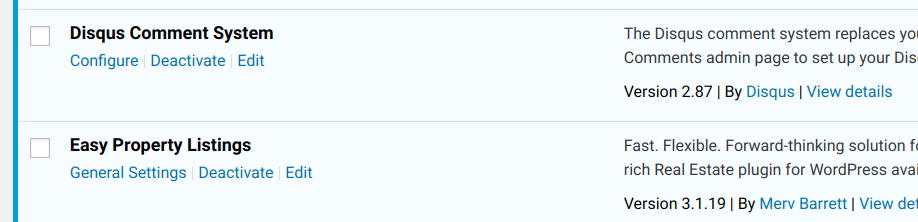
This takes you to another screen that asks you to upgrade the WordPress database. Click on the “Upgrade” button.

You will then be taken to an “Install Disqus Comments” screen where you are asked to enter your Disqus login credentials. These are the credentials that you used to create your account earlier. After keying in the credentials, click on the Next button.
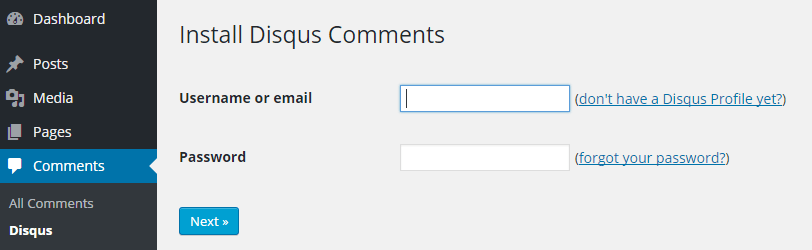
All the sites you added earlier to the Disqus account manager will now appear. Choose the site with the current installation of WordPress. The Disqus Comment System will now install, and you will be taken to the screen shown below.

We do not have any comments yet; therefore, clicking on the moderation dashboard link takes us to the screen shown below.
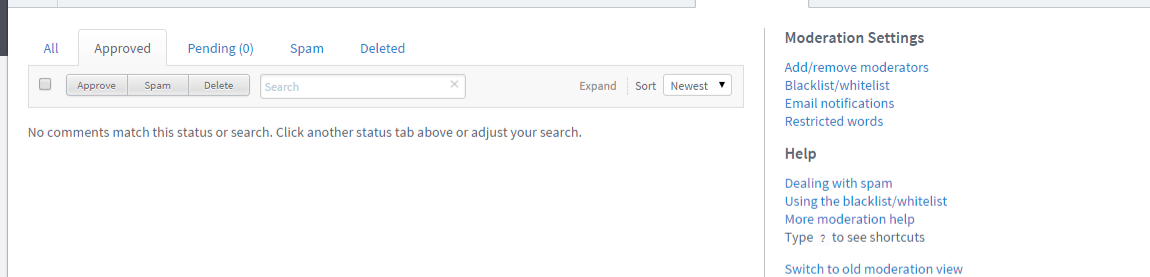
If you have comments on your website, they will now be exported from the WordPress comment system to Disqus.
Importation and Exportation of Comments
We can now export comments from WordPress to Disqus if there are any comments. On your dashboard click on Comments on the left side which takes you to the “Install Disqus Comments” screen. Click on “Plugin Settings” on the top-right corner of the screen. Go to the “Import and Export” section which brings up the screen pictured below:
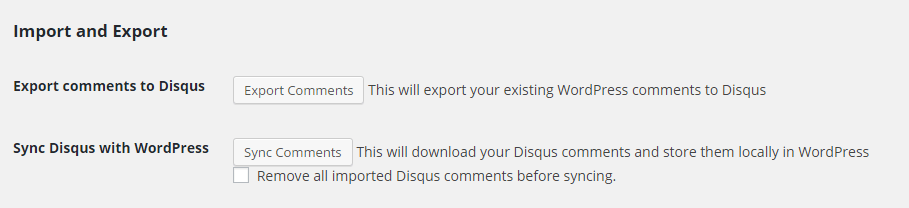
Clicking on the “Export Comments” button will export all the comments that you have on the WordPress system to Disqus. This can take a long time depending on the number of comments you have in the system. After the processing completes, you are taken to a screen that looks like the following image.
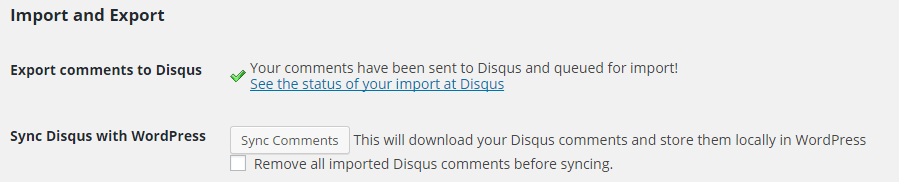
You can click on the “See Import Status” link adjacent to the green tick to see if the process is complete. Once the process is complete, visit the Disqus dashboard. You should see a screen similar to the following image.
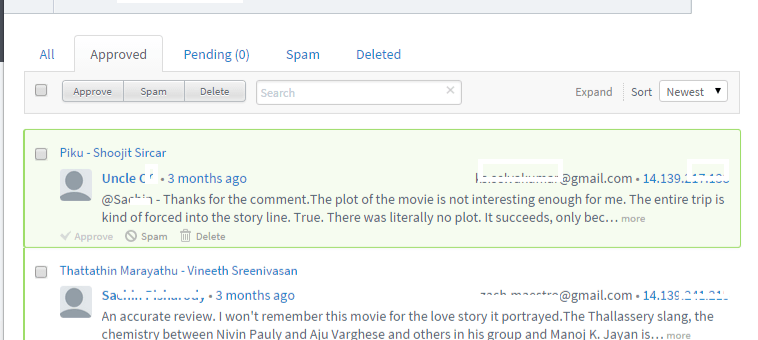
On this screen you get tabs to see All comments, Deleted, Spam, Pending and Approved comments. This is the screen that you will now be using to moderate the comments. You can delete, move to spam and approve comments.
The Frontend
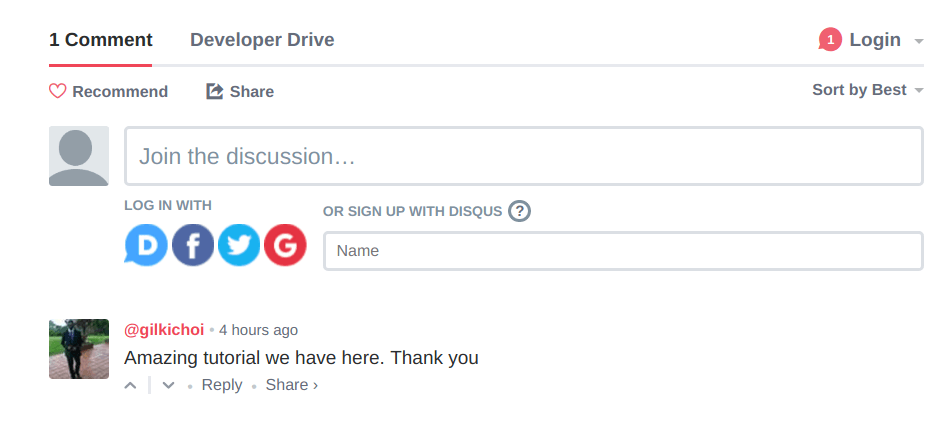
On the frontend users can see, write, reply to comments and share the comments on social media. As shown in the image below, they can use Facebook, Google+, Twitter or their Disqus accounts to log in and create comments.
Conclusion
Disqus creates discussion possibilities that help a lot in bringing traffic and raising the volume of activities on a website. It is very easy to install and use, enabling one to have an easy time moderating comments on their website.