


Most modern web browsers offer a private browsing mode. This creates a temporary browsing session where your history is deleted automatically when you exit the browser. This can help protect your privacy, particularly if you’re sharing a laptop with multiple people.
To activate private browsing mode, you’ll typically need to start the browser in normal mode first, then activate this feature. Here we show you how to configure all the major browsers to launch in private browsing mode by default. By the end of this article, you’ll have made incognito, InPrivate, and private browsing the default for Mozilla Firefox, Microsoft Edge, Google Chrome, and Safari.
Also read: 5 Reasons Why You Should Use Incognito Mode for Browsing
Make private browsing mode the default in Firefox
You can set Firefox to launch in private browsing mode by default:
1. In Firefox’s upper-right corner, select the three-lined menu button.
2. Select “Preferences.”
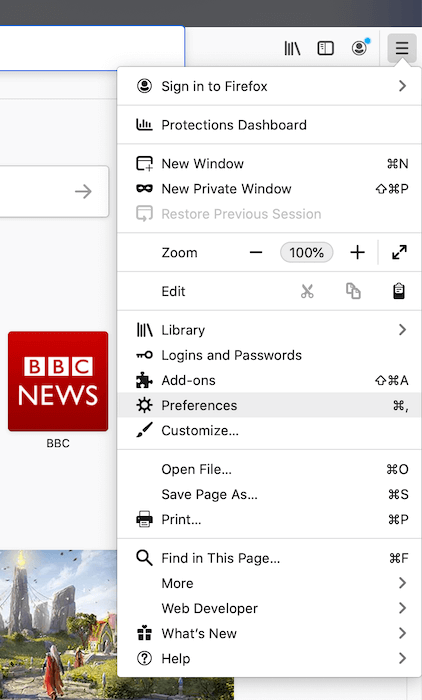
3. In the menu on the left, select “Privacy & Security.”
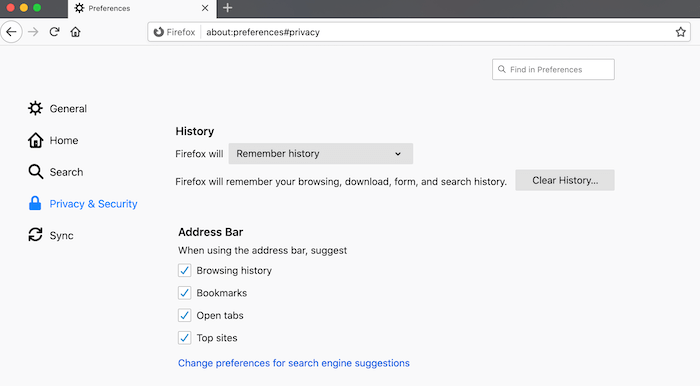
4. Scroll to the “History” section.
5. Open the “Firefox will … ” drop-down and choose “Use custom settings for history.”
6. Select “Always use private browsing mode.”
7. When prompted, restart Firefox.
Mozilla Firefox will launch in private browsing mode by default, and you can be confident that your history will be deleted as soon as you exit the web browser.
Launch Safari in private browsing mode
You can set Safari to launch in private browsing mode by default. However, it’s important to note that this setting only works when you first launch Safari. If you open any additional Safari windows, these will not be private.
1. In the Safari window, select “Safari -> Preferences … ”
2. In the subsequent window, select the “General” tab.
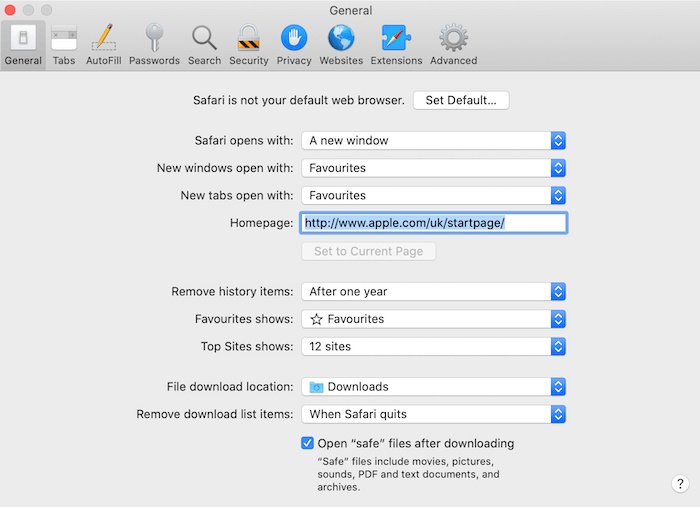
3. Open the “Safari Opens With” drop-down and choose “A New Private Window.”
4. Restart Safari.
Whenever you launch Safari, you should see a “Private Browsing Enabled” banner along the top of your web browser.
Go incognito with Google Chrome
Google Chrome has an incognito mode that functions the same as private browsing. Unlike the other major web browsers, it’s not possible to make private browsing the default using Chrome’s built-in settings. This means we need to get creative!
If you’re a macOS user, you can launch Google Chrome in incognito mode by creating an Apple Script:
1. Navigate to “Applications -> Utilities.”
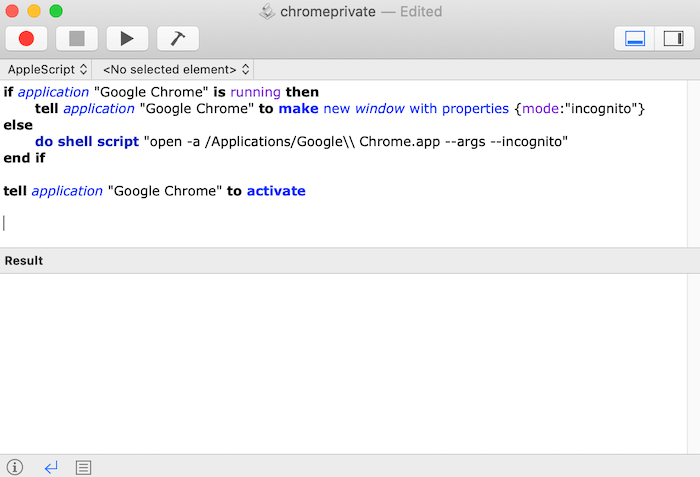
2. Launch the Script Editor application.
3. Copy/paste the following into the Script Editor window:
if application "Google Chrome" is running then
    tell application "Google Chrome" to make new window with properties {mode:"incognito"}
else
    do shell script "open -a /Applications/Google\\ Chrome.app --args --incognito"
end if

tell application "Google Chrome" to activate
4. Select “Script -> Compile.”
5. Select “File -> Save.”
6. Specify where this shortcut should be created and assign it a title.
7. Open the “Format” drop-down and select “Application.”
You can now launch Google Chrome in incognito mode at any time by double-clicking your Apple Script application. Note that if Google Chrome is already open, this application won’t have any impact.
Alternatively, if you’ve added the Google Chrome icon to your Mac’s Dock, you can launch incognito mode by right-clicking or Control + clicking the Chrome icon, then selecting “New incognito mode.”
If you’re a Windows user:
1. Find the shortcut that you use to launch Google Chrome. This shortcut might reside on your taskbar, the Start menu, or on your desktop.
2. Right-click the Chrome icon and select “Properties.”
3. In the “Target” box, add a space at the end of the current command. You can then copy/paste -incognito.
4. Click “OK.”
Google Chrome will start in incognito mode when you launch it from this shortcut.
Make InPrivate the default for Microsoft Edge
Microsoft’s version of private browsing is “InPrivate.” While using InPrivate, Edge doesn’t remember your browsing history and prevents Bing searches from being associated with your Microsoft account.
You can configure Edge to launch in InPrivate mode by adding a command-line option to your Edge shortcut.
1. Find the Edge shortcut where you want to add this command-line option. This shortcut might reside on your taskbar, the Start menu, your desktop, or all of the above.
2. Right-click the Microsoft Edge icon, then select “Properties.”
3. In the “Properties” window, select the “Shortcut” tab.
4. Find the “Target” field. This contains the path to the Edge application that launches every time you click this shortcut.
5. Inside the “Target” field, position your cursor at the very end of this path. Press the spacebar, then type -inprivate.
6. Click “OK.”
The next time you launch Microsoft Edge from this shortcut, the browser will launch InPrivate mode. If you launch Edge from multiple shortcuts, you’ll need to repeat these steps for each shortcut.
Wrapping Up
In addition to using the private browsing mode in these browsers, if you are really concerned about your privacy, you should also use NextDNS for more secure and private browsing.
Do you have any more suggestions for protecting your browsing history? Let us know in the comments below!