

Google Chrome’s translation feature helps you browse foreign-language websites easily. However, it can sometimes stop working due to outdated settings, cache issues, or extension conflicts. In this guide, we will demonstrate how to fix the Google Chrome Translate not working error.
Common Reasons Why Chrome Translate Fails
Translating web pages into different languages is a built-in feature of Google Chrome. However, sometimes when we visit a page, this feature doesn’t work and shows the following error:
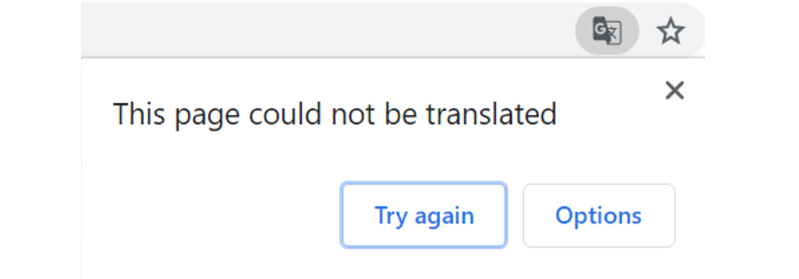
You can face this error for several reasons, such as:
- Translation Feature Disabled
- Incorrect Language Settings
- Outdated Chrome Version
- Corrupted Cache and Cookies
- Conflicting Extensions
- Malware or Adware Interference
- Unsupported Webpage Content
Fix 1: Enable the Translation Feature
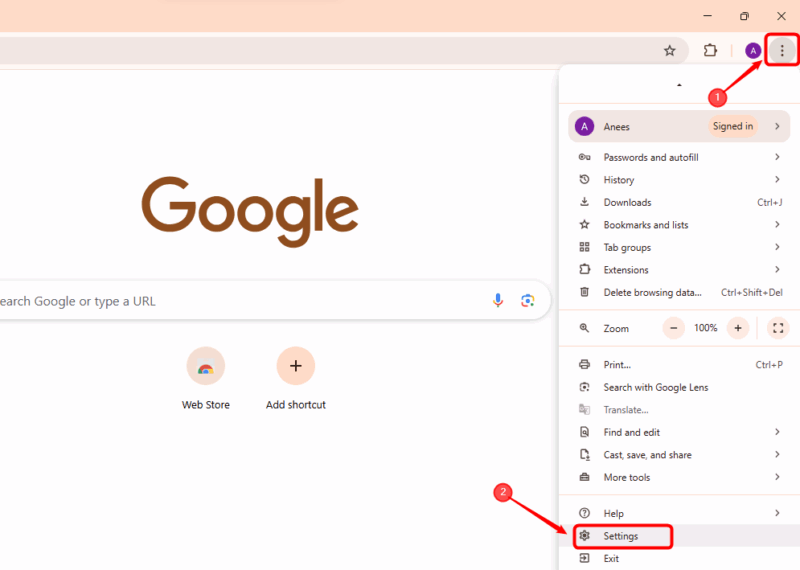
The most common possibility for this error is that the translation feature might be disabled. In this case, launch Google Chrome, click the three-dot icon (Kebab Menu) located in the upper-right corner, then choose Settings from the dropdown menu:
Now, select the language settings from the left pane and then enable the toggle button for the Google Translate feature:
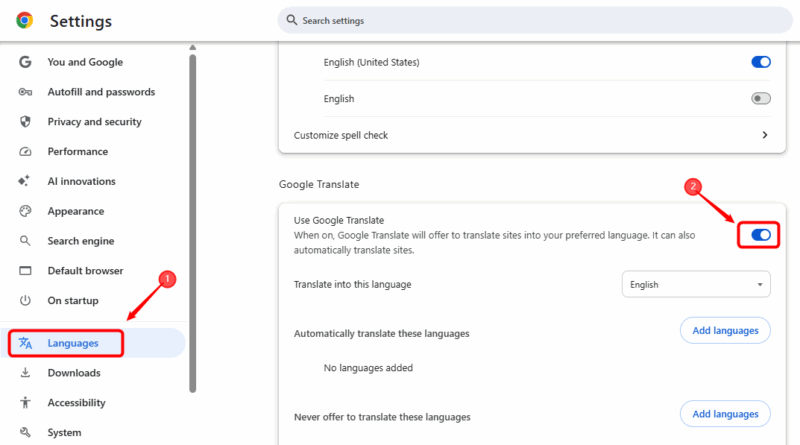
Here, you can also choose any language of your choice to translate web pages.
Fix 2: Clear Chrome Cookies and Cache
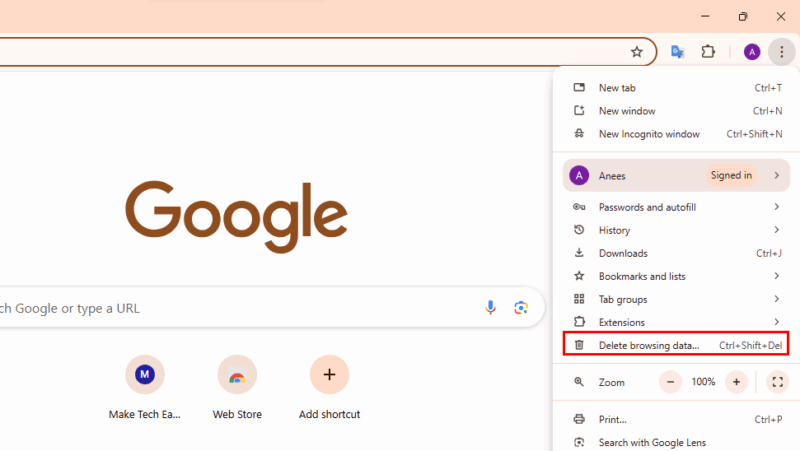
Corrupted cache or cookies can sometimes cause the “Could not translate this page” error. This happens because the browser might be using outdated translations or broken files. Clearing your browsing data usually fixes the issue by forcing the browser to load fresh content. For this purpose, click on the three vertical dots (kebab menu) and select Delete browsing data. Alternatively, you can press Ctrl + Shift + Del to clear browsing data:
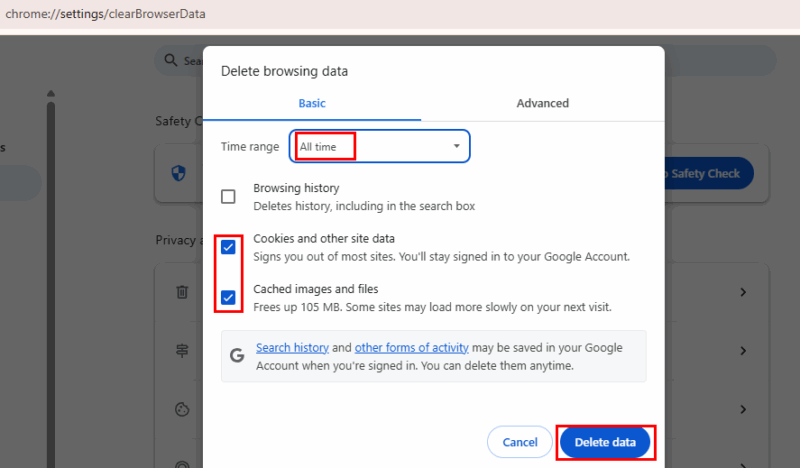
In the pop-up window, choose a time period (e.g., All time), then check the boxes for Cookies and other site data and Cached images and files. Finally, click Delete data to remove the stored cache and cookies:
Fix 3: Update Chrome Version
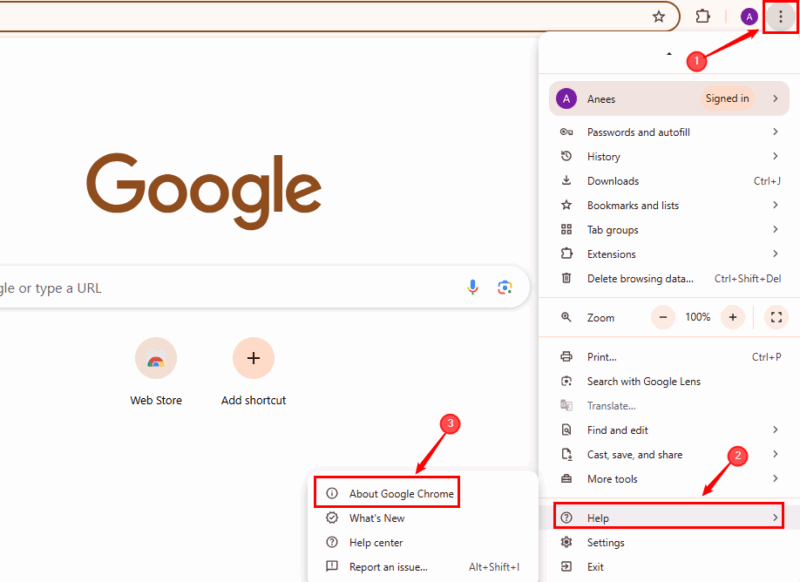
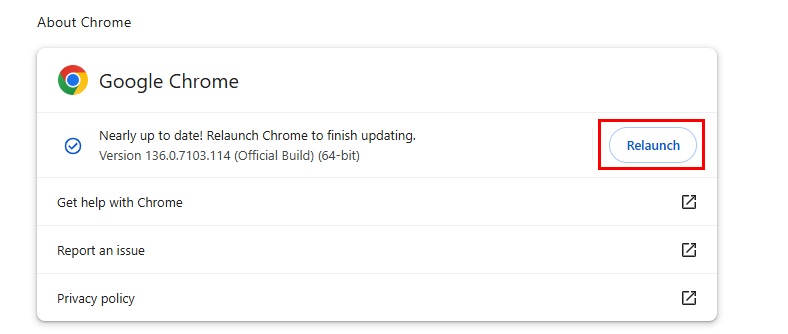
An outdated Google Chrome version can also be a reason for the Page could not be translated error. To verify whether Chrome is up to date, click the three-dot menu icon, hover over Help, and then choose About Google Chrome:
When you open the About Google Chrome section, the browser will automatically start downloading and installing updates:
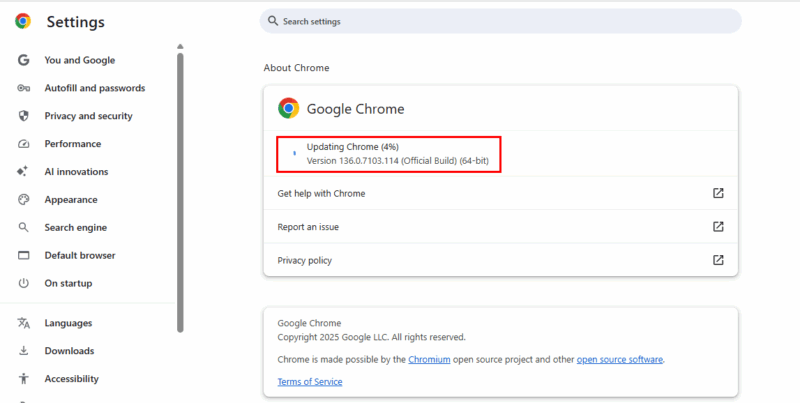
After the updates are complete, you’ll need to relaunch the browser:
Fix 4: Remove Conflicting Extensions
Problematic or conflicting extensions can interrupt Chrome’s built-in translation feature. Therefore, removing or disabling these extensions can often fix the issue and restore translation functionality.
To identify any problematic extensions, open an incognito window by pressing Ctrl + Shift + N, and navigate to a website written in a different language. By default, most extensions are disabled in Incognito mode. Therefore, if the Translate option works in incognito mode, this means one of your extensions is causing this issue.
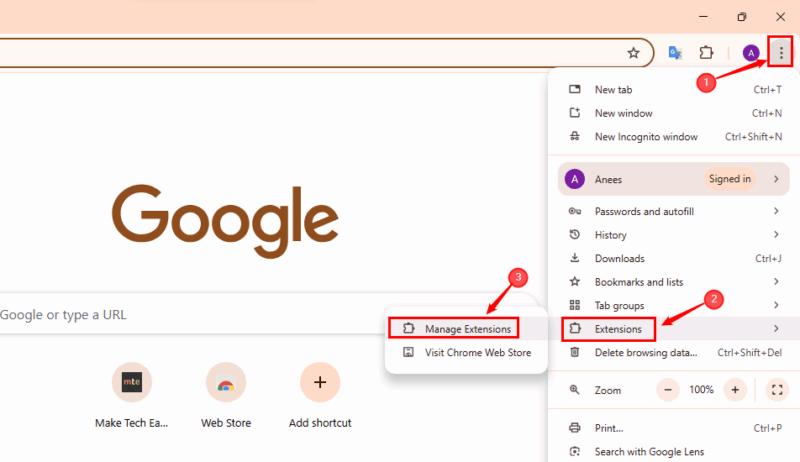
In that case, we need to disable or delete the problematic extension. For this purpose, go to the Extensions section to manage or uninstall extensions:
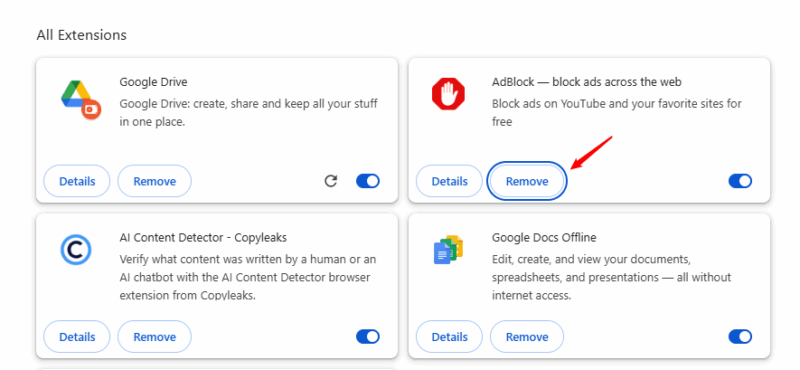
Here, all the installed extensions will be shown. Select the one you want to uninstall, and click on the Remove button:
Fix 5: Install and Use the Google Translate Extension
In case Chrome’s built-in Translate feature isn’t working, you can use the Google Translate extension. It lets you translate entire web pages with a single click:
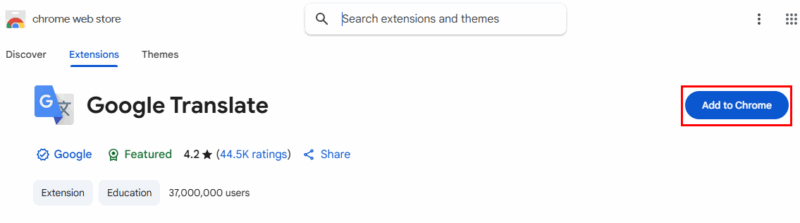
Next, access the extension and select Google Translate:
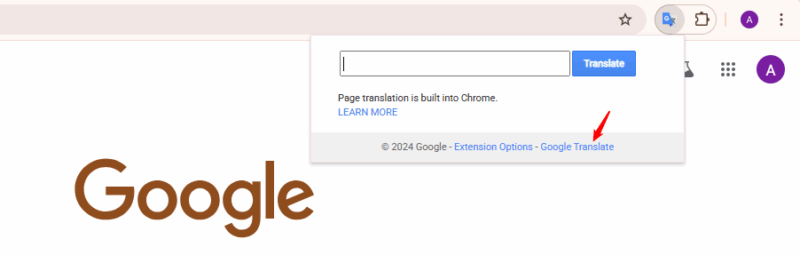
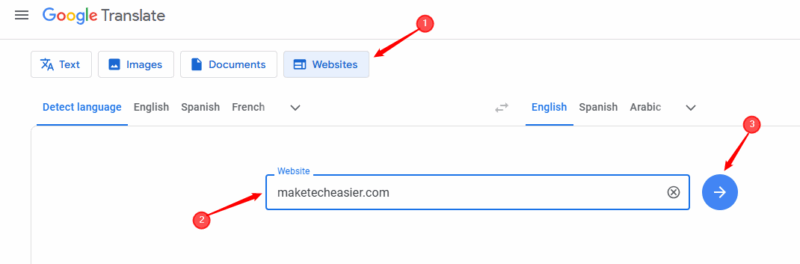
It will direct you to a new page, where you can translate text, images, documents, and websites. Navigate to the websites section, then provide the site name you want to translate and click on the Translate button to proceed with the translation:
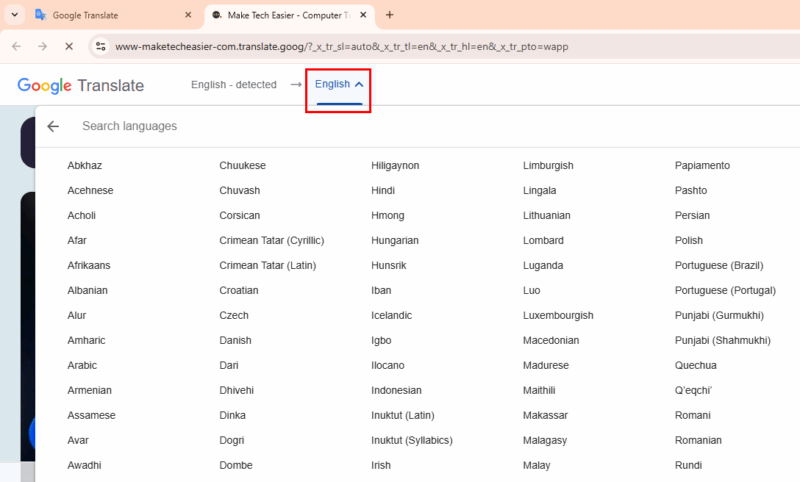
Now, select the language for translation:
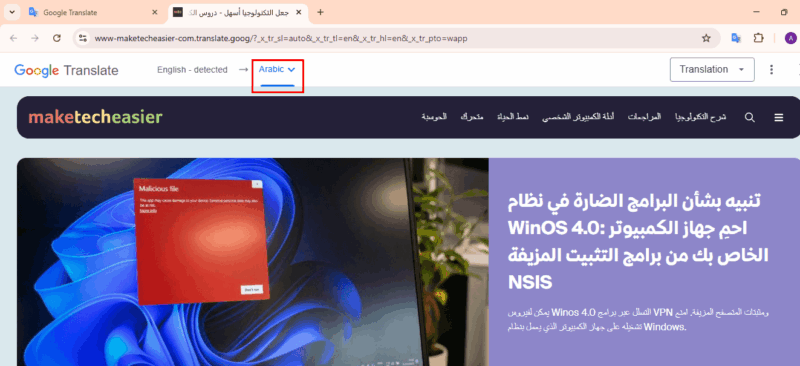
For example, I select Arabic language and it shows the following result:
How to Manually Translate a Page
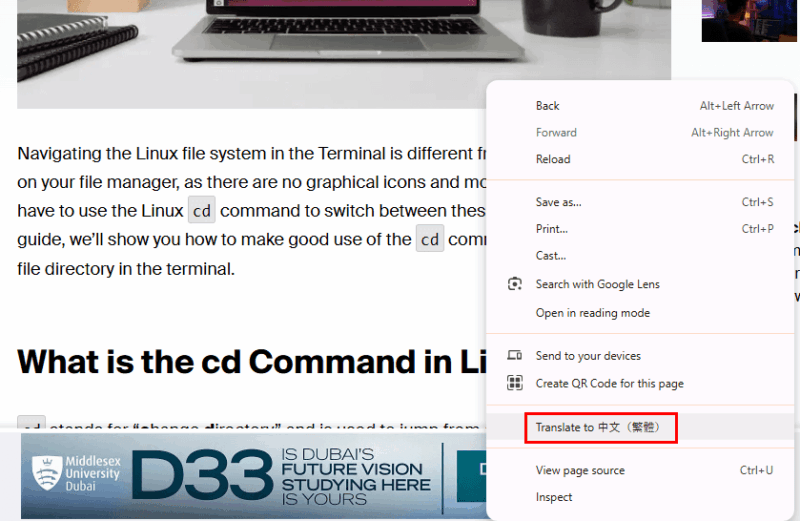
We can also manually translate a page. For this purpose, right-click anywhere on the page and choose the Translate to [language] option:
The selected page has been translated into the specified language, i.e., Chinese:
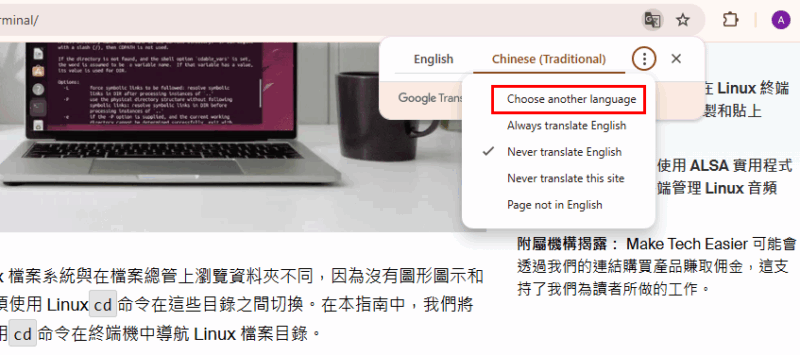
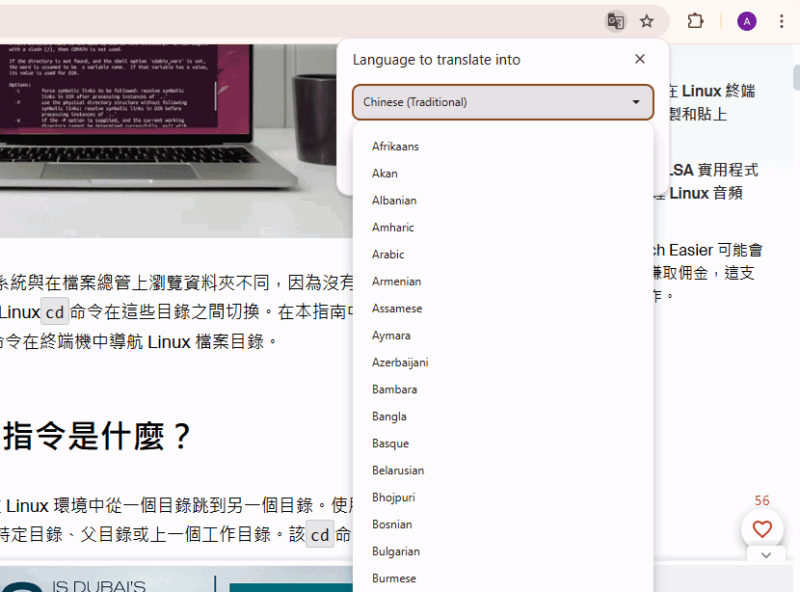
You can also click the three-dot menu and pick Choose another language to switch to a different translation option:
This way, you can easily fix the Google Chrome Translate Not Working error. To avoid this issue in the future, I recommend that you always keep Google Chrome updated, avoid installing unnecessary extensions, and clear cookies and cache regularly to maintain smooth browsing and translation performance. Moreover, you can follow these 9 easy tricks to speed up your Chrome browser.