


Have you ever encountered a situation when you are expecting changes in a website, but no matter how often you refresh the browser, it keeps showing the same content? This is probably due to your browser cache loading old content. You’ll learn in this tutorial how to clear the cache in the Microsoft Edge browser.
Why Clearing the Cache is Useful
The cache is a storage area that downloads web page resources so that the next time you visit the page, it can load them immediately instead of downloading from the server again.
Since most websites update their data often, when the site loads from the cache, you’ll be getting outdated information. Also, if the site updates its security configuration, you may have trouble logging in, viewing media, or making a purchase.
Sometimes the cached content may be corrupted. If your browser is acting oddly, the first step in troubleshooting the problem is to clear the cache.
Also read: How to Use the Microsoft Edge Tracking Prevention Feature to Protect Yourself
How to Clear the Cache in Microsoft Edge
1. Open Microsoft Edge.
2. Click on the three dots in the upper-right corner.

3. Select Settings.
4. From the menu on the left, click on “Privacy and services.”
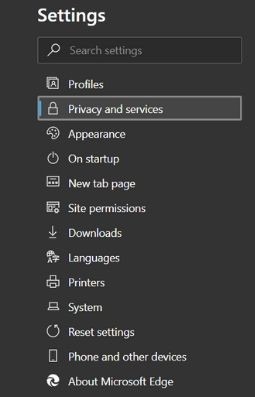
5. Scroll down to “Clear browsing data” and click the “Choose what to clear” button.

6. From the drop-down menu at the top, select the option for how long you want to go back to delete the files (Past hour, past 24 hours, past seven days, or past four weeks)
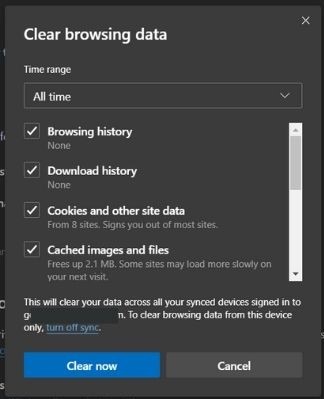
7. Check the boxes for each type of data you want to delete.
8. Click “Clear now.”
How to Delete the Cache Automatically
You can also set Microsoft Edge to clear the cache every time you close the browser.
1. Open Microsoft Edge.
2. Click on the three dots in the upper-right corner.
3. Select Settings.
4. From the menu on the left, click on “Privacy and services.”
5. Scroll down to “Clear browsing data.”
6. Click on the arrow next to “Choose what to clear every time you close the browser.”
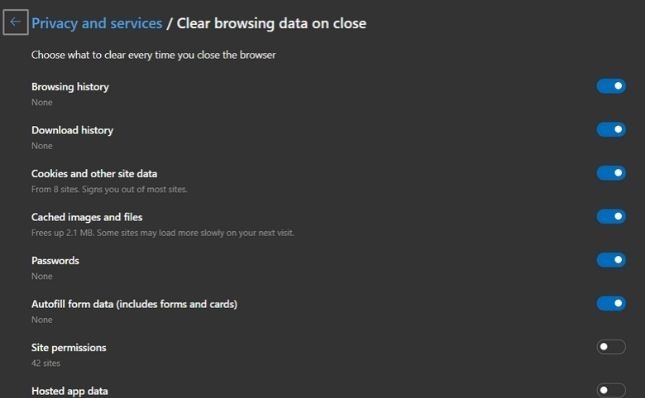
7. Select the data you want to clear upon closing the browser.
It is most common to clear the browsing history, cookies, and cached data from the cache. You may want to keep your items like passwords, form data, and hosted app data.
Other than clearing the browser cache, increasing the browser cache can help with the browser performance too.
Image credit: Deleting browser history with hourglass, cookie and progress bar by DepositPhotos