
A vast majority of web browsers automatically record your online movements. This helps you revisit your favorite websites without having to manually type the entire URL every single time. It can also be a lifesaver if you don’t have the best memory and struggle to recall even your most frequently-visited web addresses.
However, it’s not always good news for privacy, especially if you share your computer with other people! Thus, it’s a good idea to clear your browser history from time to time. Here we show you how to auto-delete your browsing history in various browsers – namely Safari, Chrome, and Mozilla Firefox.
Also read: 7 of the Best Web Browsers with a Focus on Privacy
How to auto-wipe your browsing history in Safari
On macOS, Safari can wipe your browsing history automatically at intervals specified by you. However, this setting won’t affect your other Apple devices, such as your iPhone and iPad, so you’ll still need to remember to manually wipe your history on these devices.
To auto-delete your browsing history on macOS:
1. In the Safari toolbar, select “Safari -> Preferences … ”
2. In the window that appears, select the “General” tab.
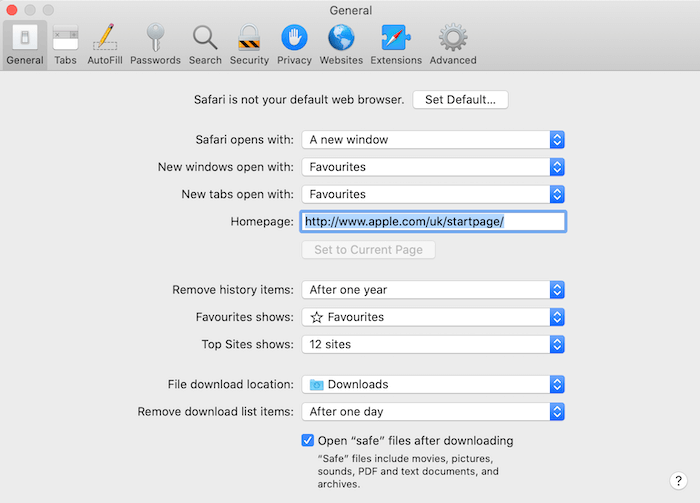
3. Open the “Remove History Items” drop-down.
4. You can now choose how often Safari should delete your browsing history. The available options range from once per year to every day.
Once this setting is configured, Safari will automatically wipe all the websites you’ve visited and all your searches at the specified interval.
While you’re here, you may also want to open the “Remove downloaded list items” drop-down and choose how often Safari should delete the list of files you’ve downloaded.
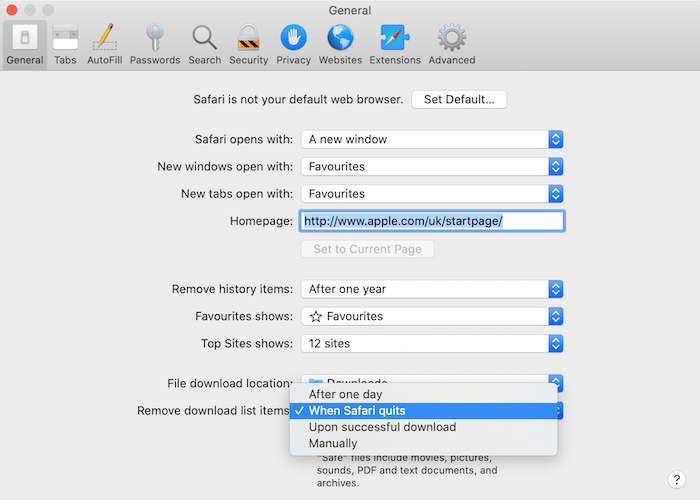
Note that this setting won’t delete the downloaded files themselves, so don’t worry about losing anything important.
Firefox: clear history on close
Mozilla Firefox can delete your entire browser history automatically upon closing the browser. Regardless of how long your browsing session lasts or how frequently you use Firefox, this setting ensures you always end the session with a clean slate.
To activate this setting:
1. In Firefox’s upper-right corner, select the lined icon.
2. Choose “Preferences.”
3. In the menu on the left, select “Privacy & Security.”
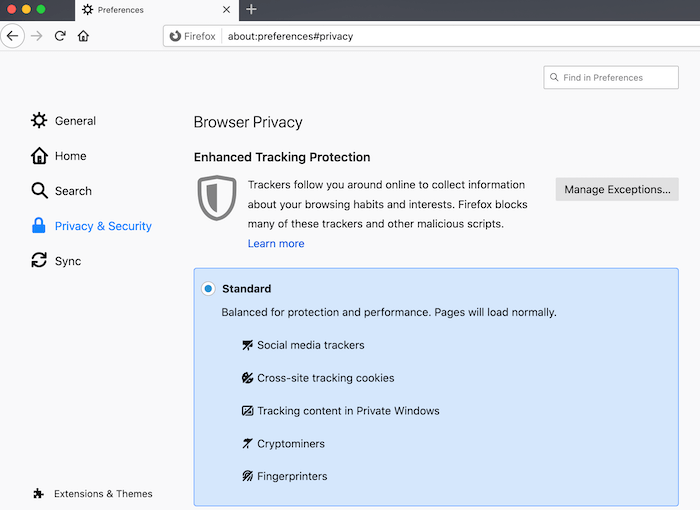
4. Scroll to the “History” section.
5. Open the “Firefox will” drop-down and choose “Use custom settings for history.”
6. Select “Clear history when Firefox closes.”
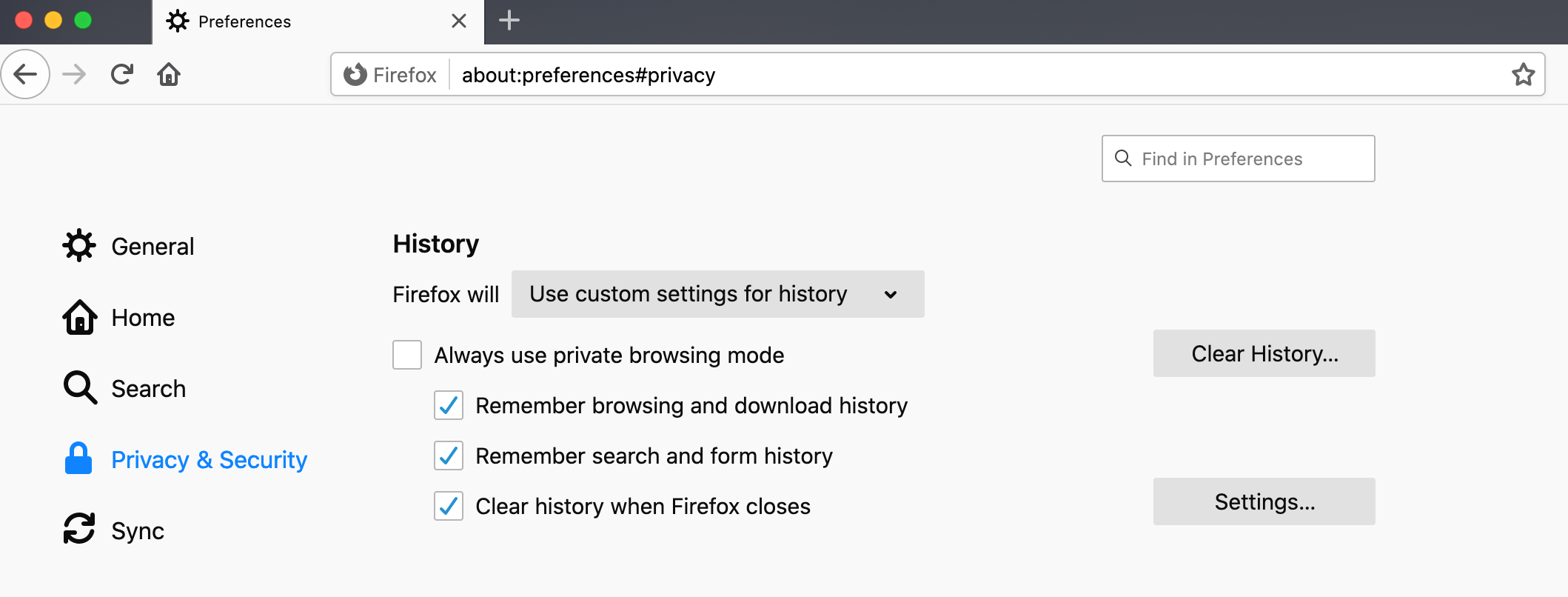
7. To specify the kind of history that Firefox should auto-delete, select the “Settings … ” button.
8. You can now choose the data that Firefox will delete automatically on close. The available options include “Browsing & Download History,” “Active Logins,” and “Cache.”
9. Click “Save.”
Now every time you exit Firefox, all the specified data will be deleted automatically.
Restore Chrome’s missing auto-delete feature
Chrome may not have an auto-delete feature built in, but you can add this missing functionality using a Chrome extension.
There are a number of auto-delete extensions available for Google Chrome, but in this tutorial we’ll be using History AutoDelete.
1. Grab History AutoDelete from the Chrome Web Store.
2. In the Chrome toolbar, select the “Extensions” icon.
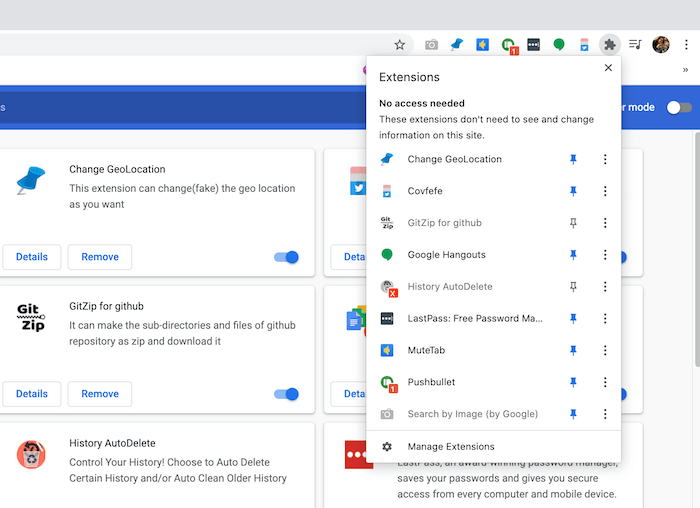
3. Select the “History AutoDelete” option. This will open History AutoDelete’s settings.
4. In the menu on the left, select “History Settings.”
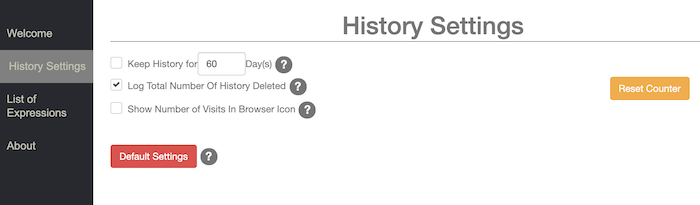
5. This menu contains various settings, including the ability to automatically delete your web history after a certain period of time has lapsed. To set this expiration date, enter a value in the “Keep history for … ” checkbox.
Chrome will now automatically delete your web history at the intervals specified by you.
Now that you know how to delete your browsing history in various browsers, learn how you can mute a tab in the browser so that it doesn’t distract you from your work.