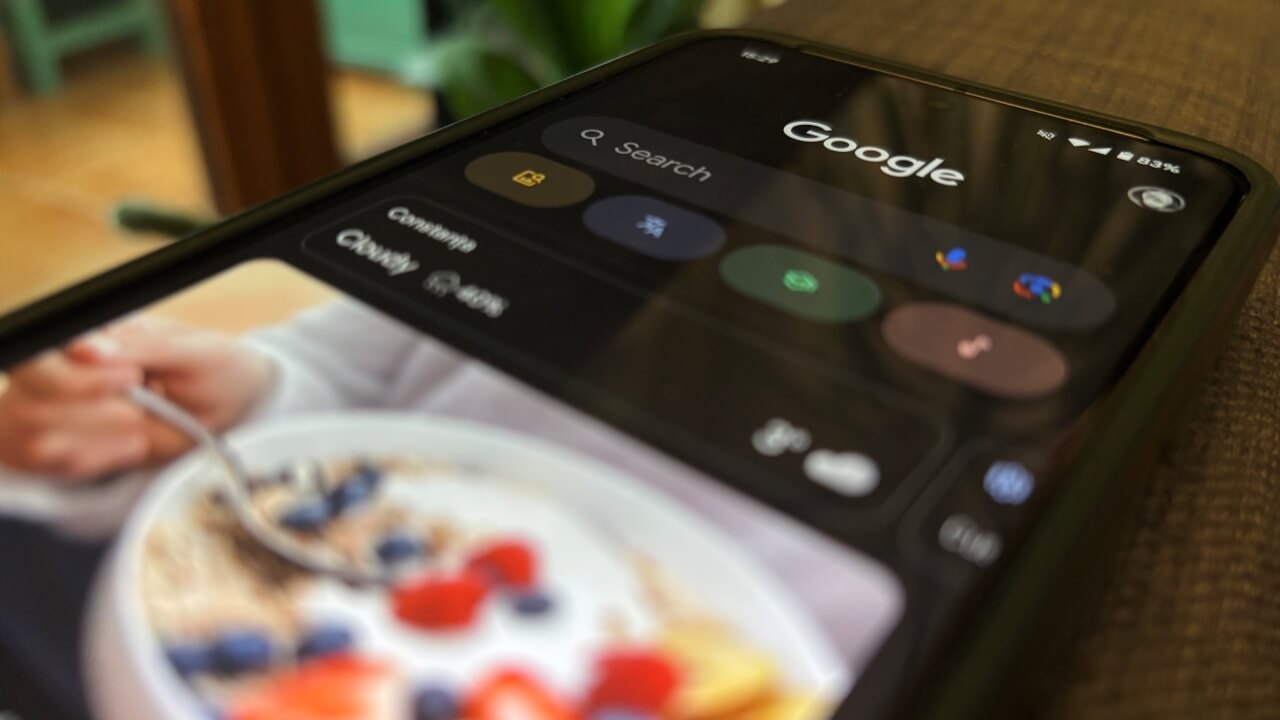
Google Discover delivers a personalized stream of articles within the Google or Chrome app, curated from your browsing habits. For a more comfortable reading experience, especially in low light, you can enable dark mode. If you’re unsure how to switch, follow the steps in this guide.
Good to know: also learn how to clean up your Google search history on Android.
How to Enable Dark Mode for Google Discover in Google App
The Google Discover feed is available in the Google app or Chrome app on Android and iPhone. On some Android phones, like Pixels, this feed is integrated into the phone’s main interface so that you only need to swipe left on the screen to view it.
Currently, the Google app doesn’t have a built-in option to switch to dark mode, so you’ll have to switch your phone’s theme to dark if you want to enjoy Discover in gloomy tones.
Android
Depending on your Android phone’s configuration, you can turn on dark mode via the Quick Settings panel or manually through the Settings app.
For the first option, swipe up from the top of the screen to view the Quick Settings panel.
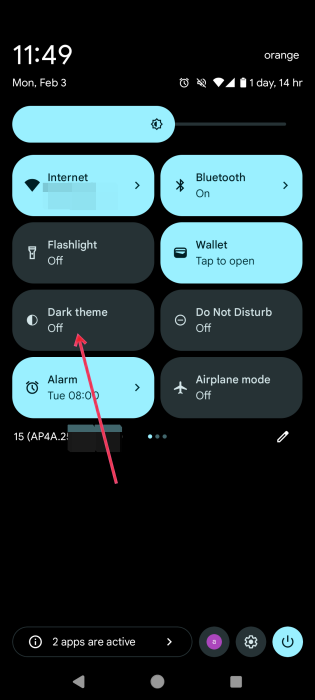
Check to see whether you have a Dark theme toggle. It may take a few swipes to the right to find it. If you haven’t added it yet, press on the pencil icon to see which additional quick tiles are available.
Alternatively, open the Settings app, and go to Display & touch.
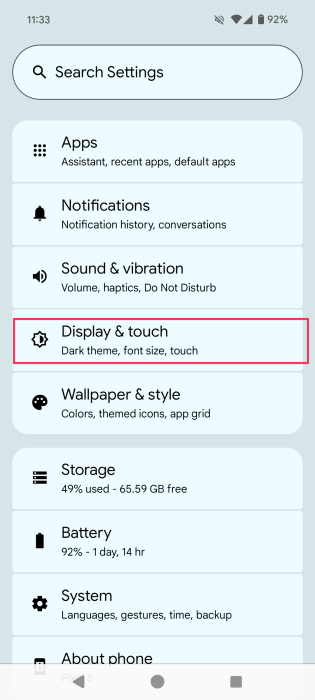
Flip the switch next to Dark theme.
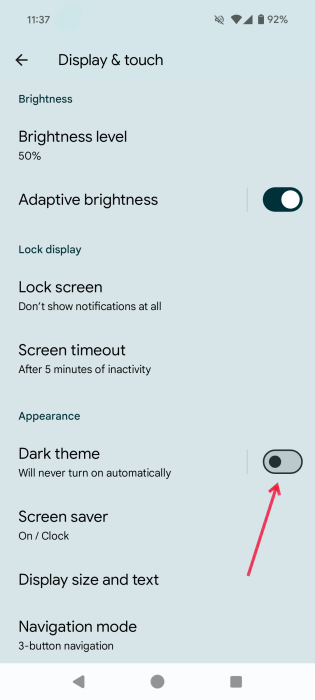
Now that you have enabled dark mode on your phone, access Google Discover on your device. The theme should have switched.
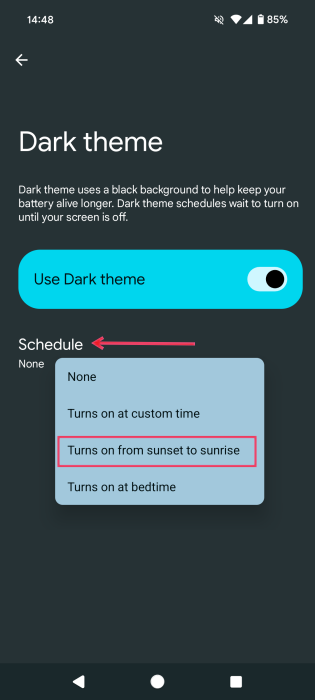
It’s also possible to schedule when dark mode goes into effect on your device. Instead of turning on the Dark theme toggle, tap on it.
Press the Schedule button, and select one of the options. For instance: Turn on from sunset to sunrise. This way you can enjoy Google Discover in light mode during the day and dark mode after sunset.
iPhone
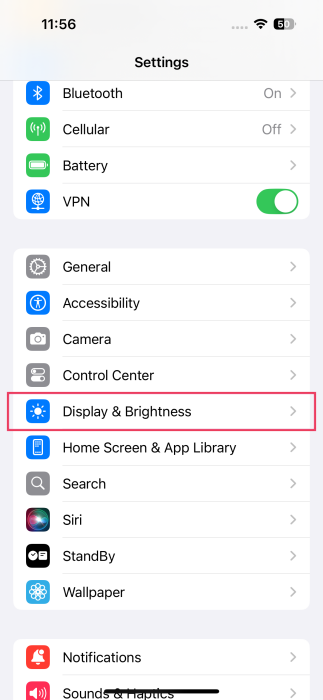
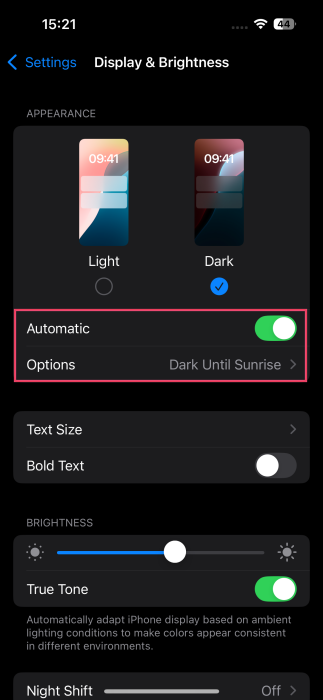
To switch to dark mode on iPhone, open the Settings app, and navigate to Display & brightness.
Switch to Dark under Appearance.
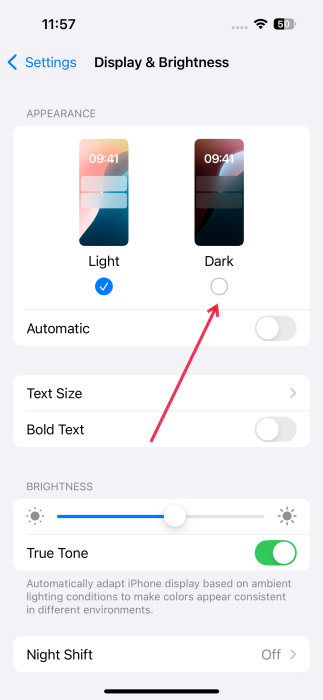
You can now open the Google app and browse Discover in dark mode.
If you wish to schedule dark mode, turn on the Automatic toggle under the theme options, and select either Sunset to Sunrise or Custom Schedule.
Tip: learn how tabs can improve your Google Docs experience and productivity.
How to Enable Dark Mode for Google Discover from the Chrome App
The Google Discover feed is also accessible when you open a new page in the Chrome app. On Android, there’s an option to turn on dark mode for Discover directly from the Chrome app.
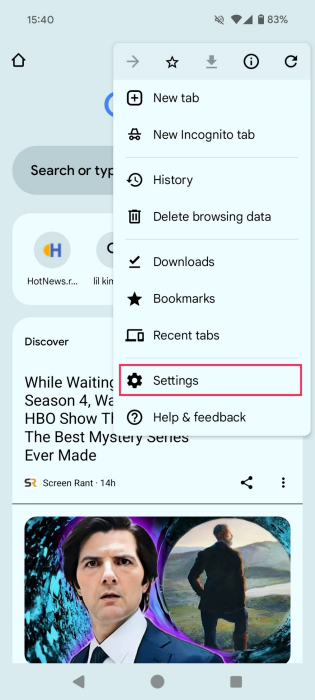
Press the three dots in the upper-right corner of the display, and select Settings.
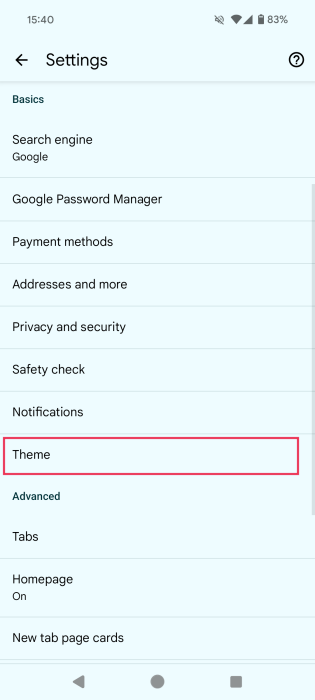
Tap on the Theme option in the Basics section.
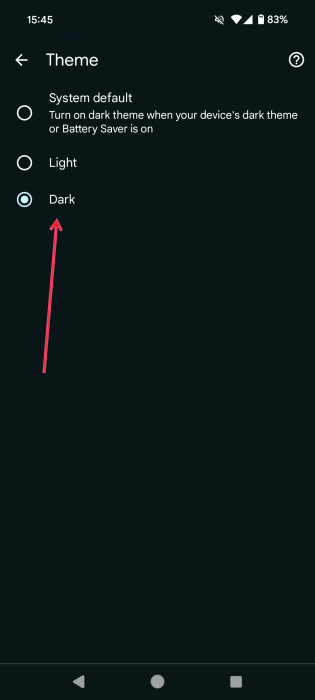
Switch to Dark.
On iPhone, turn on the Dark theme system-wide before accessing the Discover feed in Chrome.
How to Customize the Google Discover Search Widget and Icon
While you can’t turn on dark mode specifically for Google Discover via the Google app, you can modify the theme for its widget and app icon. The widget allows you to go to Google Discover by pressing the Google icon on the left side of the search bar.
Android
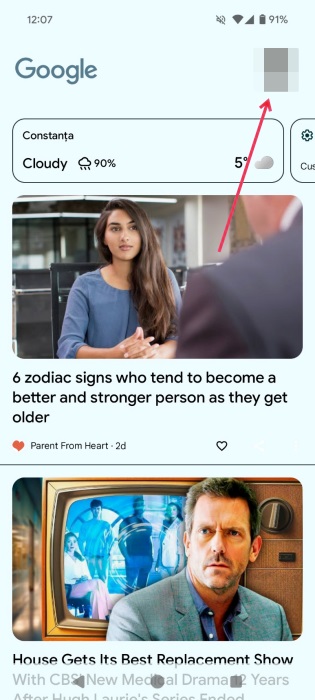
To change the widget to dark mode, open the Google app, and tap your profile picture in the upper-right corner.
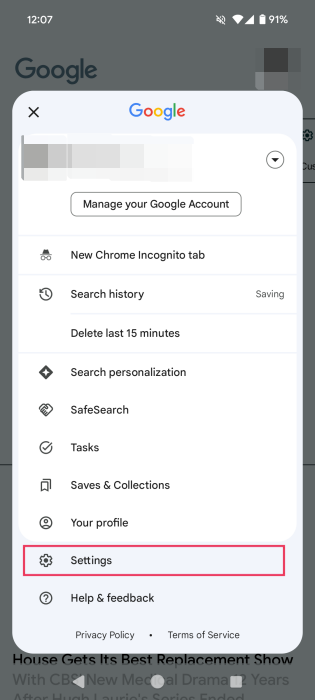
Select Settings at the bottom.
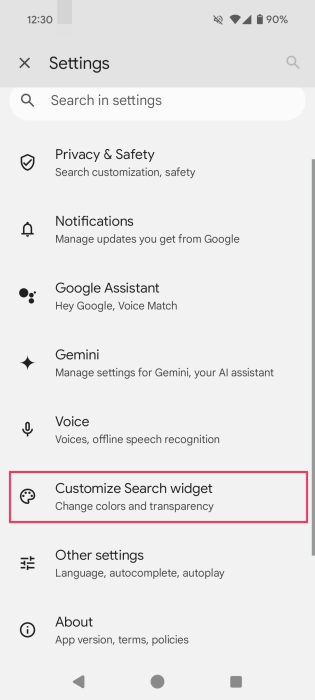
Tap Customize Search widget.
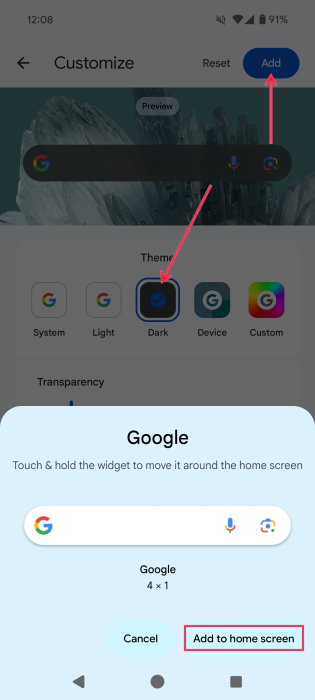
Switch to the Dark option, press the Add button, then tap Add to home screen at the bottom.
Check your home screen to see your new bar. Note that you can have a dark Google Search bar even if you’ve opted for the light theme for Google Discover and the app.
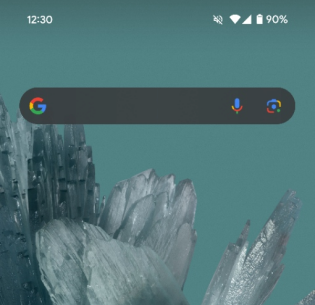
iPhone
Go to Settings in the Google app on iPhone, just as explained above, then tap on the Search widget option.
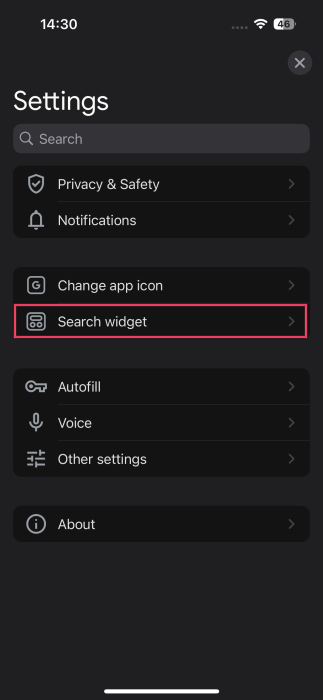
Select Widget theme.
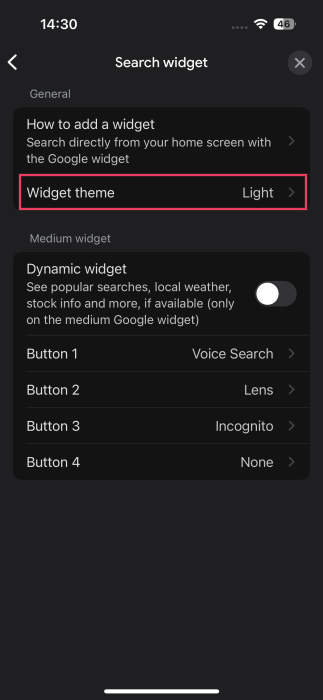
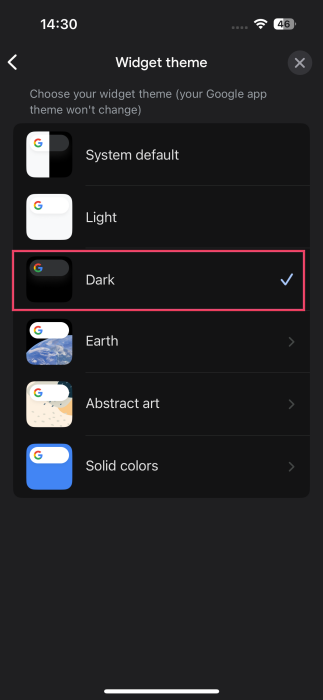
Opt for the Dark option.
Note: customize your widget through the buttons.
Add the Google widget from your iPhone’s home screen. It should appear dark on your home screen.
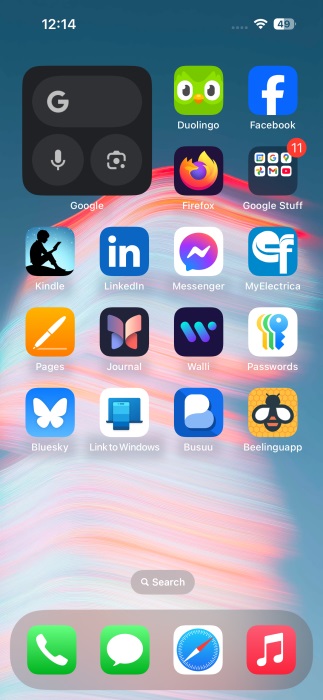
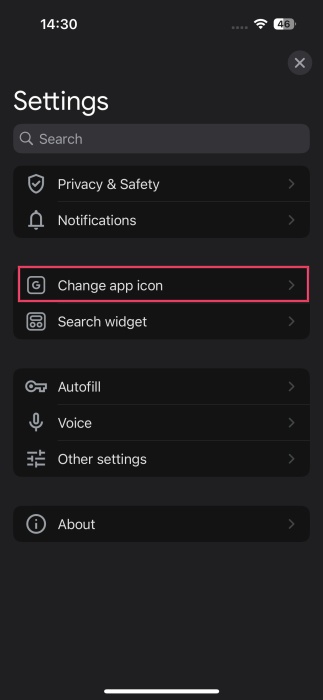
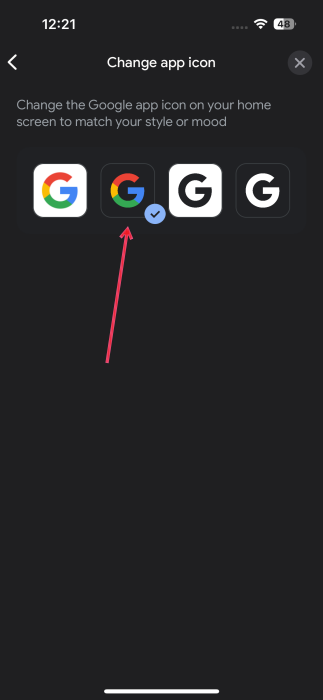
In addition, you can use a dark icon for your Google app on iPhone. Go to Settings -> Change app icon.
Opt for the Dark option.
FYI: it’s easy to remove profiles from Google Chrome.
Dark Mode Not Working in Google Discover? Learn What to Do.
If dark mode is not working in the Google or Chrome app when you access the Discover feed, you might want to try the following options:
- Try switching your phone’s dark mode profile off and back on.
- Exit the Google or Chrome app, close it properly, then reopen it.
- If you’re using the Chrome app, try enabling dark mode from the app and system-wise.
- Check for and install any new system updates for your phone.
- Clear the cache for the Google/Chrome app by going to Settings -> Apps -> Google -> Storage & cache on Android. For Chrome on iPhone, tap the three dots in the lower-right corner and select Delete Browsing Data.
- Reinstall the Google or Chrome app on your phone.
Google Discover keeps you up to date with the latest stories in your areas of interest. If you’d also like to tailor your Google Search for more accurate results so that you can find answers more quickly, check our list of tips and tricks. If you’d like to see what’s beyond the status quo, check out these Google search alternatives for something new.
All images and screenshots by Alexandra Arici.