

VLC is the undisputed king of video playback on PC. It has many features that not only play media files, but let you work with a video properly. Integrated subtitle downloading is an example of this. Whether your video includes subtitles or you add an extra subtitle file, you can view them directly on VLC player. Check out the different ways to do this on desktop and mobile devices.
Download Subtitles in VLC Classic Player
It used to be the case that you had to download the extension VLSub to download subtitles on VLC, but the handy feature is now fully integrated within VLC classic player in its desktop versions.
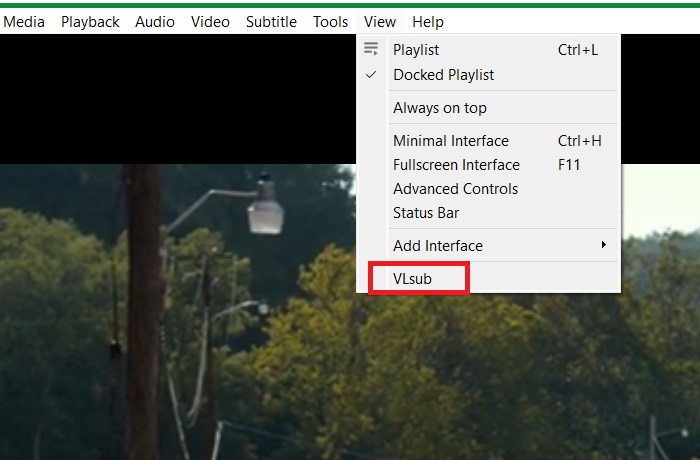
On your Desktop, open VLC and load a video. Under the View menu, you should now see a VLSub option.
Within macOS, you may have to go to VLC -> Extension -> VLSub, and add the extension first.
In the VLSub window, you can select the subtitle language and add the title of the movie. Click the Search by name button to fetch all the related subtitles from OpenSubtitles.org.
If you prefer, you can use the Search by hash button where it will calculate the hash for the video and find the subtitle that matches this hash. Do note that if you have converted the video from one format to another or modified it, the hash method won’t work.
The video subtitles are fetched from the open source repository, and are ready for a quick download.
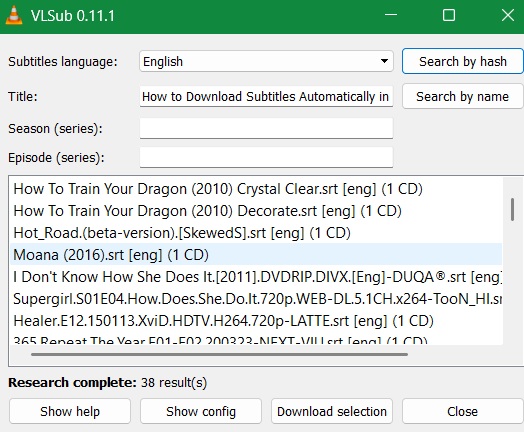
When you find a match in the result list, highlight it and click Download selection. It will then show a blue Download link, which you can click to open the Save As box. (If your PC asks how you want to open the link, just select your browser.)
In the Save As box, choose the location where you want to download the subtitle file. (The default location is the location of the currently playing video.) Once that is done, you will be able to load the subtitle file in VLC, as shown in one of the sections below.
Note: on Windows, VLC Media Player and VLC (UWP) are two different apps.
Download Subtitles on VLC UWP in Windows
On Windows devices, you can also install VLC as a separate UWP app. Here, the process to download subtitles is very different, and much easier than the classic app.
Right-click the video file, and select the VLC option, instead of VLC Player. This opens the video with the VLC UWP app.
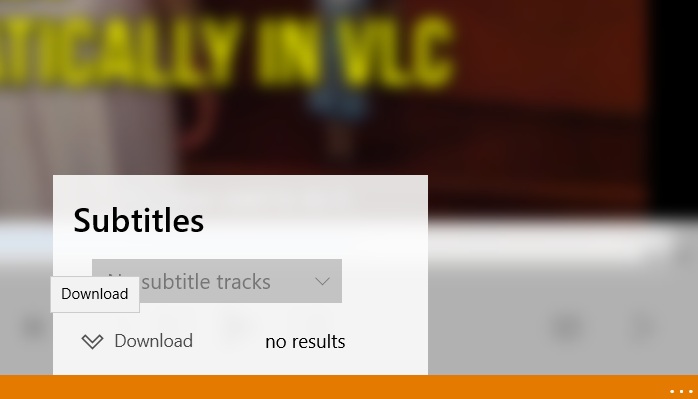
Look at the bottom for a dialogue box icon, click it to view different options. Select Subtitles. This will open a new pop-up window.
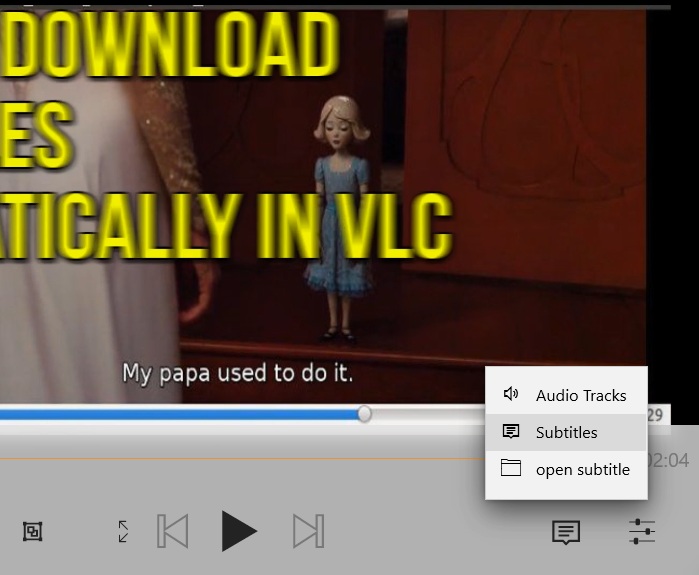
If any subtitle tracks are available for the video, you will see them under a Subtitles header. Click Download to get the subtitles.
Related: you can download subtitles for anime videos on these websites.
Manually Add Subtitles to Videos in VLC Classic Player
Let’s return to the VLC Classic Player for another method to download manually added subtitle files. This is quite useful if you don’t have the subtitles for a video at a moment, but found the subtitles online.
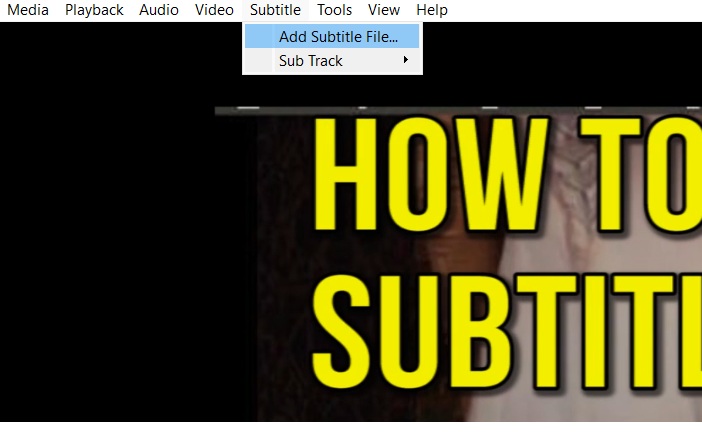
First, go to Subtitle -> Add Subtitle File.
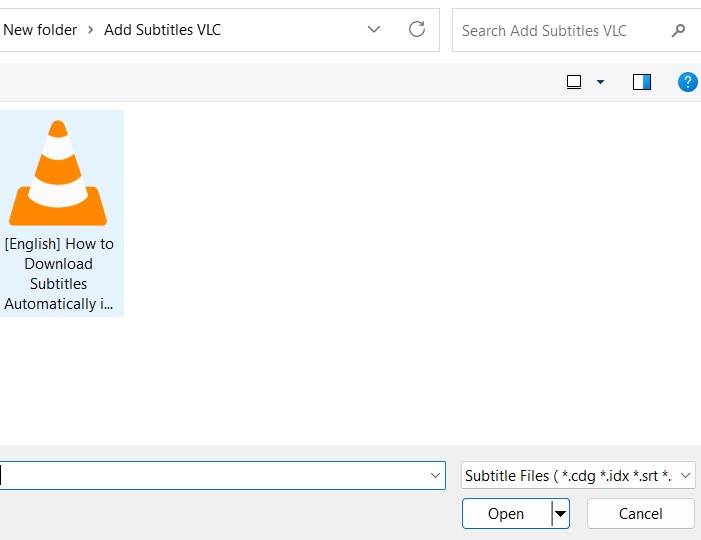
A new File Explorer window will open where you can select the downloaded subtitle file. VLC supports many formats including SRT, TXT, CDG, IDX, and more.
As soon as you insert the file, all the subtitles will be visible on the video. If the subtitles are open source, you would be able to download them later from VLsub.

Also read: you can use VLC as a full-fledged video editor.
Embed Subtitles Within Your Video in VLC Player
This is a neat little jack which works superbly if you do not have access to the subtitles. There is an option in VLC Player that allows you to capture auto-generated subtitles from the background audio on your Windows PC.
For this, go to Settings -> Accessibility -> Captions -> Live Captions. After you enable the option, your laptop is ready to show live captions in your system language.
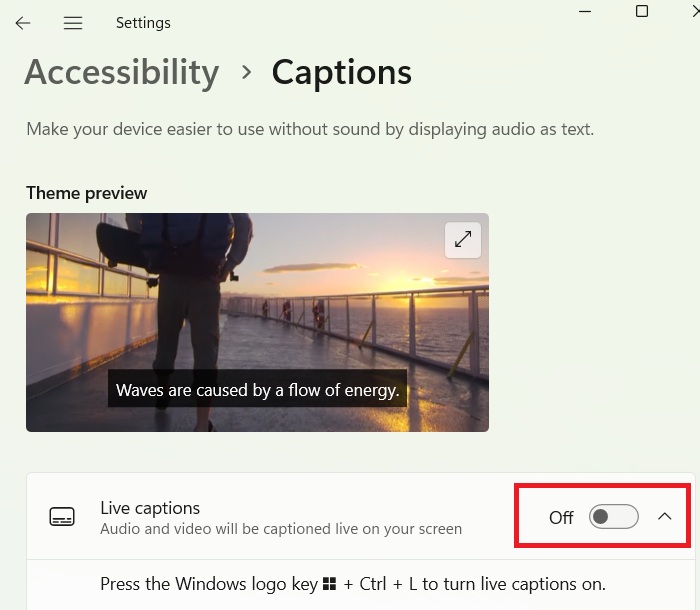
Now just open the VLC Classic Player. The subtitles will be displayed on top, which is great for watching your favorite movies and TV shows.
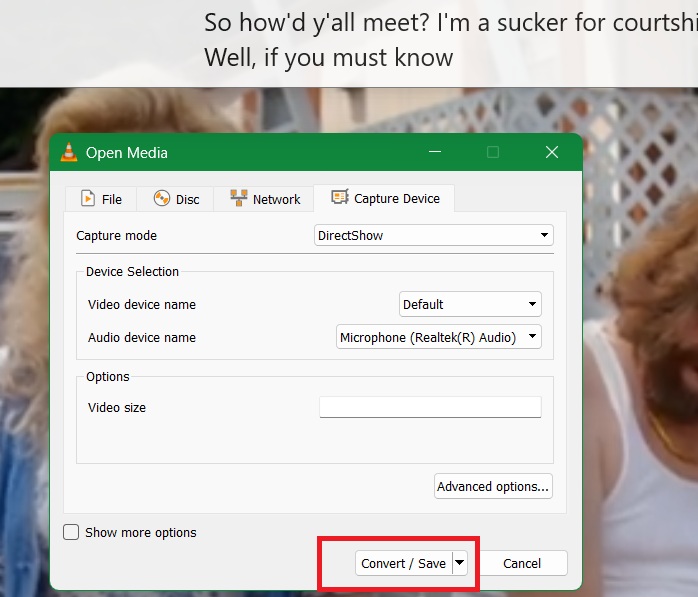
To download them, go to Media -> Convert/Save. In the Open Media dialog box, go to Capture Device. Under Capture mode, select DirectShow., and choose your default device microphone for Audio device name.
At the bottom, click Convert/Save.
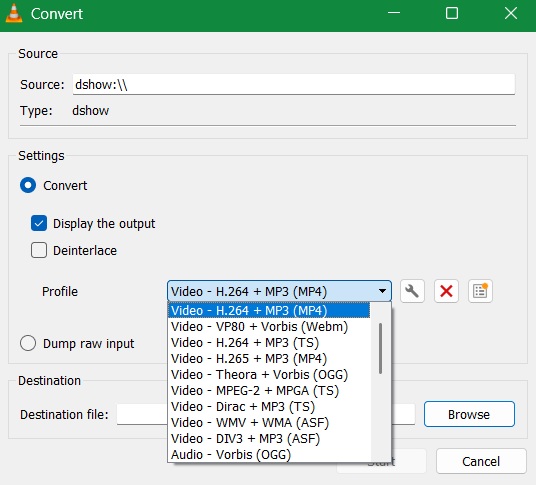
Finally, choose a destination folder for your conversion output, along with the video format you want. The subtitles have been embedded deeply within this video file. VLC also supports finetuning your videos directly for YouTube upload.
Related: there are many ways to convert audio files to text.
Download Subtitles on VLC Mobile App
Other than the desktop app, you can download subtitles with its mobile app too.
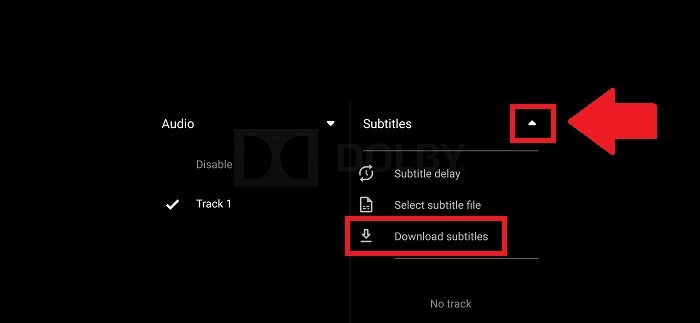
Open any video in the VLC mobile app. Tap on the screen to show the on-screen buttons. Tap on the Audio track and subtitle button located on the left corner of the screen .

Tap on the drop-down button next to the Subtitles menu and click on a Download subtitles button. It will automatically start searching for the subtitle based on the name of the video you are playing.
You can also manually search for the subtitle. Further, you can search by a specific season or episode if you want subtitles for a TV series.
VLC is a useful tool for many purposes. If you use it frequently to play all your videos, here is a keyboard shortcuts list you’ll find useful.
If you’re looking for more VLC-related tips, here’s how to rotate a video in VLC and how to control VLC with your Android phone. We can also show you how to transcode media files using VLC Player.