
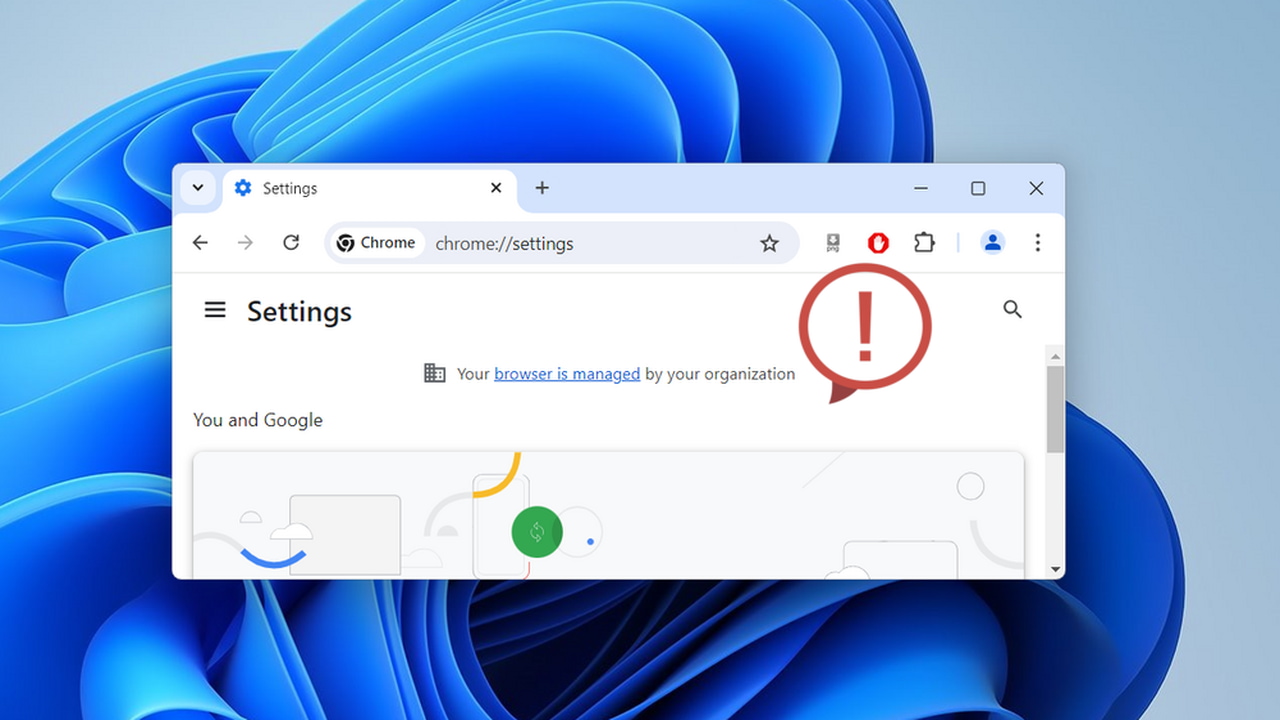

Encountering the “Your browser is managed by your organization” notification in Chrome can be quite confusing, especially when you are the admin of the PC. This guide provides several ways to get rid of this message and regain full control of your browser when using Windows.
[mte_toc]Why Are You Seeing the “Managed by Your Organization” Message?
Organizations like your school or workplace can control what you can do in Chrome, like disabling incognito mode or preventing the uninstallation of extensions. This can be done using Group Policy Editor in Windows or Google Admin Console for cloud control.
When any of these policies are applied to Chrome, it shows the text “Your browser is managed by your organization” in the main menu and when you adjust a related setting.
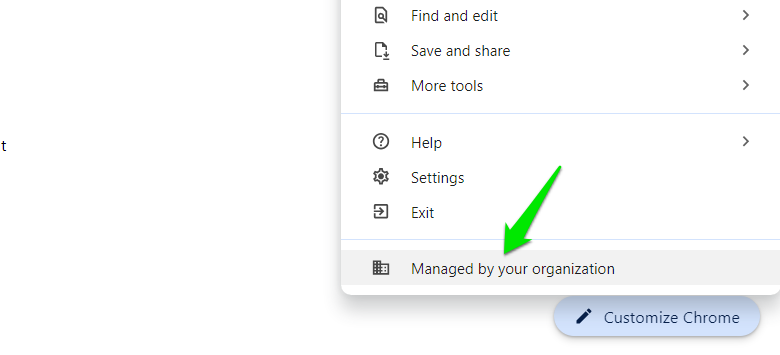
This isn’t an issue if an organization manages your PC. If you encounter a specific policy that you disagree with, you can contact your administrator for assistance. However, if you are seeing this message on your personal device, and you are the admin, this could be a problem.
An app like an antivirus program or malware can also use these Chrome policies to control Chrome. For example, a malicious app can force Chrome to use a specific search engine and use these policies to prevent you from changing the search engine.
How to Fix the “Managed By Your Organization” Issue
You can disable associated Chrome policies to prevent them from controlling Chrome. However, make sure you have administrator access to the PC to change these policies.
You must first find out which Chrome policies are currently in effect on your browser by following the steps below.
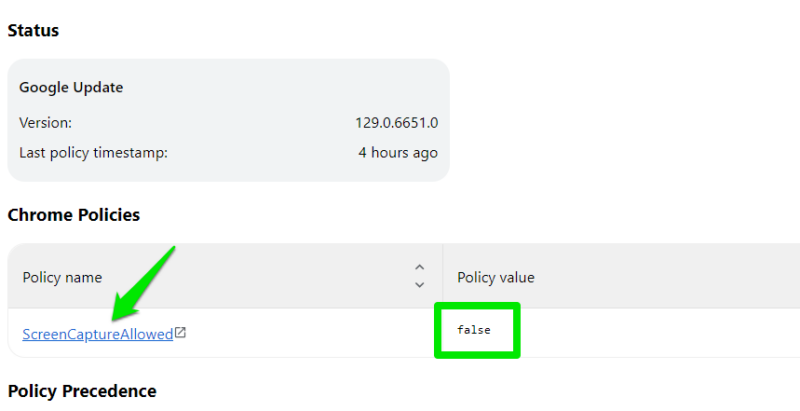
In the Chrome address bar, type chrome://policy, and press Enter.
You’ll see all the current policies and their values. By default, Chrome has no policies. Take note of the names of any policies.
Use the Registry Editor to Remove Chrome Policies
Whether the policy is created by the Group Policy Editor or another app, it needs to have a Windows Registry entry. The best way to get rid of it is to delete the associated registry entry.
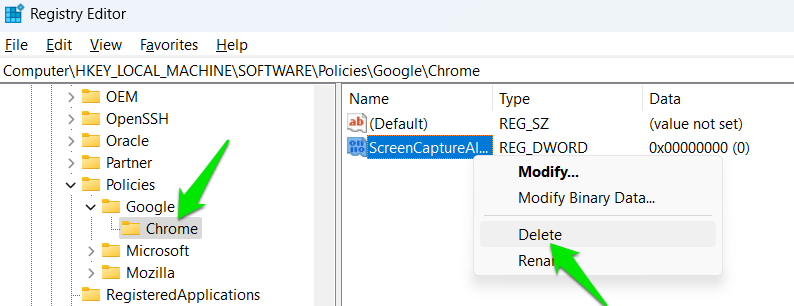
Search for “registry” in Windows Search, and open the Registry Editor. Move to the following location in the Registry Editor:
HKEY_LOCAL_MACHINE\SOFTWARE\Policies\Google\Chrome
Either right-click on a specific policy affecting Chrome and select Delete, or delete the Chrome key to delete all policies.
The problem with this method is that it can’t prevent an app from adding the policy again. If the policy is set using Group Policy Editor, it will reapply when it updates. The same is true for recurring scripts or apps that add the policy when executed.
Use the Group Policy Editor to Remove Chrome Policies
Group Policy Editor is the most common tool to add Chrome policies. It’s highly likely it is enforcing the policies that you are seeing in Chrome. Follow these steps to disable them in Group Policy Editor:
Search for “gpe” in Windows Search, and click on Edit group policy.
Move to Computer Configuration -> Administrative Templates -> Google Chrome.
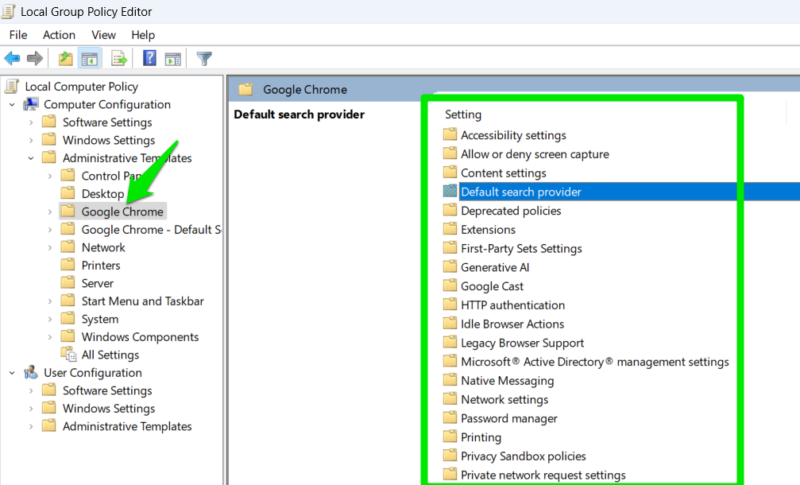
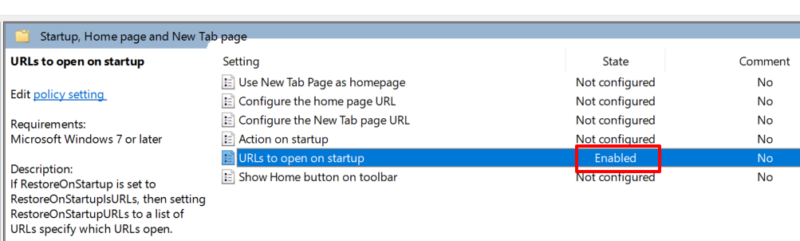
All Chrome policies are listed under related categories. By default, each policy state is set to Not configured. If any of the policies have an Enabled/Disabled state, then it has been configured by someone. You should open that policy and set it to Not configured.
Use a Third-Party Tool to Remove Chrome Policies
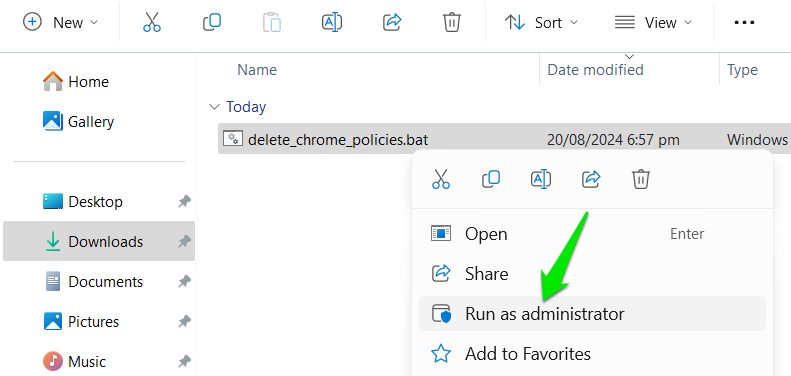
If you don’t want to go through the above processes, you can also use a third-party tool to automatically remove Chrome policies. Chrome Policy Remover is a free tool that will automatically remove all registry entries and reset policies added by Group Policy Editor as well.
Before running the tool, close Google Chrome, then right-click it, and select Run as administrator.
Keep in mind that removing the program or extension that added the policy is very important. Many of these programs automatically re-add the policy based on different triggers After removing policies, uninstall any shady programs/extensions, and scan your PC for malware.
Image credit: All screenshots and images by Karrar Haider.