

When browsing through a webpage, the scroll bar is a vital tool for navigating content. If you’re unable to see a scroll bar, you may assume the page has no scrollable content. Yet, if this occurs on multiple sites, it could be due to a problem with Chrome. In such cases, check the solutions outlined in this article to resolve the missing scroll bar issue in Chrome.
Good to know: switching to dark mode in Chrome is easy. Learn how to do it.
[mte_toc]Simple Solutions
If you’ve noticed that the scrollbar in Chrome has disappeared, there are a few simple solutions to try before investigating the root cause of the problem:
- Restart the Chrome browser: you can restart your Chrome browser without losing the tabs you already have open. Type chrome://restart in the address bar, and press Enter.
- Update Chrome: make sure you have the latest Chrome version installed by going to “Help -> About Google Chrome.” If there is a pending update, Chrome will automatically start installing it. Once the update is finished, click the “Restart” button to launch the browser once again.
1. Check Whether the Overlay Scrollbar Has Been Disabled
A rogue flag called Overlay Scrollbars may be to blame for your missing scrollbar. By default, the flag is disabled, but if you’ve accidentally enabled it, the scrollbar will be visible only when you move a mouse scroll wheel on a web page. To make the scrollbar always visible, the flag should be off.
Note: Google has removed this flag in recent updates, so you may not see it if you’ve updated Chrome.
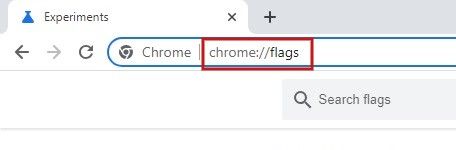
- Launch Chrome, type chrome://flags in the address bar, and press Enter.
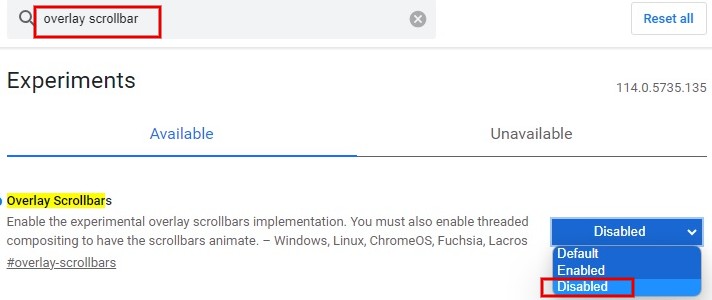
- Type “overlay scrollbar” on the search bar above.
- Click the drop-down menu next to “Overlay Scrollbars,” and set the value to “Disabled.”
- Click the “Relaunch” button at the bottom of the screen to apply the changes and relaunch Chrome.

Tip: learn how to enable strict isolation in your Chrome browser to make it harder for websites to access or steal data from other sites.
2. Disable Newly Installed Extensions
You may at times face issues with the scroll bar due to the extensions you recently installed. Start disabling recent Chrome extensions one by one to pinpoint the culprit.
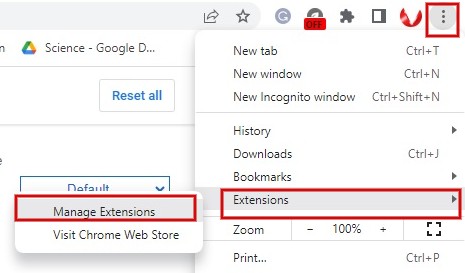
- Launch Chrome and click the three-dot icon on the top right.
- Click “Extensions -> Manage Extensions.”
- Toggle off the switch underneath an extension to disable it.
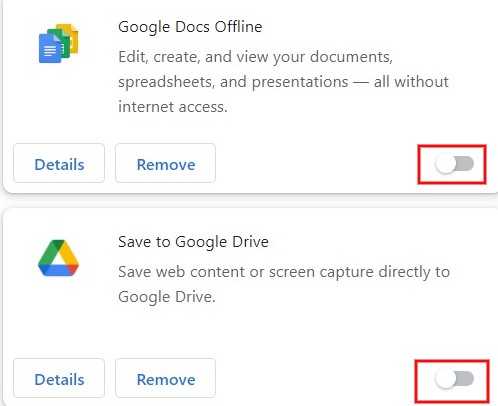
- Restart Chrome to check whether the missing scroll bar issue has been fixed. If the answer is yes, you’ve identified the extension causing the problem. If the issue persists, disable the next extension, and so on.
- Once you have identified the problem, return to the Chrome extensions menu, and click the “Remove” button to completely eliminate it from your browser.
3. Disable Hardware Acceleration
Hardware acceleration aims to increase the performance of Chrome and speed things up. However, it may create new issues, like making the scroll bar disappear. To avoid that, turn off the hardware acceleration feature.
- Launch Chrome and type chrome://settings/system.
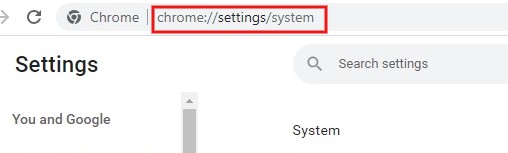
- Toggle the field “Use hardware acceleration when available” to off on the right side.
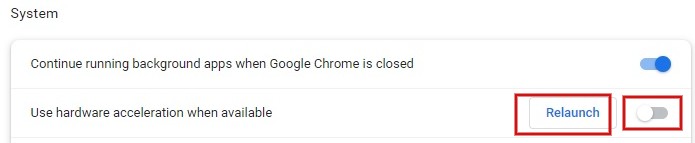
- Click “Relaunch” to restart the Chrome browser.
Tip: get up to speed on how to load a page using the IE rendering engine in Chrome.
4. Reset Chrome Settings
If you have tried the above steps, and the issue is still unresolved, restore the Chrome settings to default.
- Launch Chrome and navigate to Settings as explained above.
- Click “Reset settings” on the left side.
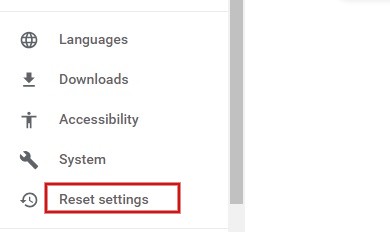
- Click the arrow next to “Restore settings to their original defaults” on the right side.

- Click “Reset settings” in the pop-up window.
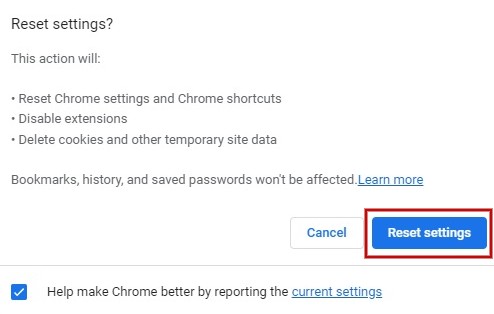
- After you click the reset button, the cookies and temporary data will be deleted. The extensions will be disabled, and all Chrome settings will be restored to the factory default.
5. Reinstall Chrome
If none of the solutions above worked, you may have to reinstall Chrome. Before uninstalling Chrome, make sure you back up your bookmarks and other important data.
- Press Win + I to open the Settings app on your PC.
- Navigate to “Apps -> Installed apps.”
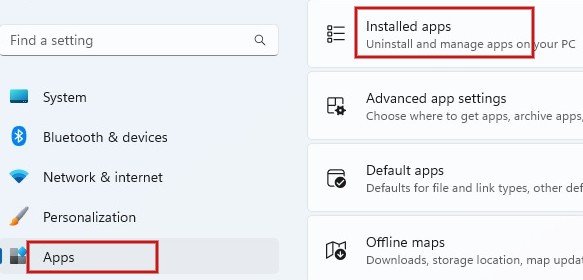
- Find Chrome in the app list. Click the three dots next to Chrome, then click “Uninstall.”
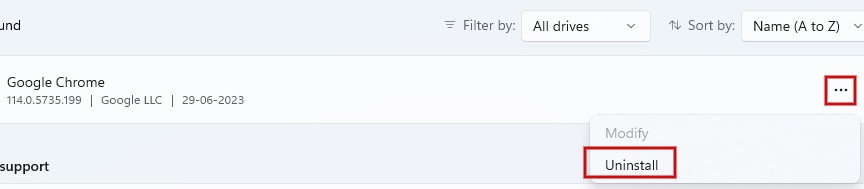
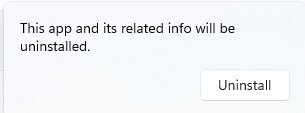
- Click the “Uninstall” button in the confirmation window that pops up.
- After Chrome is fully uninstalled, download and install the latest version from the official Chrome website, and check whether the missing scroll bar issue has been resolved.
FYI: did you know that Chrome has its own Task Manager? Learn how to access it.
Return to Scrolling on Chrome
If you can’t find the scroll bar on Chrome, use the arrow keys on your keyboard to navigate the page. To prevent this issue from happening, it’s best to avoid messing around with Chrome flags unless you know what they do. If you’re experiencing other problems, like the Chrome browser constantly crashing, these fixes can help improve your browsing experience.
Image credit: Freepik. All screenshots by Meenatchi Nagasubramanian.