

You’re using Chrome like any other day, but for some reason the scrolling is not working. The scrolling feature works fine on other browsers but not on Chrome. Since this is something that you continuously do to move around on a site, this is something that needs to be fixed ASAP.
If you notice that this also happens on other browsers and programs, there is a good chance there is something wrong with your mouse. But, if this only happens on Chrome, the following tips should help you fix the issue.
Also read: Search Engine and Homepage Keep Changing? Here’s How to Fix Them
Delete Extensions One by One
Chrome extensions are great and the backbone of many Chrome users’ browsing experiences. But the more extensions you get, the higher the chance that you’ll get one that causes bugs in Chrome – precisely like scrolling problems. Sometimes these bugs arise from clashing interactions between two extensions.
First, open an Incognito window in Chrome (three-dotted menu icon at top right -> New incognito window), then try scrolling to see if the problem persists. If it does, then skip down to the next tip.
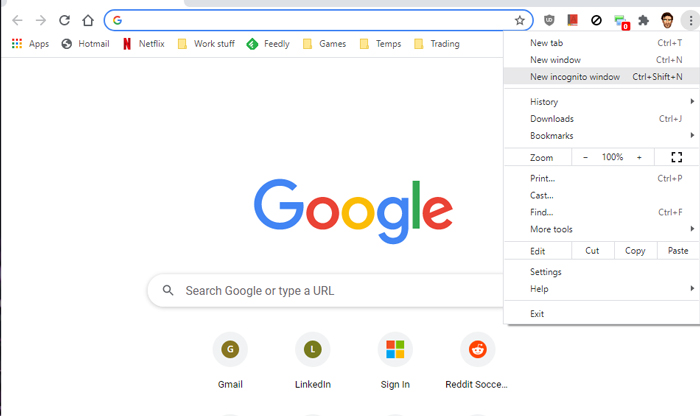
If the scrolling works, then the issue is probably related to one of your extensions.
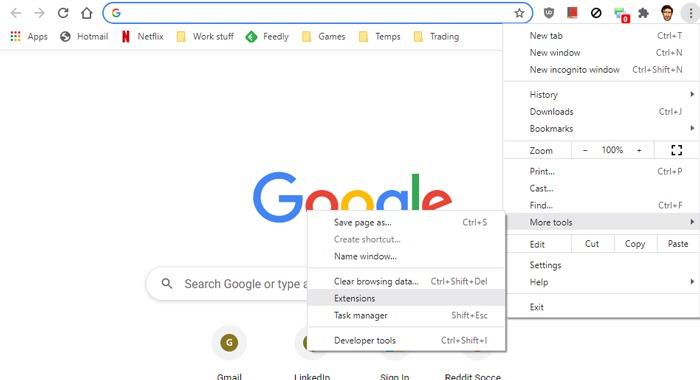
In that scenario, click the “Chrome menu icon -> More tools -> Extensions.”
Here, disable an extension by clicking the blue slider next to it so that it turns grey (starting with your most recently installed extensions).
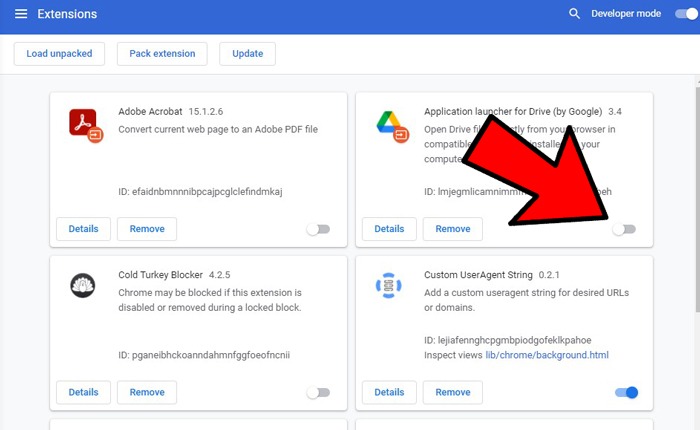
Next, restart Chrome and see if the problem persists. If it doesn’t, that means the extension was the culprit and that you should remove it.
If the problem persists, re-enable that extension, then disable the next one, repeating the above process until the scrolling problem stops. Be sure when you find the culprit, to disable the extension that was causing the issue.
Also read: How to Get Vertical Tabs on Chrome and Firefox Browsers
Reset Chrome
If you don’t mind starting over, resetting Chrome might fix the scrolling issue.
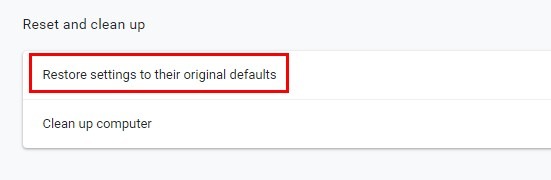
To wipe Chrome clean, go to “Settings -> Advanced (at the bottom of page) -> Restore settings” to restore to their original defaults.
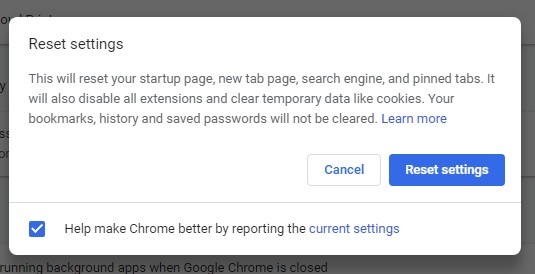
You should see a window with a warning letting you know that by resetting the settings, all your extensions will be disabled. Also, you will lose anything you ever personalized with Chrome. If you’re okay with that, click on the blue “Reset Settings” button.
Erase the User Profile Data
If you prefer to only erase the Chrome user profile data, press Win +R, then add %LOCALAPPDATA%\Google\Chrome\User Data\ into the “Run” box.
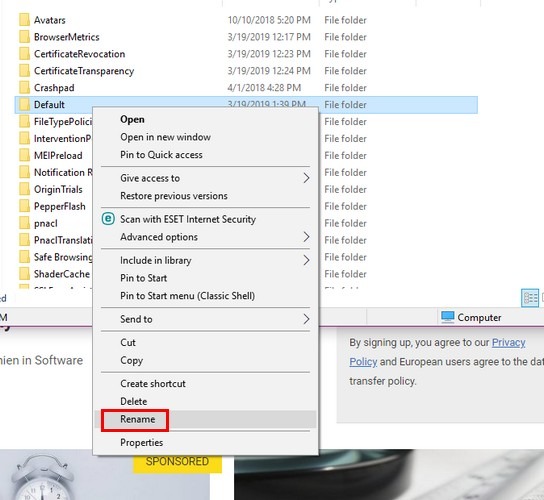
Press Enter. When the new window appears, find the folder that’s named “default.” Rename that folder to “default.backup.” You can undo this if you ever change your mind by renaming the folder “default.”
Disable Smooth Scrolling
Turning off smooth scrolling has worked for some users. To give this option a try, you’ll need to head to the experimental features part of Chrome. Type chrome://flags.
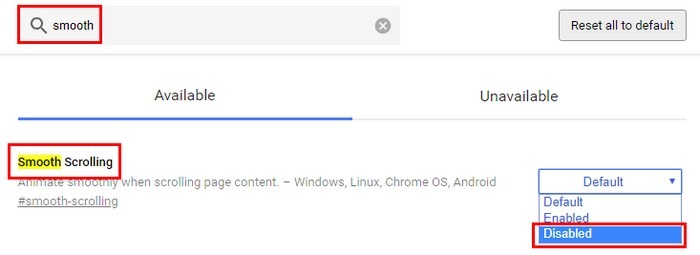
Type “smooth scrolling,” and the option should be highlighted in yellow. Click on the drop-down menu to the right and choose “Disabled.”
Also read: 11 Chrome Flags to Boost Your Browsing
How to Use Chrome’s Built-in Cleaner
There is a built-in tool in Chrome that can find any harmful software that could be causing your scrolling problems.
To use it, click the three-dotted menu icon at the top-right corner of Chrome, and follow this with “Settings -> Advanced (at the bottom of page) -> Clean up computer.”
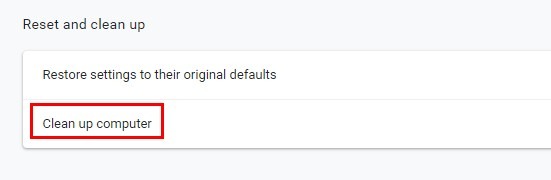
Click the blue “Find” button, and Chrome will start searching. This could take a while, so you may want to go get a cup of coffee. Should Chrome find anything, go ahead and let it clean things up.
With technology, you can’t always know what caused an issue to occur. When the cause is unknown, such as with the scrolling not working issue in Chrome, all you’re left to do is the trial-and-error method until you come across the solution that works for you.
Also read: 15 Useful Android Chrome Flags You Should Enable
To keep tweaking Chrome, check out our list of the best Chrome extensions to annotate text on the Web and extensions to automate boring browsing tasks. Chromebook users may also be interested to read how to install Steam on Chromebook.