


It is often the case that long-relied upon apps lose their charm. Some are beaten by their competitors, while others cease to be free. The latter scenario happened with LastPass. Although it technically has a free pricing tier, it is crippled and severely limited. On the other hand, an equally competent password manager – Bitwarden – remains fully free with core features intact. If you are considering migrating from LastPass to Bitwarden, read on, as we show you how.
Also read: 4 of the Best LastPass Alternatives
1. Exporting Existing Passwords in LastPass
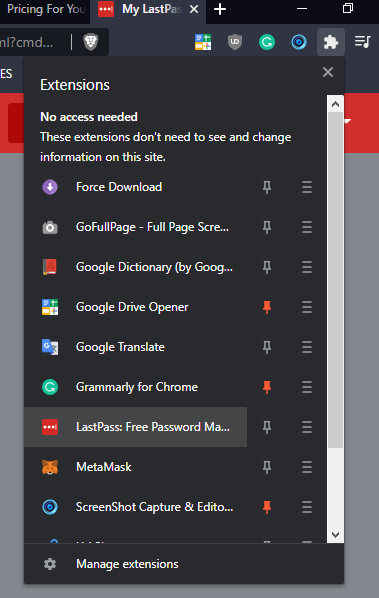
Just like with bookmarks, you first need to export your passwords from LastPass’s web vault. Open your LastPass by clicking on the “Extensions” icon in the upper-right corner of your web browser.
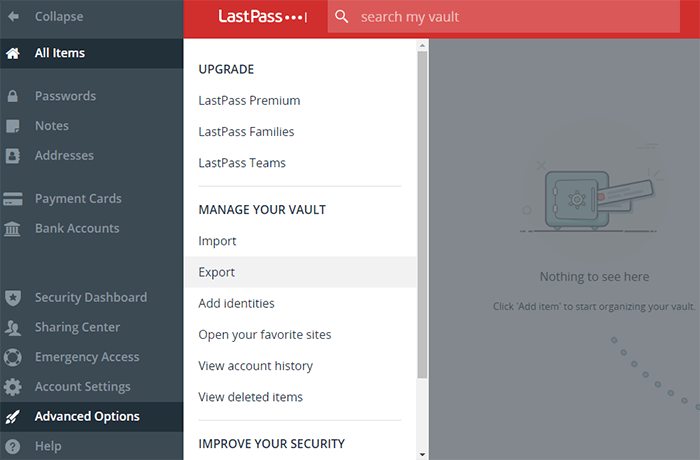
Once the LastPass manager opens, click on “Advanced Options,” then on “Export” under the “MANAGE YOUR VAULT” category.
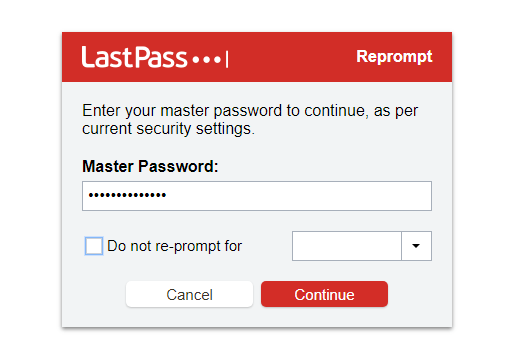
Then, you will be prompted to input your Master Password to proceed.
After typing in your password, File Explorer’s window will automatically pop up, asking you where to save your “lastpass_export.csv” file. And that’s it! The first part of the migration process to Bitwarden is over. Just remember in which folder you exported your LastPass data file, so that you can retrieve it later.
If you are using a web browser that doesn’t open a window asking you where to save the .csv data file, the info for export will be displayed on the screen, as shown in the following image.
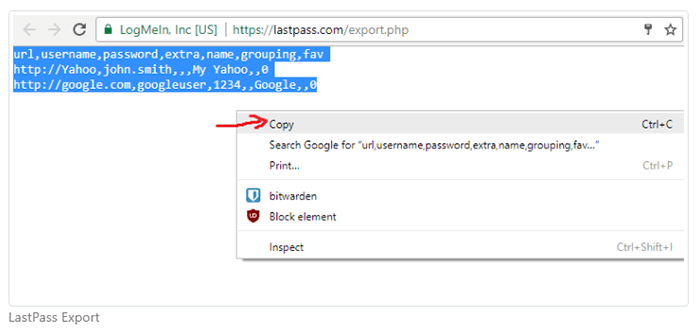
You will have to manually copy and paste the text to a notepad file and save it as .csv file type. Remember to always select “All Files” once you click on “Save As” under Notepad’s File tab.

Otherwise, you will end up saving the file as “lastpass_export.csv.txt” instead of “lastpass_export.csv.” If you already have MS Excel or any other spreadsheet applications installed on your system, you will notice that all .csv type files will be automatically associated with the software. When they are clicked, Excel will open them.
2. Importing the Exported LastPass File into Bitwarden
With the exporting part out of the way, it’s time to import the .csv data into Bitwarden. Assuming you already have it installed from the chrome web store, open it the say way you opened LastPass.
Click on the “Tools” menu tab just next to “My Vault.” You will see three items under Tools: Password Generator, Import Data, and Export Vault. As you want to migrate your passwords from LastPass, simply click on “Import Data,” then select the file type and its location.
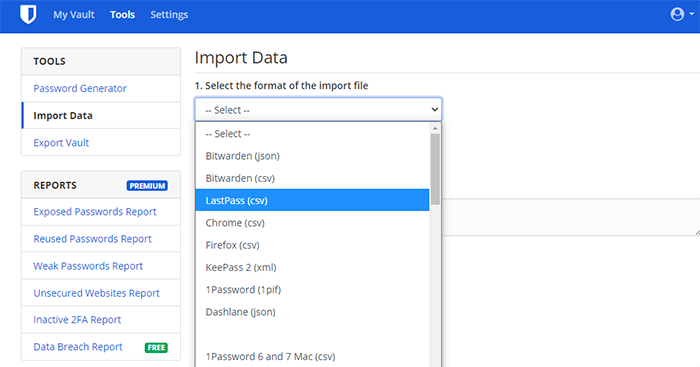
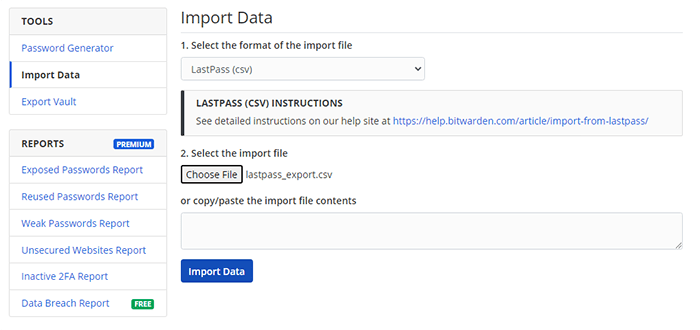
As you saved the exported data from LastPass directly, Bitwarden has made it convenient to have that option prepared and ready to go. Additionally, you can either select the saved Notepad’s .csv file or directly copy-paste the content of it into the window.
With that done, all that remains is to click on the blue button labeled “Import Data.” The migration process from LastPass to Bitwarden has completed!
Now that you have a powerful and free password manager, don’t shy away from using complicated, unique, randomized, unguessable passwords containing a random mix of numbers, capitalized letters, and unique letters. You only need to memorize one password: the one to access Bitwarden.
An Extra Layer of Protection
To add an extra security layer, you can enable two-factor authentication. Although this is less convenient, it does provide peace of mind. You can do so by clicking on “Settings” next to tools, then “Two-step Login.”
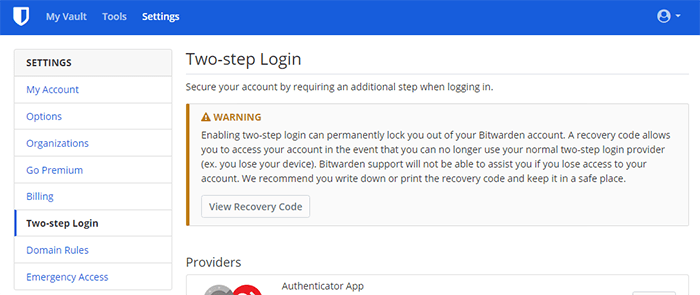
As you can see, unless you have a Recovery Code safely stored somewhere, you can end up locked out of your account if you guess your two-factor authentication (2FA) incorrectly. Likewise, an intruder would suffer the same fate, just as intended!