


The Internet is a treasure trove of information and entertainment, but the amount of extra graphics and advertisements on some of the pages can get overwhelming. To reduce the clutter on the pages that distracts from what we want to read, most browsers have an option called “Reader Mode” or “Reader View.” When enabled, this view takes away all of the excess information and shows you only the article and its images.
Here’s how to access Reader Mode in some of the world’s most popular desktop browsers. The directions in this article refer to desktop versions of these browsers. However, many of them do have a reader mode in their mobile version as well.
Google Chrome
Although Chrome has been experimenting with its Reader Mode for several years, it is still not publicly available on the browser. Instead, it is in the flags, where you can find and utilize settings and extensions not released with the browser.
To use this flag, you must have version 75 of Chrome. Make sure you have this version by clicking on the three dots in the top-right corner. Hover over “Help,” and select “About Chrome.” Chrome will display the current version and automatically install any updates. Click Relaunch to finish the updates.
To get the Reader Mode on Chrome:
1. Type this into the browser: chrome://flags/#enable-reader-mode.
2. Click on the dropdown box and click on Enable.
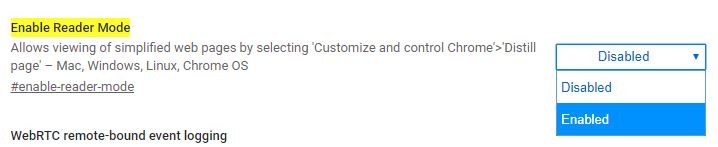
3. When you relaunch your browser, Reader Mode will be available.
When you are on a webpage that you would like to see in Reader Mode, click on the three dots in the top-right corner of the browser, and select “Distill page.”
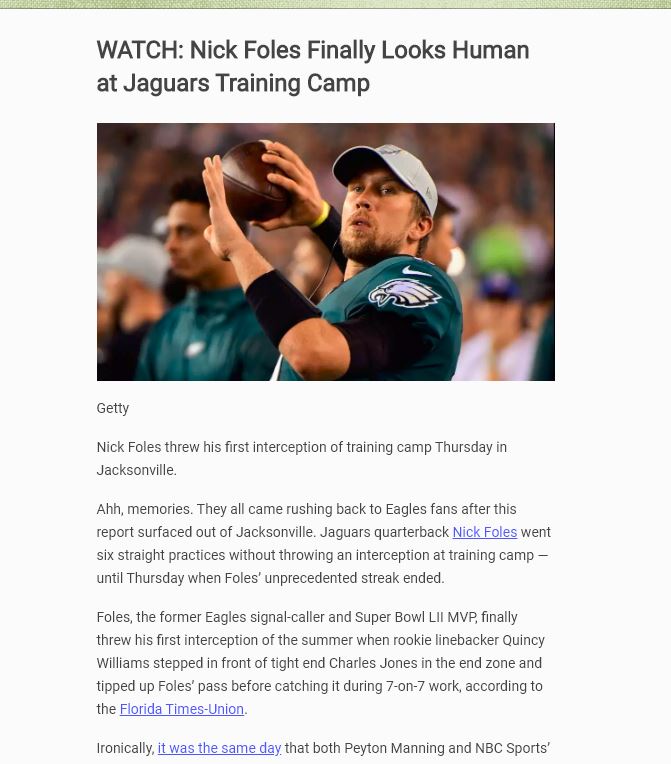
If you want to return to the regular page, all you need to do is press the Back button.
Also read: 7 of the Best Web Browsers with a Focus on Privacy
Firefox
Reader view is built into the Firefox browser. If the page has a Reader View, you will see an icon that looks like a piece of paper at the end of the address bar in the browser.
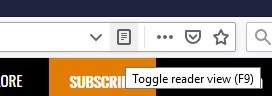
Click on the icon, and the browser will reload the page in Reader View.

Firefox offers some options for its reader mode that allow you to change font, size, and background color. It also has features that read the text to you and let you save it to Pocket to read later.
Opera
Opera does not have a reader view by default, but you can install an extension to give it the option. Install the Reader View extension.
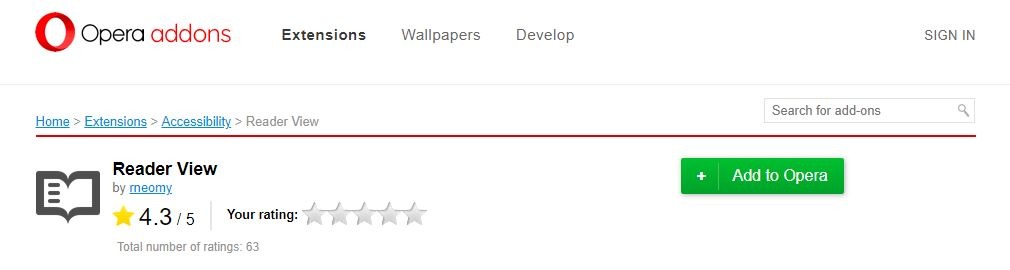
Once you do, a book icon will appear on the address bar. 
Click on the icon to activate Reader View.
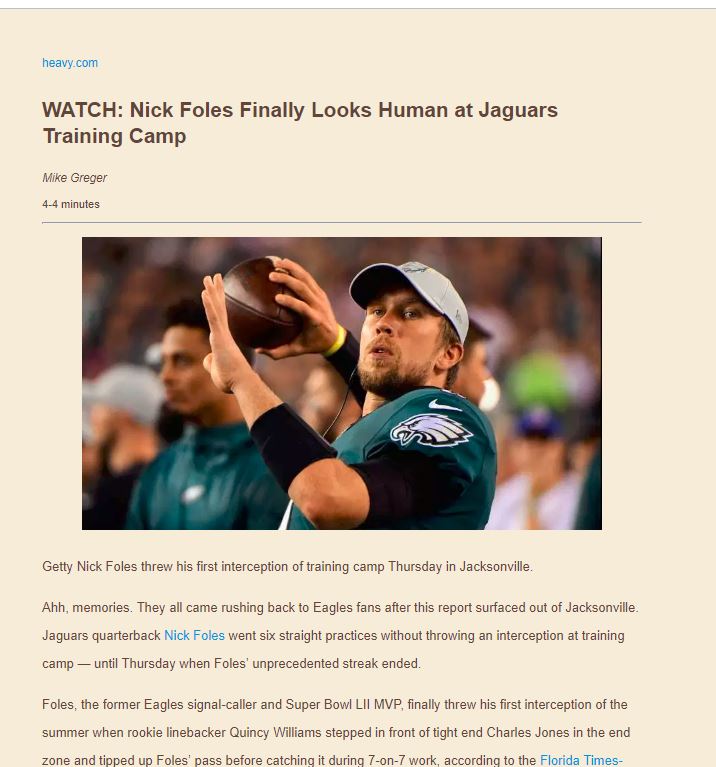
The first time you turn on Reader View, you will see a message that tells you that you can select the content you want to view before you click the icon. Selecting the text ahead of time reduces the chance of the extension displaying the incorrect content from the page.
Also read: Are Browser Extensions Slowing You Down?
Microsoft Edge
The Reader View on Edge comes standard on the versions of the browser from Canary forward.
Click on the greyed-out book next to the favorites star.
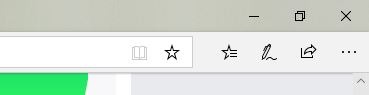
When you click it, it will turn blue, and the Reader View of the page will load.
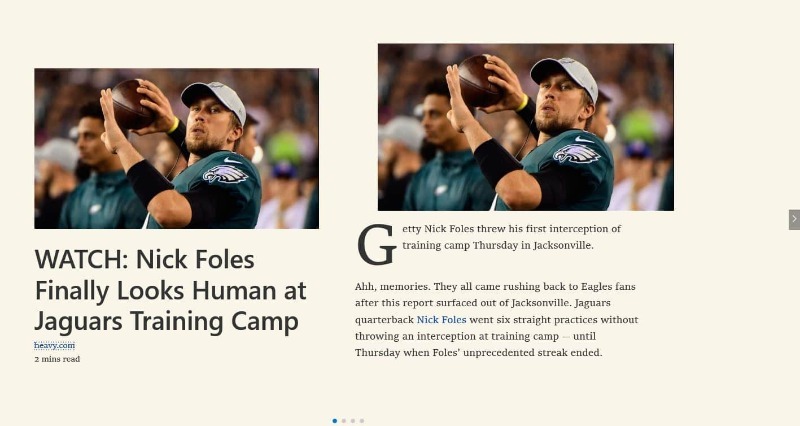
Edge has a unique look for its Reader View. Instead of scrolling down to read as you would with the reader views in other browsers, you scroll sideways using the arrows on the edge of the window.
Safari
The Reader mode button is standard in the current version of Safari. Look in the address bar for the word “Reader” in a grey box.
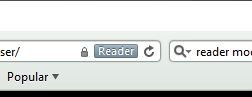
When you click the button, you will enter Reader Mode, and the button will turn purple.
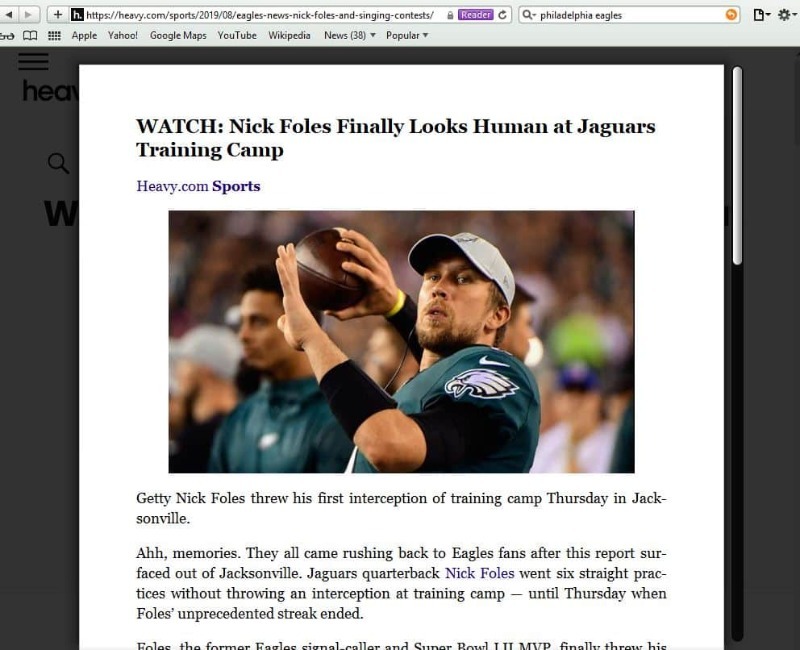
Beginning with Safari 11 in macOS High Sierra and Sierra, you can set the browser to open most pages with Reader Mode. To do this:
1. Access a webpage with Reader Mode available.
2. Right-click the URL box.
3. Select settings for the website.
In the pop-up box that appears, look for where it says, “When visiting this website.” If you want all websites to load in Reader Mode, check the box that says “Use Reader when available.”
There are more settings for Reader on Safari found under Safari > Preferences. Here you can set Safari to open any website in Reader Mode by default.
No matter which of these browsers you use, you will find it much easier to read and retain information from websites that are not packed with so much extra material.