

What do you use when you want to share a document online with others? A popular choice is Google Docs, which allows people to upload, write, and share documents in the cloud. This is all well and good if you’re a fan of Google, but it’s not so great if you’re not!
If you prefer to use Dropbox over Google Drive for storing data in the cloud, it can be disheartening to see Google deliver specific services that Dropbox doesn’t have. However, Dropbox now has its new, lesser-known Paper service that allows users to make online documents.
Logging into Dropbox Paper
You can get into Dropbox Paper via the Paper site. If you have a Dropbox account already, you can use it to log in. Otherwise, you can create an account or use Google Plus to sign in instead.
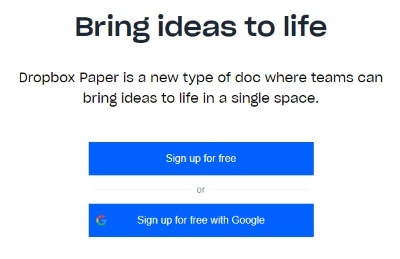
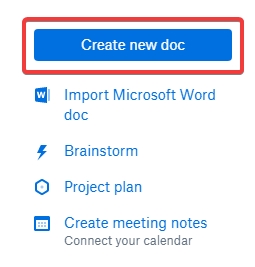
Once you’re in Dropbox Paper, you can get started writing documents by clicking the “Create new doc” button on the right.
Using Dropbox Paper
If you’ve used Google Docs before, you may notice a few differences between Paper and Docs. The biggest difference is the UI, which becomes immediately obvious when you use Dropbox Paper. It’s not what’s there that’s different; it’s what’s not there that really draws attention!

Unlike Google Docs, Dropbox Paper uses a very minimalistic approach. Word processors typically have a lot of options and utilities along the top, but in Dropbox Paper they’re totally missing. While this does hamper the amount of customisability you have with your text, it’s perfectly fine for writing basic documents. In fact, if you want a distraction-free experience while writing your documents, Dropbox Paper may just be what you need!
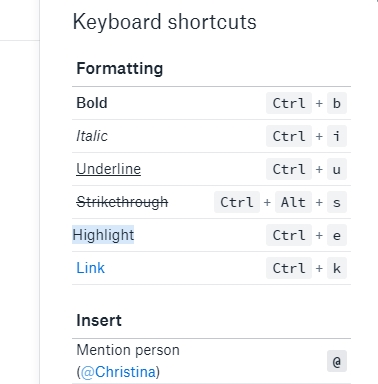
If you want to know how to perform certain actions, try clicking the keyboard symbol at the bottom-right of the document.
This brings up a list of keyboard shortcuts you can use to do simple tasks. You can leave this window up as you type if you need to use it for occasional referencing.
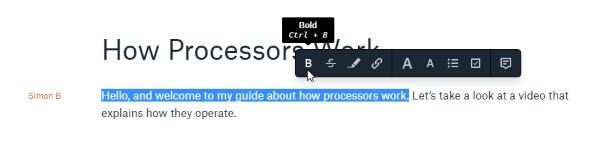
If you want to format text, simply highlight it, and a series of options will appear. This includes bold, strikethrough, inserting a hyperlink, and creating headers. It’s not as in-depth as Google Doc’s customisability, but it’s useful for basic tasks.
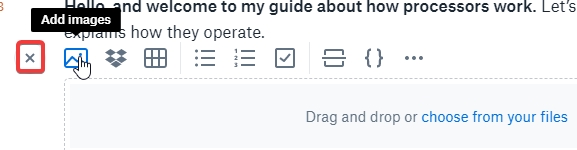
When your cursor is on a line, a plus symbol will appear to the left of it. If you click this, it turns into a cross symbol and opens up a few additional options for inserting media into your document. This includes images, links to Dropbox files, bullet points, and code.
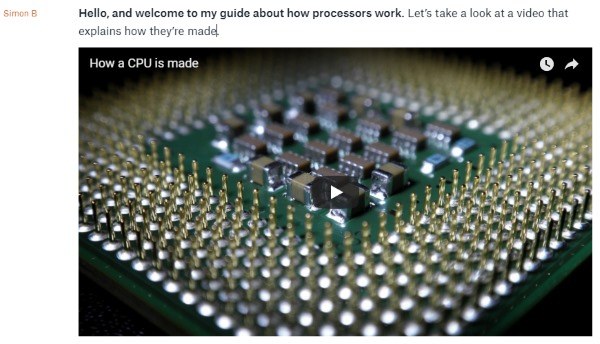
If you click the dots to the far right of this menu, you’ll see an impressive array of features from outside sources. This includes media from GitHub, Soundcloud, and YouTube. Follow the instructions after clicking on the media you want to insert.
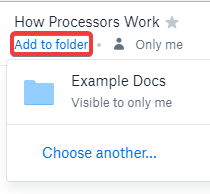
Once you’re finished with your document, you can put it into a folder for easy organisation. Click the “Add to folder” link at the top and select a folder or make a new one if you need to.
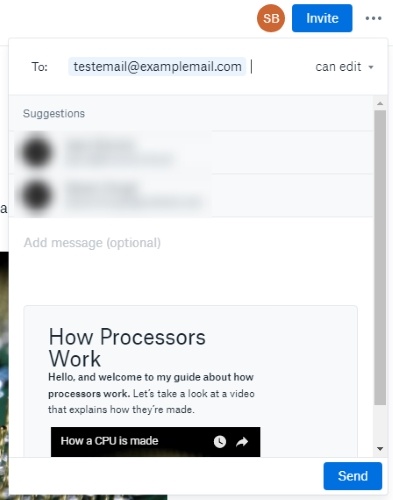
Inviting others to join your document can be done by clicking the blue “Invite” button at the top-right. Insert the emails of your friends and colleagues and hit “Send” to invite them to join you in the document.
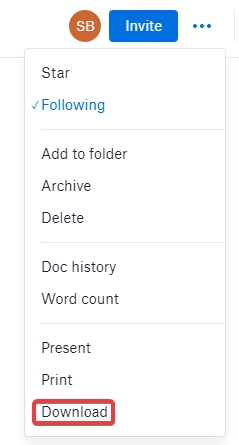
If you want to save a copy of your document, click the three dots next to the “Invite” button and select “Download.” At the time of writing, the only options you have are .docx and markdown format.
What’s interesting about Dropbox Paper is that it’s not a separate entity from Dropbox itself. Every document you make also shows up in your main Dropbox account. Unlike document uploads, you can’t download a Dropbox Paper document from the main Dropbox interface. You can, however, click the document to open it up in Paper and download it from there.
Practical Paper
If you’re not a fan of Google Drive, Dropbox Paper is a nice alternative. It’s not a powerhouse like Google Docs, but for basic documents and sharing, it can do a good job of filling that niche.
Do you see yourself using Dropbox Paper in the future? Does Google Docs win out? Or do documents in the cloud make you uneasy? Let us know below.