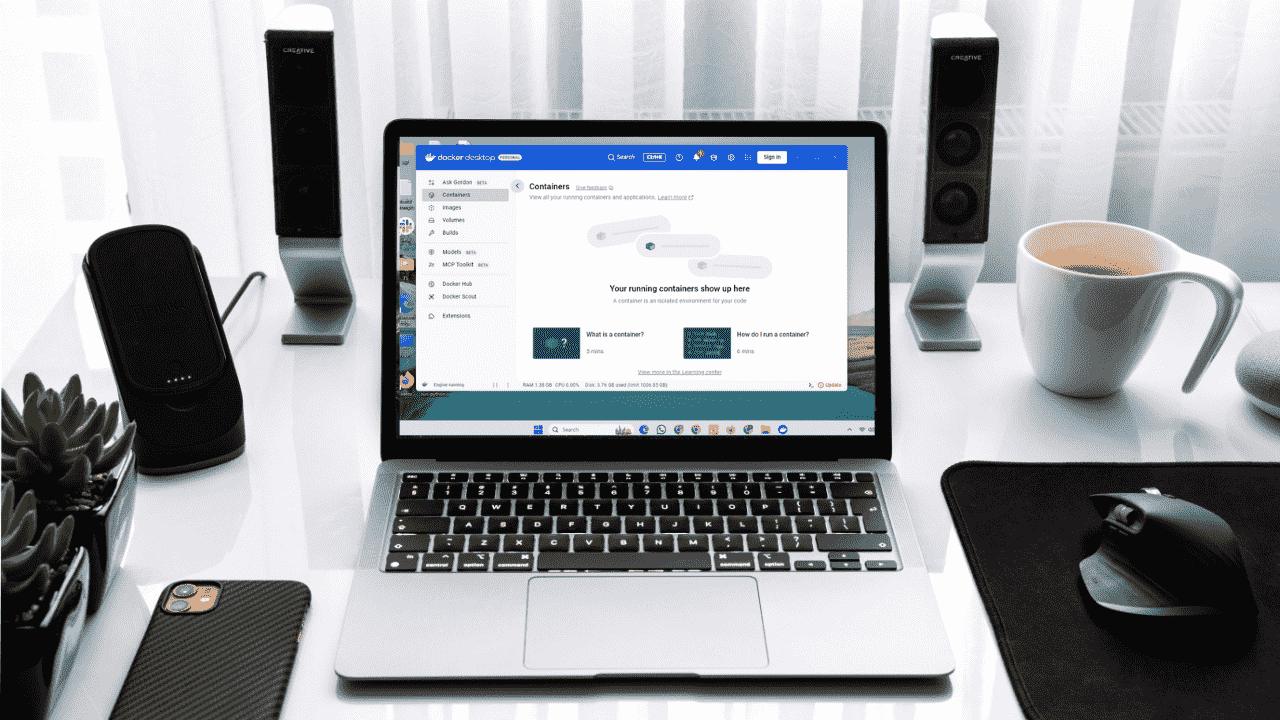
If you want to deploy containerized apps but not sure where to start, you can get started with Docker Desktop. It gives you a clean, user-friendly interface to run and manage containers right from your local machine. Deploying a containerized app using Docker Desktop ensures a consistent environment, faster setup, and smoother testing without needing a complex infrastructure.
In this guide, we’ll walk you through how to install Docker Desktop and use it to deploy a simple containerized app.
Install Docker Desktop
Docker Desktop is an easy-to-use application for running containers on Linux, Windows, or macOS. It includes the Docker Engine, Docker CLI, Docker Compose, and a graphical interface. To download Docker Desktop, visit the official site, choose your operating system, and download the installer:
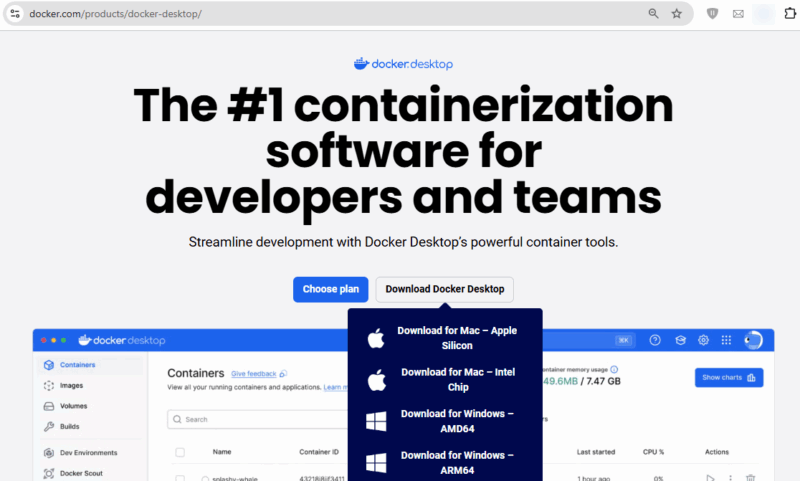
After this, run the installer and follow the onscreen instructions to install Docker Desktop.
Once the installation is finished, start Docker Desktop and wait until it is fully running.
You can then sign in with your Docker Hub account for easier access to images and syncing across devices.
Read Also: How to install Docker in Linux
Navigating the Docker Desktop Interface
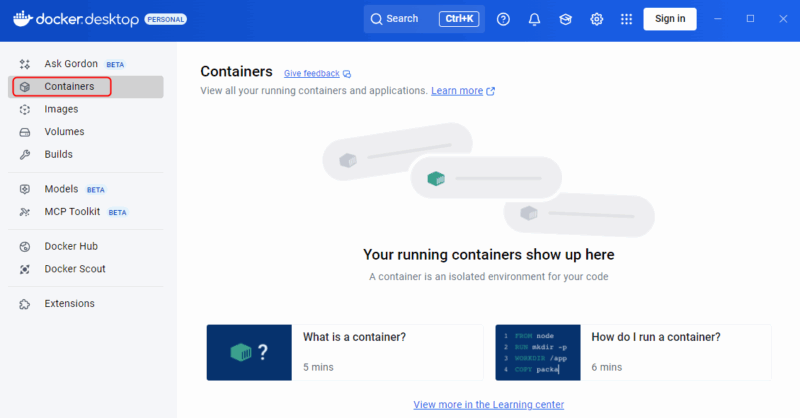
The Docker Desktop interface provides a visual way to manage your containers, images, and settings without needing to use the command line. The Containers tab shows all running and stopped containers, lets you manage them, view logs, and access their terminal.
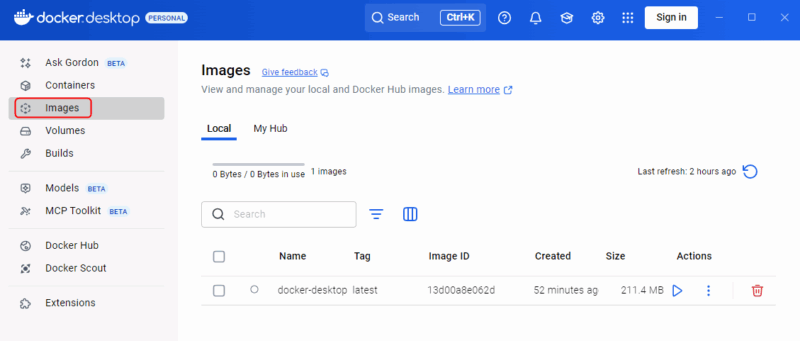
The Images tab shows all local Docker images and lets you pull new ones, delete unused ones, or create containers from them.
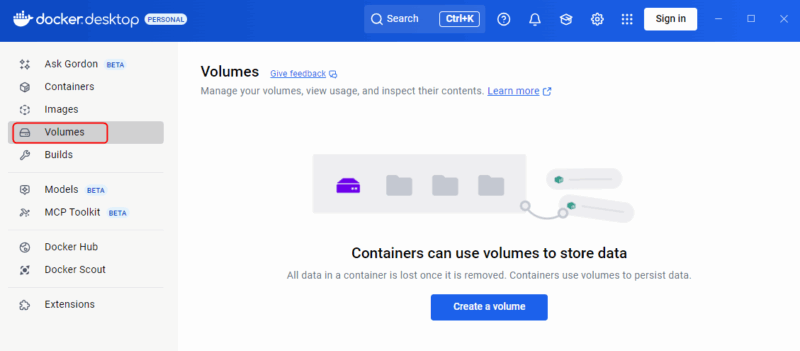
You can view and manage data volumes in the Volumes tab, making it easier to handle persistent storage for your containers.
The Builds tab in Docker Desktop helps us manage and monitor the image-building process. Here, you will find build history, active builds, detailed build logs, context information, and builder settings.
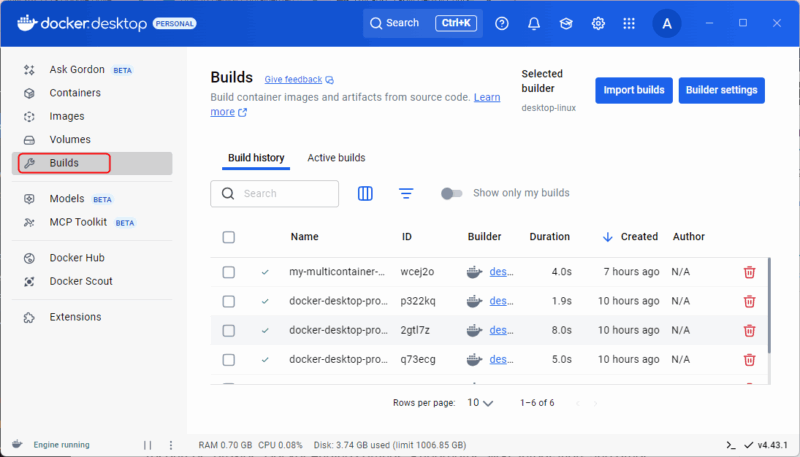
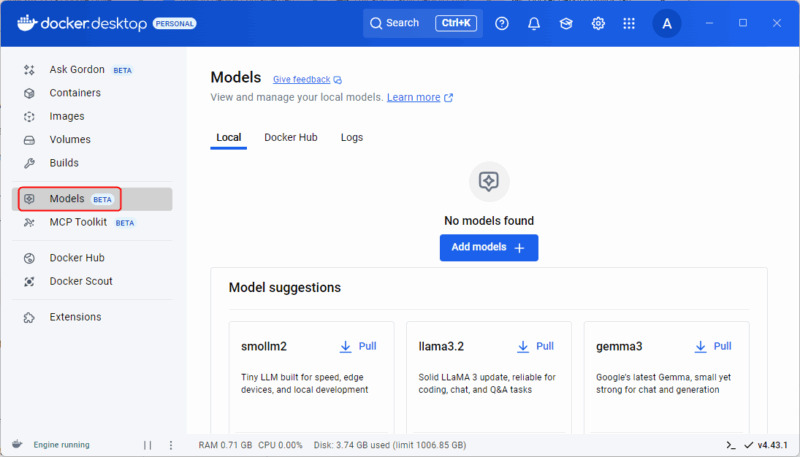
Similarly, the Models tab lets you browse, pull, run, and test pre-trained AI models from sources like NVIDIA NGC and Hugging Face, making it easy to deploy and integrate them into your applications.
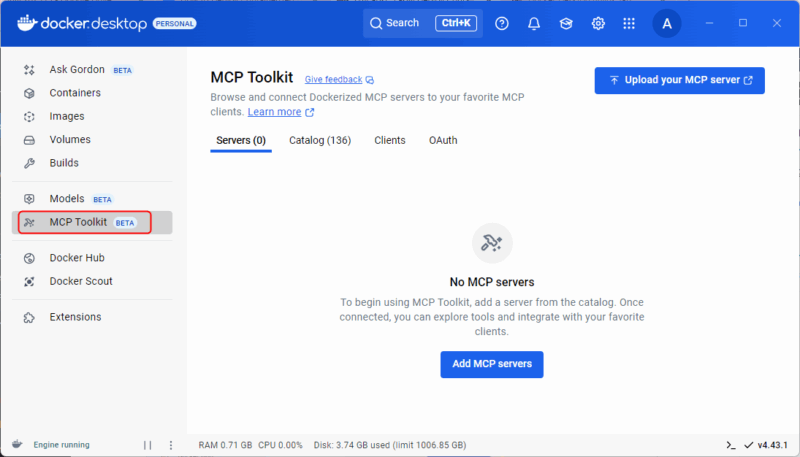
The MCP Toolkit (Model Conversion and Packaging Toolkit) converts AI/ML models into containerized apps, making them easy to run, test, and share.
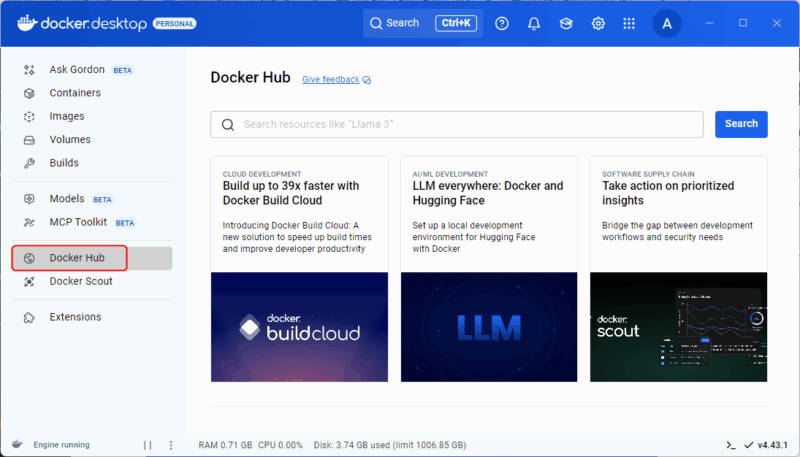
Moreover, you can browse, search, and manage container images from your Docker Hub account using the Docker Hub tab.
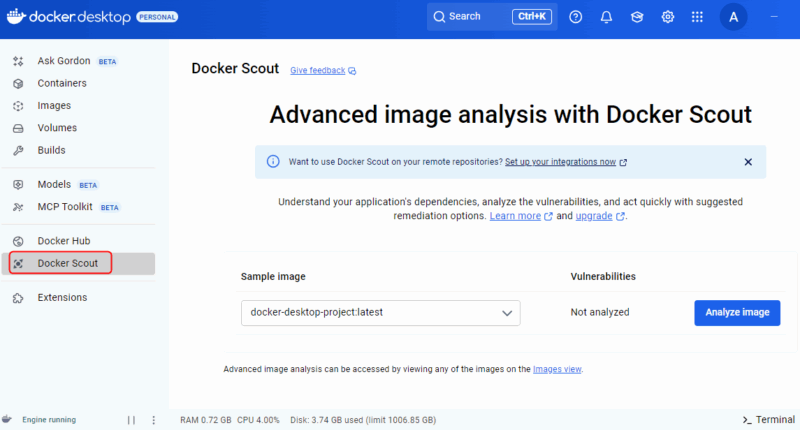
The Docker Scout tab in Docker Desktop provides insights into your container images by analyzing them for vulnerabilities, outdated packages, and best practices. It helps you track security issues, compare image versions, and improve the overall quality of your containers.
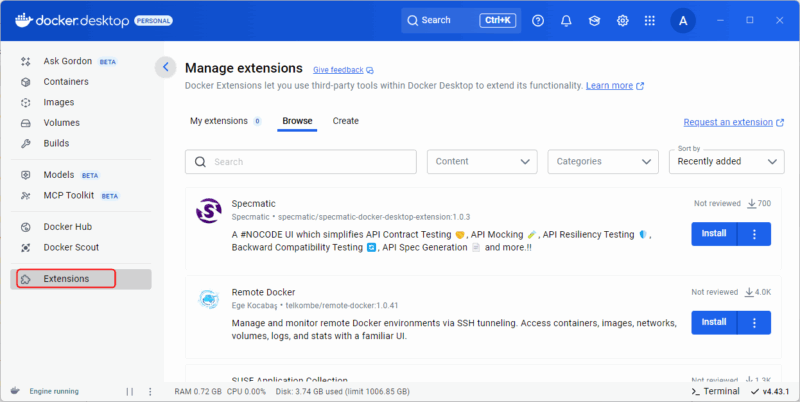
Finally, the Extensions tab lets you browse, install, and manage third-party extensions that extend Docker’s functionality.
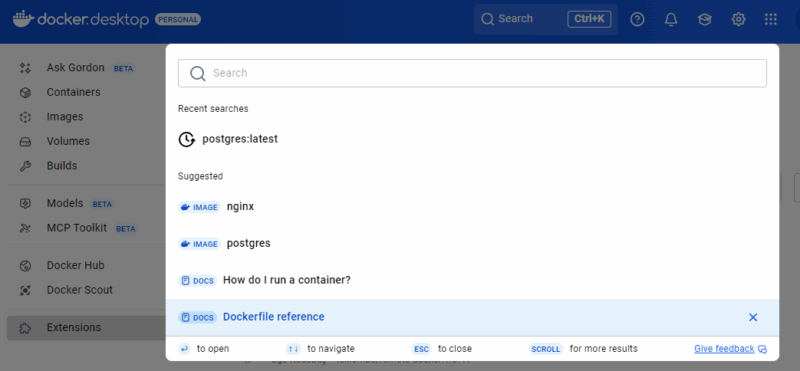
In addition to this, Docker Desktop provides a search bar that quickly finds and manages Docker resources across our local environment and Docker Hub.
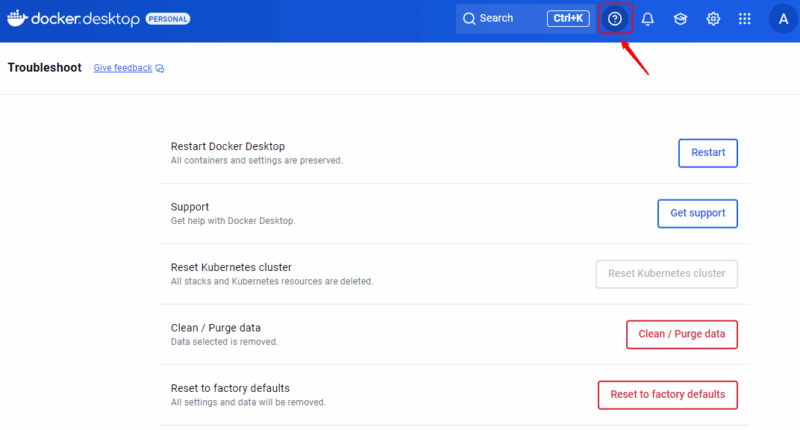
In Docker Desktop, the question mark icon “?” opens the troubleshooting section, where you can restart Docker, reset to factory defaults, run diagnostics, and access support resources like documentation and forums.
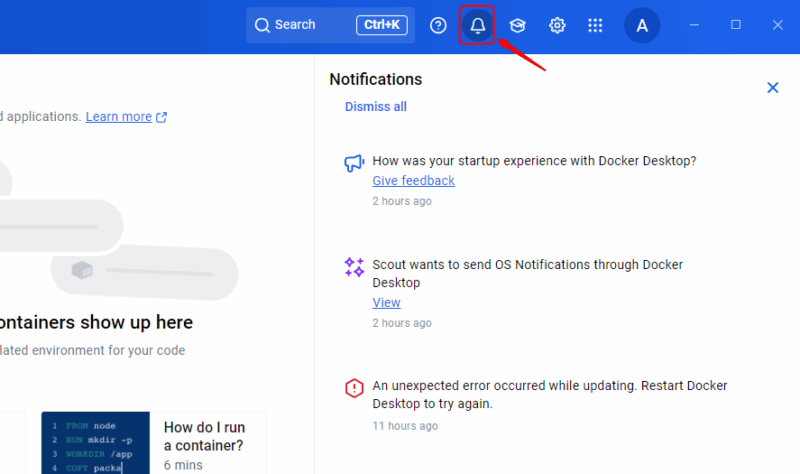
The Notifications section shows important updates, alerts, and messages related to your containers, images, extensions, and system status.
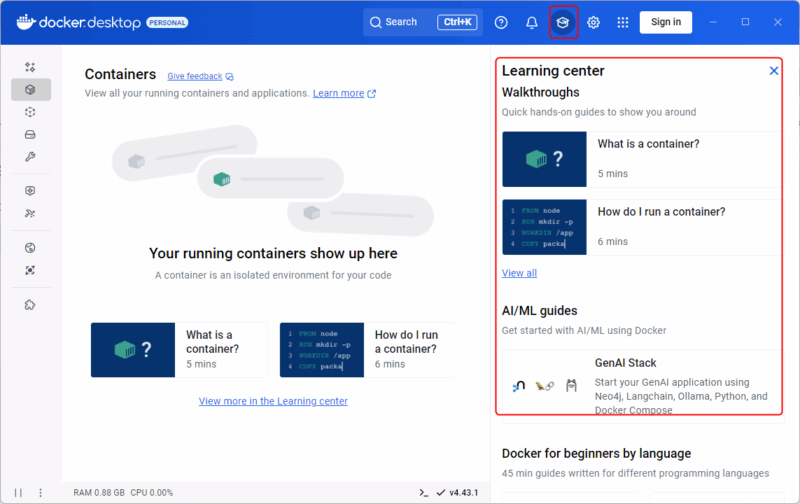
Apart from this, Docker Desktop offers a built-in feature, the Learning Center, that helps beginners learn Docker through step-by-step tutorials and hands-on labs using real containers.
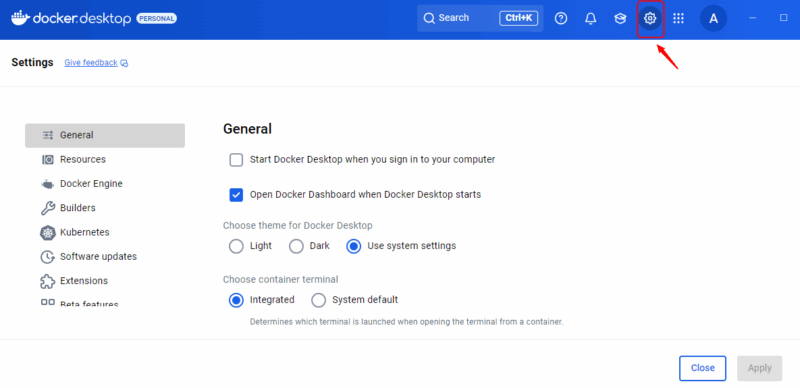
Finally, the Settings (or Preferences on macOS) section lets you configure system resources, proxies, Docker Engine settings, Kubernetes, WSL integration, and other options.
Deploying a Prebuilt Container With Docker Desktop
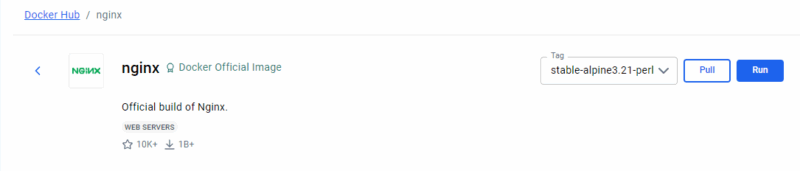
To deploy a prebuilt container using Docker Desktop, simply pull an existing image from Docker Hub or another registry and run it. For example, you can browse available images directly from Docker Hub.
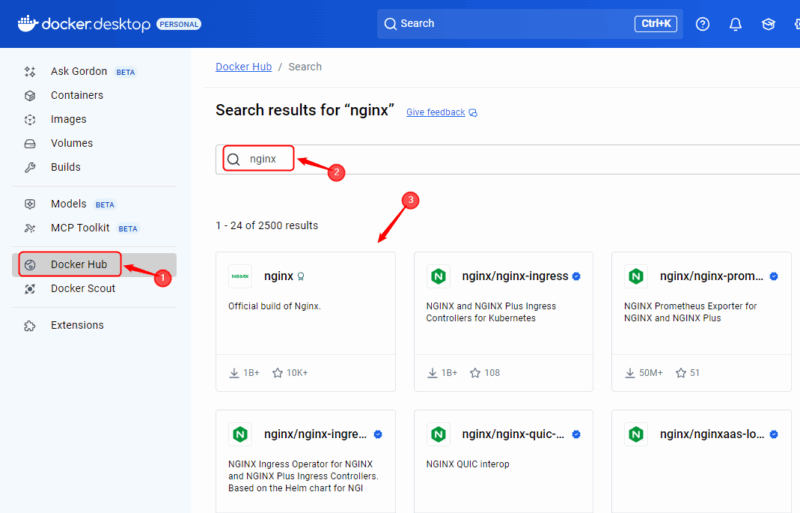
Select the respective buttons to pull and run the image.
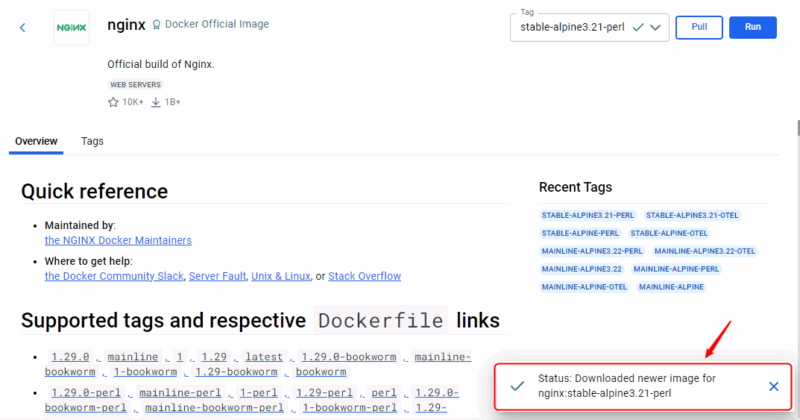
Once the selected image is successfully pulled, you will be notified with a confirmation message.
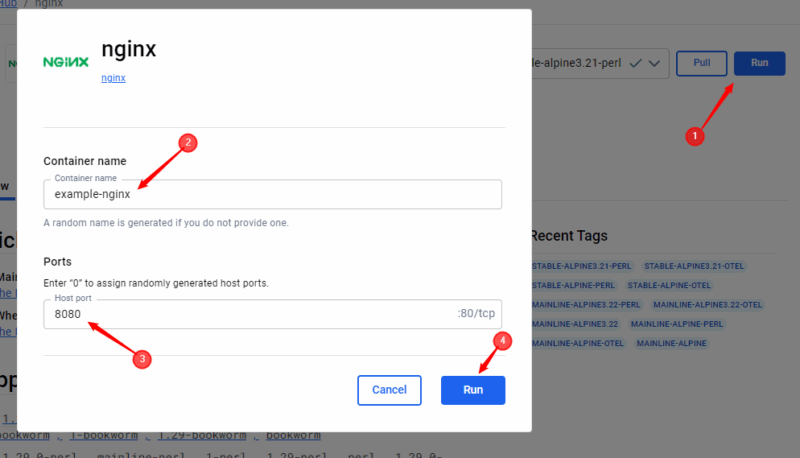
With the downloaded image, you can click the Run button to start running it. It will prompt you to enter the container name and host port, and then click the Run button:
The Status shows that the container is successfully running.
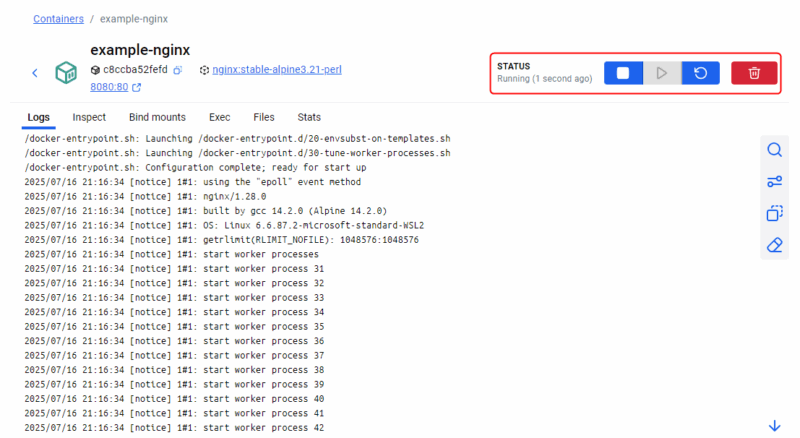
For existing containers that are already running in the background, you can use Docker Desktop to check the status of the containers and manage them from the dashboard.
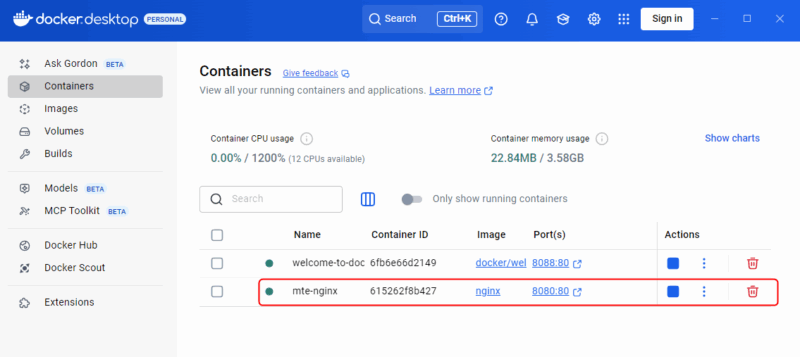
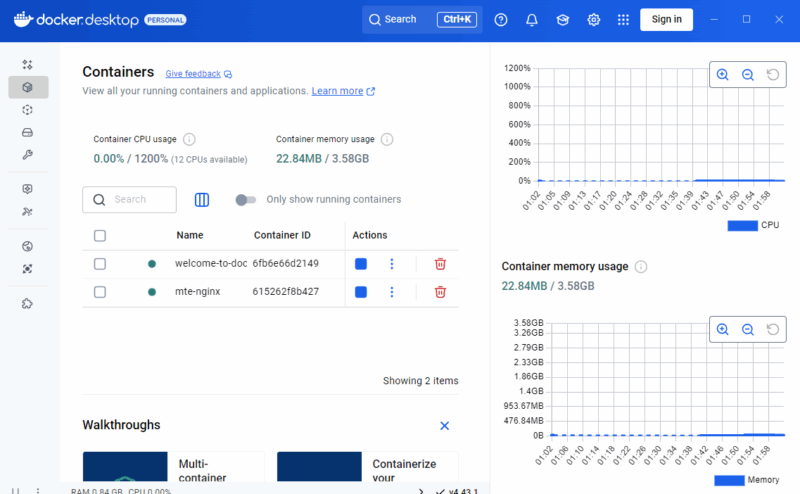
You can stop a running container and restart it, or permanently delete a container. You can also monitor the Container’s CPU and memory usage. Moreover, you can click on the Show charts button to view the resource usage graphs.
Deploying a Custom-Built App With Docker Desktop
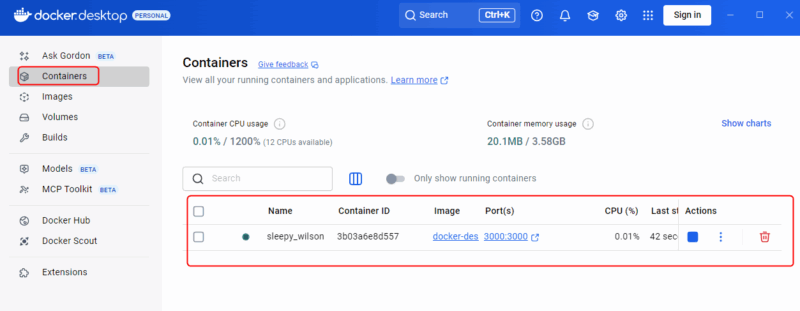
You can use Docker Desktop to deploy your custom-built image too. With your custom-built Docker image, navigate to the Containers tab in Docker Desktop to view all your running containers and applications.
So, all in all, Docker Desktop makes it easy to build and run containerized applications on your local machine. If your projects are becoming larger or more complex, explore Kubernetes. It is included with Docker Desktop and helps you manage and scale multi-container applications more efficiently. Give it a try and see how smooth app deployment can be!