
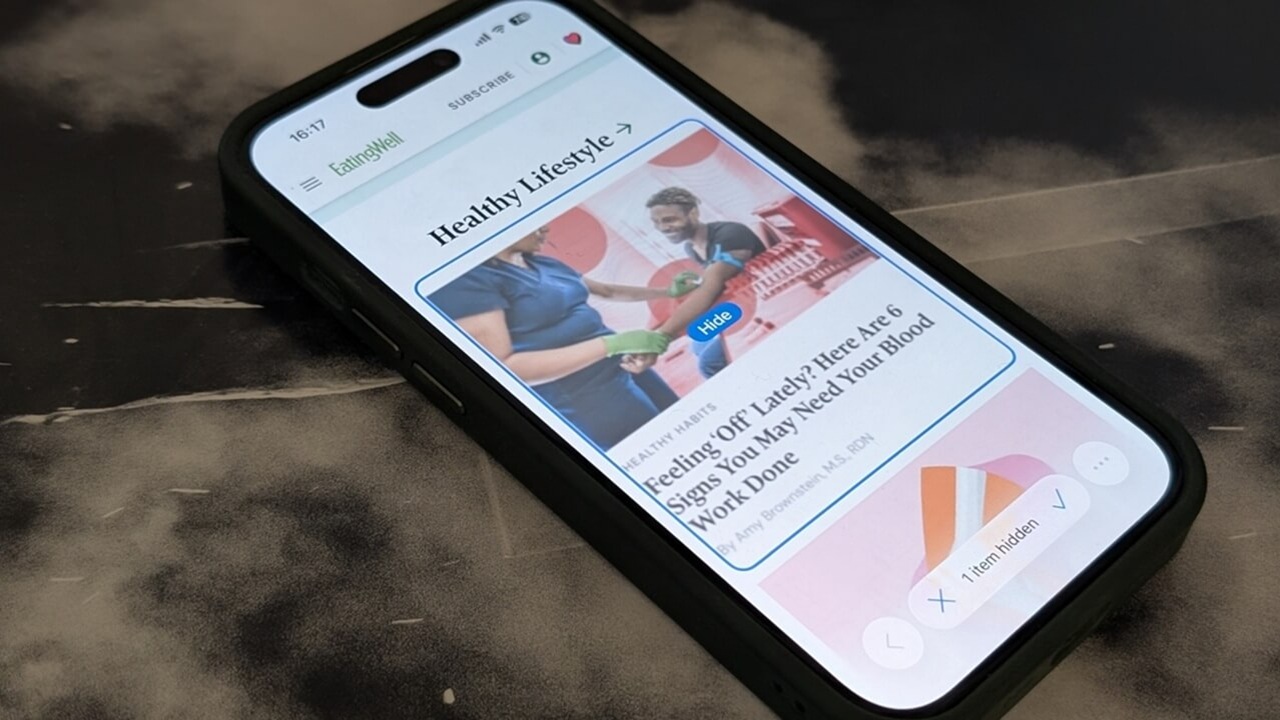

Even if you’re a seasoned iPhone user, there are still secret tricks to discover. Case in point, did you know Safari has a built-in way to instantly hide distractions from webpages so that you can concentrate on what you’re reading? In this post, we show you how to unlock this underrated tool and turn your browsing into a more focused experience.
Good to know: learn how to create Safari profiles on your iPhone, iPad, or Mac.
Distraction Control Feature in Safari
Distraction Control, introduced with iOS 18, is one less-known but incredibly useful feature in Safari. You can also access it if you have a device on iPadOS 18 or newer, or running macOS Sequoia or above. Unfortunately, users running older software won’t be able to take advantage of this feature.
Distraction Control lets you quickly hide distracting parts of a webpage, allowing you to easily prioritize information that matters most to you. It’s a bit like using Brave’s Block Element tool to clean up a page and remove elements, but far simpler to use. Best of all, it works on your mobile device too. The only catch is that it’s a bit hidden in the menu, so you’ll need to know exactly where to tap to find it.
Thanks to this tool, you can now sweep away pop-ups (including cookie-related ones) along with ads, images, chat boxes, text or any elements obscuring the content you want to see. To my surprise, it was able to hide far more than we initially expected.
Alternatively, you can use Distraction Control to hide sensitive content you’d rather not look at or don’t want others to catch a glimpse of when in a public space.
Hide Distracting Items in Safari
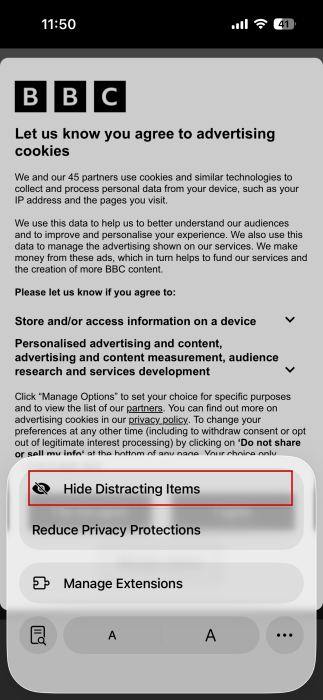
Begin by opening Safari on your device and navigating to a web page. On your iPhone, tap on the More options button that appears in the address bar on the left.
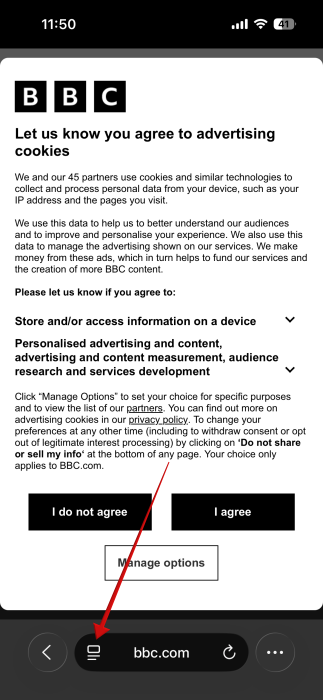
Tap on the option to Hide Distracting Items.
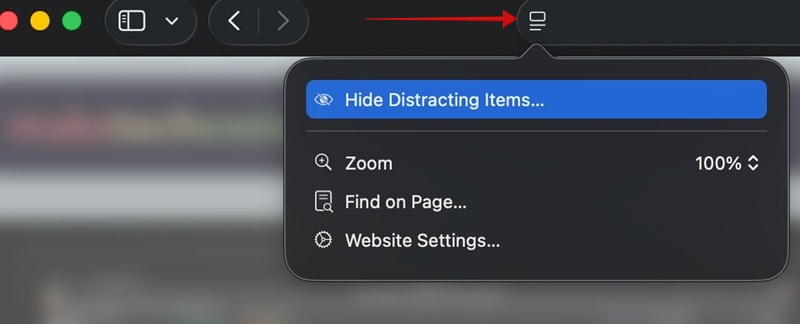
If you’re on Mac, click the Page Menu button in the address bar. Select Hide Distracting Items from there.
Now simply tap the item you wish to remove. In my case, it’s a pop-up that’s asking us to agree to advertising cookies. Once you made the selection, the option to Hide should appear. Press it.
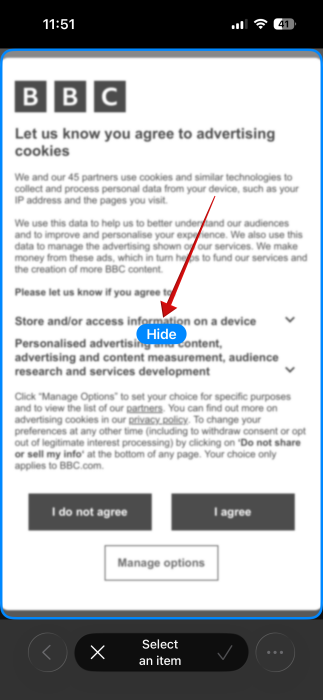
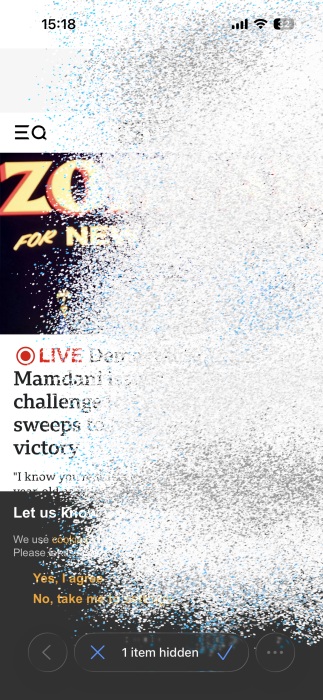
The item will look like it’s turning into dust and disappear from view.
At the bottom, you will notice the 1 item hidden message.
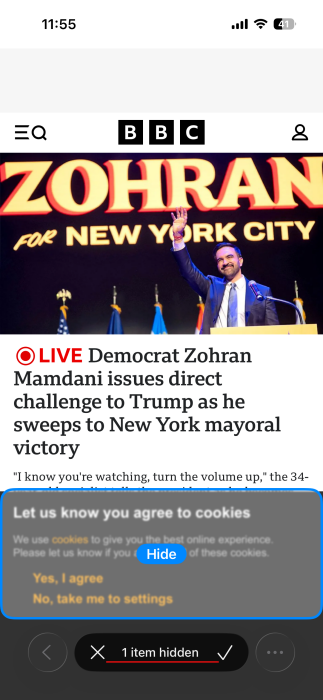
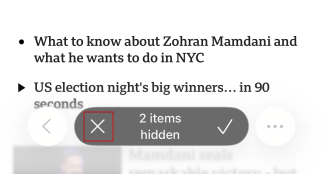
To hide another element, such as the general cookie pop-up that shows up from the bottom, tap it again and then press Hide. You should now see 2 items hidden at the bottom.
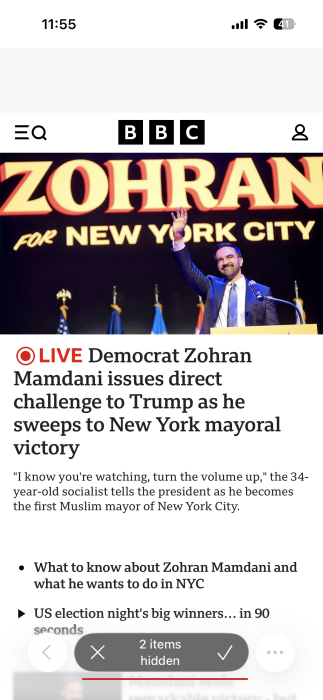
Since I removed elements that were obscuring the text on the website’s main page, I can now continue to swipe up and down the page and continue hiding elements. In case you’ve tapped the wrong element, the only way to undo is to press the X at the bottom. This means you have to start all over again.
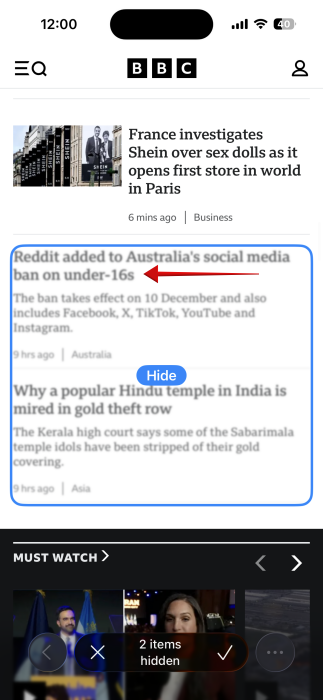
Keep in mind that the ability to remove specific elements is not always precise. For instance, when I wanted to delete just the Reddit story, Safari ended up selecting a block that contained two stories instead of just the one I wanted.
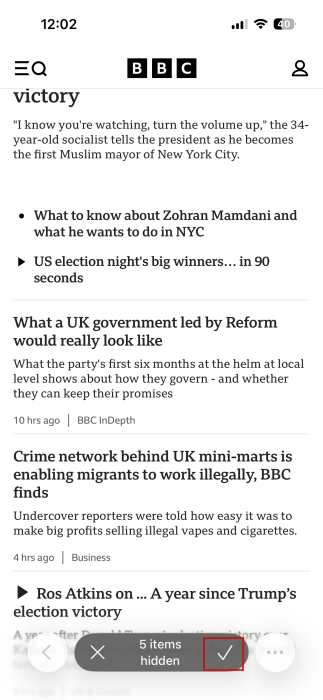
Once you have cleaned up the page properly, you can press the check mark button at the bottom to save your changes.
Safari will remember these changes. The next time you visit this website, the elements you previous hidden will stay hidden. This happens unless the website frequently updates, which in this example (BBC being a news outlet) is bound to happen.
Even better, if other pages on a website use elements that you’ve previously hidden, they will also be missing from those pages as well. For instance, I removed the main banner of our MTE website from the main page and then opened an article. The new page was missing the banner as well.
Show Hidden Page Elements in Safari
In case you wish to bring back the hidden page elements, go to a page where you turned off distractions and look in the address bar. There should be a blue eye icon on the left. Tap it.
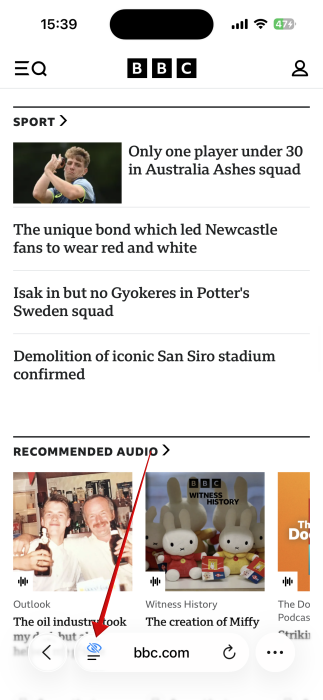
Select Show Hidden Items.
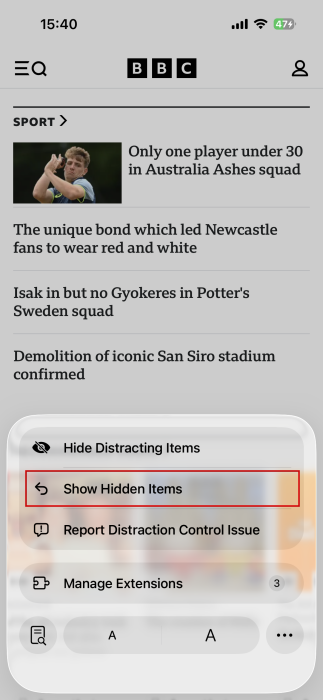
Tap Show again in the pop-up.
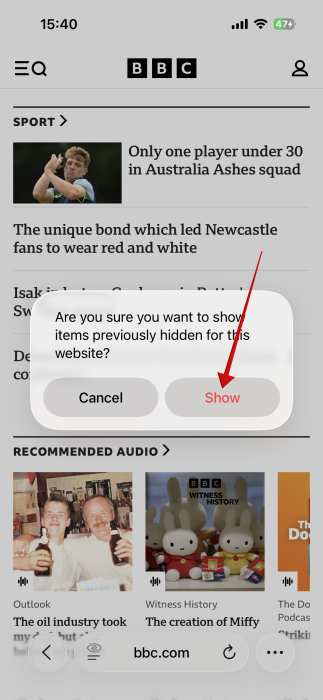
Now the page should get back to normal.
Issues and Limitations
During my testing, I noticed that Distraction Control can sometimes act up unexpectedly. For instance, on some pages, I couldn’t scroll through the content once the feature was on. I fixed this by closing and relaunching Safari. If a new version for the browser is available, you can also try updating the app.
While Distraction Control works in Private browsing, due to the nature of incognito mode, it won’t remember your preferences so next time you open the same website in a Private tab, it will appear like it normally would. Also, hidden items aren’t carried over from a Private tab to a normal one.
At the same time, Distraction Control settings don’t sync between devices. If you’ve cleaned up a page on iPhone and then move to your Mac and view the same page, you’ll need to start the process over again.
In case you’re wondering, Distraction Control also can’t remove paywalls for articles. While the tool will remove the pop-up asking you to sing up for a subscription, it won’t show the hidden text.

Can You Use Distraction Control as a Ad Blocker?
You can use Distraction Control to hide ads as you browse, but keep in mind that they’ll likely reappear if you refresh the page, open a link in a new tab, or return to the website later on. This happens because ads constantly reload or are refreshed.
That said, ad blockers aren’t perfect either. While they can clear off all ads from a page, many sites won’t let you access their content until you turn them off, which can get annoying fast. This is why I believe using an ad blocker in conjunction with Distraction Control is a better idea. When a pop-up appears blocking the content from view, you can simply hide it and continue browsing.
Another alternative is to switch to Reader view if you want an ad-free browsing experience. However, keep in mind that it’s not available for all pages and might remove some parts that you still want to see, such as comment sections. You also can’t access Distraction Control when in Reading view.
If you want more iOS browser tricks, learn how to make Safari save your passwords on your iPhone or iPad.