


Firefox comes with a built-in password manager, also known as Lockwise. The Lockwise password manager is safeguarded with your Firefox account and allows you to access your passwords on the desktop and mobile. If you have been using Lockwise but now want to migrate to another password manager app, here we show how you can export and delete your saved passwords in Firefox.
Exporting Saved Passwords from Firefox
After you have launched Firefox, click on the three horizontal lines in the upper-right corner to access all the settings. Then, click on the “Logins and Passwords” section.
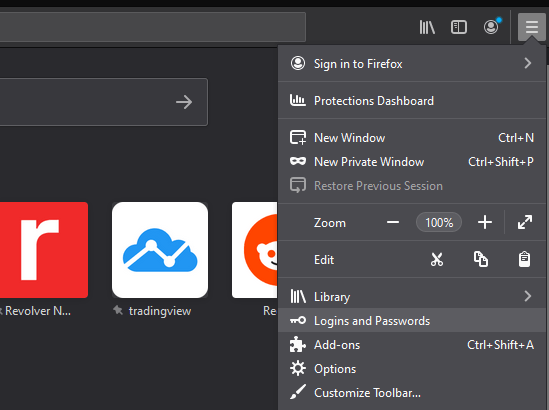
By selecting the “Logins and Passwords” submenu, you effectively launch the Firefox Lockwise within the browser as a tab. Consider it as your vault where you can search for every login and password stored by Firefox.
To start the exporting process, click on the three-dot icon in the upper-right corner under the three horizontal lines. (That one is for general Firefox settings.)
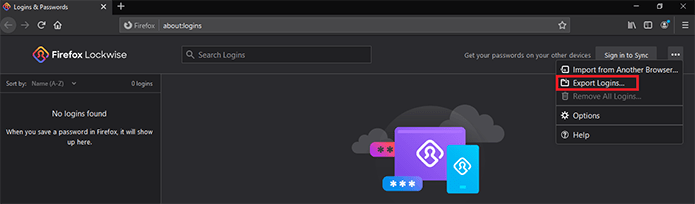
After clicking on the three-dot icon, you will see a new set of options. Select the “Export Logins” option. This will prompt a pop-up message informing you that your passwords and login data will be transformed into a readable text file.
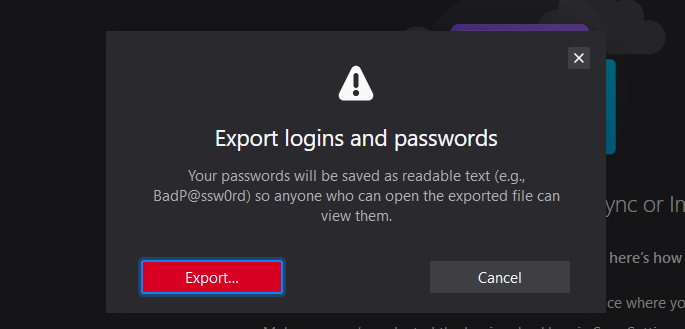
Confirm your choice by clicking on the red “Export” button. This will open the file explorer, which will save the data as a “logins.csv” file. You can rename it here before selecting the folder to save it. Remember where you stored the .csv file for future imports to be used by other browsers or password managers.
Note: if you are not an administrator of your computer, Firefox may additionally ask for authentication. In that case, just type your OS login password in the offered password box. Either way, you have completed the export process!
How to Delete Saved Passwords in Firefox
With the .csv file safely stored in the folder of your choice, you can now freely delete passwords from the Firefox password manager. The procedure to launch it is the same as before. Click on the three horizontal lines in the upper-right corner and select “Logins and Passwords.”
Once again, this will open the Firefox Lockwise. Click on the three-dot icon in the upper-right corner and select “Remove All Logins.” It will be greyed out if you have no logins saved or imported.
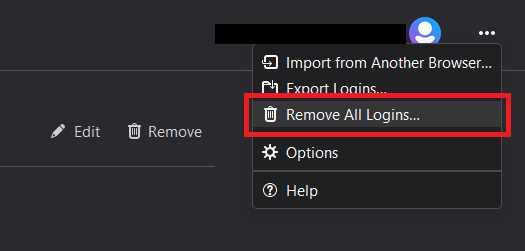
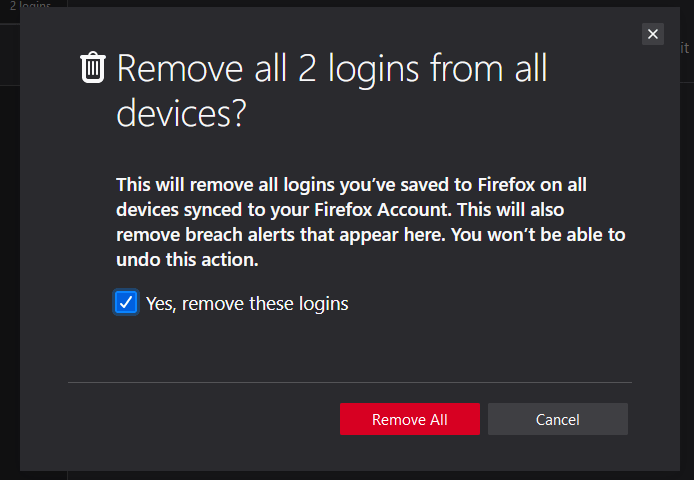
Assuming you have them and want to delete them all, click on “Remove All Logins.” This will prompt a window to open, asking if you want to delete them all. It will state the number of total logins available for deletion. Check the box “Yes, remove these logins” and click on the “Remove All” button.
If you thought that was easy, there is a much faster way to delete your passwords and login data.
The Fastest Way to Delete All Firefox Data
Copy-paste this command into Firefox’s address bar.
chrome://pippki/content/resetpassword.xhtml
As you have noticed, it says “chrome” at the beginning, but don’t worry about that. Paste it into the Firefox address bar.
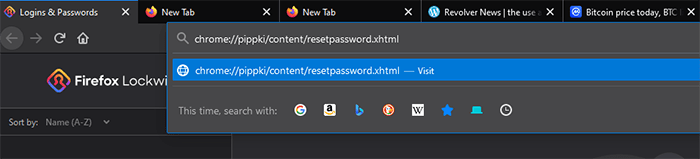
Click on the “Visit” address line that pops up or simply press enter on the keyboard. A minimized window will open, asking you if you want to completely wipe out all of your stored data from Firefox.
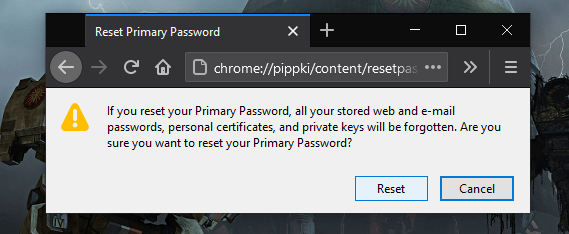
If you are sure, click on the “Reset” button. Now, your primary password has been reset, deleting every piece of data you’ve had on Firefox as if you have never used it.
Consider Using Hardware Security Keys
Now that you have exported and deleted your saved passwords in Firefox, it would be wise to import them to the best password manager for your platform.
More importantly, you may also want them to work in conjunction with hardware security keys. In the age of crypto wallets, you should form a habit of using them in order to completely eliminate the potential of your keystrokes being logged by a cybercriminal.