
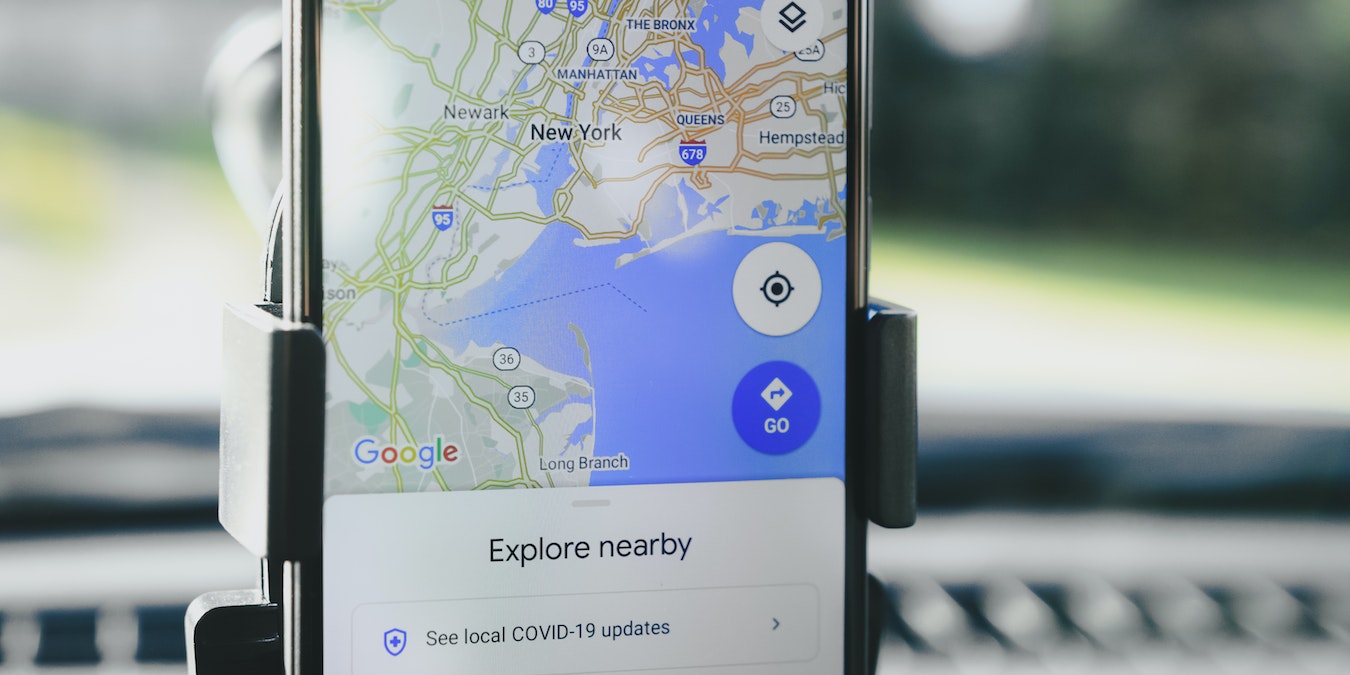

If you commute to work or travel regularly, you probably rely on Google Maps to get to your desired destination. The app offers a robust lineup of tools to make your commute smoother. But what happens when you hit traffic halfway to your destination or are concerned about the amount of traffic on the road before you leave the house? You can simply check the traffic with Google Maps.
[mte_toc]Tip: make route planning more efficient with a few Google Maps extensions.
Checking Traffic in Google Maps
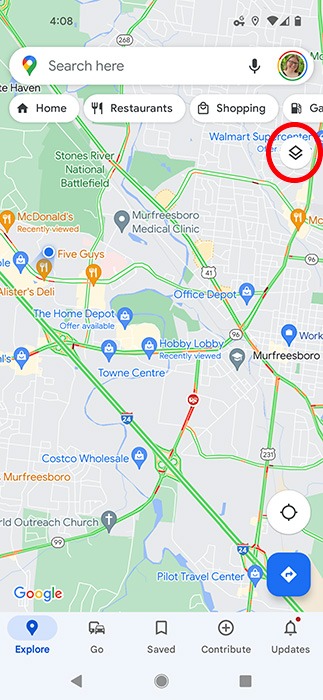
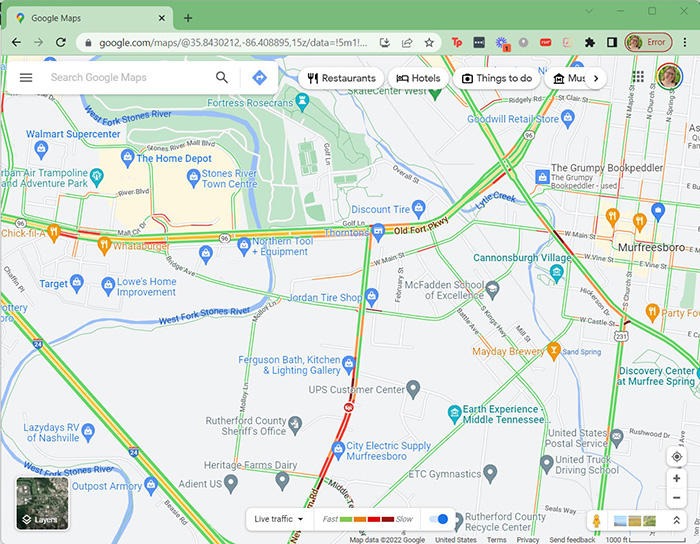
The traffic feature in Google Maps can come in handy when deciding which route to take to work or the grocery store. This feature color codes your map based on traffic volume, with green indicating no traffic delays, yellow or orange indicating medium traffic, and red indicating severe traffic delays.
Before you even begin your journey, you can quickly check the traffic conditions by following the steps below.
How to Check Traffic in Google Maps on Mobile
- Open Google Maps from your mobile device.
- Tap on the “Layers” icon in the upper-right portion of the screen.
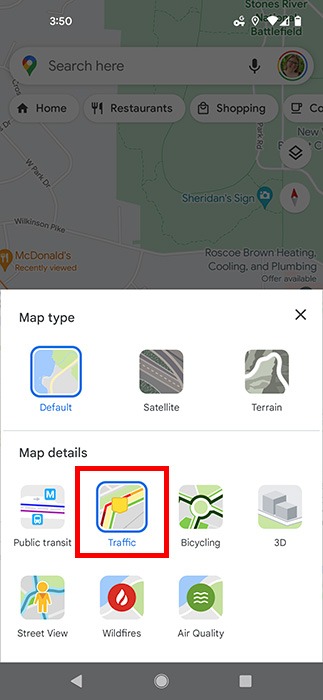
- In the “Map details” section, tap “Traffic.”
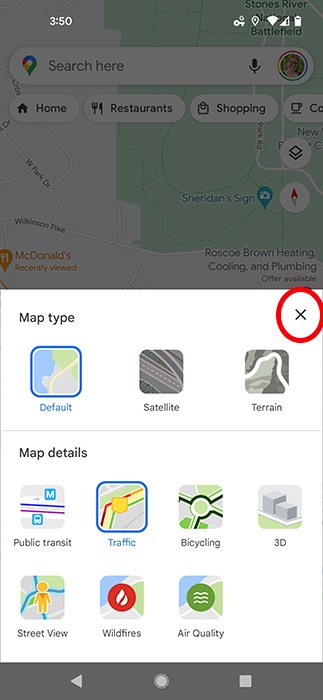
- Exit the Layers section by tapping the “X” in its top-right corner.
- Your map will display traffic by coloring the roads based on the traffic density.
How to Check Traffic on Google Maps on Desktop
- Open a web browser and go to Google Maps.
- Move your cursor to hover over the “Layers” thumbnail at the bottom left.
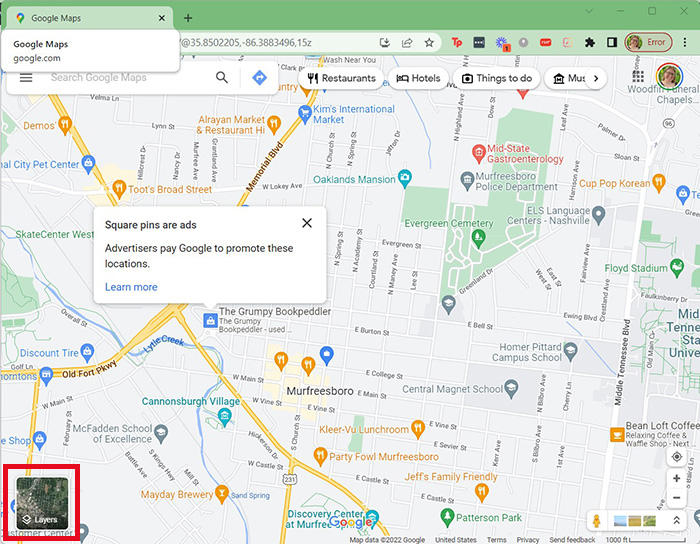
- Click on the Layer labeled “Traffic.”
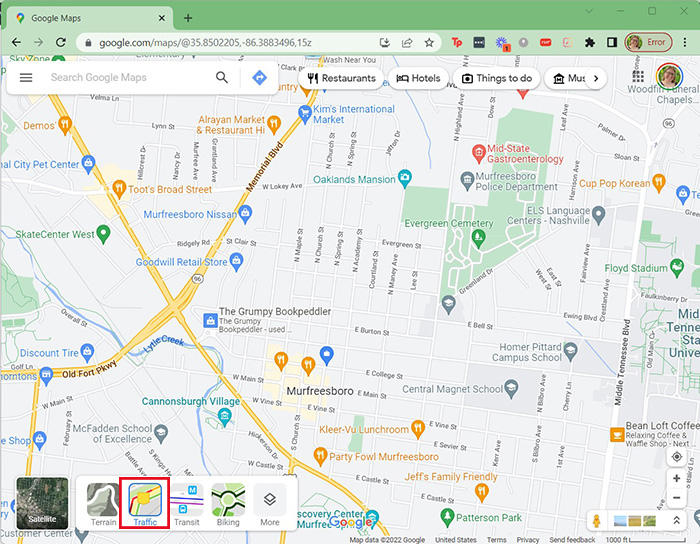
- Your map will display traffic by coloring the roads based on the traffic density. You can enable and disable the “Live traffic” view by clicking on the toggle in the bottom section of the screen.
Finding an Alternate Route in Google Maps
Sometimes the “quickest” route by mileage isn’t as quick. Luckily, Google Maps makes it easy to select alternate routes after you enter your desired destination in the smartphone app or in your web browser.
How to Find an Alternate Route in Google Maps on Mobile
- Open the Google Maps mobile app.
- Tap on the “Directions” icon at the bottom right.
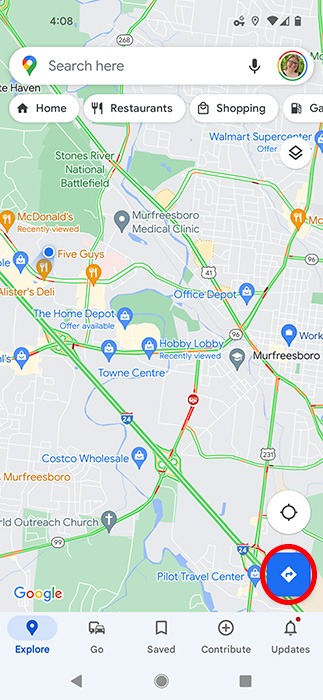
- Enter your starting point and desired destination.
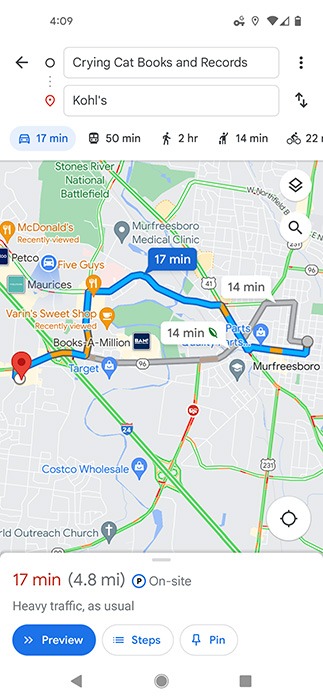
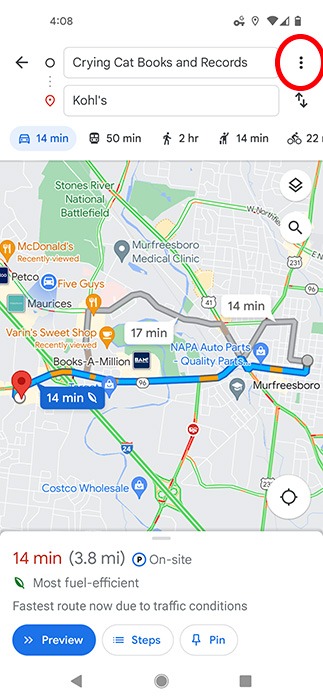
- Once both locations are entered, touch the three dots next to the starting address.
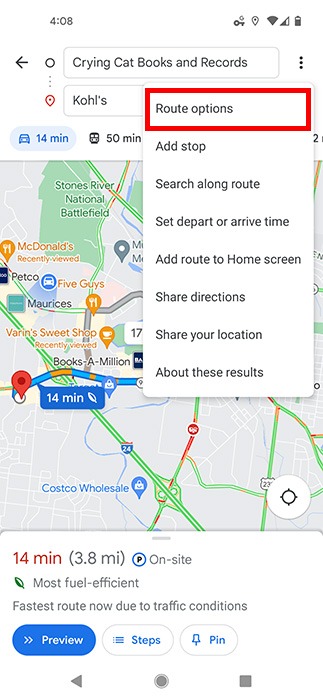
- Select “Route Options” from the menu options.
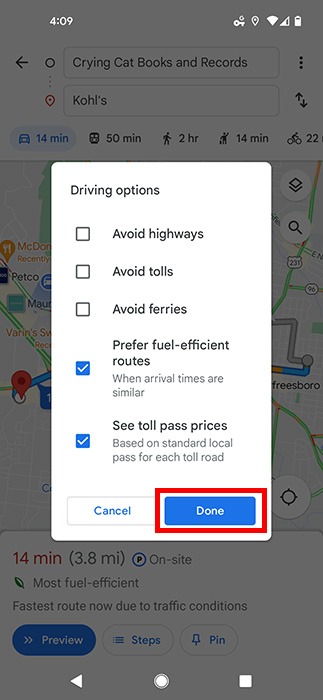
- Tap the checkboxes next to each option you would like Google Maps to consider when planning your route. Press “Done” when you finish.
- Still not happy with the route Google Maps has selected? See all of the alternate routes that display as gray lines on the screen. Tap on any of the options to select an alternate route.
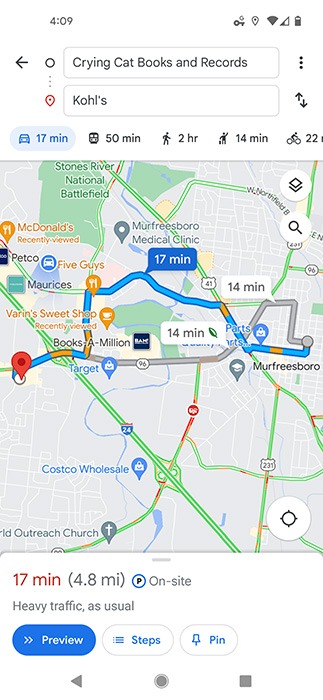
How to Find an Alternate Route in Google Maps on Desktop
- Open a web browser and go to Google Maps.
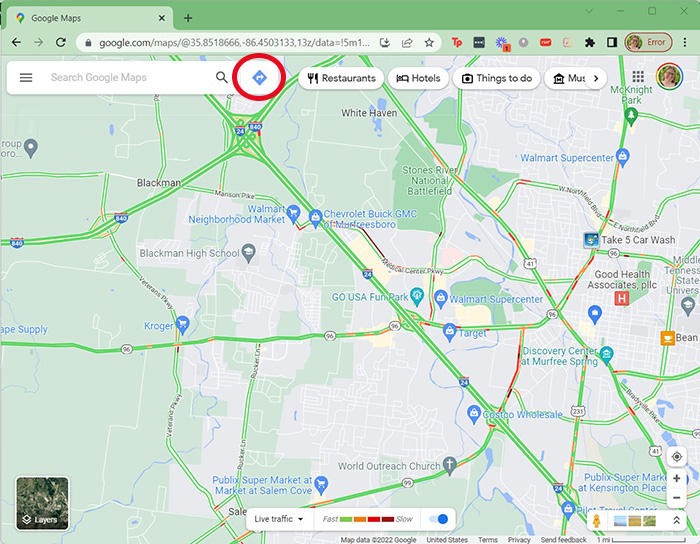
- Click the “Directions” button next to the search field at the top left.
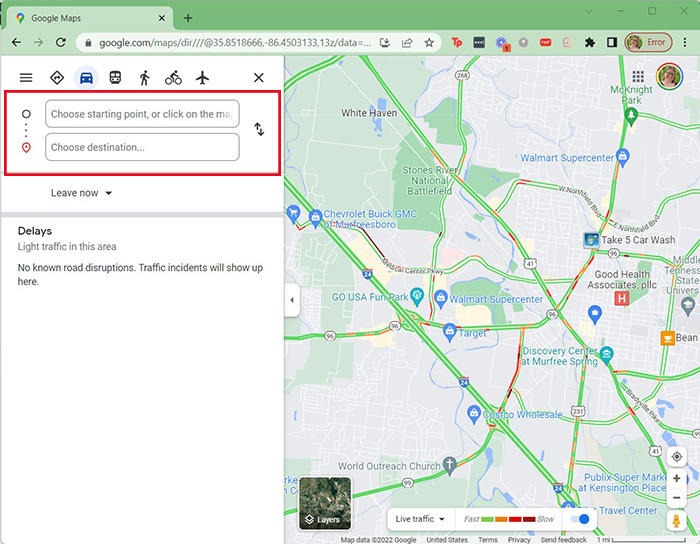
- Enter your starting point and desired destination.
- Once you’ve entered both destinations, multiple route options are displayed as a list. Compare options based on time, mileage, or traffic.
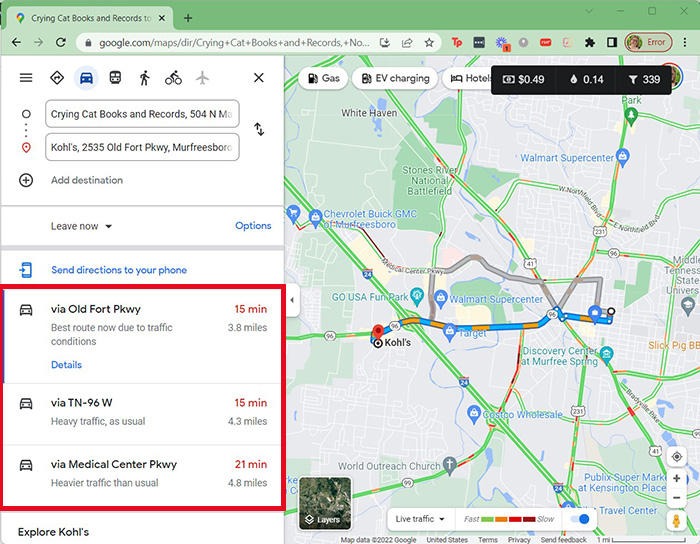
- Click on the route you want to take.
- To send directions to your mobile device, click the “Send directions to your phone” link above the routes.
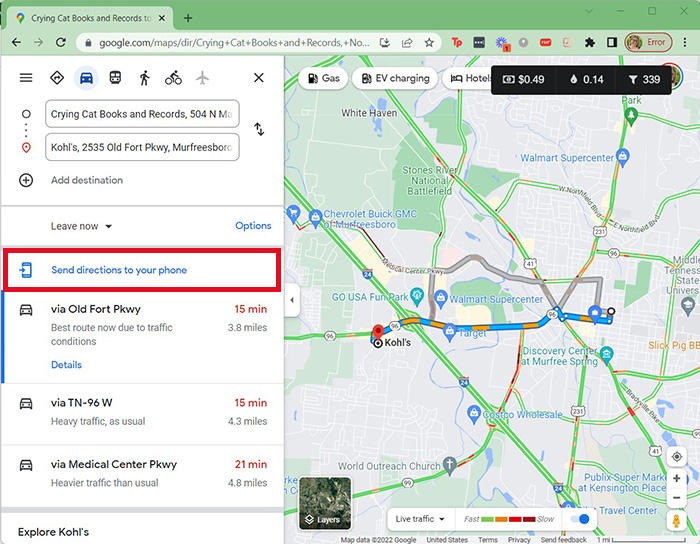
- Google Maps will provide options based on devices linked to your Google account. Select one.
Note: if none of the devices or addresses are correct, you can add a new device to your Google account.
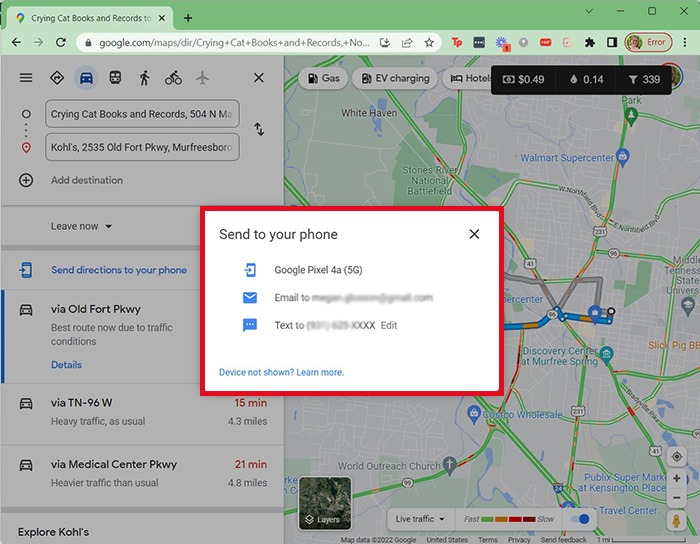
Once you select a method, your phone will receive a notification based on the chosen method. You can then click that to pull up the map.
Frequently Asked Questions
Does Google Maps show real-time traffic?
Yes, Google Maps displays real-time traffic status in most regions worldwide, which makes it easy for users to check whether there are traffic delays.
Why is Google Maps not showing traffic?
If you cannot pull up traffic data on Google Maps, you may need to update your application, check your data connection, or recalibrate your location services.
Image credit: PhotoMIX Company via Pexels. All Screenshots by Megan Glosson.